There are several options for creating and selecting charts, and these are accessed in the "Chart Options" screen.
>> To open the Chart Options screen
➢ Once you've tapped on the Charts tab in the TAB Bar to open the "Selected Charts" screen (see Charts), tap on the > at the right of any of the chart details panels to get a list of options for selecting that chart.
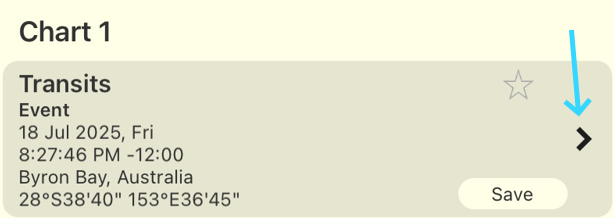 |
This opens the "Chart 1", "Chart 2" or "Chart 3" options screen (depending on which chart's > you tapped on). To return to the "Selected Charts" screen tap on the < Selected button in the top left corner.
|
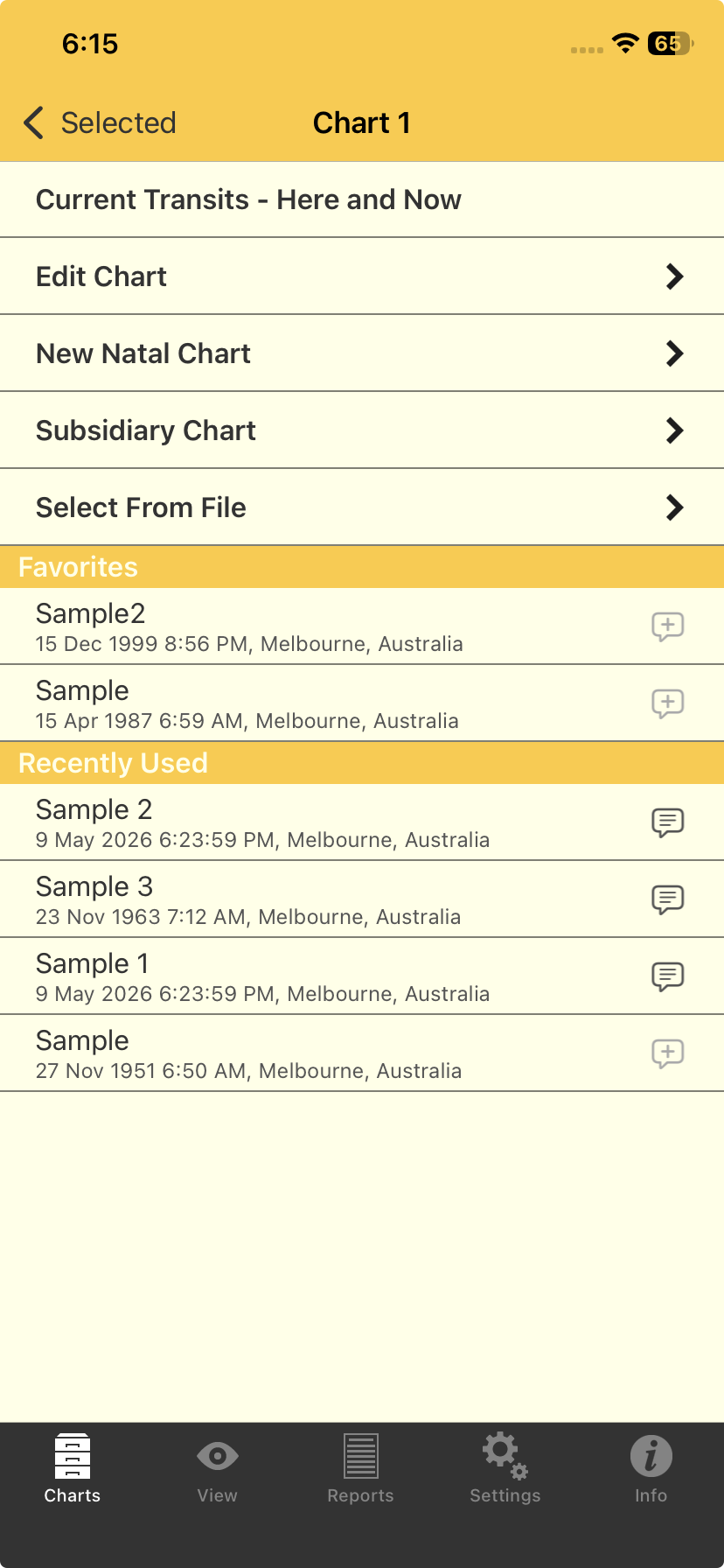 Chart Options |
In the "Chart Options" screen for "Chart 1", "Chart 2" or "Chart 3" the options include:
•Current Transits - Here and Now
Tapping on this creates a chart for the Home Location for the current time. You are automatically returned to the "Selected Charts" screen. This chart will by default be an "Event" type of chart.
•Edit Chart (only if the chart is able to be edited)
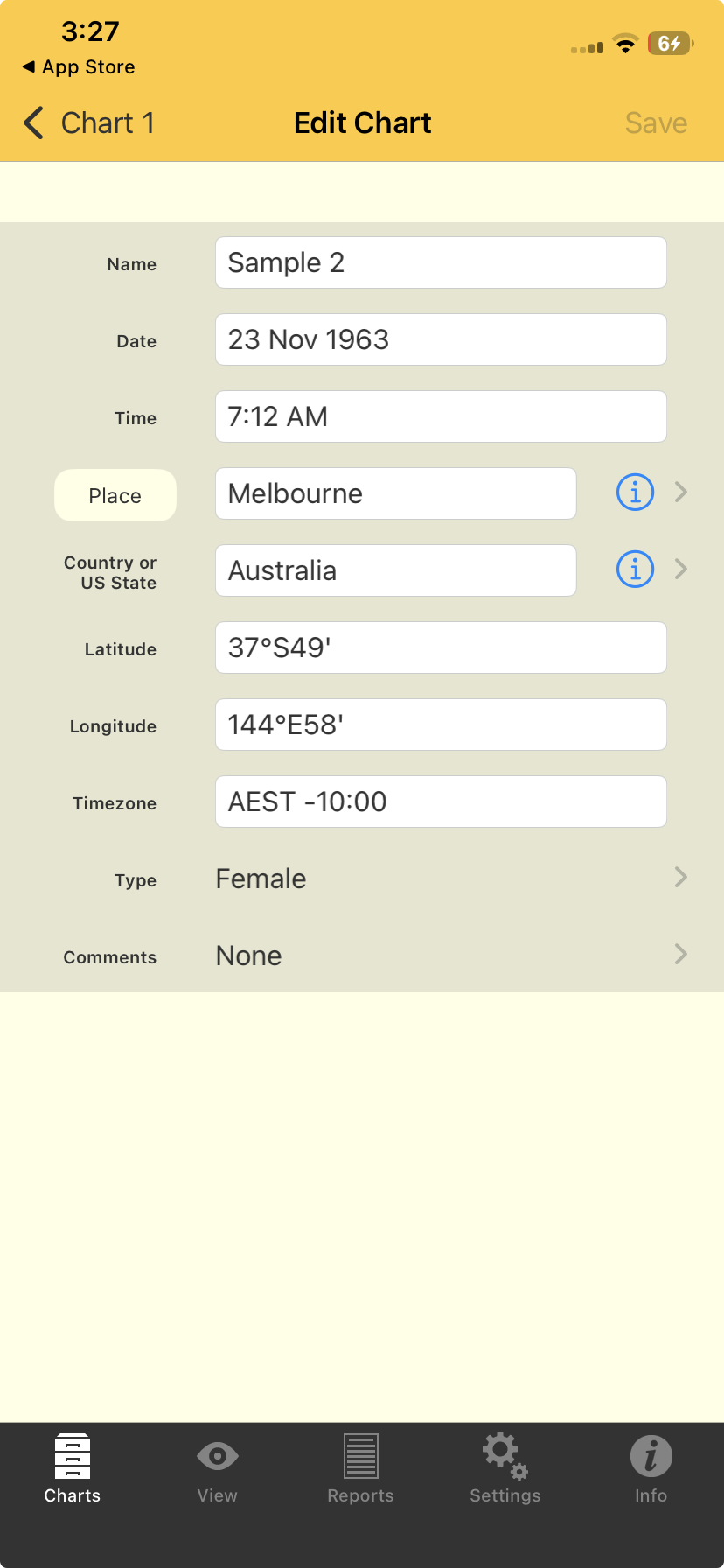
Tapping on this opens the "Edit Chart" screen, where you can edit the chart details. To then edit a detail tap in it's text box and edit the data using the keyboard.
 Editing a chart |
Date
For the date you may optionally enter "NS" or "OS" as a suffix to the date to force date period recognition. If you don't do this Astro Gold assumes that the dates that you enter...
•on or before 14th October 1582 are in the old style (OS / Julian) calendar.
•on or after 15th October 1582 are in the new style (NS / Gregorian) calendar.
The Gregorian calendar was not adopted everywhere at the same time. Sometimes dates after 15th October 1582 are given in terms of the old style calendar (often followed by the initials "OS"). Also, some sources convert pre 1582 dates to new style dates (often followed by the initials NS).
>> To enter calendar dates expressed out of period
➢ If you wish to enter a date on or after the 15th October 1582 which is expressed as an old style date, then add the suffix “OS” to the entered date (e.g. 17 Dec 1723 OS). This will be auto corrected to display the corresponding date in the new style calendar.
➢ If you wish to enter a date before the 15th October 1582 which is expressed as a new style date, then add the suffix “NS” to the entered date (e.g. 7 Jan 1503 NS). This will be auto corrected to display the corresponding date in the old style calendar.
For "Country" and "Place" you can also tap on the  icon at the right of the "Place" text box and select a value off a list by tapping on it. Once you've done this the list will automatically close and return you to the "Edit Chart" screen, or you can tap the < Edit Chart button in top Toolbar (to left of the screen).
You can also enter a partial country name e.g. "Aust".
Alternatively, if the place you want to enter is not in the ACS Atlas you can find it on a map.
>> To search for a place or street on a map
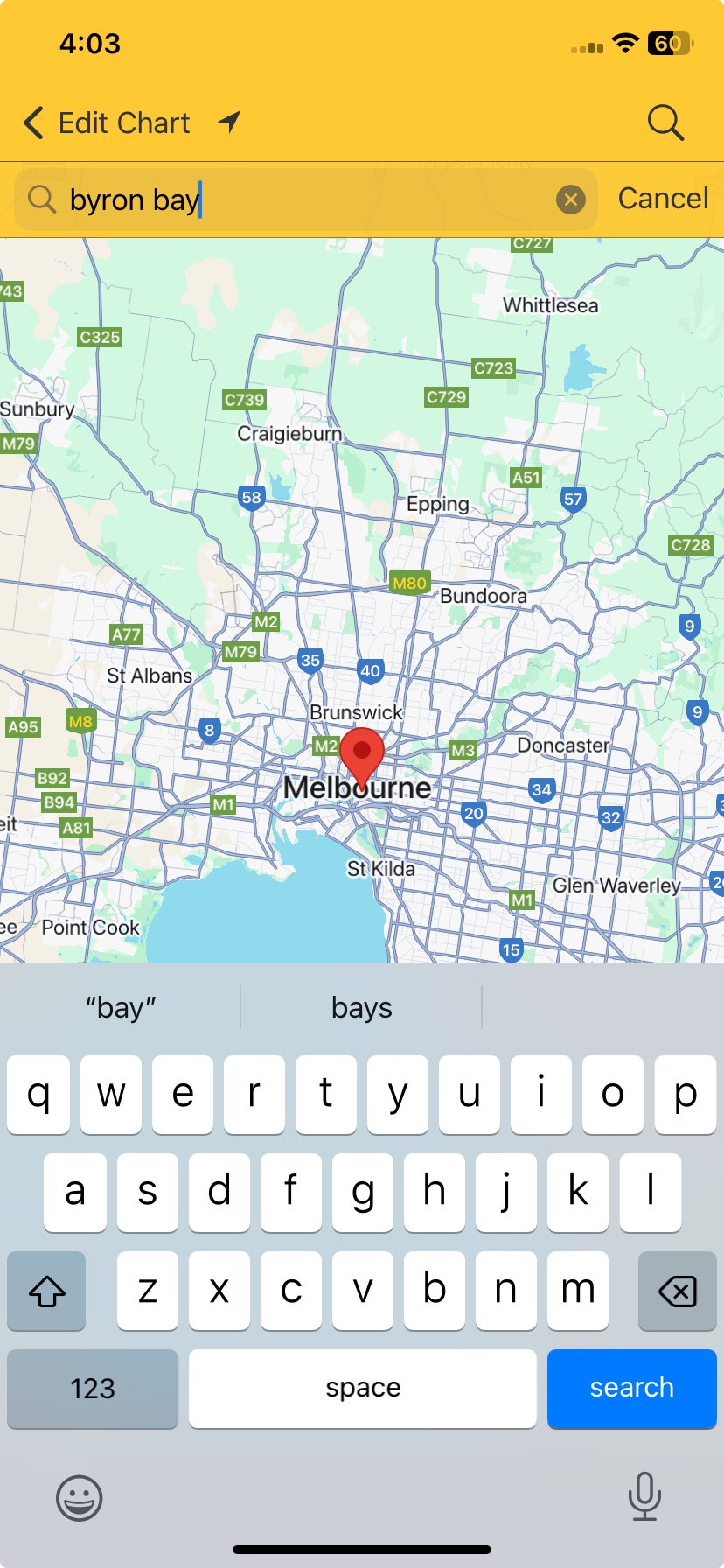
1.Tap the globe  icon to the left of the "Place" field. A map will be displayed ready to enter a place or a street to search for within the selected country.
2.Enter a place or street.
3.Tap the  button. The screen will zoom to the place or street on the map if it can find it, and show the place in a message box.
4.Tap the message box itself to save this place to the Personal Atlas. A dialog box is displayed with the place pre-entered.
5.You can leave the pre-entered value as it is, modify it or replace it (e.g. with something like "My House" for instance).
6.Tap Cancel or Save. If you save it you will then go back to the "Edit Chart" screen. If you cancel this clears the message box away but stays on the map so you can do another search – tap the  to enter another place to find.
7.To quit without saving any place to the Personal Atlas tap the < Edit Chart button in the top left of the screen to go back to "Edit Chart" screen.
 Search for place or street |
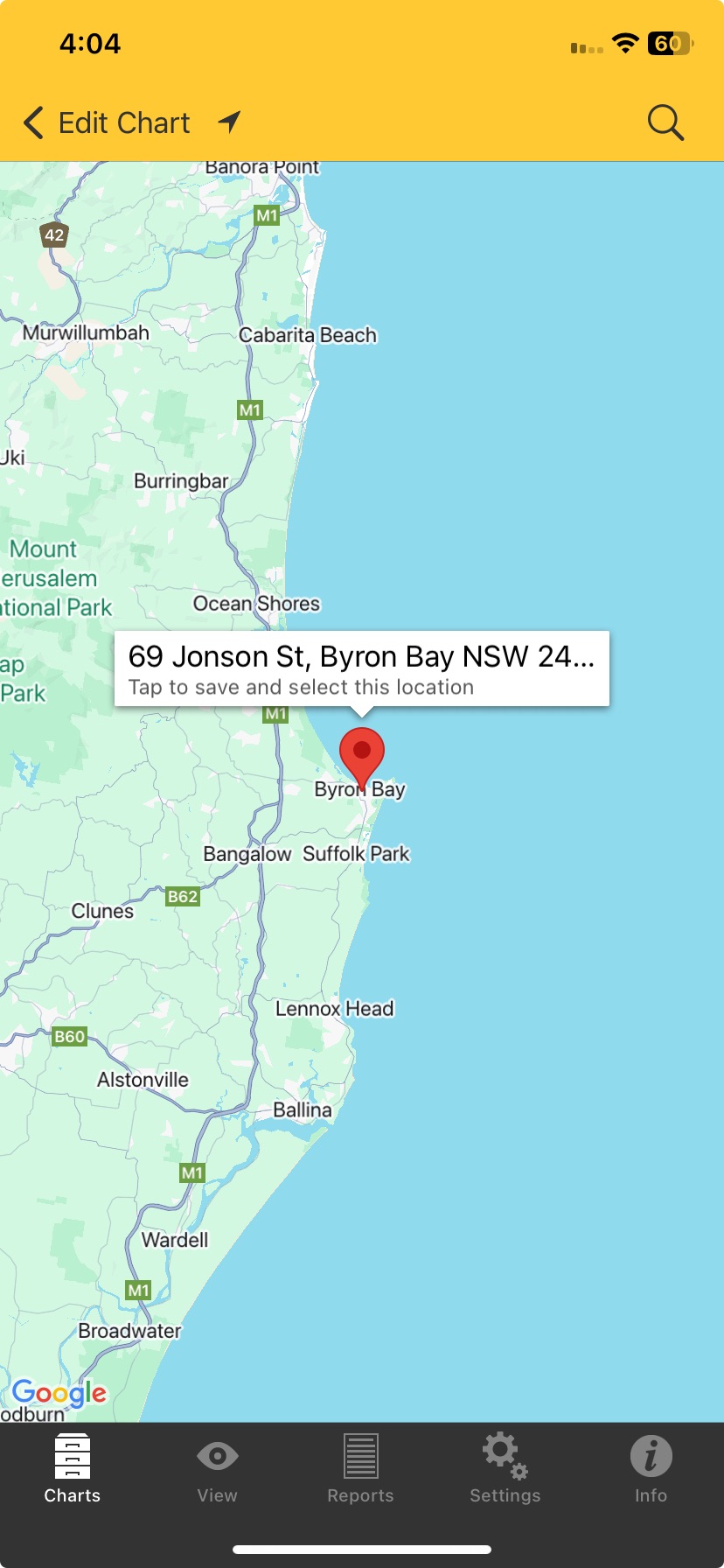 Prompt to save search result |
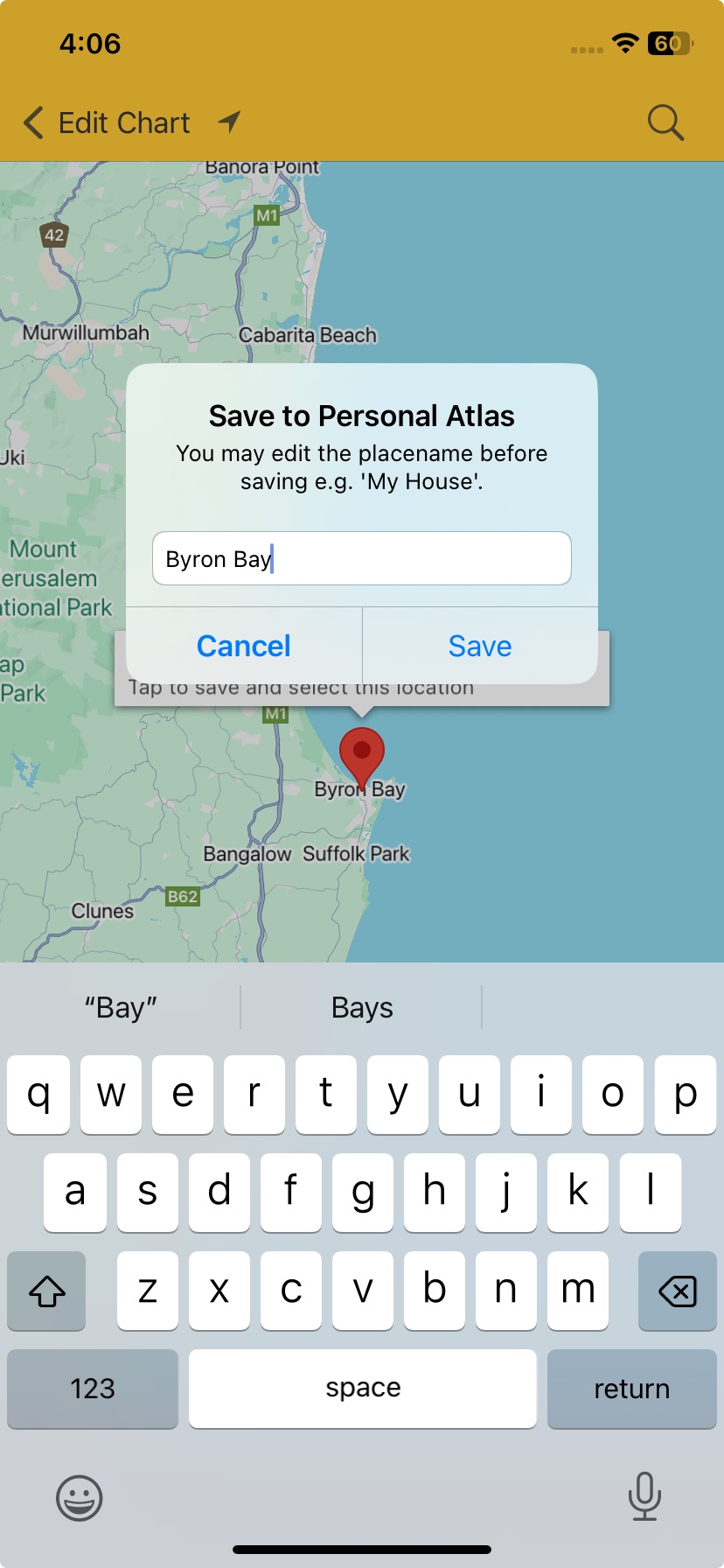 Saving a place to the Personal Atlas |
Latitude and Longitude
If you want you can enter these in manually rather than looking up the place on a map, or selecting it off a list. Just enter the latitude and longitude in the respective fields. You can enter these values in decimal degrees as well.
When you've finished editing the chart and want to save your changes, tap on the Go button in the Toolbar (top right of the screen), which will also return you to the "Chart Options" screen for that chart.
Alternatively, if you want to cancel any changes don't tap on the "Go" button, instead just tap on the Chart 1 (or Chart 2 or Chart 3) button in the Toolbar (top left corner of the screen), which will return you to the "Chart Options" screen for that chart without saving your changes.
>> To add Comments to a chart
You can enter comments in any saved, favorite or recently used chart. You access these different options all from the same screen, the Chart Options screen (see above).
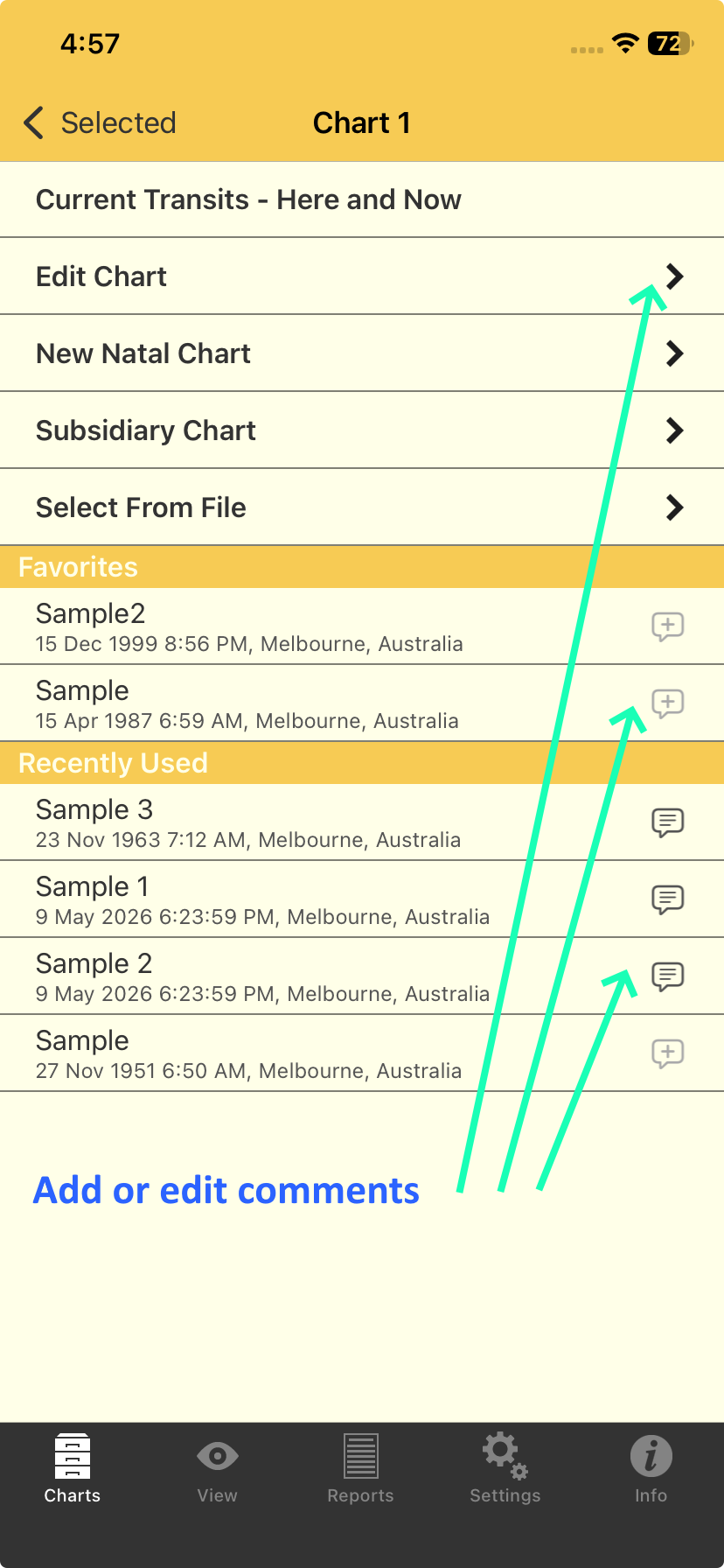 Chart Options: adding or editing chart comments |
Saved charts
1)From the "Chart Options" screen tap on Edit Chart to display the "Edit Chart" screen.
2)Down the bottom of the "Edit Chart" screen tap the > to the right of the Comments line.
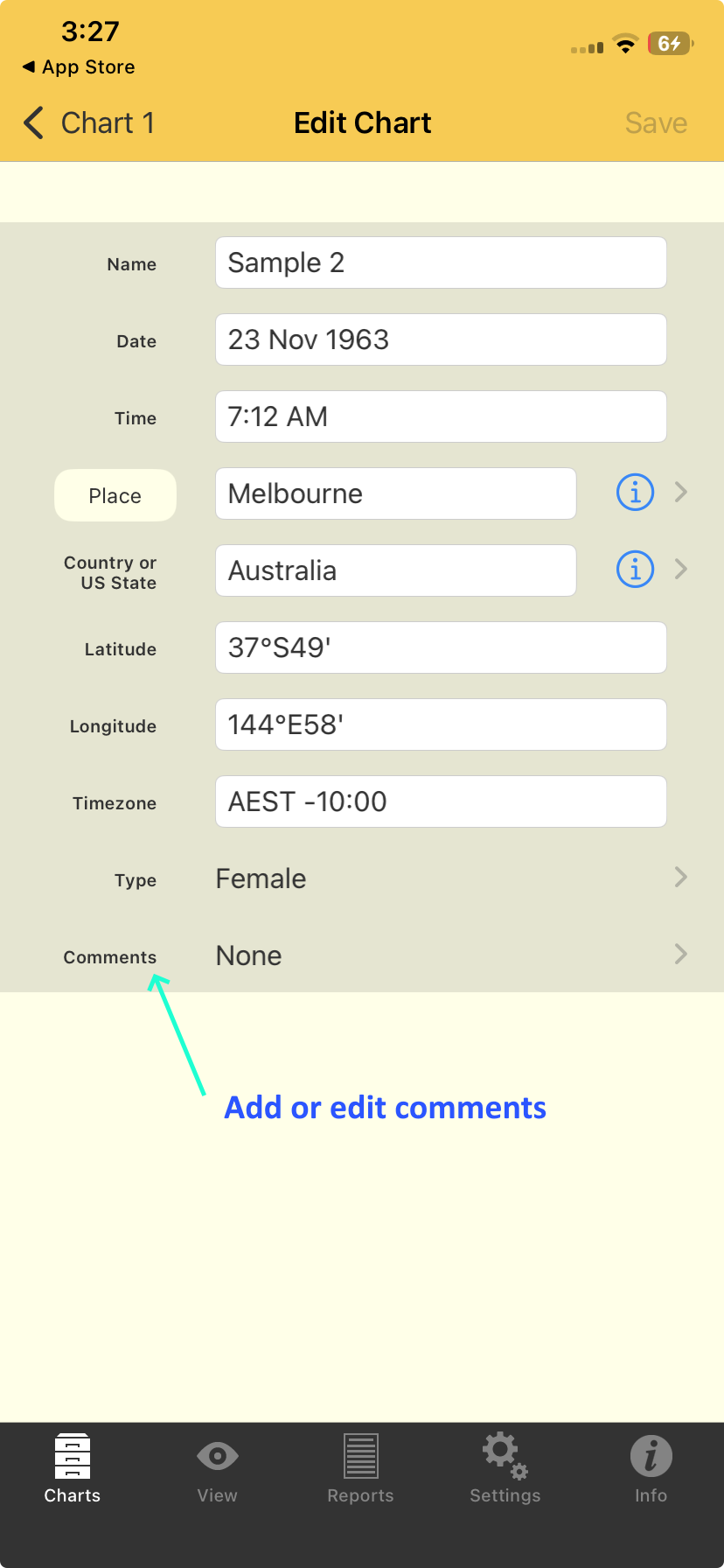 Adding or editing chart comments |
3)This brings up the "Comments" screen...
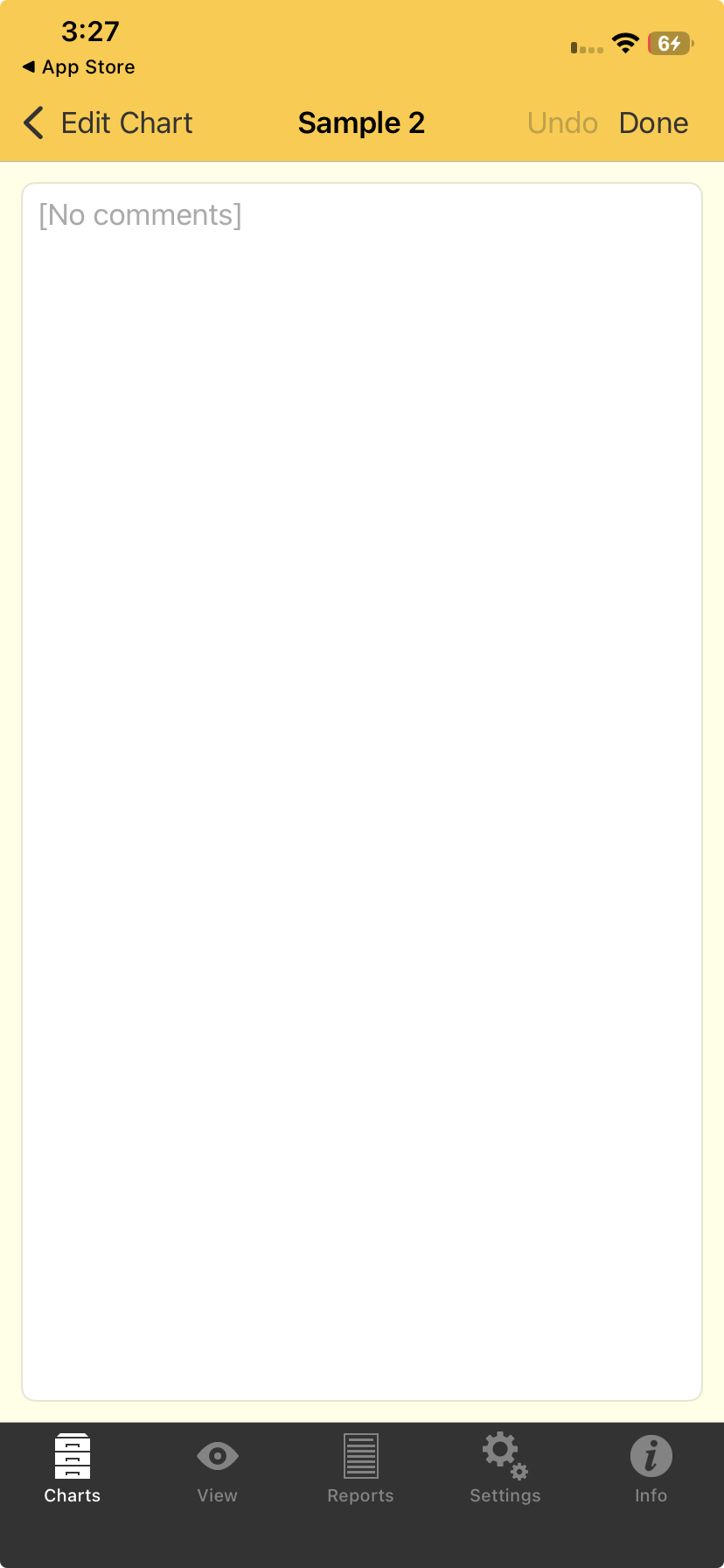 Adding or editing chart comments |
➢ Simply tap in the blank area (or on top of any existing comments) to bring up the keyboard, then add new comments or edit any existing comments.
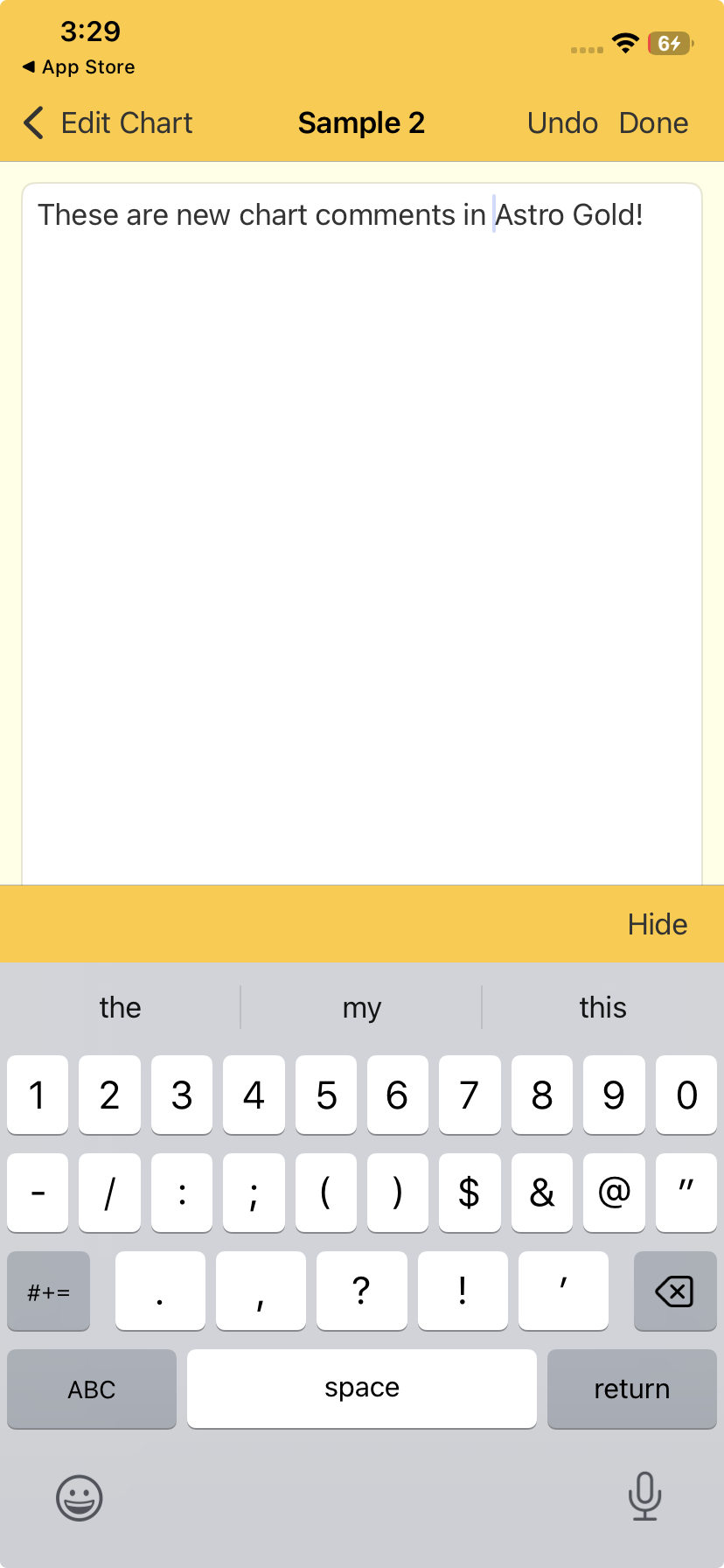 Adding or editing chart comments |
➢ When you are finished you can tap on either:
•Undo - discards any changes you made
•Done or < Edit Chart - returns you to the "Edit Chart" screen.
IMPORTANT: Once you are back in the "Edit Chart" screen you must tap on Save to save any changes you made in the "Comments" screen.
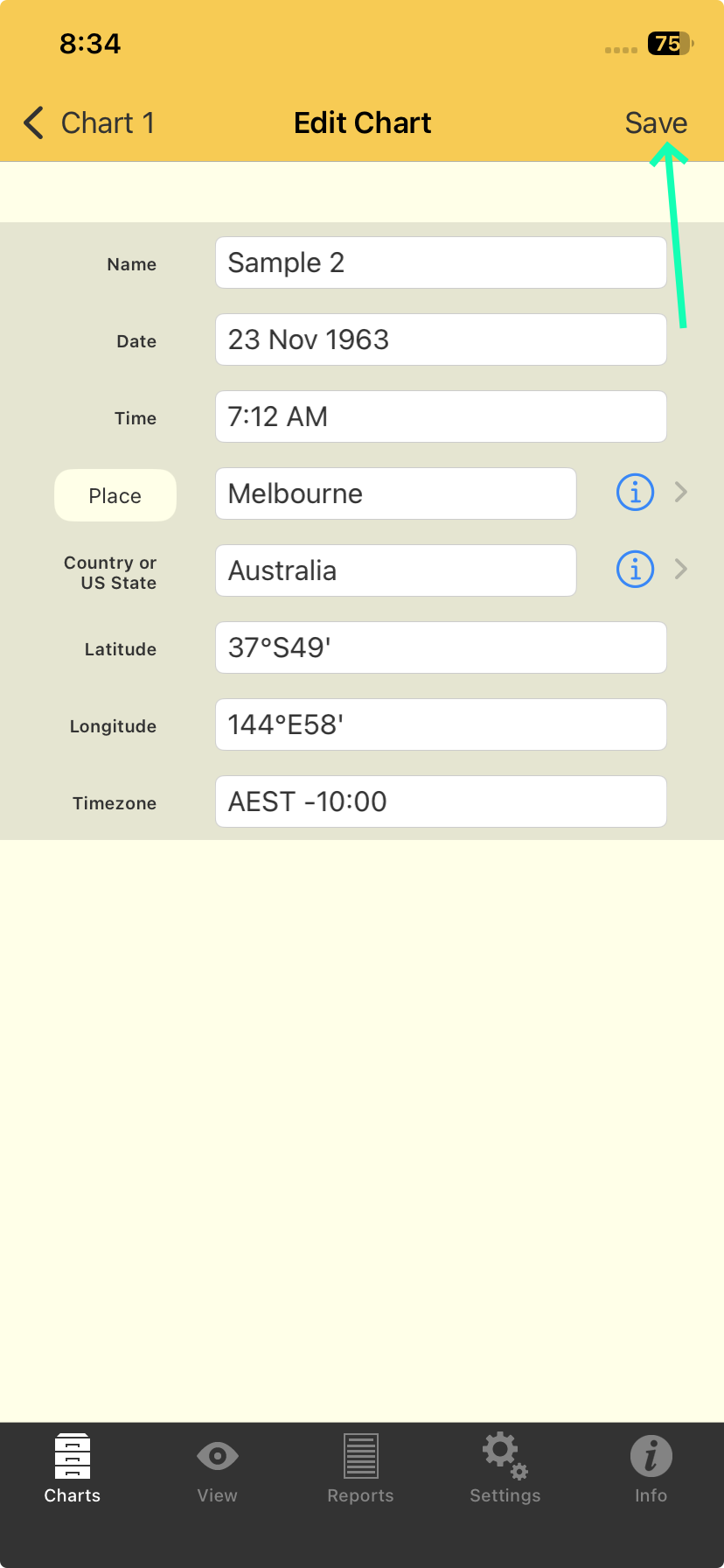 Saving a chart |
Tapping the Charts tab opens the "Selected Charts" screen, then tapping the > to the right of "Chart 1", "Chart 2" or "Chart 3" brings you to the "Chart Options" screen. Then tapping on New Natal Chart opens the "New Natal Chart" screen, where you can edit the new chart's details.
It functions exactly like the Edit Chart screen described above, except values for the fields are automatically pre-selected so creating a new chart is potentially fast and super easy. The pre-selections are simply the same values used in each field for the last chart that was created. You can overwrite these pre-selected values if you need to - just type in something different. You can also give the chart a type – either "Unspecified" (the default), or "Male", "Female", "Event", or "Horary".
From the "Chart Options" screen tapping on this opens the "Subsidiary Chart" screen where you can create a new chart that is derived from the chart you are currently working with. The chart will be given a chart type reflecting that kind of subsidiary chart e.g. for a solar return chart the chart type will be "Solar Return".
To quit from the "Subsidiary Chart" screen without making a selection tap on the < Chart 1 (or < Chart 2 or < Chart 3) button in the Toolbar (top left of the screen).
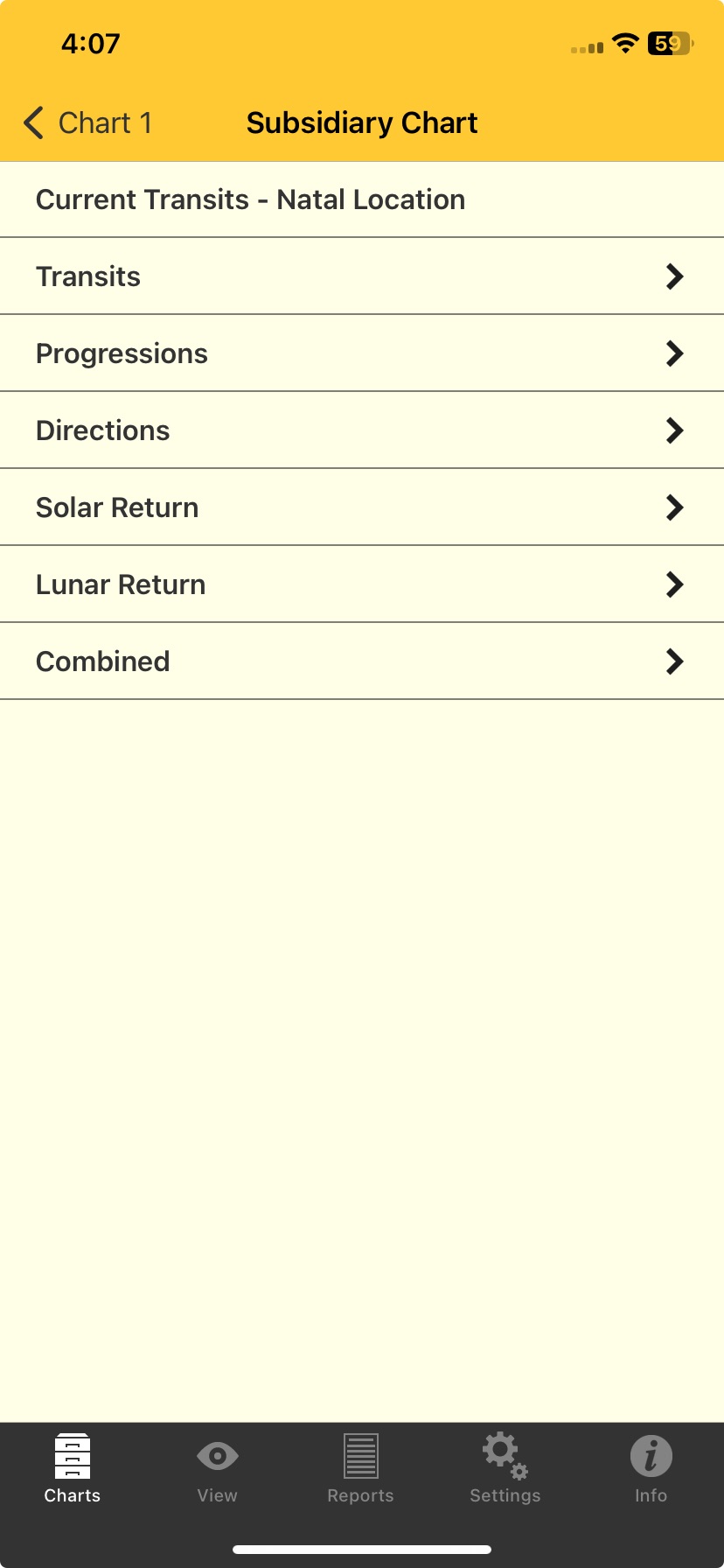 Creating a subsidiary chart |
The different items available for subsidiary charts are:
•Current Transits - Natal Location
Tapping on this simply replaces the chart with the current chart for the Home Location, and returns you to the "Selected Charts" option.
•Transits
Tapping on this opens the "Cast Transits" screen where you can:
1.In the "When" section enter the Date and Time for the transits chart by tapping in those text boxes so the keyboard appears and then type them in. Tap Hide to remove the keyboard.
2.In the "Location" section press down on, and hold, the "Use Natal" circular slider, and then slide it to the right for ON (it will go yellow) or slide it to the left for OFF (it will go grey).
a.When in the ON position the transits chart location will use the location of the chart already selected for that Chart number (1, 2, or 3).
b.When in the OFF position you can enter a different location for the transits chart. The row underneath the "Use Natal" circular slider will have a > on it at the right edge of the screen - tap it.
A "Location Entry" screen will be displayed (this screen works exactly the same as the Home And Atlas screen).
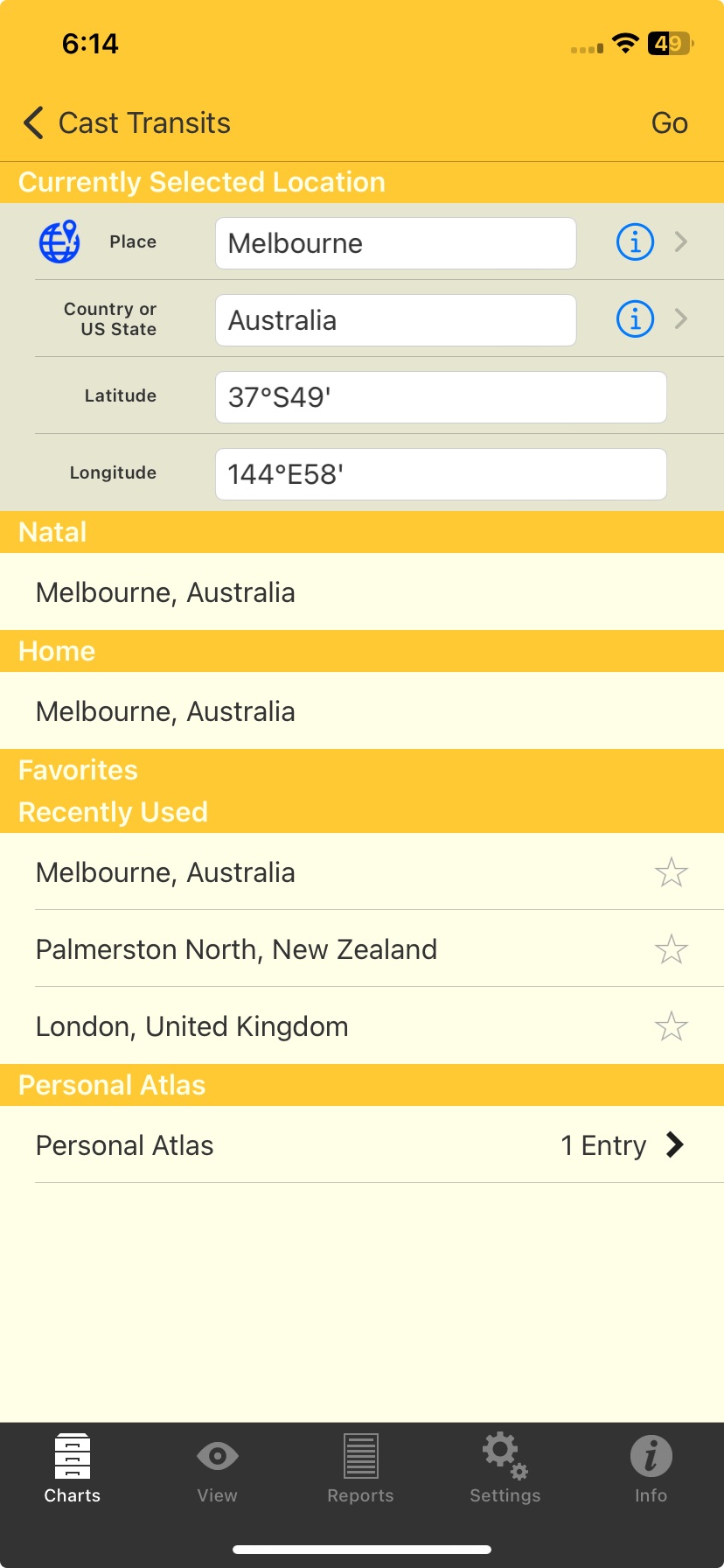 Creating a subsidiary chart |
3.When you have entered a location to use for the Transits chart tap < Subsid at the top left of the screen to return to the Subsidiary Chart screen.
•Progressions
Tapping on this opens the "Cast Progressions" screen where you can:
1.In the "When" section enter the Date and Time for the progressed chart by tapping in those text boxes so the keyboard appears and then type them in. Tap Hide to remove the keyboard.
2.In the "Location" section select the location, either by swiping Use Natal ON (it goes yellow and then will display the natal location), or by swiping it OFF (it goes gray). If you swipe it off, the Home location is selected by default and displayed. If you want to select a different location tap on the > underneath the circular slider (see Home and Atlas for details about using this screen which is very similar).
3.In the "Method" section the currently selected method is displayed. If you want to a different method to be used tap on the > to the right of the selected method, which will display a list of Progression Types. Tap on the method you want and then you'll be returned to the "Cast Progressions" screen.
4.Once you have completed the above tap on the Go button in the Toolbar (top right of the screen) to cast the progressed chart, and you'll then be returned to the "Selected Charts" screen.
To cancel casting a progressed chart tap on the < Subsid button in the top left corner.
▪Directions
Tapping on this opens the "Cast Directions" screen where you can:
1.In the "When" section enter the Date and Time for the directed chart by tapping in those text boxes so the keyboard appears and then type them in. Tap Hide to remove the keyboard.
2.In the "Location" section select the location, either by swiping Use Natal ON (it goes yellow and then will display the natal location), or by swiping it OFF (it goes grey). If you swipe it off, the Home location is selected by default and displayed. If you want to select a different location tap on the > underneath the circular slider (see Home and Atlas for details about using this screen which is very similar).
3.In the "Method" section the currently selected method is displayed. If you want to a different method to be used tap on the > to the right of the selected method, which will display a list of Direction Types. Tap on the method you want and then you'll be returned to the "Cast Directions" screen.
4.Once you have completed the above tap on the Go button in the Toolbar (top right corner of the screen) to cast the directed chart, and be returned to the "Subsidiary Charts" screen.
To cancel casting a directed chart tap on the < Subsid button in the top left corner.
▪Solar Return
Tapping on this opens the "Cast Solar Return" screen where you can create a solar return chart.
1.In the "Which Return" section the current return date is displayed. If you want a different return tap on the > to the right of the displayed solar return date. A list of solar return dates from age 0 to 99 is displayed - tap on the solar return you want, and you'll be returned to the Cast Solar Return screen.
2.Select the location, either by swiping the Use Natal sub-option ON (it goes yellow and then will display the natal location), or by swiping it OFF (it goes gray). If you swipe it off, the Home location is selected by default and displayed. If you want to select a different location tap on the > underneath the circular slider (see Home and Atlas for details about using this screen which is very similar).
3.Once you have completed the above tap on the Go button in the Toolbar (top right of the screen) to cast the solar return chart, and be returned to the "Selected Charts" screen.
To cancel casting a solar return chart tap on the < Subsid button in the Toolbar (top left of the screen).
▪Lunar Return
Tapping on this opens the "Cast Lunar Return" screen where you can:
1.In the "When" section enter the Date and Time for the lunar return chart by tapping in those text boxes so the keyboard appears and then type them in. Tap Hide to remove the keyboard.
5.In the "Location" section select the location, either by swiping Use Natal ON (it goes yellow and then will display the natal location), or by swiping it OFF (it goes grey). If you swipe it off, the Home location is selected by default and displayed. If you want to select a different location tap on the > underneath the circular slider (see Home and Atlas for details about using this screen which is very similar).
6.Once you have completed the above tap on the Go button in the Toolbar (top right of the screen) to cast the lunar return chart, and be returned to the "Selected Charts" screen.
To cancel casting a lunar return chart tap on the < Subsid button in the Toolbar (top left of the screen).
If you have only selected one chart tapping on this brings up a message saying you need two charts to combine. If you have selected two charts then tapping on this brings up the "Cast Combined" screen.
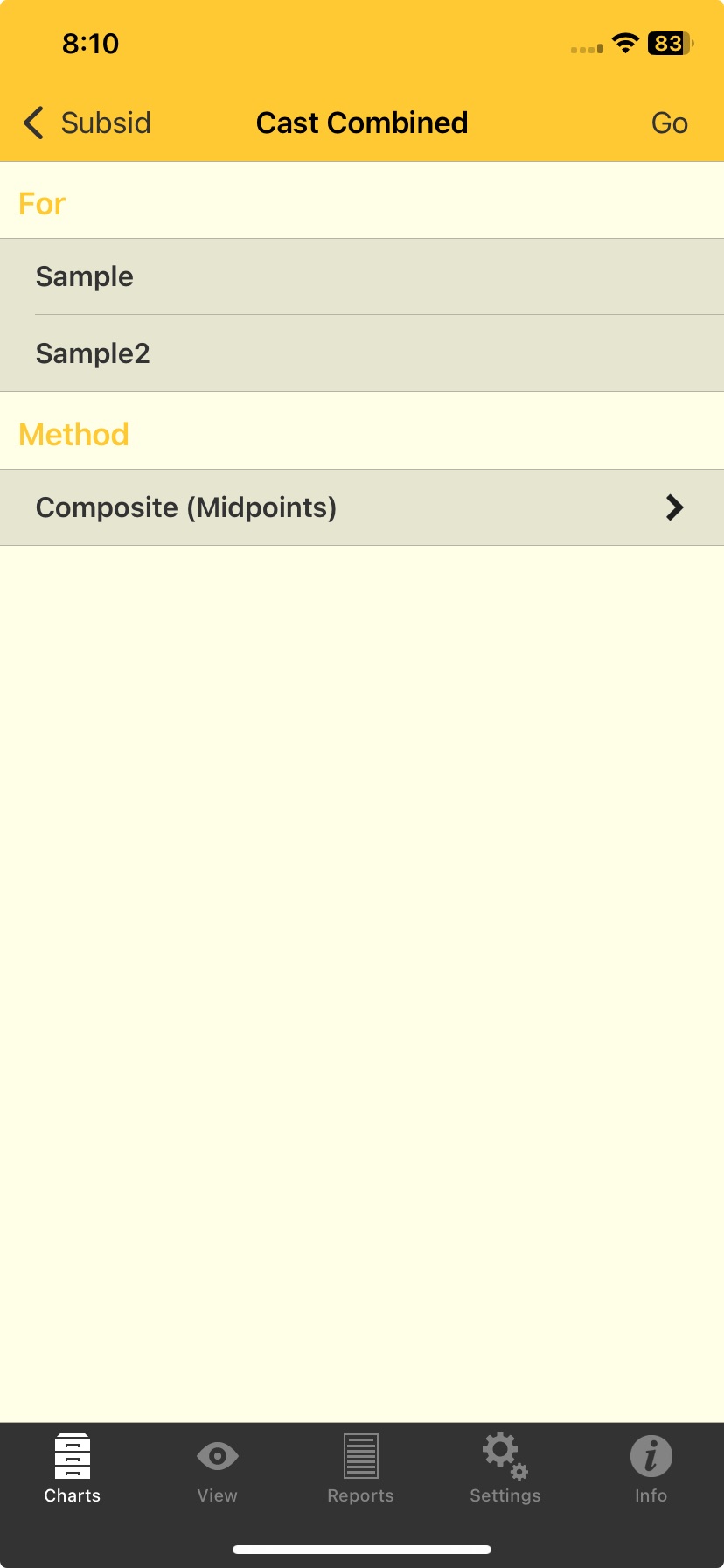 Combining two charts |
Two methods for combining charts are offered: the Composite method or the Relationship method.
NOTE: Combined charts are sometimes referred to as "composite" charts but as explained above this is simply one of the ways of creating a combined chart.
1. The currently selected method is displayed, and you can change this by tapping on the > to the right of the current selection.
Composite (Midpoints)
This method uses the midpoint of the shortest arc joining each chart point, angle and house cusp within the two base charts. This then becomes the position of that point in the new chart.
When calculating any type of combined charts, Astro Gold first determines the composite longitudes, and then determines the composite right ascensions separately. Thus any right ascensions for a composite chart in Astro Gold are true composite right ascensions rather than right ascensions of composite longitudes.
Relationship (Davison)
This method calculates a new chart as if it was a natal chart for the midpoint in time, latitude and longitude of the two base charts.
➢ Tap on the method you want to use and then you'll be returned to the "Cast Combined" screen.
2. Once you have completed the above tap on < Go in the Toolbar (top right of the screen) to cast the combined chart, and be returned to the "Subsidiary Chart" screen.
3. Or, to cancel combining the charts, tap on the < Subsid button in the Toolbar (top left of the screen).
NOTE: Regarding combined charts created using the Midpoints Composite method: in most cases the calculation of these charts is straightforward, however see Combined chart houses.
In the "Chart Options" screen for "Chart 1", "Chart 2" or "Chart 3" tapping on this opens the "Files" screen, where the available chart files are displayed. To return to the "Chart Options" screen for the chart without selecting a chart from a file, tap on < Chart 1 (or < Chart 2 or < Chart 3) in the Toolbar (top left of the screen).
[Or if you have previously selected a chart from a chart file Astro Gold may skip this step and automatically open that chart file for you. If this happens and you want to change the chart file to use, tap on < Files in the top left of the screen.]
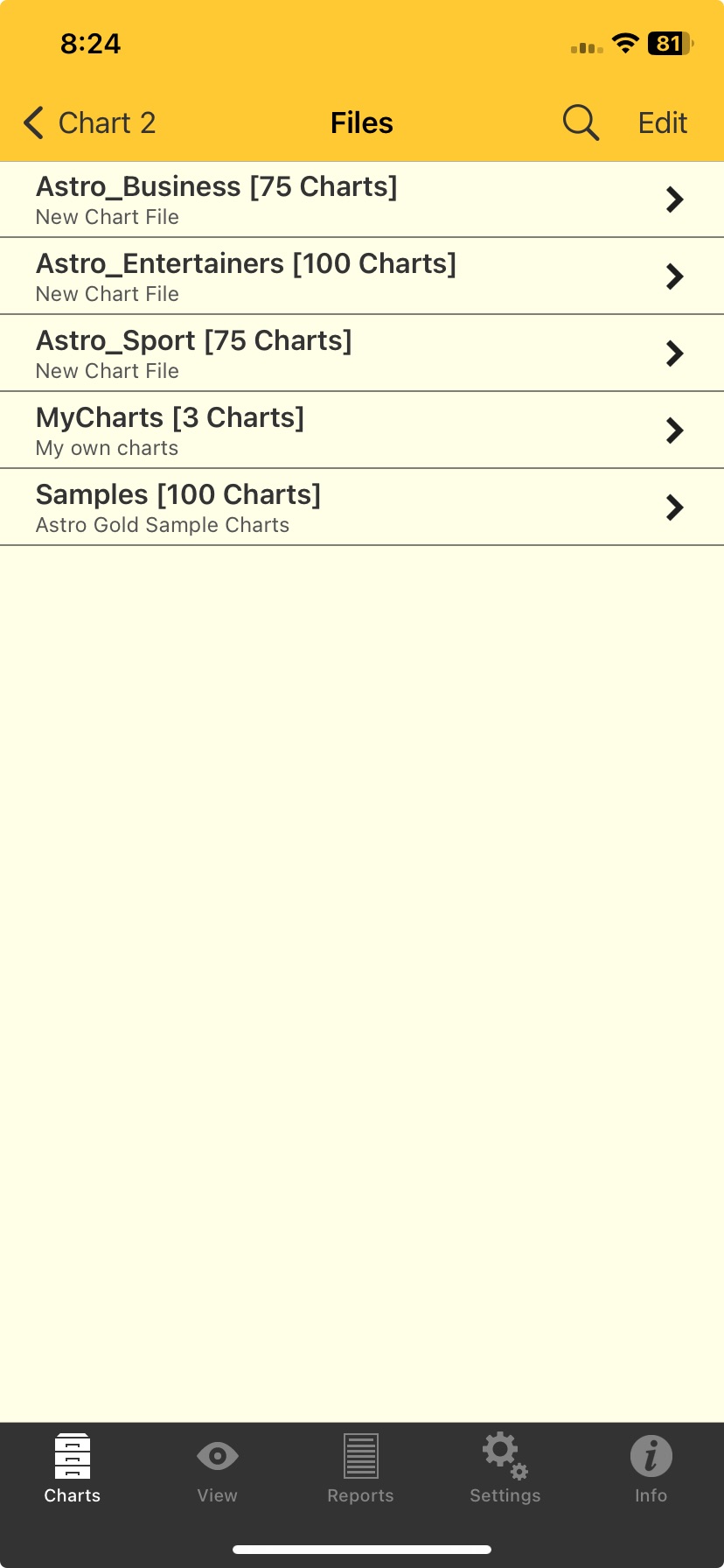 |
1.in the "Files" screen ... tap on the > to the right of the chart file that contains the chart you want. This opens the "Charts" screen.
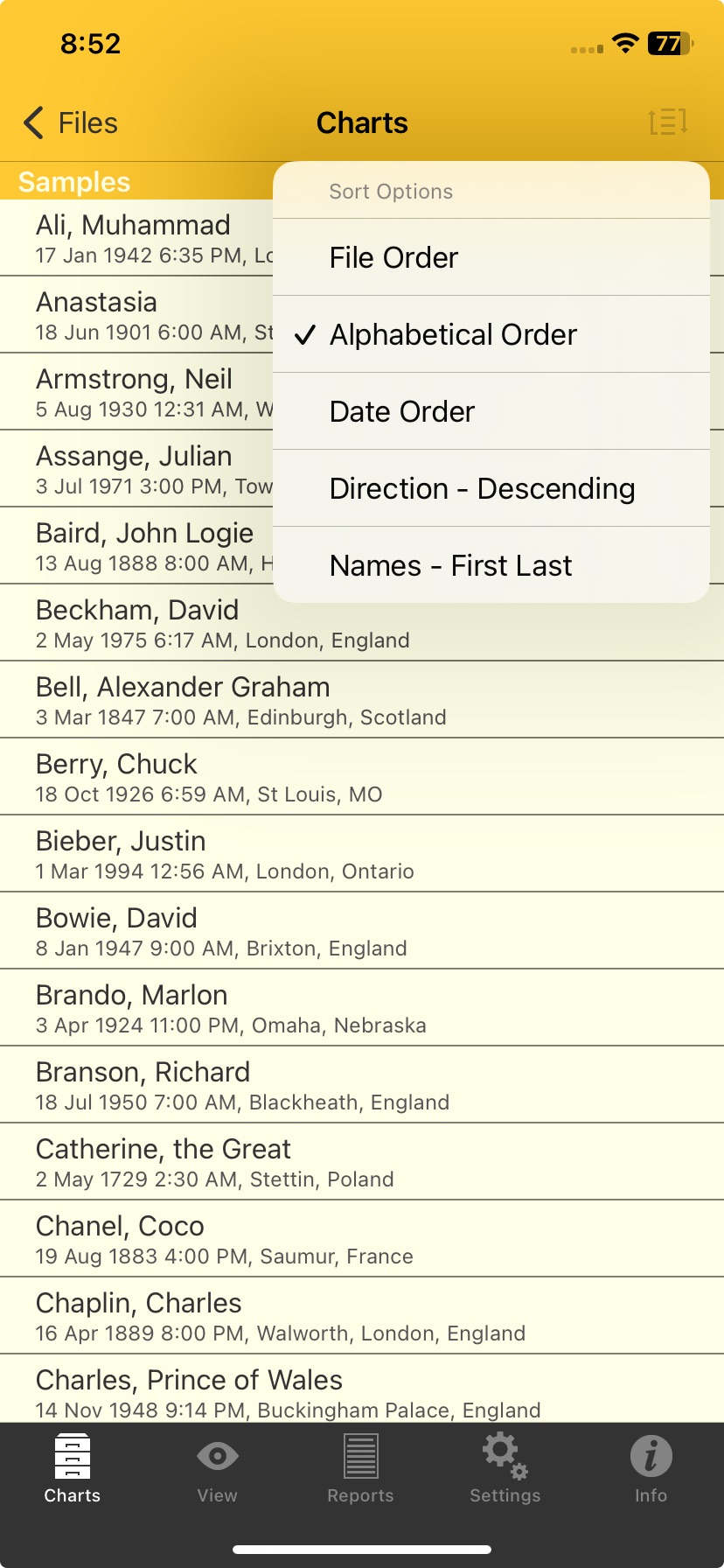
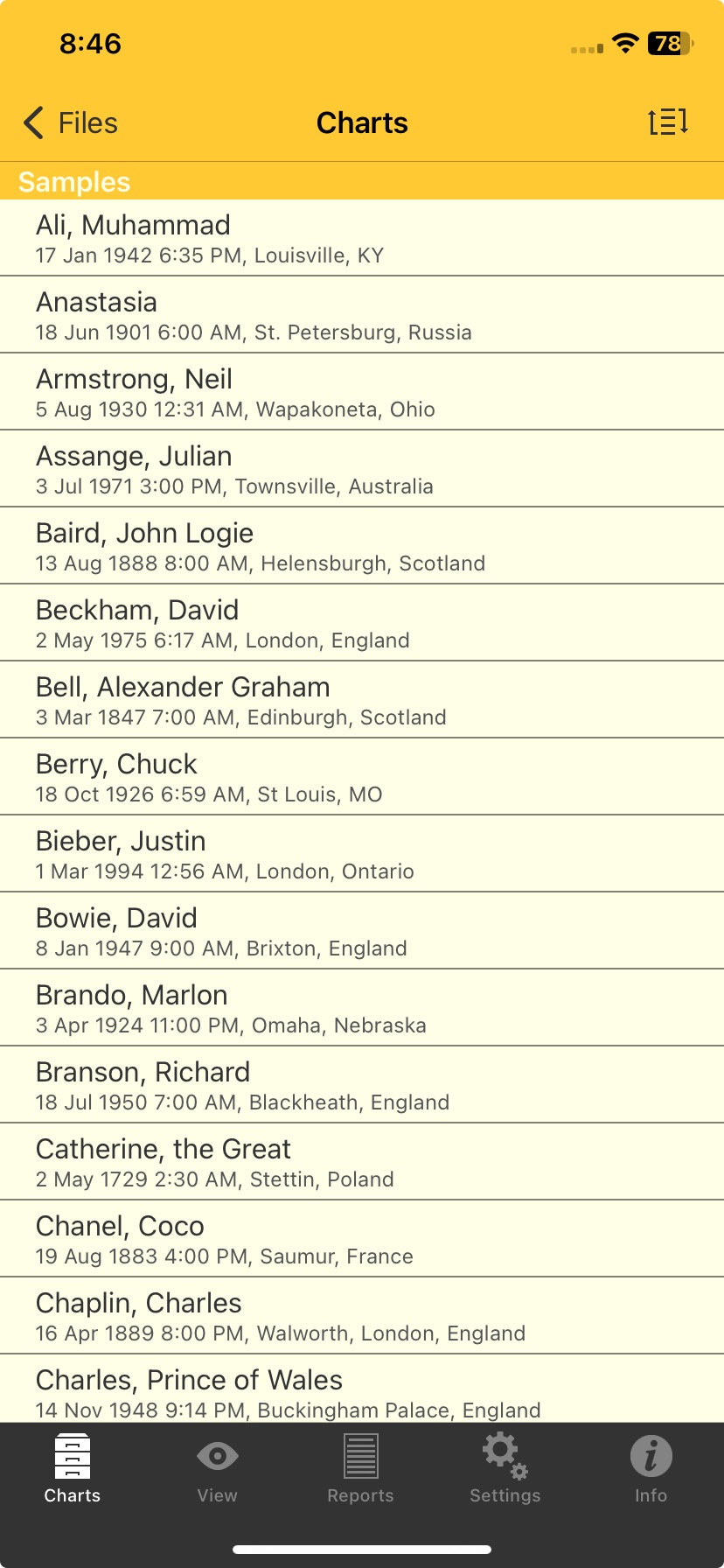 Chart sorting |
>> To sort the charts
2.In the Charts screen tap on the Sort button in the Toolbar (top right of the screen). This will bring up the screen below where you can select the way you would like the charts sorted by tapping on the relevant sort option.
 |
>> To Select a chart
3.In the "Charts" screen ... tap on the chart you want. This selects the chart and returns you to the "Selected Charts" screen.
>> To Create, Edit or Delete a Chart File
This section is about creating, editing or deleting an entire Chart File (potentially containing many charts). This is not the same as simply deleting individual charts from within a Chart File.
In the Files screen ... tap on the Edit button in the Toolbar (top right of the screen). This puts the pane in editing mode.
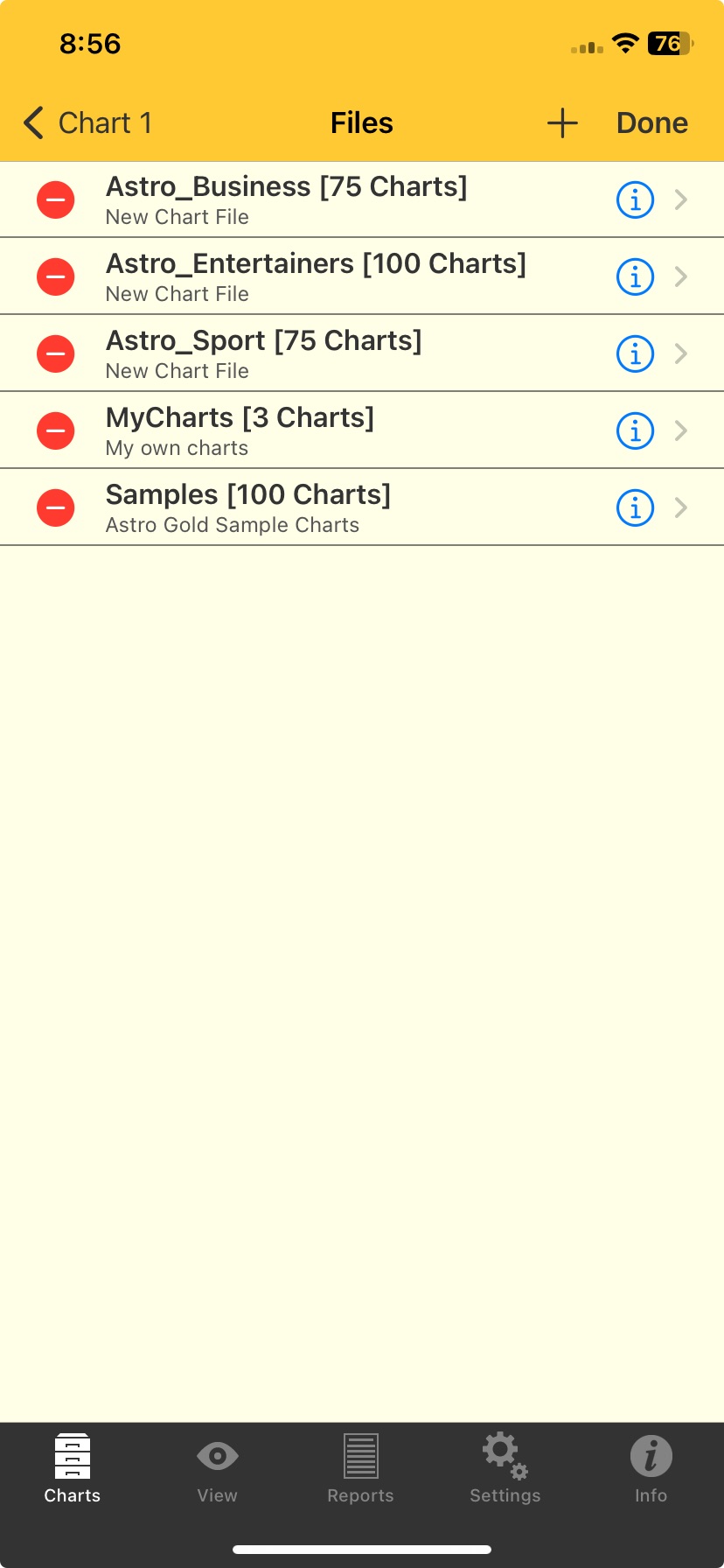 |
(To exit out of editing mode before making any changes tap the Chart 1 (or Chart 2 or Chart 3) button in the top left corner of the screen, which will take you back to the "Chart Options" screen for the chart).
1.To Create a new chart file:
a)Tap the  button in the Toolbar. This brings up the "File Details" window.
b)By tapping in each of the text boxes you can then type in a file name and description respectively using the keyboard.
c)To save the new chart file tap on the Save button in the top right corner of the window.
d)To cancel creating a new chart file tap on the Cancel button in the top left corner of the window.
2.To Edit an existing chart file:
a)Tap the button. This brings up the "File Details" screen.
b)By tapping in each of the text boxes you can then edit the file name and description respectively using the keyboard.
c)To save your changes tap on the Save button in the Toolbar (top right of the screen).
d)To cancel your changes tap on the Cancel button in the Toolbar (top left of the screen).
3.To Delete an existing chart file:
a)Tap the button. This causes a
  button to appear. (If you have changed your mind you can tap on the chart - but not actually on the "Delete" button - which will cancel the delete operation.)
b)Tap on the button.
c)If you change your mind at this point you can tap on the Cancel button in the dialog box that appears.
d)Otherwise, in the dialog box that appears confirm you want to delete the chart file by tapping on the Delete button.
4.When you are finished editing (that is, with the editing options above) to exit from editing mode to the normal Selection mode, tap on the Done button in the Toolbar (top right of the screen).
•Favorites
The "Chart Options" screen displays all favorite charts. To use any of these charts all you need to do is tap on the chart, and it will be selected and you will be returned to the "Selected Charts" screen.
The "Chart Options" screen conveniently displays in a list all the charts you've used recently. To use any of these charts all you need to do is tap on the chart, and it will be selected and you will be returned to the "Selected Charts" screen.
There is no option to clear the whole list. However, individual entries may be deleted from this list by side-swiping the entry then tapping on the Delete button that appears.