You can add or edit comments for any chart. You access these different options all from the same screen, the Chart Options screen.
>> To add or edit comments for a chart
➢ Tap on the Charts tab in the TAB Bar and from there open the Chart Options screen for any chart you want to add comments to or edit existing comments, by tapping on the > to the right of the chart.
Favorite and recently saved charts in the "Chart Options" screen have one of two comment icons to their right - indicating the chart has existing comments that can be edited  or the chart has no comments but can have comments added to it
  .
.
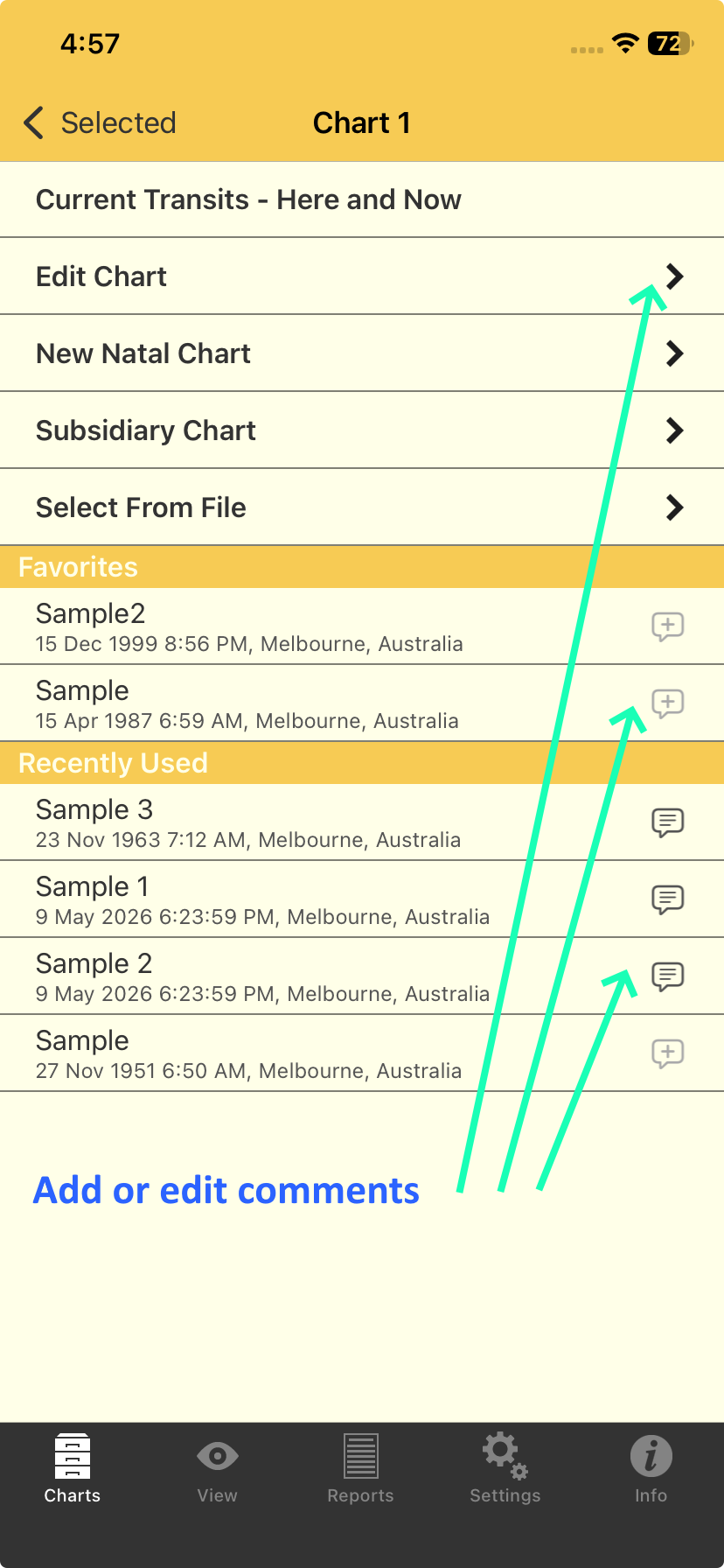 Chart Options: adding or editing chart comments |
Editing charts
1)From the "Chart Options" screen tap on Edit Chart to display the "Edit Chart" screen. Down the bottom of screen there is a "Comments" row. If there are existing comments the number of words in those comments will be displayed. If there are no existing comments for the chart the word "None" will be displayed.
2)Tap on Comments.
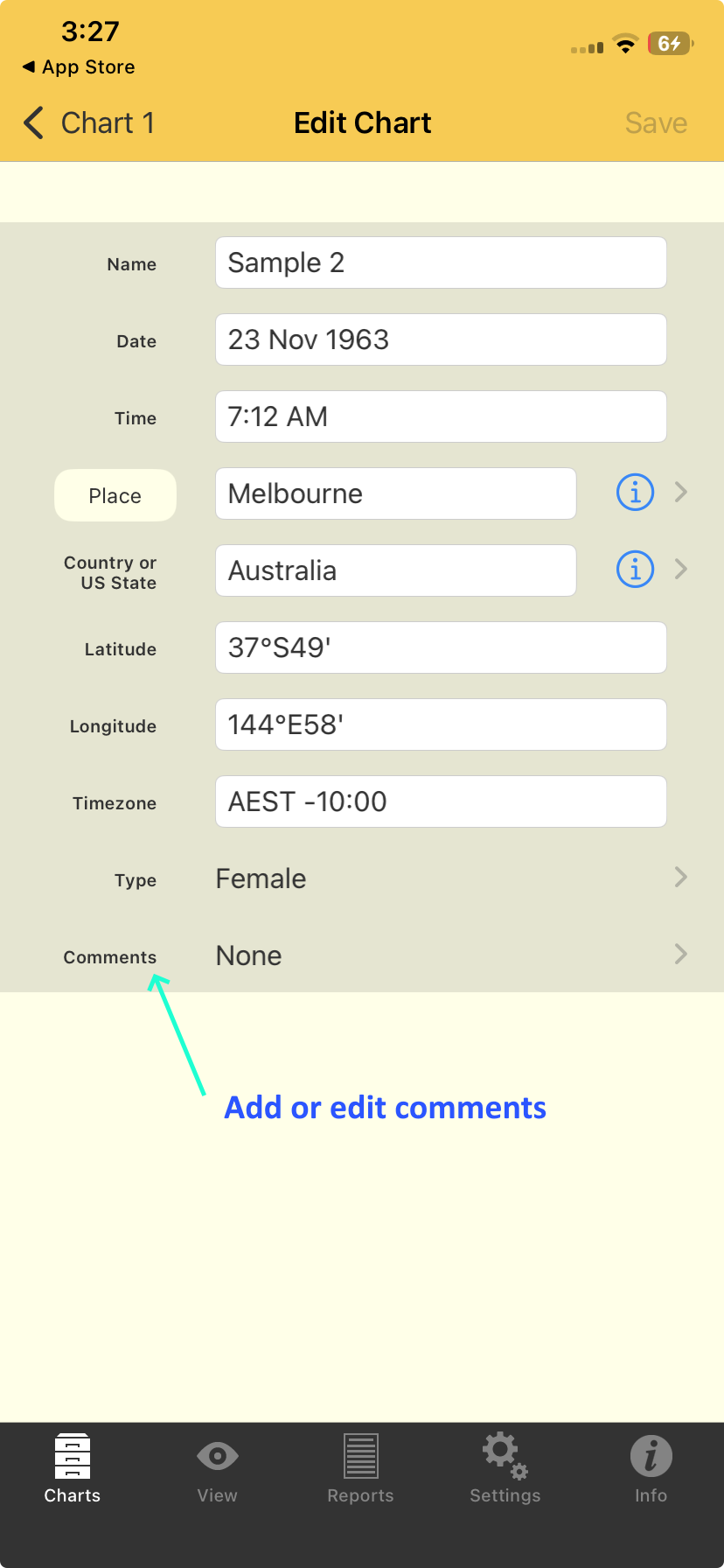 Adding or editing chart comments |
3)This brings up the "Comments" screen...
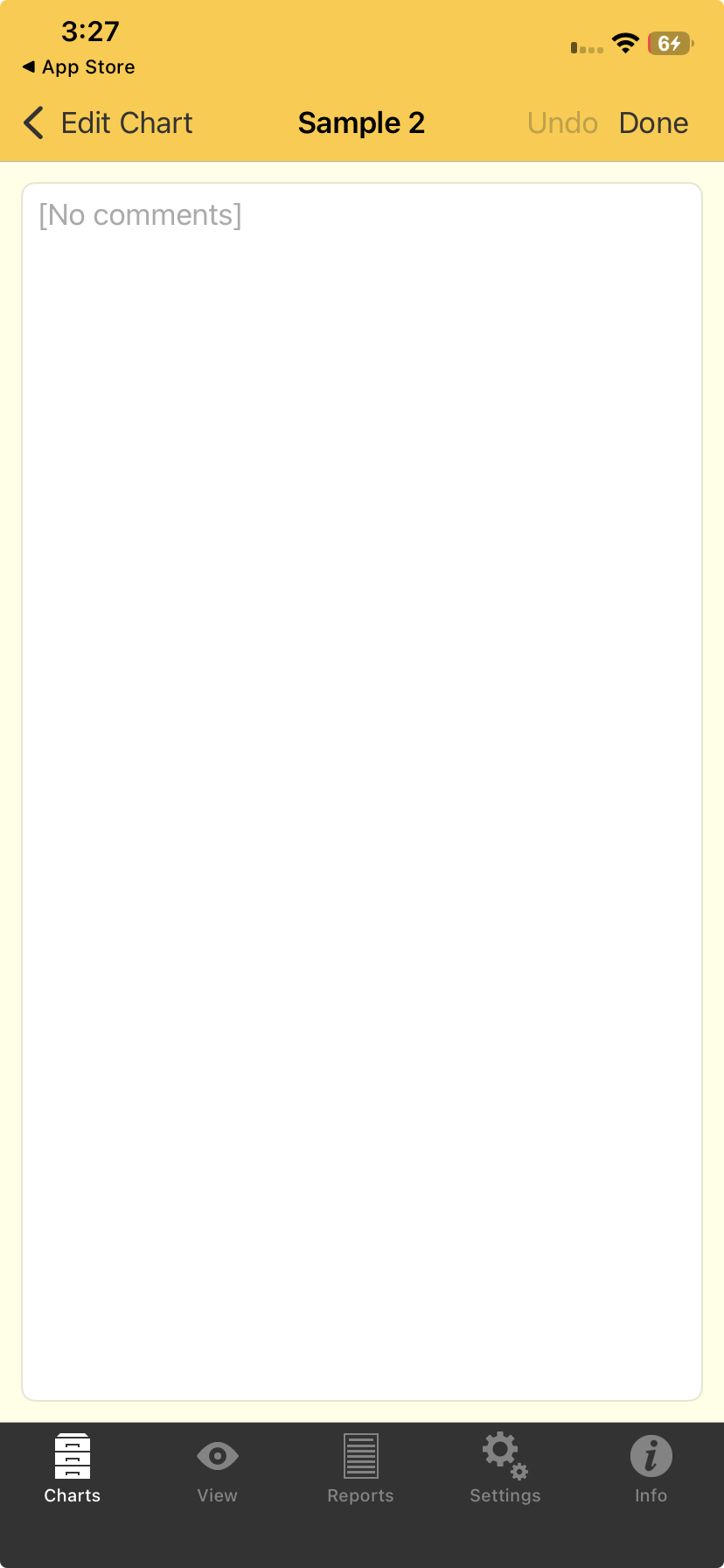 Adding or editing chart comments |
4) Simply tap in the blank area (or on top of any existing comments) to bring up the keyboard, then add new comments or edit any existing comments.
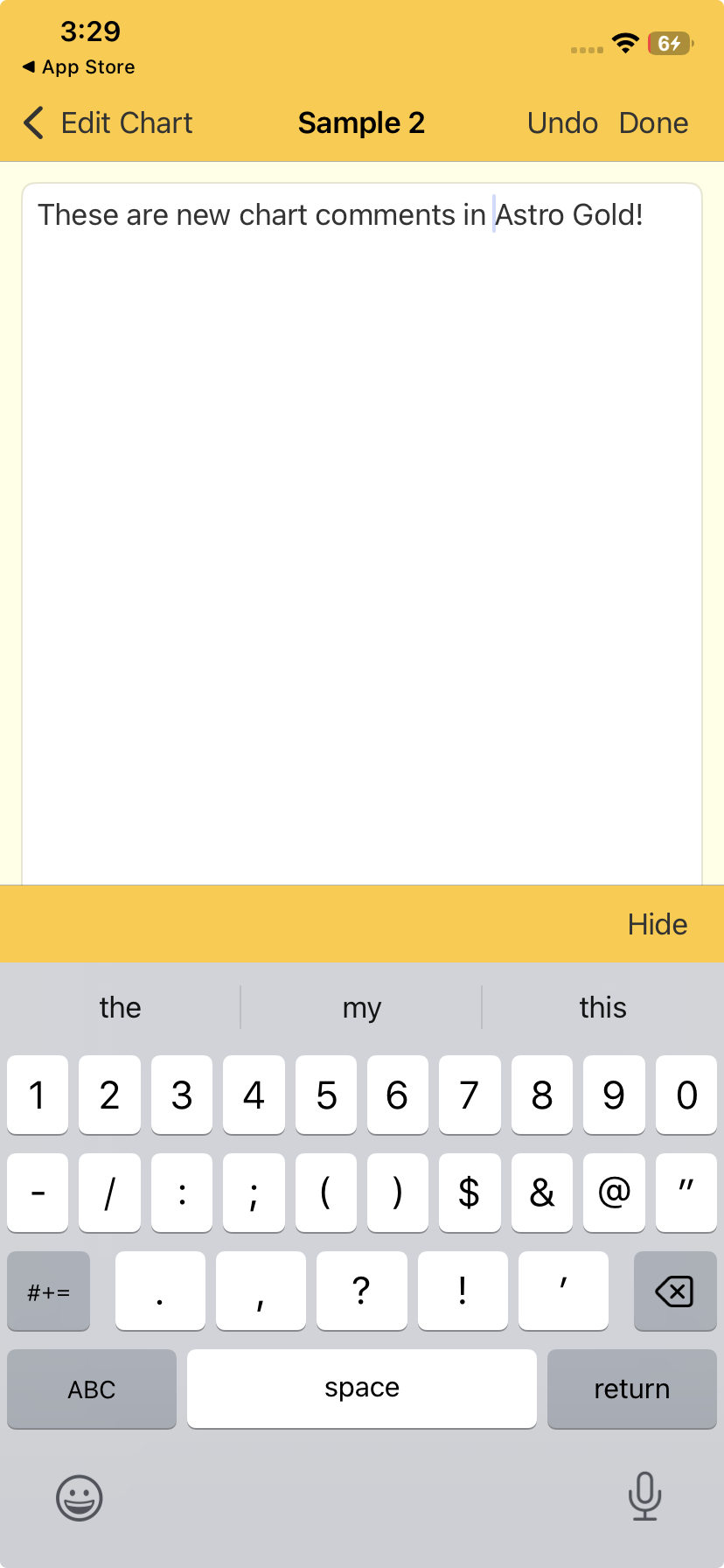 Adding or editing chart comments |
5)At any point while editing you can tap Undo to cancel your changes up to that point.
6)Once you have finished creating or editing the comments you can press either Done or < Edit Chart to exit the "Comments" screen.
IMPORTANT: Once you are back in the "Edit Chart" screen you must tap on Save to save any changes you made in the "Comments" screen.
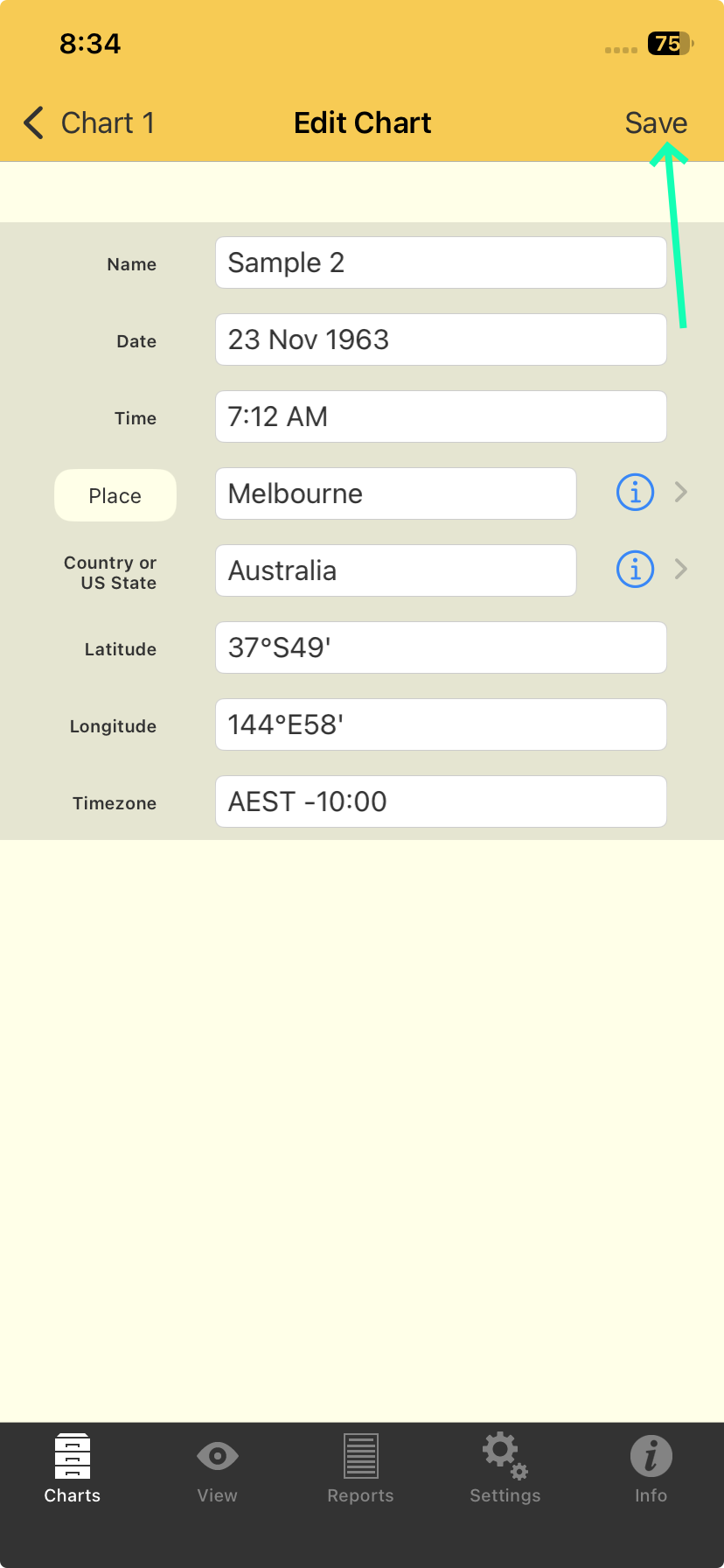 Saving a chart |
Favorites and Recently Used lists
You can add comments directly to charts in both the "Favorites" and "Recently Used" lists.
For subsidiary charts that cannot be edited, this is the only way to add comments to them - however you need to save the subsidiary chart first beforehand so it appears in the "Recently Used" list.
1)Tap on the Charts tab in the TAB Bar and for any chart you want to add comments to or edit existing comments open the Chart Options screen by tapping on the > to the right of the chart.
In either list, to the right of each chart you can see by the comments icon whether the chart already has comments or the chart has no comments but can have comments added to it .
1)Tap on the Comments icon which will open the "Comments" screen.
Adding or editing chart comments |
2)If comments already exist for the chart they will be displayed along with the keyboard. If no comments already exist tap anywhere on the blank screen to display the keyboard.
3)At any point while editing you can tap Undo to cancel your changes up to that point.
4)Once you have finished creating or editing the comments you can press either Done or < Edit Chart to exit the "Comments" screen.