To display charts or chart information you must use (tap on) the Charts tab, which is located in the TAB Bar (at the bottom of the screen).
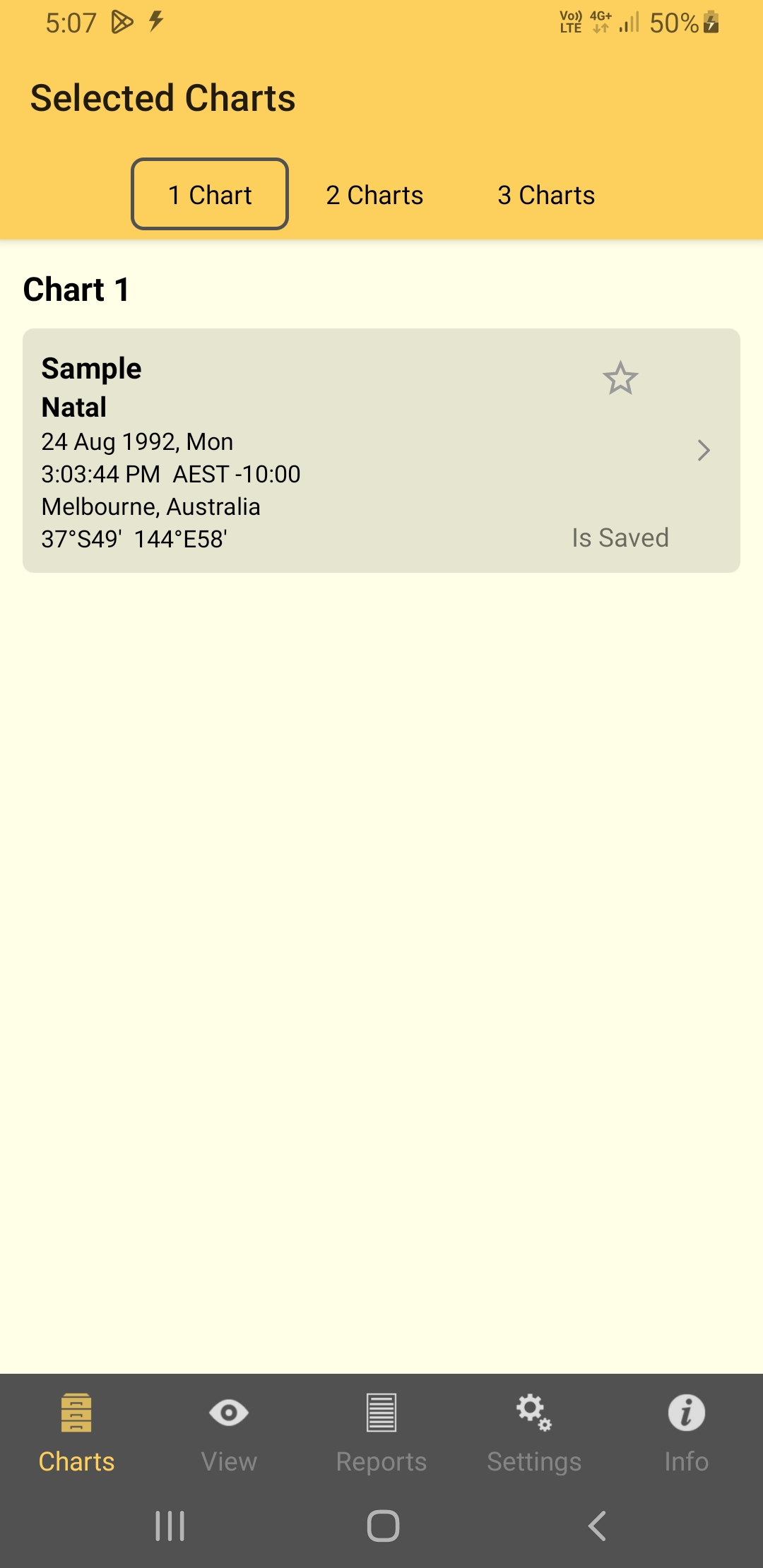
The Charts tab initially opens the "Selected Charts" pane which allows you to select charts, either one, two or three at a time. Select one chart to view a single chart wheel or aspect grid, or two or three charts to see a bi/tri-wheel or synastry aspect grid.
>> To select one, two or three charts
➢ Tap the 1 Chart button to select one chart, the 2 Charts button to select two charts, or the 3 Charts button to select three charts.
The details for the chart or charts are displayed in gray panels in the "Selected Charts" pane, an area called the "Chart Details" area (and later the chart or charts you select here will be displayed on the main viewing area of the screen - see Viewing Charts).
The chart name is at the top of the details in large characters, and under that in smaller characters is the chart type ("Natal", "Male", "Female", "Event", "Horary", "Sec Prog", "Solar Return" etc).
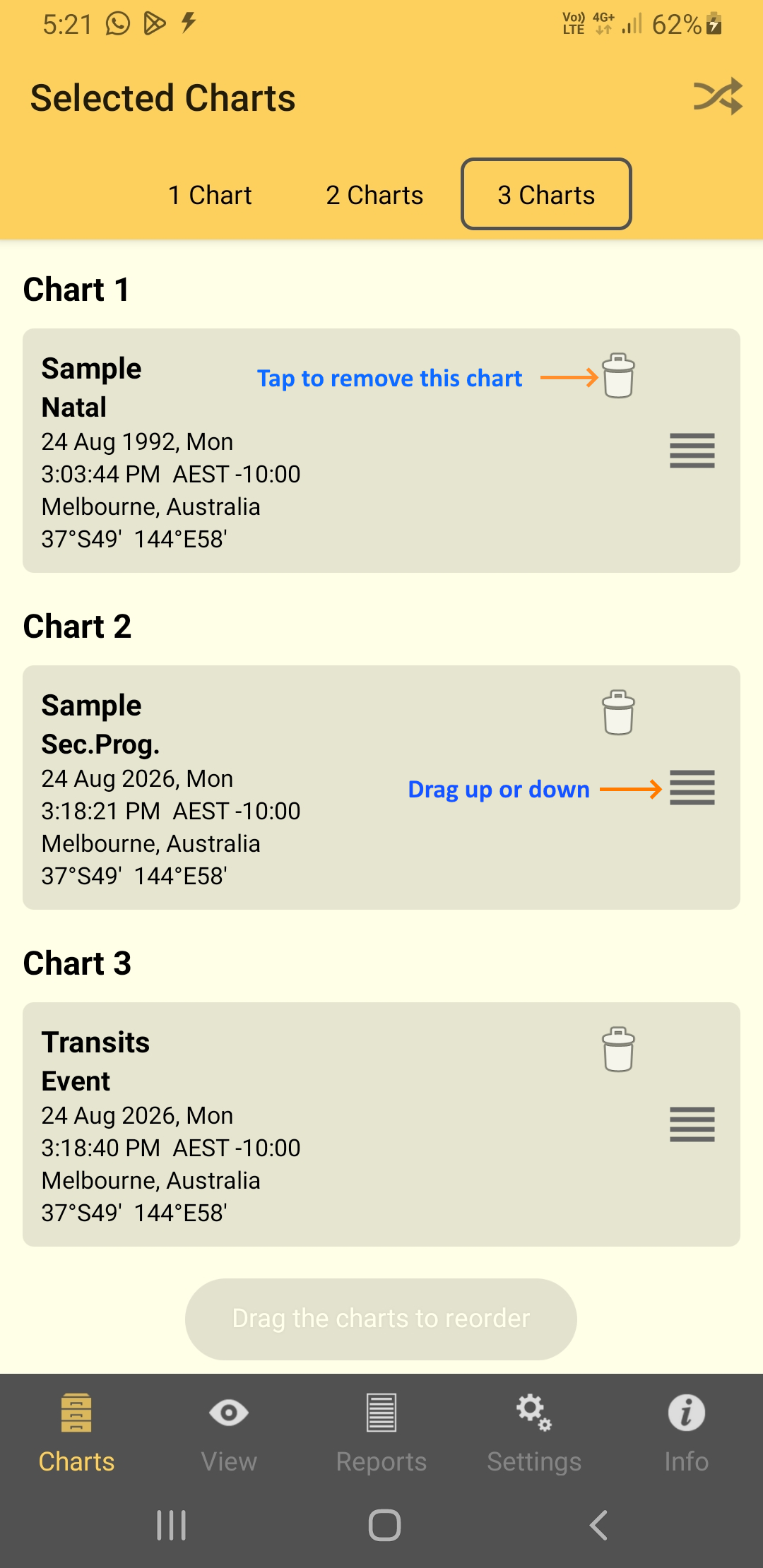
If you have selected more than one chart the first selected chart is called "Chart 1" and is always the inner chart of a bi or tri-wheel, and the across chart of a synastry grid. The second selected chart is called "Chart 2" and if it's the only other chart is always the outer chart of a bi-wheel, and the down chart of a synastry grid. If there are three charts, the third selected chart is called "Chart 3", and it will always be outer chart of a tri-wheel, and the down chart of a synastry grid.
The various options you have for selecting charts to go in the 1 Chart, 2 Charts or 3 Charts pane are detailed in Chart Options.
|
|
Selected Charts pane - with 1 chart selected |
>> To swap the position of each chart, or to remove a chart
➢ If you have two charts selected, tap the Swap icon  to make the charts change place.
➢ If you have three charts selected, tap the Swap icon . This displays the screen below. Swap the charts by pressing and holding down on the  icon then dragging each chart to the position you want it to be in.
|
|
Selected Charts pane - with 3 charts selected undergoing a SWAP operation |
>> To save a chart
1.In the "Selected Charts" pane tap on the Save button (if it's displayed) in the chart details panel. This will bring up the "Save To File" window where all the available chart files are displayed.
2.Tap on the chart file you want to save the chart to, which will select it (a tick will be displayed next to the file name).
3.Tap on the Save button in the top right corner of the window.
>> To close the Selected Charts pane
➢ Tap on any of the other tabs in the TAB Bar.