Once charts have been selected (see Charts for how to do this) you can view them by tapping on the View tab in the TAB Bar (at the bottom of the screen). Whatever charts have been selected will be displayed in the Viewing Area, either in a chart wheel or the aspects in an aspect grid.
|
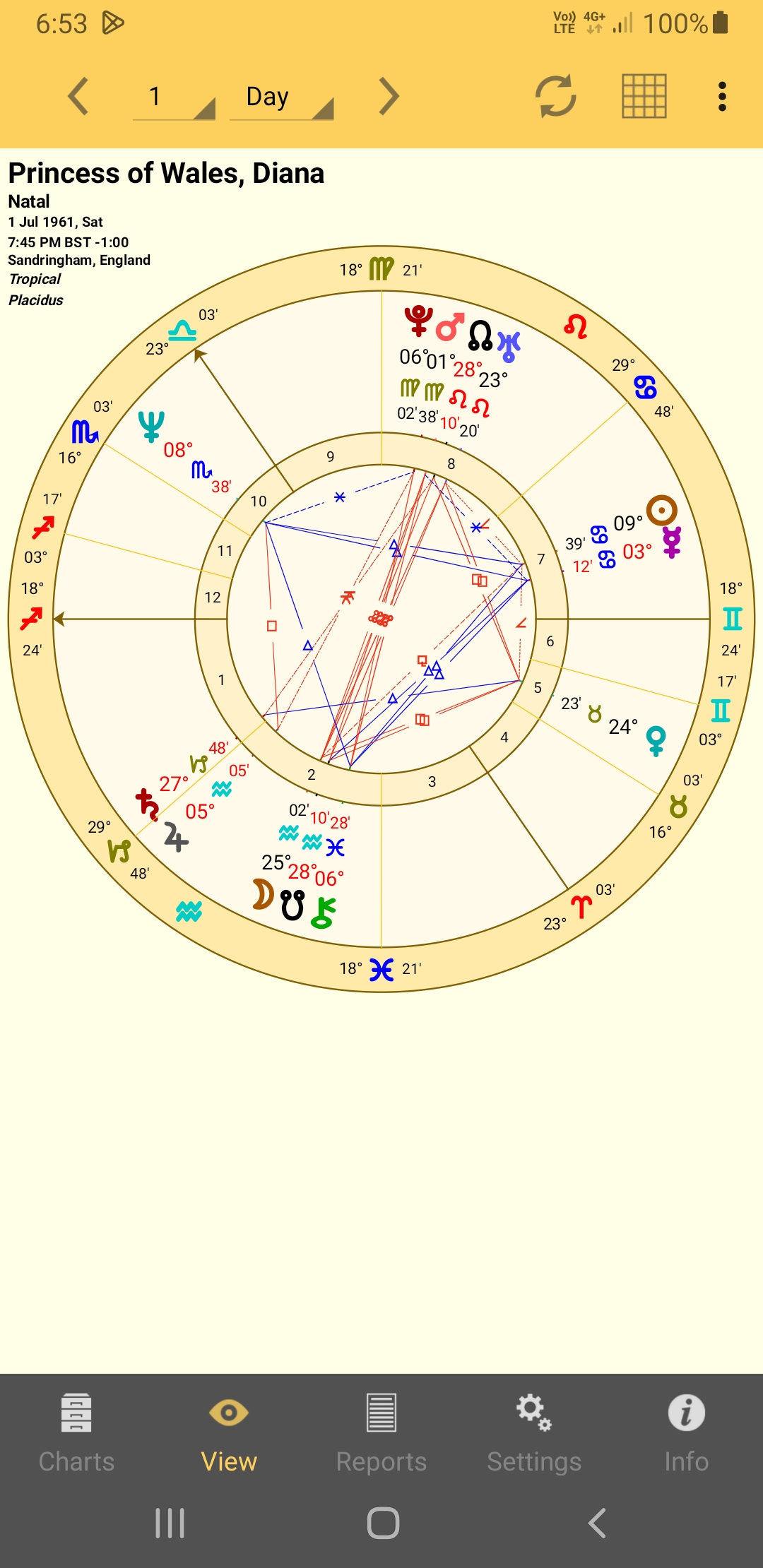 The View Pane showing a single chart |
You can zoom in or out with pinch in or out movements, and if you are not already zoomed out fully, zoom around by dragging the screen in any direction.
The minutes and degrees for Direct motion planets are colored black. Depending on the wheel design chosen, retrograde motion planets are usually identified by their degrees and minutes being red.
There is an Action icon  in the top right corner of the screen that is used to change the chart date or to share the chart.
|
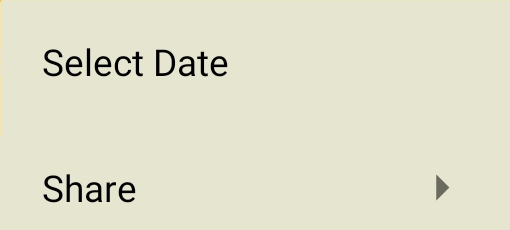
➢ To change the chart date while viewing the chart
1)Tap the Action icon in the TOOL Bar
2)In the menu that pops up, tap on Select Date. A dialog box appears (as below). This has three columns, divided into two sets of rows. The top group of columns and rows are for selecting the date, and the bottom group of columns and rows are for setting the time.
In each group the middle row, inside bold lines, contains the currently selected values. So in the graphic below, in the date group at the top 24 Aug 1992 is selected and will be used as the chart date, and in the time group at the bottom 3:03 pm is selected and will be used as the chart time.
In the group you want to select new values for (either the top date group, or the bottom time group) you can swipe up and down in each column to move different values for that column into the middle row, thus selecting them.
3)Once you have selected the values you want for both date and time, then tap on the OK button at the bottom of the dialog box to assign that date and time. If only one chart is selected it will be assigned to that chart, otherwise it will be assigned to the chart in the outer wheel (Chart 2 or 3).
Alternatively you can tap on the Cancel button to leave the date/time unchanged. Either way, the dialog box will be closed and you will be returned to the "View" pane.
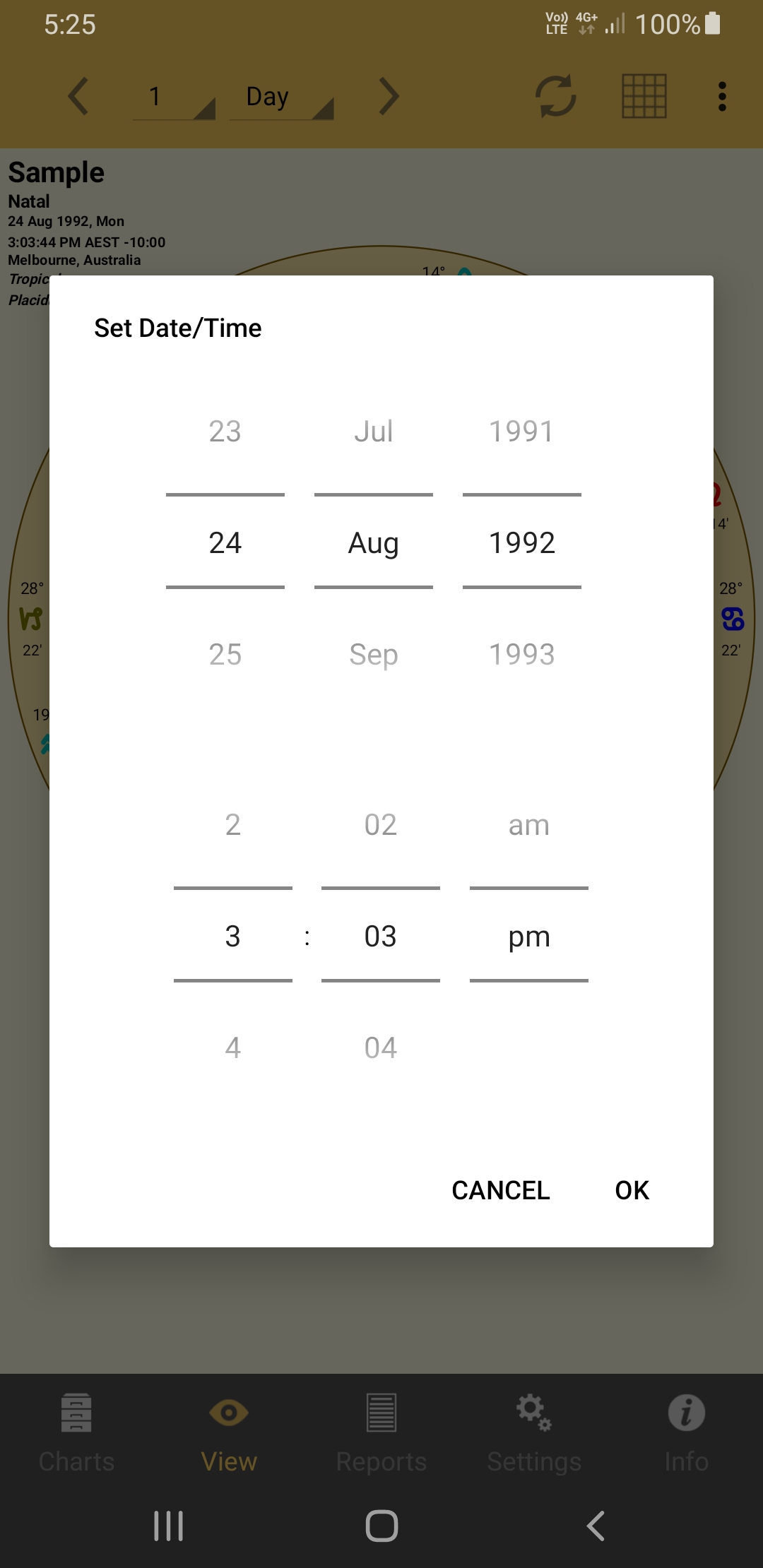 Setting the chart date & time while viewing it |
TIP:
The Refresh icon  in the TOOL Bar above the "View" pane can be used to easily update any dynamic chart to the current date and time.
If only one chart is displayed that will be updated, if more than one chart is displayed the outermost chart, or the chart in the Down side of the aspect grid, will be updated.
So be aware that if the the outer chart is not a dynamic chart and you do this, then it will be replaced with the current Transits chart.