>> To change the settings for Dynamic Reports...
1)Tap the Settings tab in the TAB Bar to display the "Settings" screen.
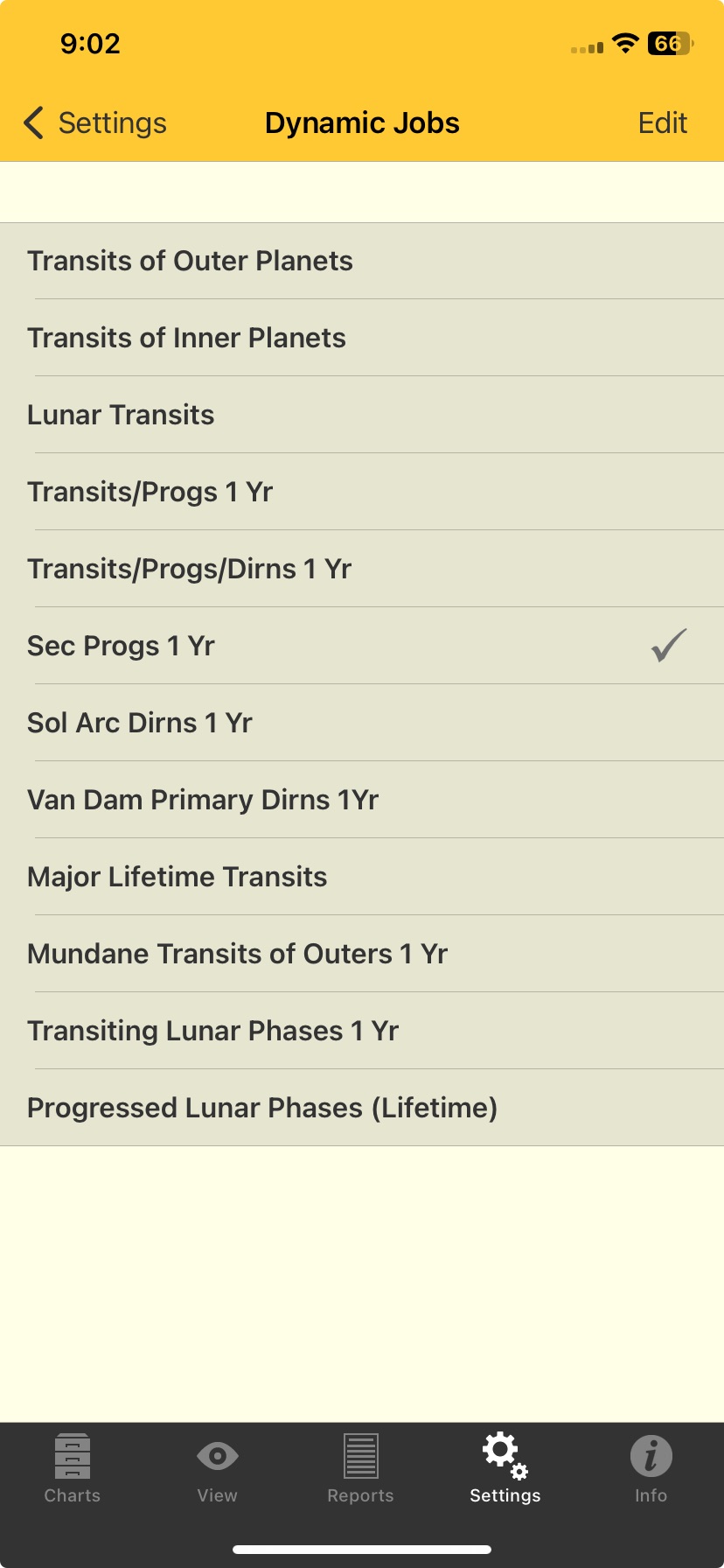
2)Tap on the > to the right of Dynamic Reports - this will display the "Dynamic Jobs" screen, listing the Jobs with the currently selected job ticked.
 |
3)To select a Job tap it, which will tick it, and you will be returned to the Settings screen. Once a Job is selected you can edit it.
4)To edit a selected Job in the "Settings" screen tap on Dynamic Jobs, then tap the Edit button in the top right of the screen - this puts the "Dynamic Jobs" screen into editing mode and the button at the top right changes to "Done".
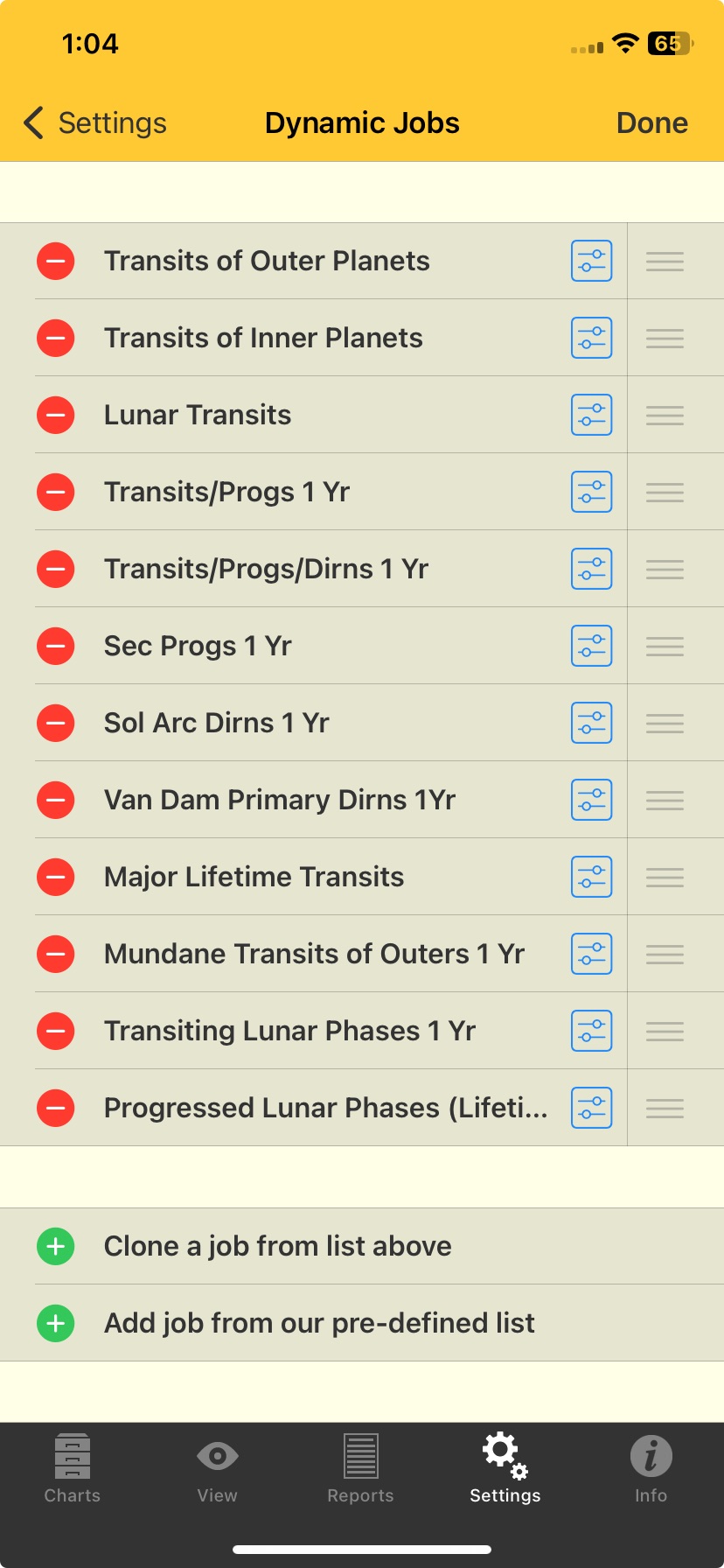 |
a)The blue square  icon edits the Dynamic Job. Tap on the icon and the "Job Details" screen is displayed. You can scroll the list up and down to see all the details for the currently selected Dynamic Job.
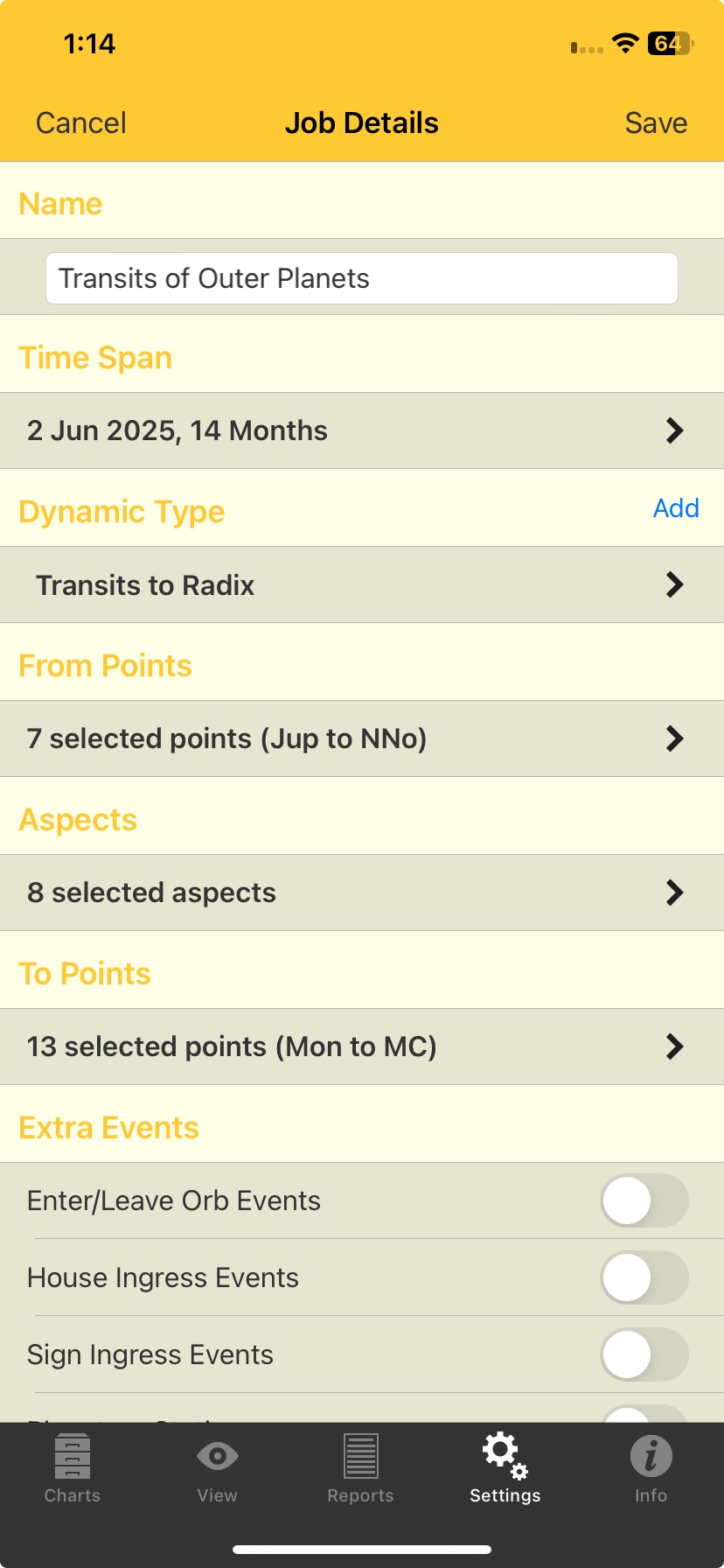 Dynamic Job Details screen |
Job details that can be edited are:
•Name
•Time Span
•Dynamic Type
•From Points
•Aspects
•To Points
•Enter/Leave orb events
•House Ingress events
•Sign Ingress events
•Planetary Stations
•Eclipses
•Perigees/Apogees
To change these details either enter a value, tap the > to the right of the detail to change the value(s), or swipe the white circular slider right to turn the extra events ON (goes yellow) or left to turn the extra events OFF (goes gray). See Dynamic Job Details for more information.
When you are finished editing the Job options tap on the Save button in the top right of the screen, or the Cancel button in the top left of the screen. This will return you to the "Dynamic Jobs" screen, not in editing mode any more.
b)The gray move  icon allows you to manually sort the Dynamic Jobs by drag and drop. Press down on this icon for a Job and then drag up or down to reposition the Job in the list where you want it to go, then stop pressing down on the icon.
>> To Add or Delete a Dynamic Job
6)Tap on the Edit button in the Toolbar (top right of the screen) to put the Dynamic Jobs into editing mode.
7)In editing mode the  button starts deletion of the Dynamic Job. When this button is tapped the Job slides left to reveal a "Delete" button
  on the right. Tapping this Delete button will delete the Job, sliding the Job to the right will cancel the delete process (be careful not to tap on the actual "Delete" button as you do this).
8)In editing mode the  button is for creating a new Dynamic Job. When this is tapped a new Job is created, see Dynamic Listing for more details.
9)When you are finished tap on either the Done button in the Toolbar (top right of the screen) if you want to go back to Dynamic Jobs (not in editing mode anymore), or the Settings button in the Toolbar (top left of the screen) to go back to the "Settings" screen.