You can edit all the job details of the Dynamic Listing's Dynamic Job via the Dynamic "Job Details" screen. You can get to this screen from the Dynamic Jobs screen. (If you're in the Dynamic Listing screen tapping the > to right of the Job opens the "Dynamic Jobs" screen.)
Job Details
•Tap in the Name field to edit the Dynamic Job name.
•Tap the > to the right of other items in the list to edit that item.
•Aspects
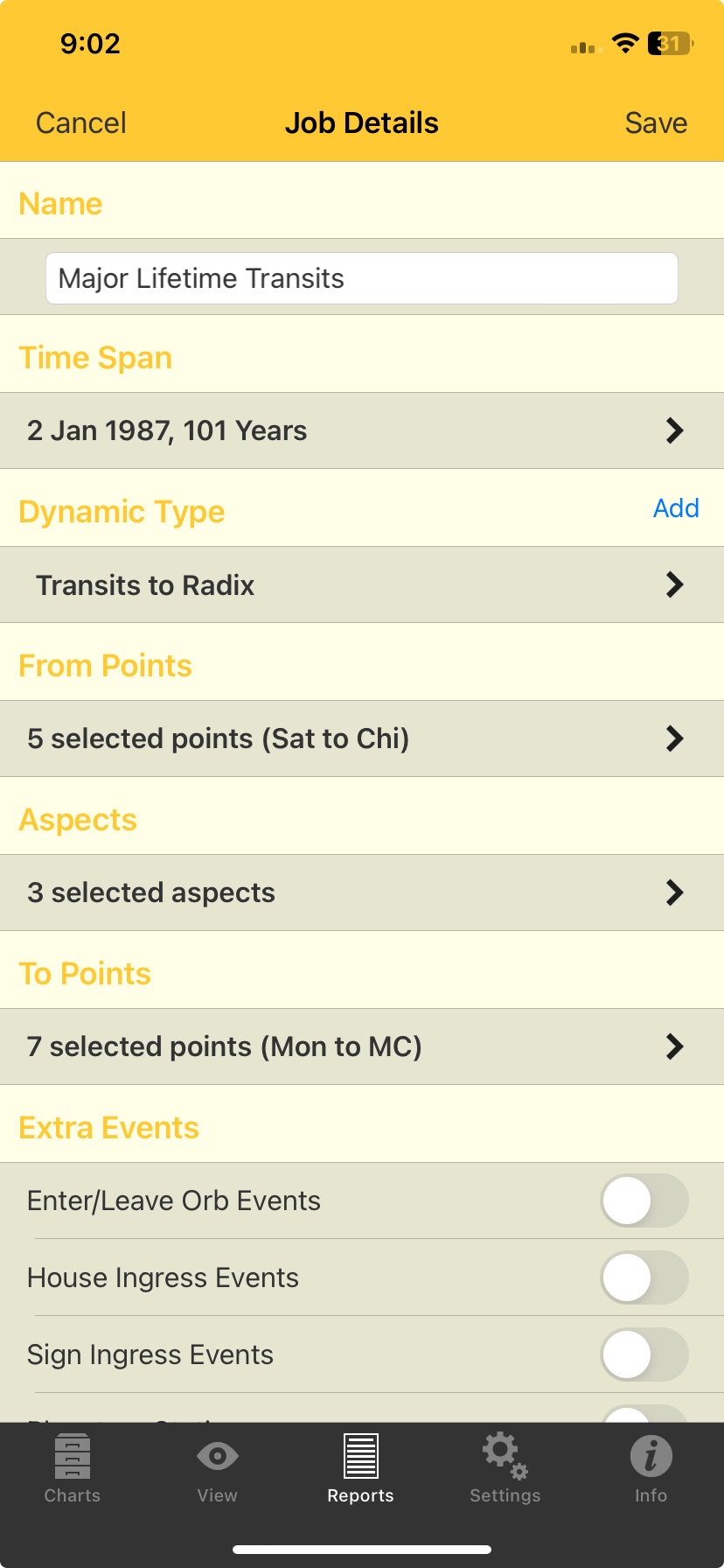
To see how many aspects are used for a Dynamic Job swipe down the list of job details until you can see "Aspects". You can then see at a glance how many aspects are selected to be used when the Dynamic Job runs.
 Job Details pane - aspects |
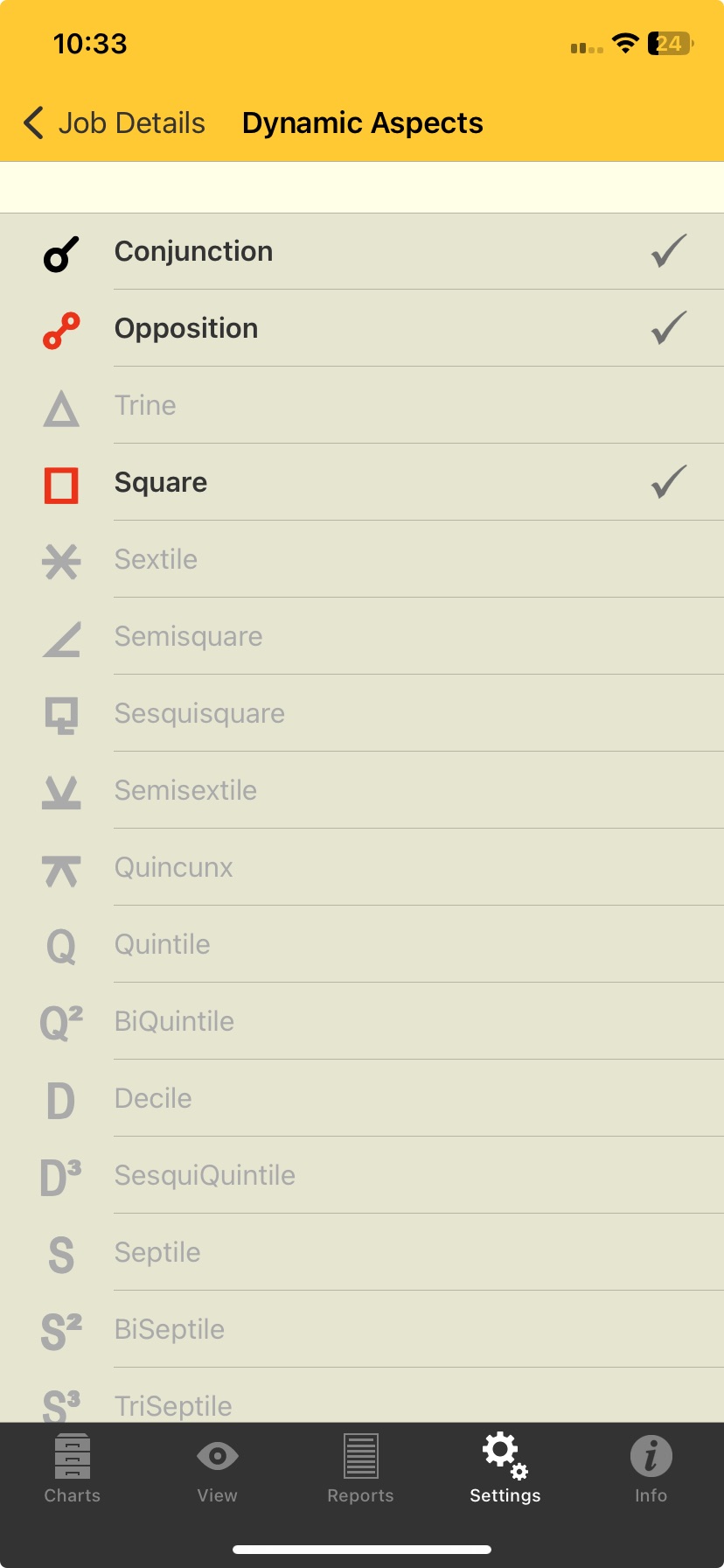
To see and/or change any of these aspects used for a Dynamic Job, tap the > to the right of the "# selected aspects". This will open the "Dynamic Aspects" screen where you can decide which aspects (from the currently selected Aspect Set) you want to be used in this Dynamic Job.
Just tap on the aspect to toggle it on or off. Once you are finished tap the < Back button in the Toolbar (top left of the screen) to return to the "Job Details" screen.
 Dynamic Aspects screen |
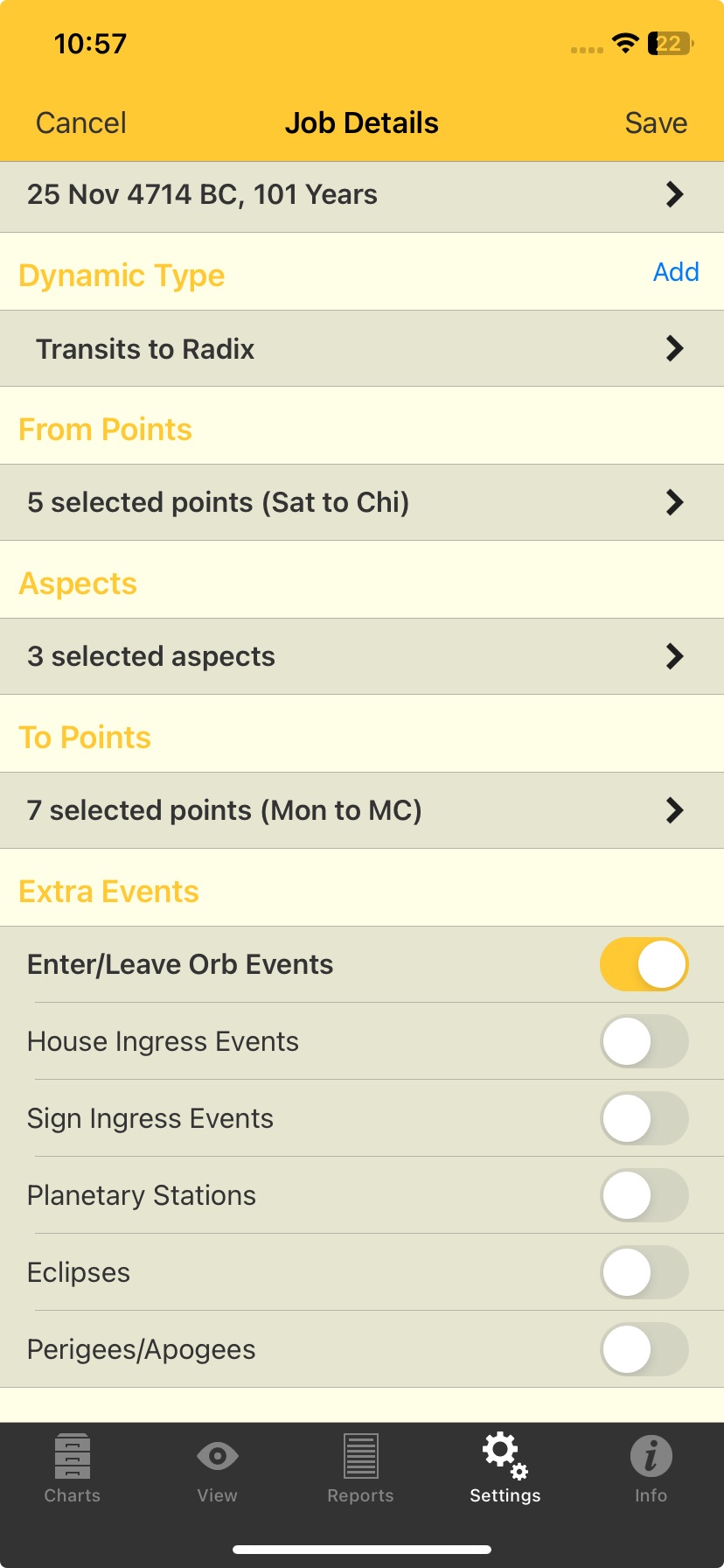
If you scroll down to the bottom of the Job Details screen you will come to the section involving "Extra Events". These items allow you to fine tune the kind of events that are generated in the Dynamic Listing.
➢ For any extra event press down on the circular button, and holding it down, slide it right to turn the event ON (it becomes yellow) or slide it left to turn the event OFF (it becomes gray). See below for more details.
➢ When you have finished tap on either the Cancel or Save button.
 Job Details pane - extra events |
1.Enter/Leave Orb Events: can be switched ON or OFF to control whether only exact transits are shown or not. If it is switched OFF only exact transits are shown. If it is switched ON then each transit will be given an entering and leaving orb of 2 degrees – which is not changeable by the user. This will result in extra events appearing in the list marking when the transit is at its entering orb (1°), and is at its leaving orb (1°), as well as when it is exact.
This will mean a minimum of two events per transit (entering and leaving), but often three events (entering, exact and leaving) and in some cases where a transiting planet retrogrades back over ground it's already covered while in transit, additional events (some or all of entering, exact and leaving) will be displayed to correspond with that additional retrograde and subsequent direct movement.
2.House Ingress Events: if switched ON this shows when planets move into a neighboring house in the radix chart, if switched OFF then that event is not shown in the list.
3.Sign Ingress Events: if switched ON this shows when planets move into a neighboring sign, if switched OFF then that event is not shown in the list.
4.Planetary Stations: if switched ON this shows when planets come to a standstill (station) when changing from direct motion to retrograde motion, and vice versa. If switched OFF this is not shown.
5.Eclipses: if switched on any eclipses occurring in the time period of the report will be included in the listing, otherwise they will not be included.
6.Perigees/Apogees: perigee is when the Moon is the closest to the Earth in its orbit, and apogee is when it is furthest away from the Earth in its orbit. When switched on if the Moon is an included point in the "From Points" section of this screen, then when either of these events occur in the time period of the report they will be included in the listing, otherwise they will not be included.