The Chart Calculation settings allows selection of house system, zodiac type, lunar node types, and various items related to chart calculation.
>> To change from the Tropical zodiac to a Sidereal zodiac (or vice versa)
1)Tap the Settings tap in the TAB Bar to display the "Settings" screen.
2)Tap on Chart Calculations - this will display the "Chart Calculation" screen, where the current zodiac setting will be displayed e.g. "Tropical".
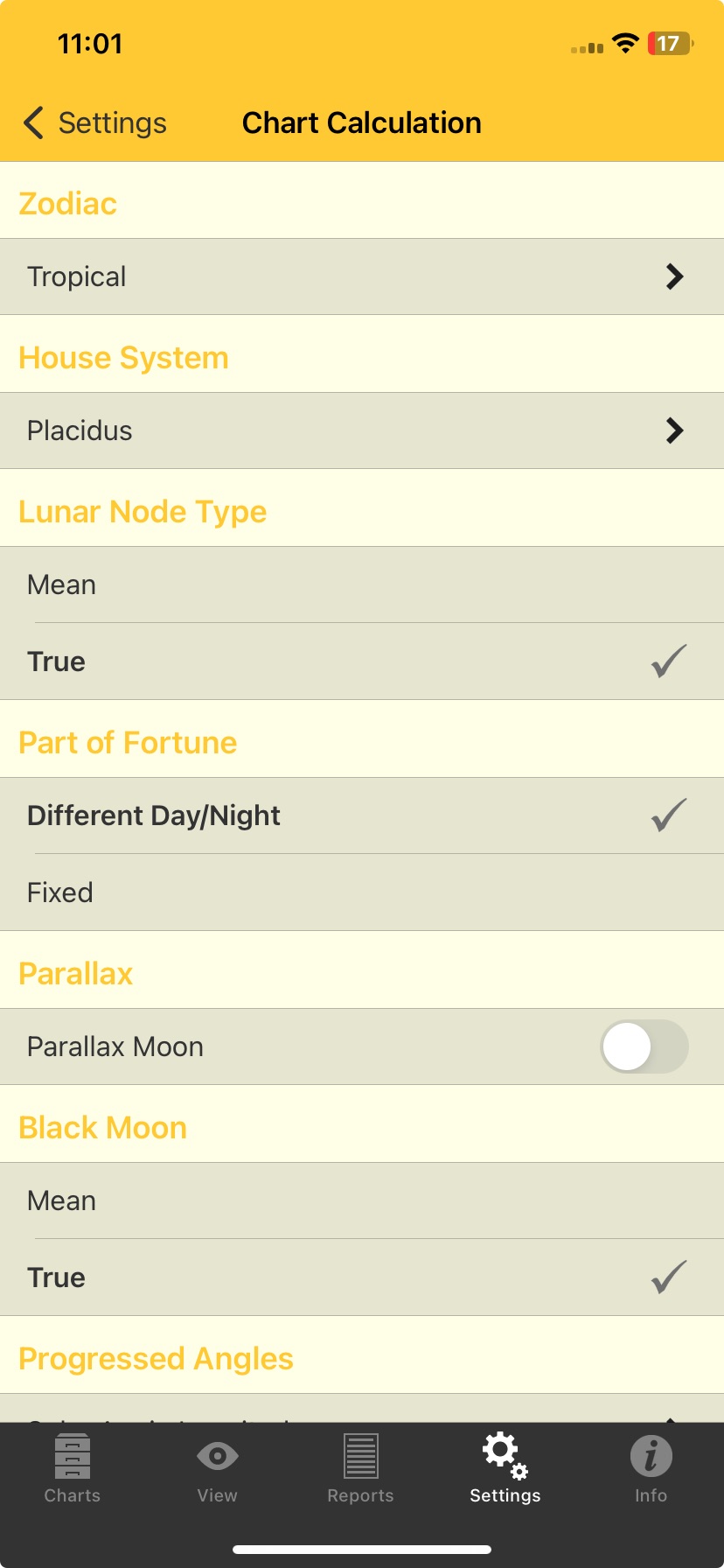 Chart Calculation Settings |
3)Tap on the > to the right of the setting - this will display the "Select Zodiac" screen.
4)Tap on the Zodiac in the list you want - this will select that zodiac and return you to the "Chart Calculations" screen.
Options are:
•Tropical
•Fagan-Allen
•Lahira
•DeLuce
•Raman
•UshaShashi
•Krishnamurti
•Djwhal Khul
•Draconic
NOTE: what is the Draconic Zodiac?
Astrology is built on cycles. The Tropical Zodiac, used in most modern astrology, begins at the Spring Equinox, when the Sun crosses the celestial equator moving northward. This creates the familiar twelve zodiac signs, each representing an equal phase in the solar cycle.
The Draconic Zodiac uses a different starting point. Instead of beginning with the Sun, it begins with the Moon’s North Node - which is the point where the Moon crosses the ecliptic moving north.
In ancient astrology, the lunar nodes were known as the Dragon’s Head and Dragon’s Tail, which is where the term Draconic comes from.
In the Draconic Zodiac, 0° Aries is placed at the North Node, with the rest of the zodiac divided into twelve equal 30-degree sections from that point.
While the Tropical Zodiac is often associated with personality, identity, and conscious expression, the Draconic Zodiac is considered more lunar in nature. Many astrologers associate it with deeper motivations, inner emotional patterns, subconscious drives, soul themes, and karmic direction.
A Draconic chart is calculated by using the position of the North Node as the new zodiac starting point, shifting all planetary positions accordingly.
5)Tap on the < Chart Calculation button in the top left of the screen - this takes you back to the "Chart Calculation" screen.
>> To change the house system used in charts
1)Tap the Settings tap in the TAB Bar to display the "Settings" screen.
2)Tap on Chart Calculations - this will display the "Chart Calculation" screen, where the current zodiac and house system settings etc will be displayed e.g. "Placidus" for the default House System to use for new charts (see the above screen graphic).
Normally the zodiac setting is rarely changed, but the house setting is more often changed.
3)To change the House System setting tap on the > to the right of the current setting (e.g. Placidus) - this will display the "Select House System" screen. You can swipe up or down to see all the options in the list.
|
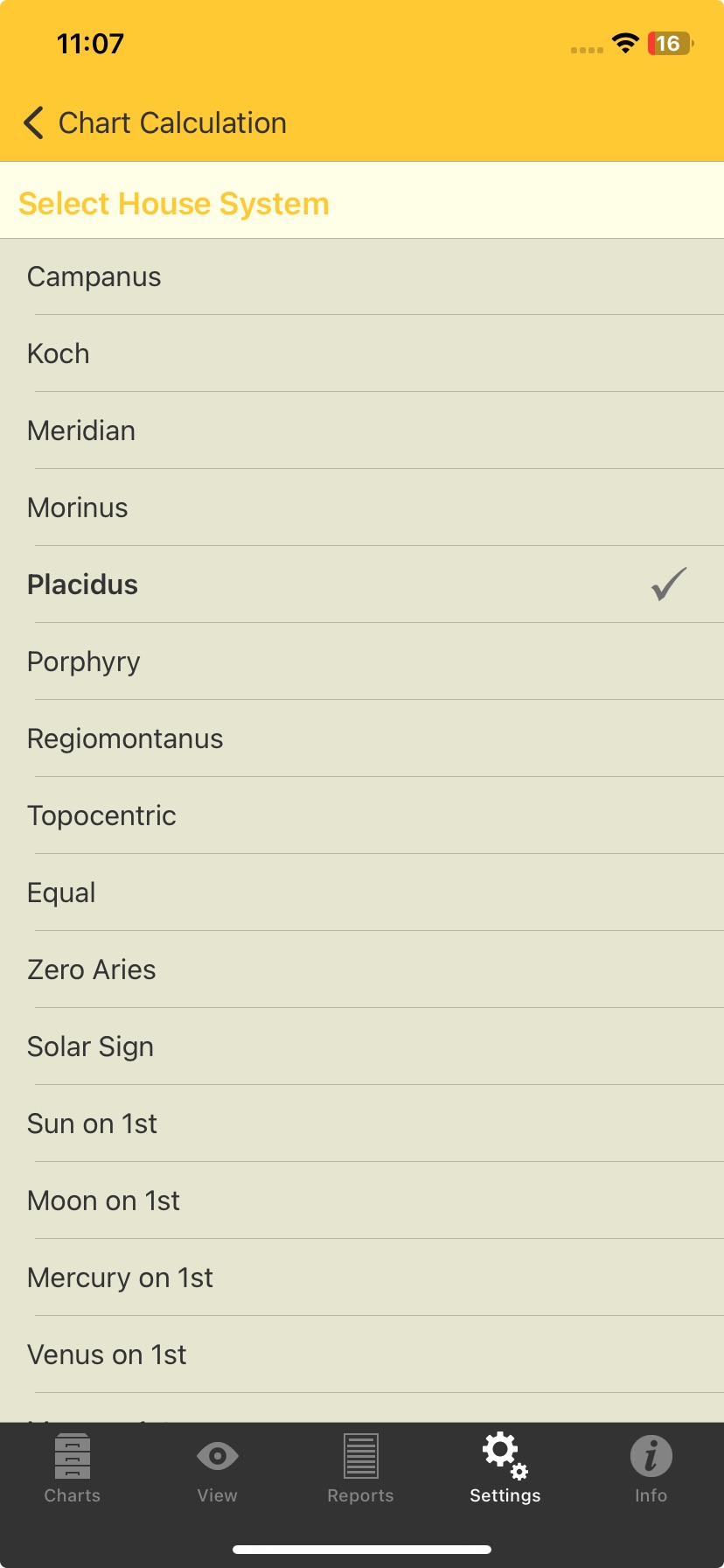 House System options |
➢ Tap on the House System in the list you want - this will select that house and return you to the "Chart Calculation" screen.
House Systems available
Campanus
Koch
Meridian
Morinus
Placidus
Porphyry
Regiomontanus
Topocentric
Equal
Zero Aries
Solar Sign
Sun on 1st
Moon on 1st
Mercury on 1st
Venus on 1st
Mars on 1st
Jupiter on 1st
Saturn on 1st
Uranus on 1st
Neptune on 1st
Pluto on 1st
Node on 1st
Vertex on 7th
EP on 1st
MC on 10th
Whole Sign
Hindu Bhava
Alcabitius
PF on 1st
ASC in 1st
>> To change the Lunar Node Type
1)Tap the Settings tap in the TAB Bar to display the "Settings" screen.
2)Tap on Chart Calculations - this will display the "Chart Calculations" screen.
3)In the Lunar Node Type section tap on either Mean or True.
>> To change the Part of Fortune type
1)Tap the Settings tap in the TAB Bar to display the "Settings" screen.
2)Tap on Chart Calculations - this will display the "Chart Calculation" screen.
3)In the Part of Fortune section tap on either Different Day/Night or Fixed.
>> To make a Parallax adjustment to the Moon's calculation
1)Tap the Settings tap in the TAB Bar to display the "Settings" screen.
2)Tap on Chart Calculations - this will display the "Chart Calculation" screen.
3)In the Parallax section slide the circular slider to the right (it goes yellow) to switch correction for parallax being applied to the Moon's calculation ON, and slide it to the left to switch it OFF (it goes gray).
>> To set the Black Moon type
1)Tap the Settings tap in the TAB Bar to display the "Settings" screen.
2)Tap on Chart Calculations - this will display the "Chart Calculations" screen.
3)In the Black Moon section tap on either Mean or True.
>> To change the Progressed Angle type
1)Tap the Settings tap in the TAB Bar to display the "Settings" screen.
2)Tap on Chart Calculations - this will display the "Chart Calculations" screen.
3)In the Progressed Angle section tap on the > to the right of the (currently selected) progressed angle displayed.
4)Tap on the calculation type to use when calculating the progressed angles, and you'll be returned to the "Chart Calculation" screen.
>> To change the Progressed Day rate
1)Tap the Settings tap in the TAB Bar to display the "Settings" screen.
2)Tap on Chart Calculations - this will display the "Chart Calculations" screen.
3)In the Progressed Day Rate section tap on the > to the right of the (currently selected) progressed day rate displayed.
4)Tap on the progressed day rate to use for progression calculations, and you'll be returned to the "Chart Calculation" screen.
>> To change the Types used for various Dignities
1)Tap the Settings tap in the TAB Bar to display the "Settings" screen.
2)Tap on Chart Calculations - this will display the "Chart Calculation" screen, where under "Essential Dignities" the current Dignity types in use will be displayed e.g. "Ptolemy" may be the Term Type, and it may also be the Triplicity Type.
3)Tap on the > to the right of the particular type of Dignity you want to change - this will display the options for that type.
4)Tap on the Type you want to be used for the Dignity/Debility in question, and you'll be returned to the "Chart Calculation" screen.
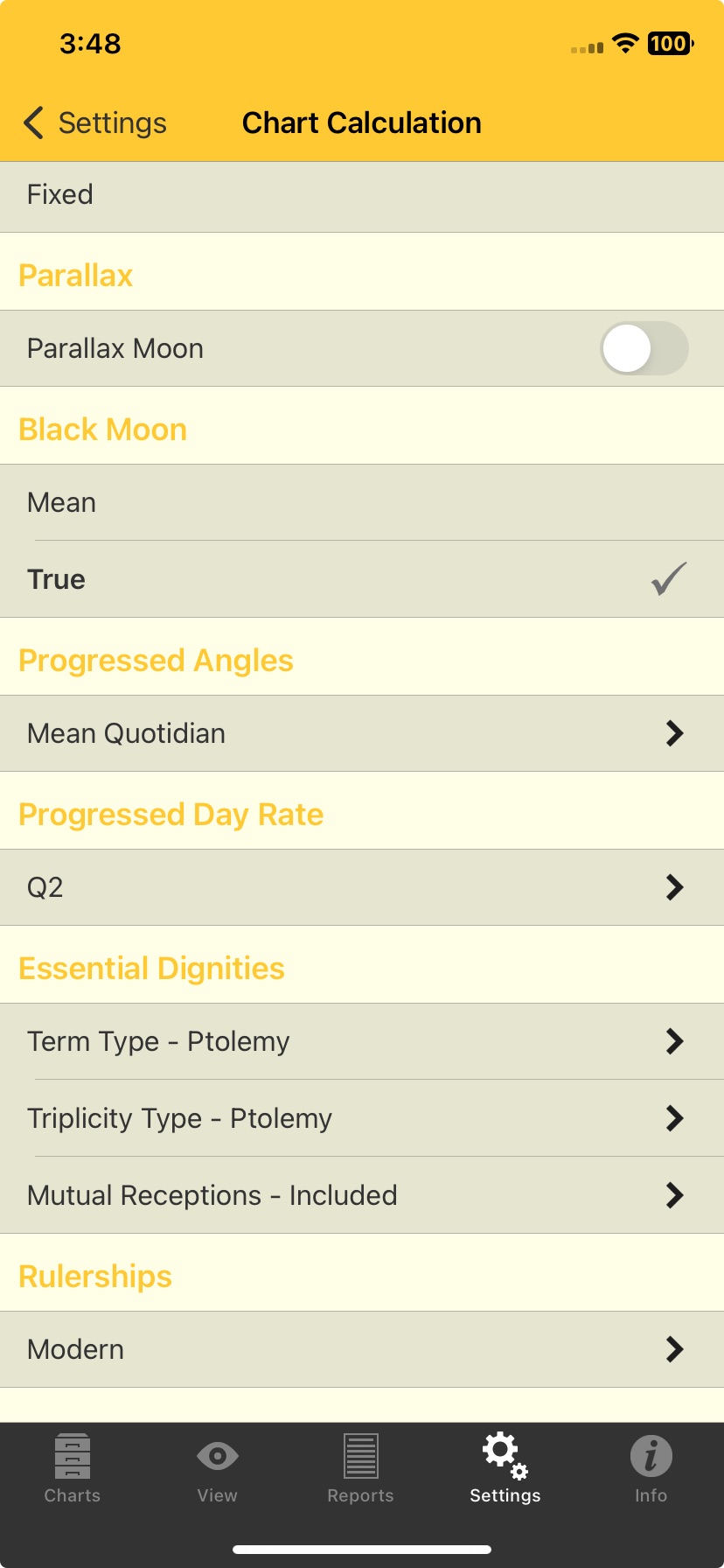 Essential Dignities Settings |
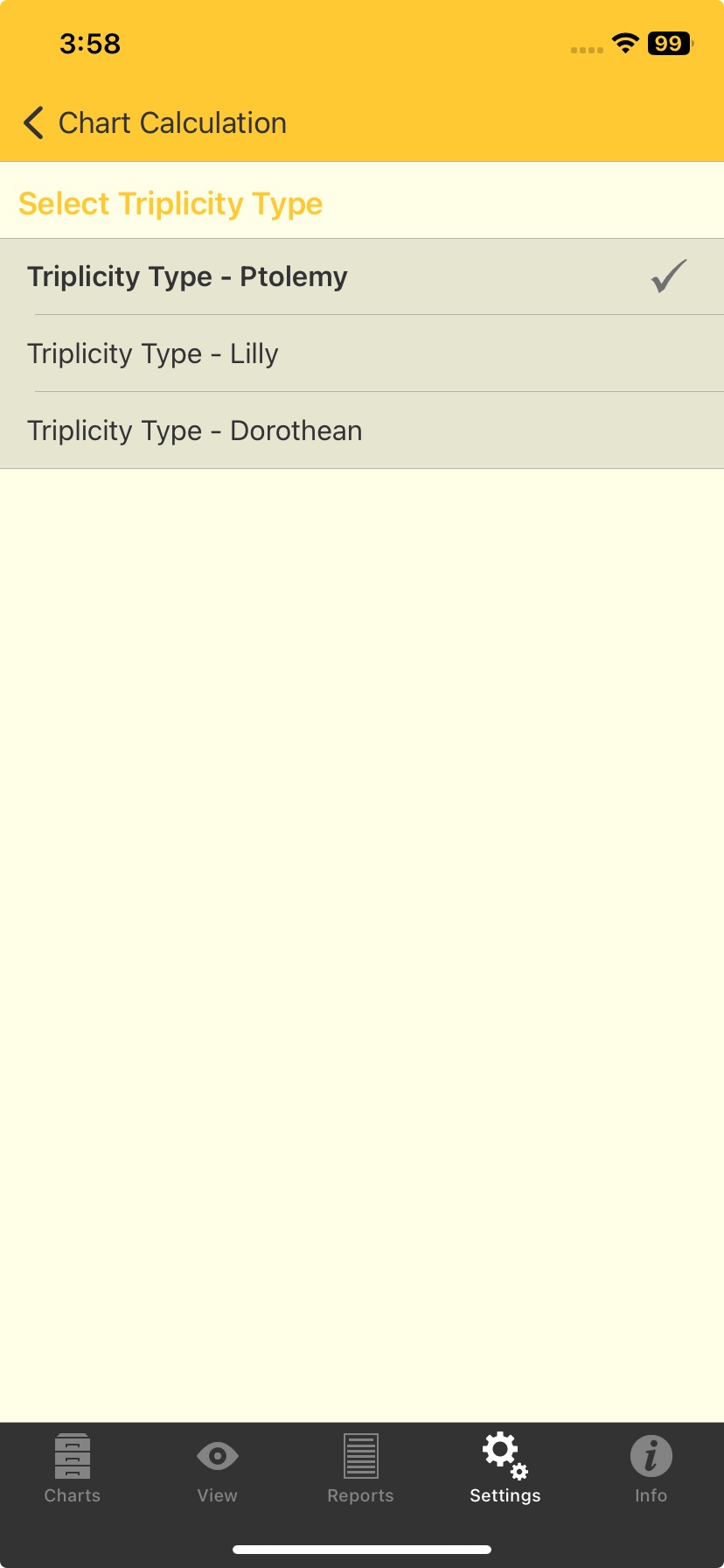 Essential Dignities Triplicity Type |
A "peregrine" planet has no essential dignity whatsoever. In calculating whether a planet is peregrine firstly it must have no dignities in the usual sense.
Then you have the option of specifying whether a planet being in a mutual reception should be considered as a further determining factor in the peregrine calculation.
Regardless of which option is selected mutual receptions will still be shown in the report by a small "m" next to the other planet involved in the mutual reception.
1)Tap the Settings tap in the TAB Bar to display the "Settings" screen.
2)Tap on Chart Calculations - this will display the "Chart Calculation" screen, where under "Essential Dignities" the current setting for Mutual Receptions will be displayed.
3)To change the setting for Mutual Receptions tap on the > to the right of the "Mutual Reception" - this will display the options for that.
In the options below ...
•"Mutual Receptions - Ignored" means don't consider whether the planet is in mutual reception to any other planet. So even if the planet is in a mutual reception the planet can still be peregrine if it has no other dignities.
•"Mutual Receptions - Included" means do consider whether the planet is in mutual reception to any other planet. If the planet is in a mutual reception then it is regarded has having some dignity as a result, and therefore with this calculation option it cannot be peregrine.
4)Tap on the Mutual Reception option you want to be used for Peregrine calculation.
5)Tap on the Chart Calculation button in the top left of the screen - this takes you back to the "Chart Calculation" screen.
|
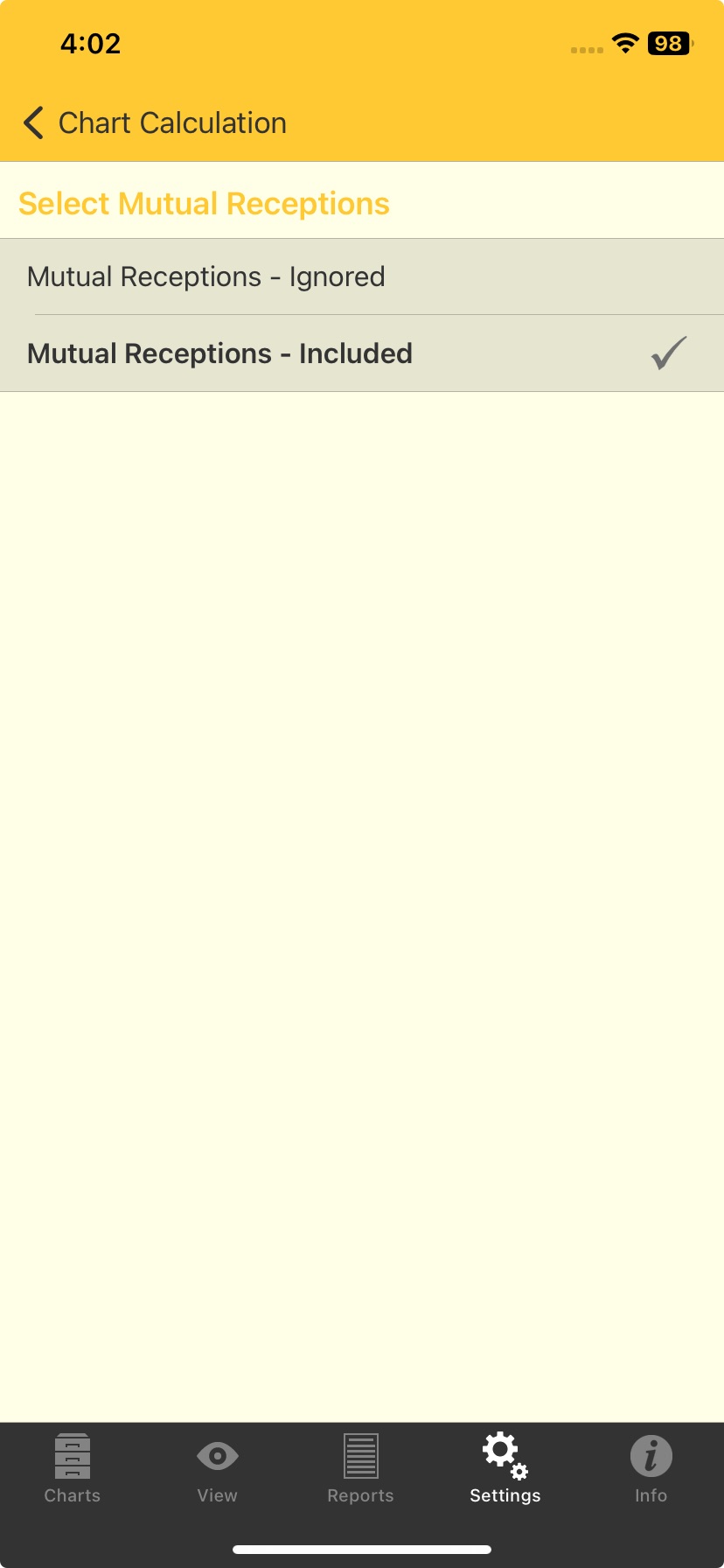 Setting the Peregrine type |
>> To change the Rulerships used
1)Tap the Settings tap in the TAB Bar to display the "Settings" screen.
2)Tap on Chart Calculations - this will display the "Chart Calculations" screen.
3)In the Rulership section tap on the > to the right of the (currently selected) rulership displayed.
4)Tap on the rulership to use, and you'll be returned to the "Chart Calculation" screen.
>> To change how the Midpoint Composite house cusps are anchored
1)Tap the Settings tap in the TAB Bar to display the "Settings" screen.
2)Tap on Chart Calculations - this will display the "Chart Calculations" screen.
3)In the Composite section tap on the > to the right of the (currently selected) house anchor setting.
5)Tap on the anchor method to use, and you'll be returned to the "Chart Calculation" screen.