You can search for charts across all chart files.
>> Finding charts based on various Chart and Astrological details
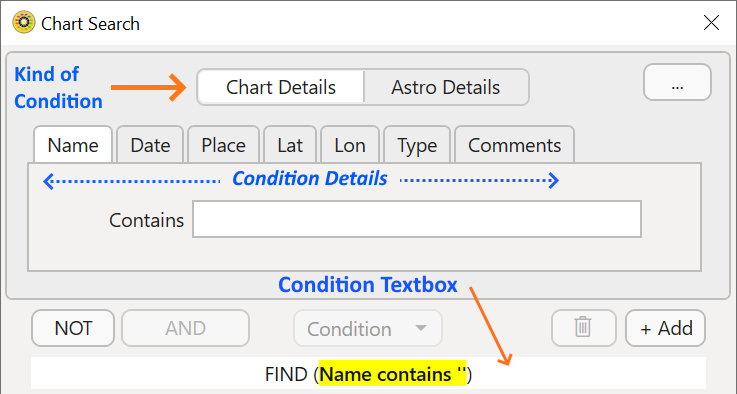
To find a chart you need to open the "Chart Search" dialog, which can be done in two ways ...
➢ Click on the Chart Search icon  in the Toolbar. This will open the "Chart Search" dialog box.
|
|
-OR-
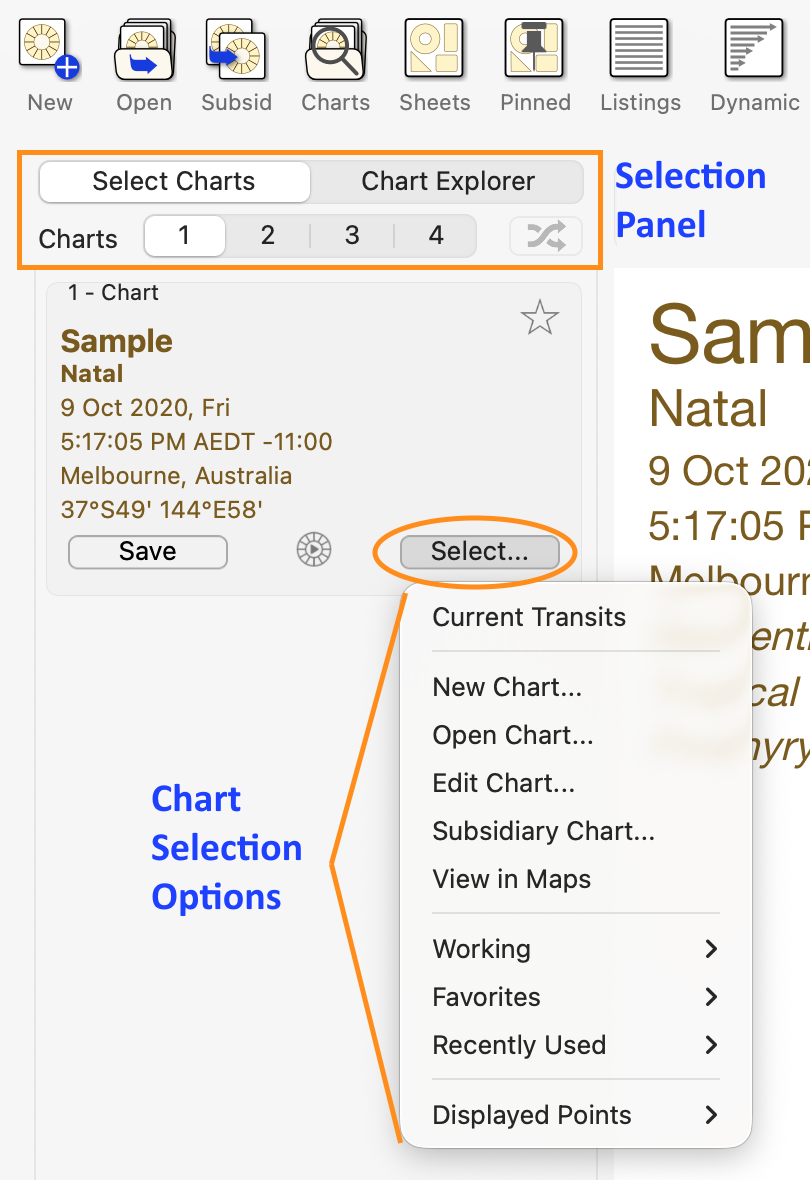
1.Click on the Select button for any chart in the "Selected Charts" pane and a menu will drop down displaying the options for that particular chart (Chart 1, 2, 3 or 4).
2.Click on Open Chart to open the "Saved Charts" dialog box.
|
3.In the "Saved Charts" dialog (shown below) click on the Search button.
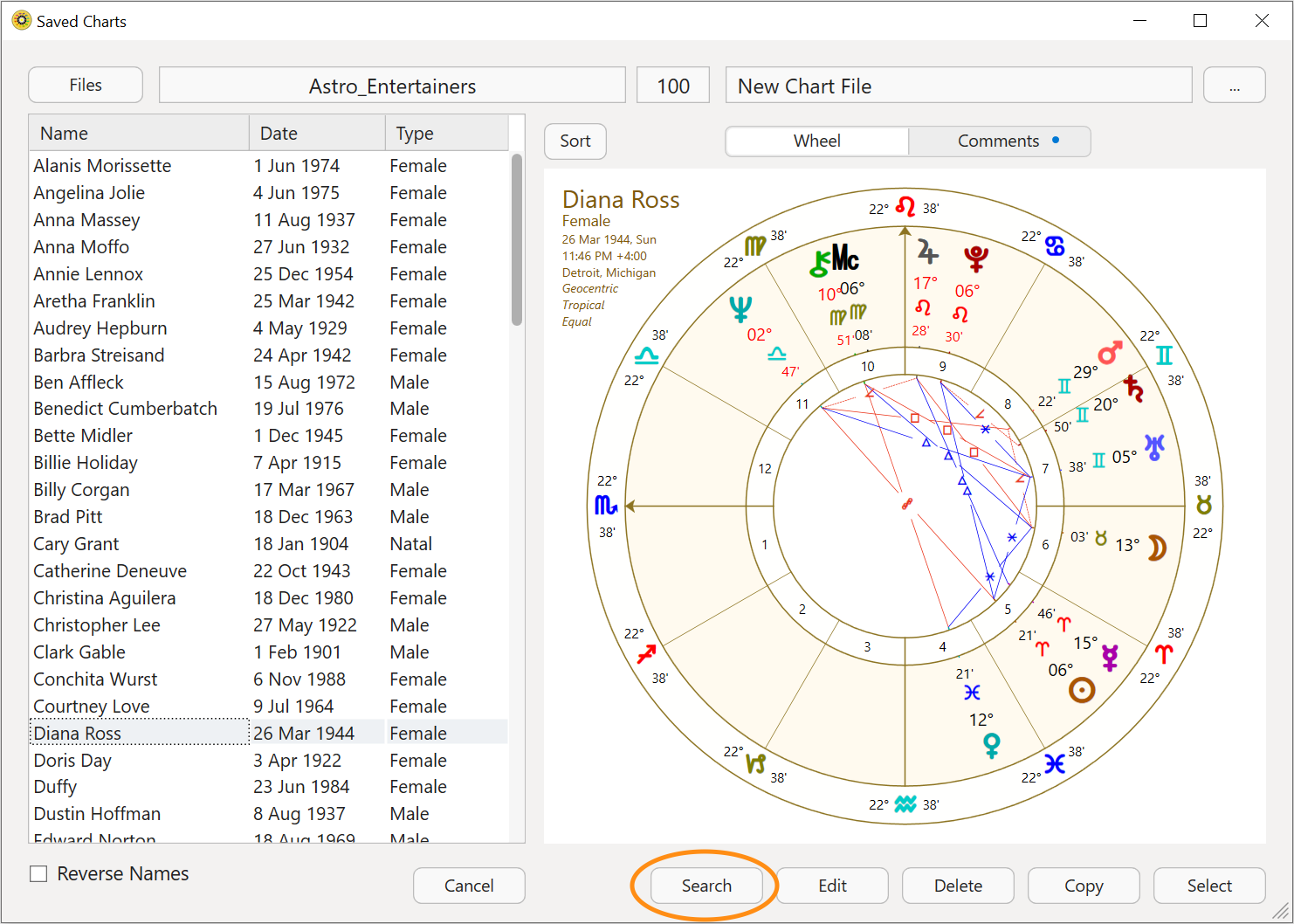 |
4.The "Chart Search" dialog box will then open.
|
You can specify a range of Chart and Astrological details as criteria for searching for charts in any folder of chart files, or just within a single chart file.
The process is one of building up the search criteria, one search condition at a time.
A search condition is a single factor that identifies a chart e.g (say) the chart date must be a certain date, or within a certain date range, or the chart must be of a specific type, or it must have Venus in a certain sign etc.
The search criteria could utilize just a single search condition, or it might be made up from multiple search conditions.
When a chart has one search condition it is known as the search criterion, when it has more than one search condition all the conditions are collectively known as the search criteria (plural for criterion).
>> Creating a search condition for each Chart detail
➢ Click on the Chart Details button at the top of the dialog (to search for a chart using its name only see Finding Charts - by name).
➢ To find charts based on specific data involving any of the following chart details < date/place/latitude/longitude/chart type/certain words in the comments > click on the respective button for that chart detail in the Chart Search dialog, then specify the data for that chart detail. See below how to specify data for each chart detail.
1.To find charts within in a certain time period, click on Date
|
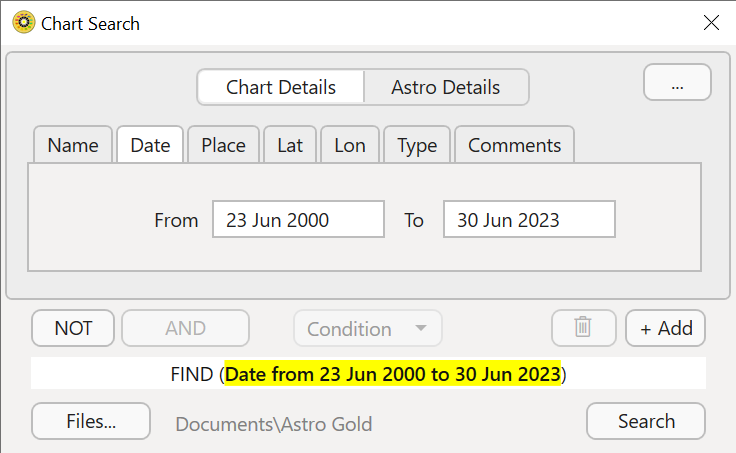
a)Notice how there is a single condition: in the above case: to find any chart having a date between 23 June 2000 and 23 June 2023 inclusive.
b)To change the time period for a chart date to be in, edit the dates showing in the From and To date fields, then press the Tab or Enter key, or click in the Condition textbox.
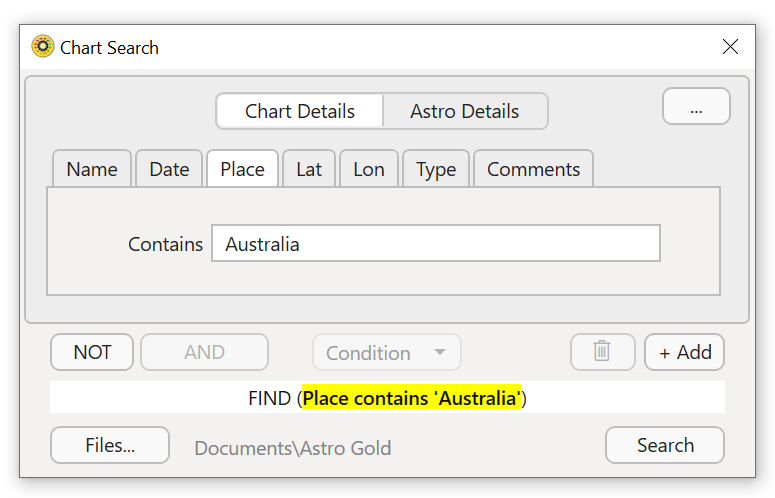
2.To find charts using the chart's location, click on Place
a)In the Contains textbox type the town, city or country (in full or part) that charts must have in their place details, then press the Tab or Enter key, or click in the Condition textbox.
|
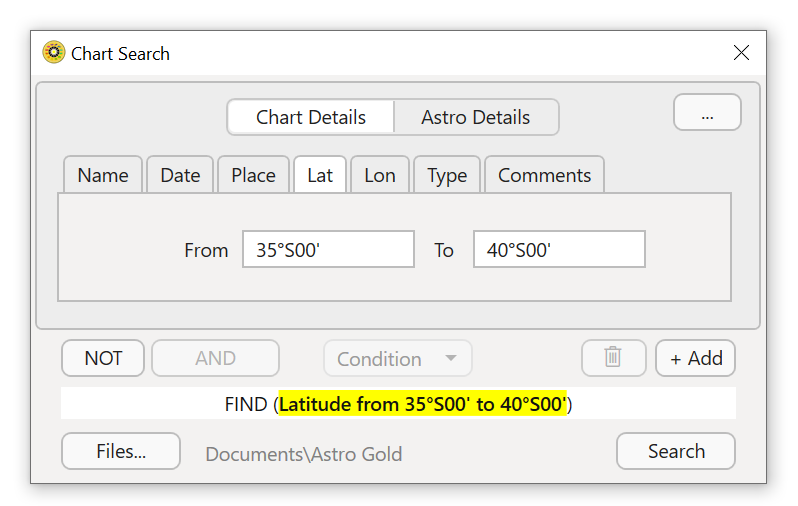
3.To find charts within a certain latitude, click on Lat
a)Type a single latitude in both the From and To textboxes to find a chart whose latitude must be the same as that, or a different latitude in each textbox to create a range within which a chart's latitude must be, then press the Tab or Enter key, or click in the Condition textbox.
Below we have typed a latitude range from 35°S to 40°S - which would find, for example, any chart with Melbourne as a place, as the latitude for Melbourne is 37°S49’.
b)Lon(gitude) works just the same as Latitude.
|
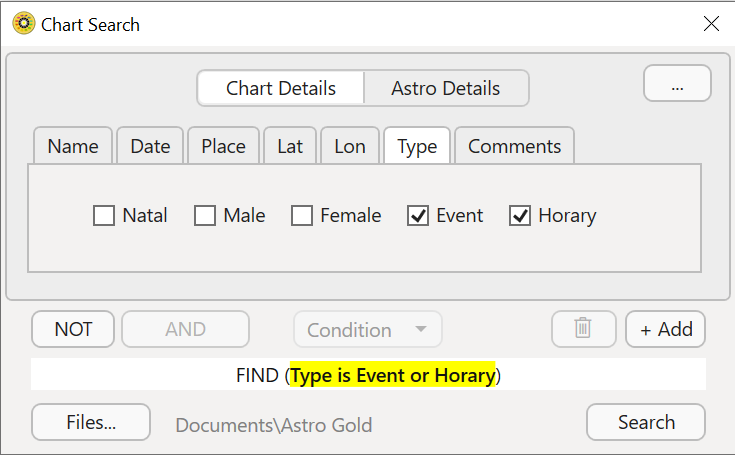
4.To find only certain types of charts, click on Type
a)Tick any or all of the checkboxes for Natal/Male/Female/Event/Horary you want to include in the chart search. For example, below will find any chart that is either an Event or a Horary chart.
|
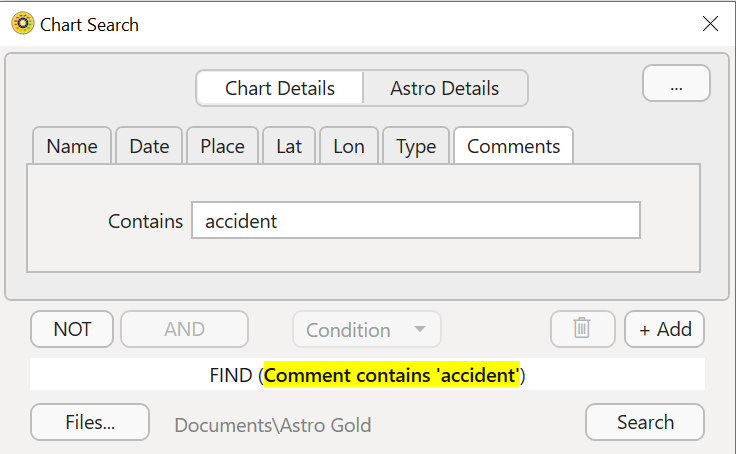
5.To find charts who have a certain word, phrase or sentence in their comments, click on Comments
a)In the Contains textbox type in specific partial words, whole words, or even whole sentences, that must be in a chart's comments in order for that chart to be included in the search results. Below we want any chart that had the word "accident" anywhere in the comments.
|
So now we've created 6 different individual conditions, one for each possible Chart detail (excluding the chart name - see Finding Charts - by name for info on that).
Each chart detail condition remains in the dialog but only one condition can be used at a time.
To see the equivalent information for Astrological details keep on reading the next section. Or alternatively you can ...
➢ See Building a single condition Search for info on how to use just one of these conditions you've created to search for charts.
➢ Or for more information using several of these conditions combined together see Building a multiple-condition Search.
>> Creating a search condition for each Astrological detail
➢ Click on the Astro Details button at the top of the dialog.
➢ To find charts based on specific data involving any of the following astrological details < point in signs/houses, point aspects, point speed > click on the respective button for that astrological detail in the Chart Search dialog, then specify the data for that astrological detail. See below how to specify data for each astrological detail.
1.To find charts with a specific point (planet, node, arabic part etc) in a specific sign (Aries, Taurus etc), click on Signs
|
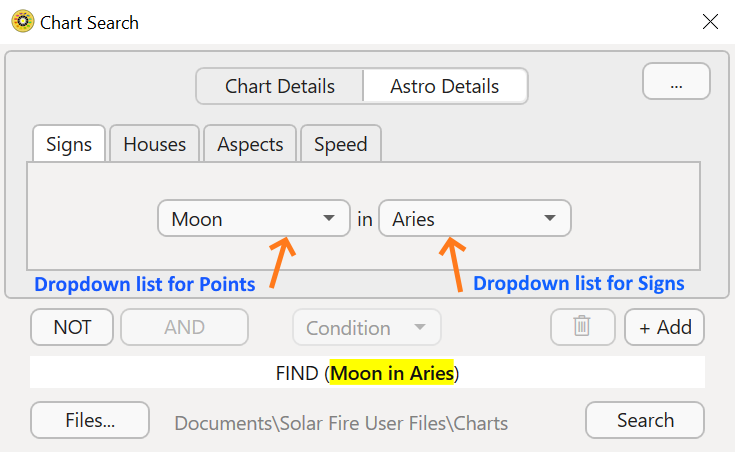
a)Notice how there is a single condition: in the above case: to find any chart having the Moon in Aries - this will always be the default when you first use "Chart Search" and click on "Signs".
b)To change the point (planet, node etc) used here click on the dropdown list for Points and select the point you want. You can also click on the dropdown list for Signs and select the sign you want.
You will then see that <point in sign> combination reflected in the "Condition" textbox.
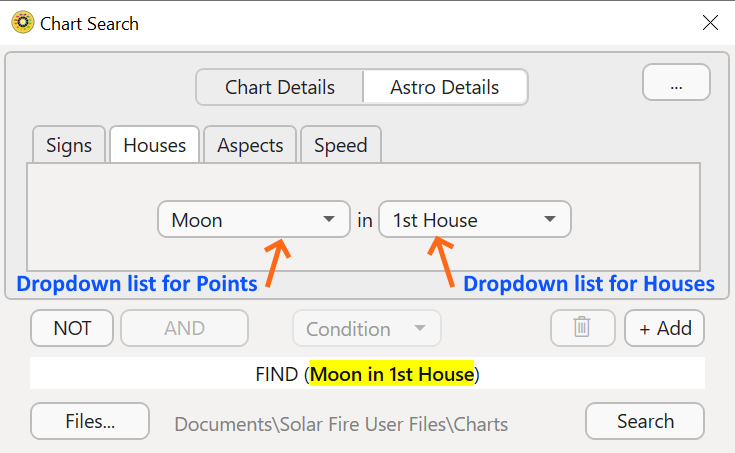
2.To find charts with a specific point (planet, node, arabic part etc) in a specific house (1,2 3 etc), click on Houses
a)To change the point (planet, node etc) used here click on the dropdown list for Points and select the point you want (this dropdown box is in the equivalent position as it is for Points in "Signs" above).
b)You can also click on the dropdown list for Houses and select the house you want (as you can see below this dropdown box is in the equivalent position as the one for Signs above).
You will then see that <point in house> combination reflected in the "Condition" textbox.
|
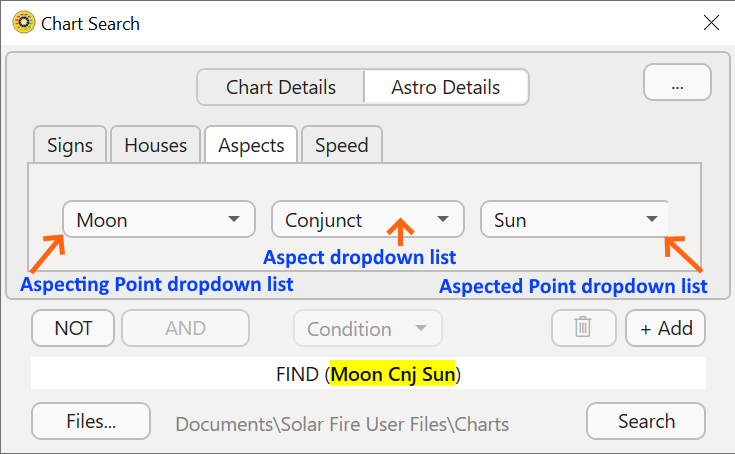
3.To find charts with a specific point (planet, node, arabic part etc) in a specific aspect (conjunction, square etc) to another specific point, click on Aspects
a)To change the first (aspecting) point (planet, node etc) used here click on the Aspecting Point dropdown list (the leftmost one) and select the point you want.
b)To change the second (aspected) point do the same but using the rightmost Aspected Point dropdown list.
c)You can also click on the Aspect dropdown list (the middle one) and select the aspect you want.
You will then see that point aspecting point combination reflected in the Condition textbox.
|
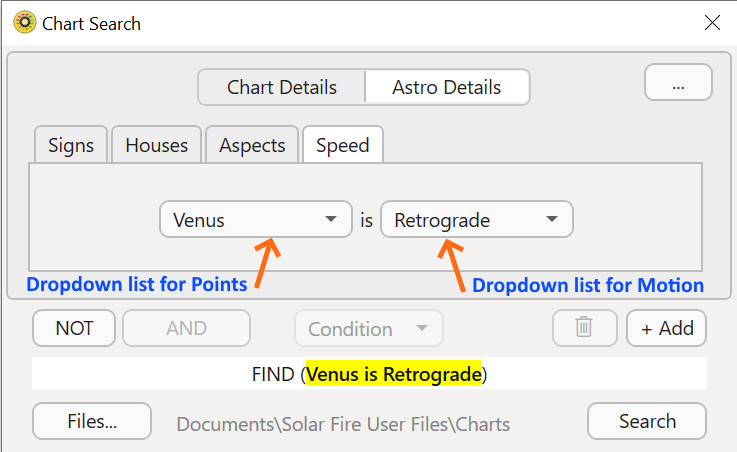
4.To find charts with a specific point having a certain kind of motion, click on Speed
a)To change the point (planet, node, arabic part etc) used here click on the dropdown list for Points and select the point you want.
b)You can also click on the dropdown list for Motion and select the type of motion indicator you want (retrograde/fast/slow etc).
You will then see that point motion reflected in the Condition textbox.
|
➢ So now we've created 4 more different conditions, one for each possible Astrological detail.
>> Positive and Negative Conditions
As you create each condition, you need to bear in mind if it is intended to be a positive condition, or if it is intended to be a negative condition.
When creating conditions, a condition can be intended to be of:
a)a positive nature e.g. FIND (something) ... or
b)a negative nature (FIND (NOT(something)) ... which means only find charts that don't have something.
So for each condition you need to decide if it is something that a chart must have to be selected, or if it's something a chart must NOT have to be selected.
>> Turning Conditions into Search Criteria
➢ Continue reading in the next section (Building a single condition Search) for info on how to use just one of the conditions you've created to search for charts.
➢ Or if you want to use several conditions combined together see Building a multiple-condition Search.
>> Building a single-condition Search Criterion
1.If you only want to find charts that are defined by one condition, whether it is a single Chart detail condition, or a single Astrological detail condition, all you need to do is to display that condition, and if need be specify its data.
a)First, click on the button relevant to the kind of condition it is: one derived from Chart Details or one derived from Astro Details.
b)Then click on the button for that specific condition, e.g Date, Houses etc.
➢ For example, if (say) you want to search for charts defined by one or more types, then click on the Type button
In this case, if you had already previously entered something for a Type condition, the "Condition" textbox will display what you last typed in there:
e.g. FIND (Type is Event or Horary) ... if that is still the condition you are wanting then that's all you need to do, you're now ready to activate the search.
But it may not be a type of chart that you're looking for - you may be interested in any Chart detail (name/date/place etc... any of these details), or any Astrological detail (planet in a sign/house etc).
Whatever the condition detail is, just click on its button, and what you previously typed in the "Conditions" textbox as a condition for that detail will still be there, and you're ready to search for charts using it.
➢ If you hadn't previously entered a condition for whatever Chart or Astrological detail you're interested in, or if for any of these details you want to specify something different to what you last entered, then you will need to enter new data to create the condition, which you can just do straight away (but if you need assistance doing that see creating conditions for Chart Details or creating conditions for Astrological Details).
2.At this point this condition will be the only condition showing in the "Condition" textbox. You now need to decide ... if it's a positive or negative condition (see here for more info).
A condition is by default positive, so you only have to do something if a condition is a negative condition.
➢ If you intend the condition to be a negative condition click on the NOT button.
>> Building multiple-condition Search Criteria
1.By default, simply creating one or more conditions builds a single-condition search criterion - where the currently displayed condition, whatever it is, is the active single-condition search criterion. Until you have specifically built your multiple-condition search criteria only a single-condition search criterion exists.
So when reading the following ... remember that building a multiple-condition search criteria is an additional, specific, separate process that is different to that of creating one or more conditions.
2.To find charts that are defined by several conditions, you need at least one condition to have first been created. Instructions for how to create a condition for each Chart or Astrological Detail can be found in creating conditions for Chart Details and creating conditions for Astrological Details.
NOTE: When creating conditions, you need to bear in mind if it is intended to be a positive condition, or if it is intended to be a negative condition (see here for more information). However you won't actually define it as positive or negative until the next step.
3.Next, display the condition you want to be the first condition in your set of conditions, and decide if it's to be a positive or negative condition.
➢ If you intend this condition to be a negative condition click on the NOT button.
Regardless of whether it is a positive or negative condition, this condition will now be the base condition of your multiple-condition search criteria.
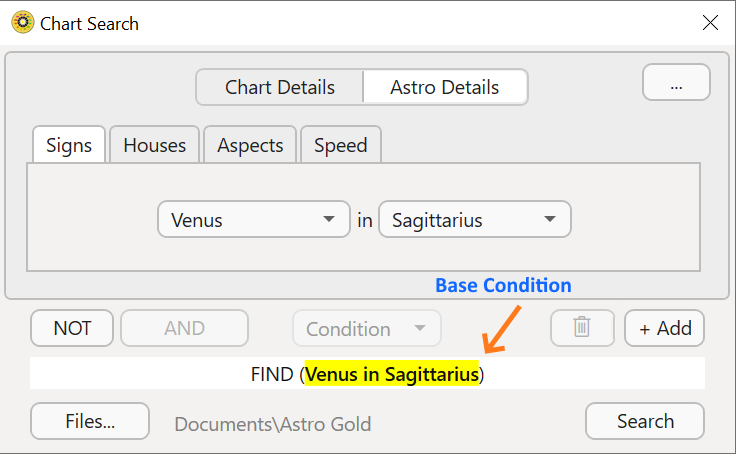 Multi-condition search criteria - base condition |
4.Now you need to build the remaining conditions into the full search criteria. For each additional condition you want to build into the search criteria ...
a)Click on the ADD button. This will add a new condition underneath the existing condition(s) with AND as the joining conjunction. Based on which Chart or Astro Detail tab was displaying at the time, this new condition may possibly be empty (have no data), or have some data you created at a previous time, or have default data in it. In this case below, since the "Signs" tab was active, the default data the condition has in it is - the first Planet in the first Sign.
|
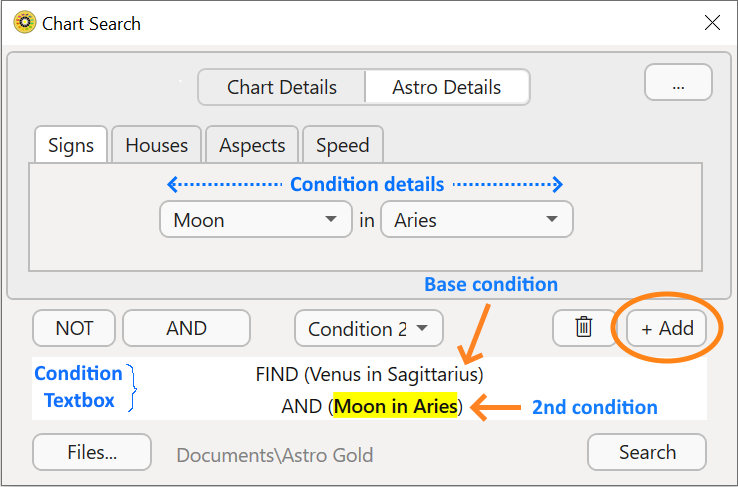
b)If you want to enter new data for the condition, or change the data of the condition, then click on whatever Chart or Astrological Detail you want the condition to be based on i.e. any one of Chart Details -name/date/place/lat/lon/type/comments ... or any one of Astro Details -signs/houses/aspects/speed. (However if you are happy with the condition as it is, skip to step (d) ).
c)Enter your condition in the Contains, From and To or Tick Checkboxes; or select items off dropdown lists - whatever is relevant for the Detail tab you clicked on in step (b) above. Then to update the condition in the "Condition textbox" with this new data click on the new or edited condition in the "Condition textbox", and it will immediately display the new or edited data that is showing in the "Condition details" area.
d)The "Condition dropdown" will also have become enabled. You can drop the list down by clicking on it, then from the list you can select which condition you want to be highlighted in the "Condition textbox" .
This is important, as all actions regarding conditions are applied to the currently highlighted condition in the "Condition textbox" . The new condition just created by using the "ADD" button will by default have become the currently highlighted condition - so any condition action you apply now will operate on this new condition. Tip: just clicking directly on a condition in the "Condition textbox" highlights it.
e)You can apply the following actions to the highlighted condition:
i.Toggle the condition from positive to negative, and vice versa. To do this click on the  button as many times as you need to.
i.Toggle the joining conjunction from AND to OR, and vice versa. To do this click on the  button and it will change into an
  button. Click on the button and it will change into an button, and so on.
▪If you use AND at the beginning of the condition it means that condition must be met in all charts included in the search results.
▪If you use OR at the beginning of the condition it means that any chart that meets that condition will be included in the search results, bu t that condition is not essential in all charts - as long as a chart not meeting this condition meets all AND conditions in the criteria it will also be included in the search results.
ii.Delete the condition. To do this click on the  (trash) icon.
|
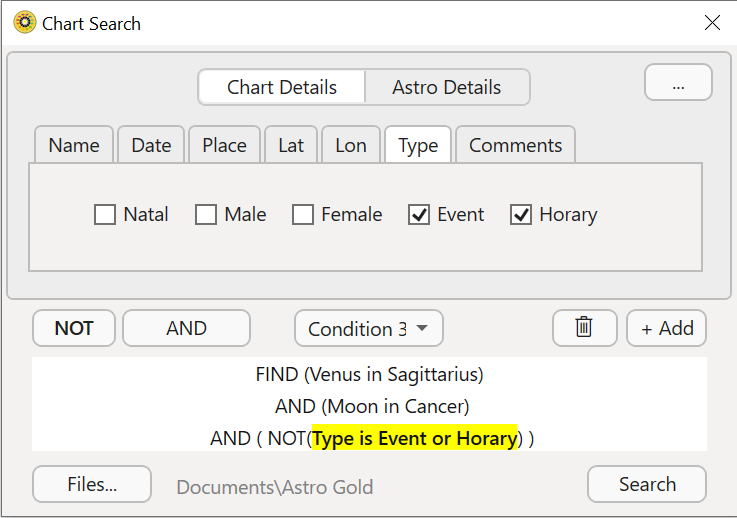
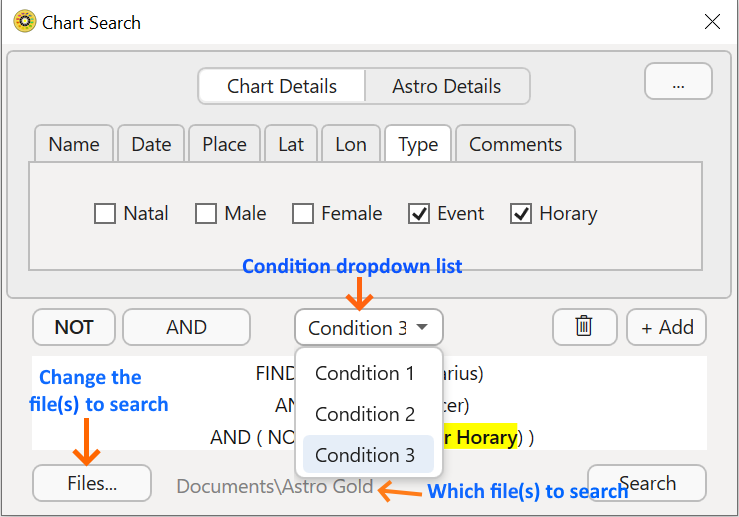
f)Below the "Condition dropdown" list has been dropped down and you can click on the condition you want to be highlighted in the "Condition textbox". You can also see the folder whose chart files will be searched, or the specific chart file that will be searched, which you can change - see Finding Charts - specifying chart files to search in for info on how to do that.
|
>> ACTIVATING the Search
➢ When you have created and added all the conditions you need in the search criteron or search criteria, and then applied actions to each condition as needed, click on the Search button.
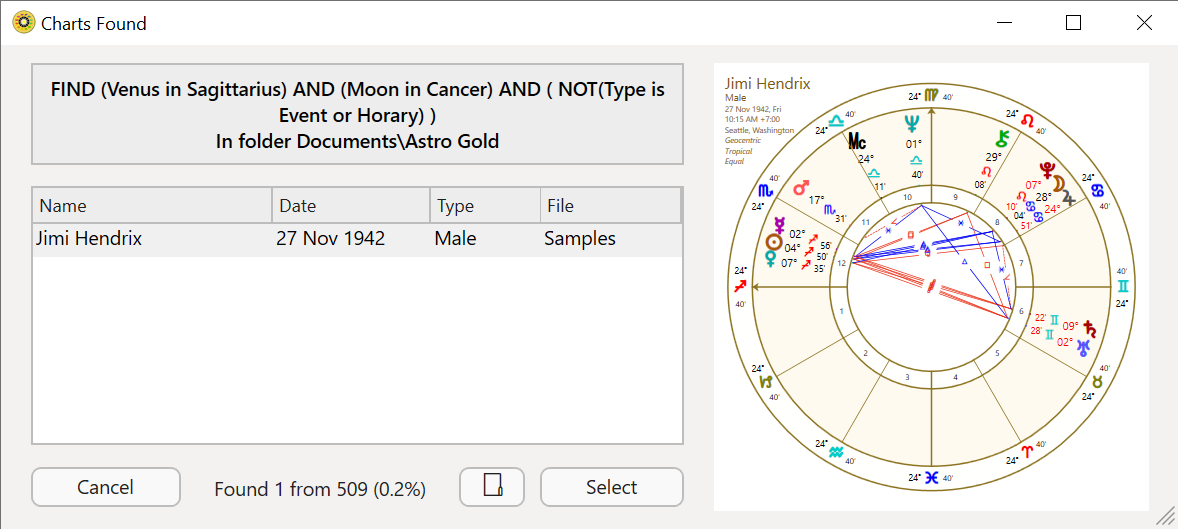
➢ Activating the search by clicking on the "Search" button will cause the Chart Search results to be displayed in the "Charts Found" dialog.
 |
➢See Found Charts - saving, opening for info on what you can do with these search results after the search has completed.