Once you have found charts by using the Chart Search you can optionally sort them, then save them all to a new or existing chart file, and/or open one of them to view/work with it.
1.After clicking on the "Search" button in the Chart Search dialog, the "Charts Found" dialog will be displayed - showing all the charts having the criteria you specified - either just a chart name, or multiple search conditions.
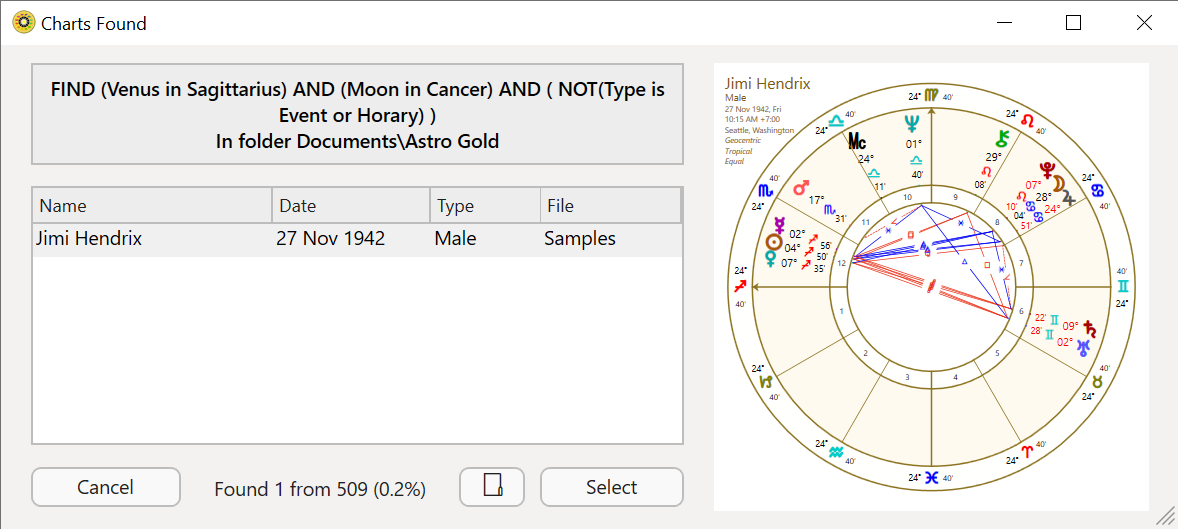 |
2.OPTIONALLY ... if you want to sort these charts by either Name, chart Date, Type or chart File, then click in the header for the column you want the list to be sorted by.
For example, if you want the list to be sorted by name then click the top of first column where it says Name, to sort the list by chart date click the top of second column where its says Date etc.
3.OPTIONALLY ... if you want to save a copy of these charts into an existing or new chart file, click on the Folder icon  next to the "Select" button, and a "File System" dialog will open.
a.To save these charts into one of the displayed files click on the chart file you want to save the charts into, then click on the Save button in the bottom right of the dialog to save the charts, then click on the OK button. If the chart you want isn't in that folder click on the Documents folder in the left-hand pane, then navigate via the folders in the right-hand pane to where the chart file is located.
-OR-
b.If instead you want to save these charts to a new chart file, click on the New Folder button above the folders and files, overwrite the default name of "New Folder" by typing in the name of the new chart file, press the Enter key, and the new chart file will be created. It should be highlighted but if not find it in the list of chart files and click on it, then click on the Open button in the bottom right of the dialog to save the charts. Click on the OK button. You will be returned to the "Charts Found" dialog.
c.If that is all you want to do with the charts found then click on the Cancel button.
4.Select the chart you want to open in the list of "Found Charts" by clicking on it. Then click on the Select button and the chart file containing this chart will be opened, and the chart will be selected in the list.
[Alternatively just double-click on the chart you want to open, and the chart file containing this chart will be opened, and the chart will be selected in the list]
5.Finally click on the Select button, and then click on which ring (Chart 1, 2 ,3 or 4) you want to open the chart in.