>> To Edit a Chart
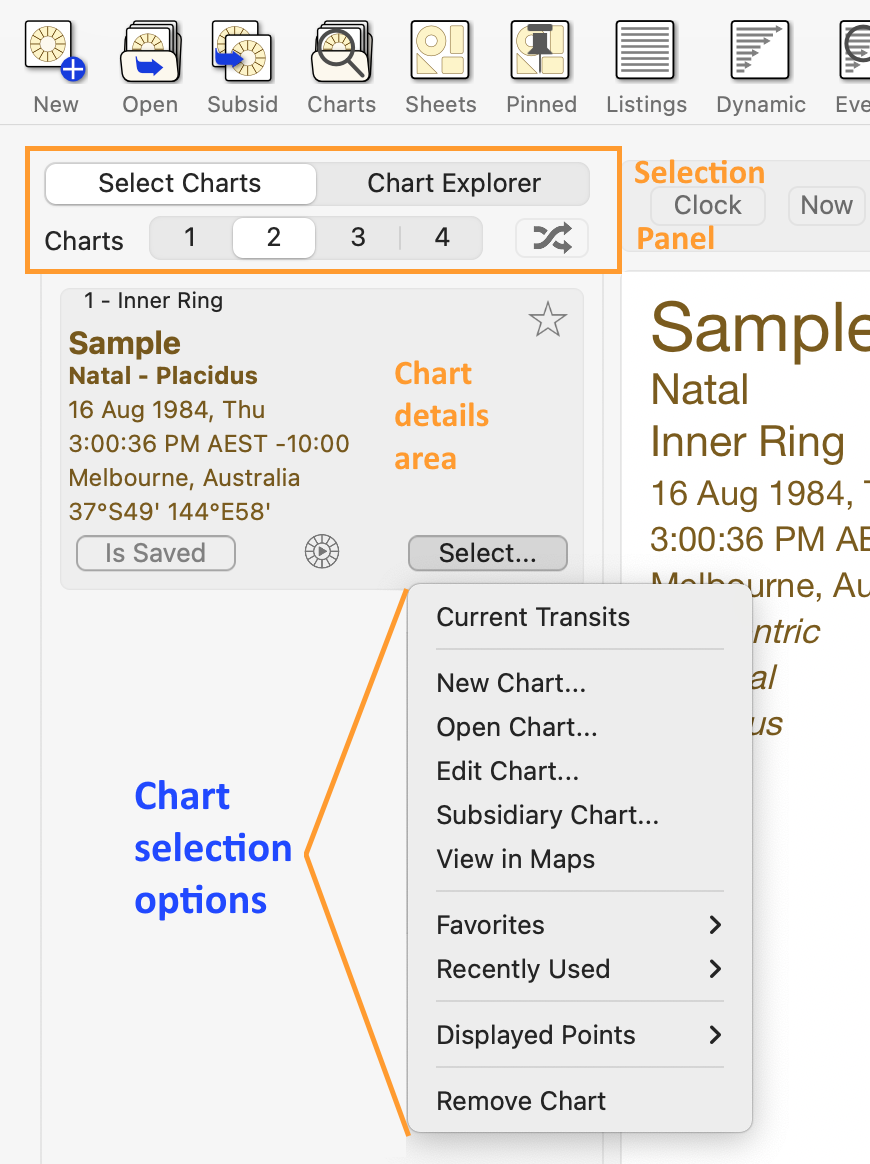
Clicking on the "Select" button in the "Chart Details" area of the particular chart (1, 2, 3 or 4) that you are concerned with, opens up a menu that is the same for any of the charts.
➢ Click on the Select... button in the Chart Details area for a chart, and a menu will drop down displaying the options for selecting that particular chart. To then cancel selecting a chart press the Escape key on the keyboard, or click on any blank space on the screen.
 |
➢ Clicking on the Edit Chart item in the dropdown menu opens the "Edit Chart" dialog box, where you can edit the chart's details.
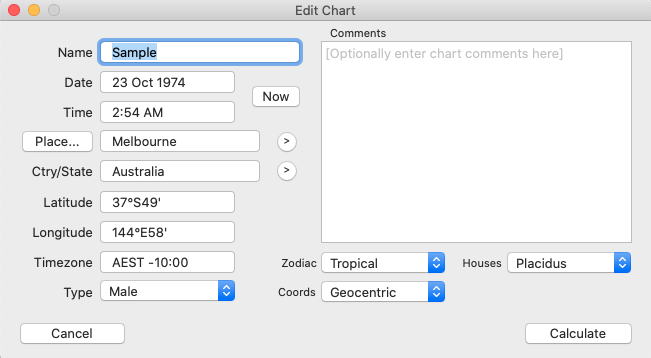 Editing a chart |
Date
For the date you may optionally enter "NS" or "OS" as a suffix to the date to force date period recognition. If you don't do this Astro Gold assumes that the dates that you enter...
•on or before 14th October 1582 are in the old style (OS / Julian) calendar.
•on or after 15th October 1582 are in the new style (NS / Gregorian) calendar.
The Gregorian calendar was not adopted everywhere at the same time. Sometimes dates after 15th October 1582 are given in terms of the old style calendar (often followed by the initials "OS"). Also, some sources convert pre 1582 dates to new style dates (often followed by the initials NS).
>> To enter calendar dates expressed out of period
➢ If you wish to enter a date on or after the 15th October 1582 which is expressed as an old style date, then add the suffix “OS” to the entered date (e.g. 17 Dec 1723 OS). This will be autocorrected to display the corresponding date in the new style calendar.
➢ If you wish to enter a date before the 15th October 1582 which is expressed as a new style date, then add the suffix “NS” to the entered date (e.g. 7 Jan 1503 NS). This will be autocorrected to display the corresponding date in the old style calendar.
Country & Place
•You can type the Place and Country (or State) directly into the "Place" and "Ctry/State" fields. As you are typing a list will popup underneath the relevant textbox, showing Places or Countries (or States) matching what you have typed so far. The Country popup list also includes country and state abbreviations and alternatives, making it easier to find the desired Country or State quickly, and automatically converting the country name where required (e.g. Hong Kong appears in the list, and autoconverts into China).
•For "Ctry/State" and "Place" you can also click on the  icon at the right of either field which opens the "Select Atlas Entry" dialog box. In this dialog you can select a country/state or place off a list, or alternatively search for what you want, by typing a full or partial country name into the Search field, for example "Aust" would jump to Australia, Austria etc. If the place you are looking for is shown select it then click the Select button.
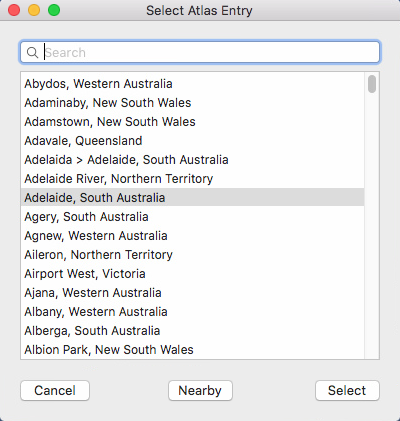 Search for and Select a state or country |
Alternatively if you know the place you are looking for is close to another place that is shown (place2) then click on that other place (place2) to highlight it.
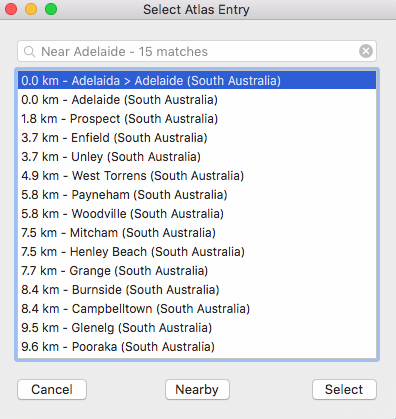
Then click on the Nearby button to search for places that are in the local vicinity of the place (place2) you have selected in the list. If any are found they will replace the original places in the Select Atlas Entry window.
If the place you are looking for is in this list click on the Select button to use it. If not, you can continue this process of drilling down by clicking on a place in this secondary list that is close to the one you want, then clicking on the Nearby button again. You can continue to search in this way until no more places are found. Once you eventually find the place you want to use click on the Select button.
 |
Duplicate Names
Atlas lookups now detect places with duplicate names and if so then Astro Gold prompts you to choose which one.
Using State Abbreviations
In the Search field, if relevant you can enter a Place followed by a comma then a State abbreviation e.g. "Sydney, NSW". In a country that has states this may be helpful if two places in different states have identical names. However if the state abbreviation entered clashes with any country name or abbreviation in the main atlas, then this will take precedence. So for example, "Adelaide, SA" searches in Saudi Arabia, and you would have to choose "Adelaide, Australia" to find it in the Australian state of South Australia (SA).
Georgia
GE is Georgia the Country.
GA (or Georgia) is the State in the USA.
Quick Place Selection
A shortcut method of selecting a place can be accessed by clicking on the Place button. When you do this a menu pops up allowing you to:
•Add the current Place to a list of "Favorite" places
•Select a Place off the list of "Favorite" places
•Select a Place off a list of "Recently Used" places
•Select the Home place (set in Preferences, Home tab)
NOTE: This shortcut menu is available wherever you need to enter a place, although the button may be named differently. For example in Subsidiary Charts, for Secondary Progressions using the "Other" Location the button is labeled "Select".
Atlas Lookup status
Once you have selected a Place, or a Country or State, from the Atlas, or typed in either a Place or a Country or State, and pressed the Enter or Tab key, a message at the bottom of the dialog will be temporarily displayed in green if the lookup was successful, or in red if it failed.
Timezone
When creating or editing a chart usually the timezone is entered automatically for you, based on the country/state and place you've selected, but if you wish you can enter a different timezone in this field.
See Creating charts for more information regarding the other chart information fields.
➢ Once you have made your changes click on the Calculate button. If the chart had previously been saved you will be asked if you want to update the saved version with the new edits, or create a new chart entirely using the edited data. Finally you will be returned to the Main Screen with the edited or new chart now displayed.
Alternatively, if you decide you don't want to edit the chart after all then click on the Cancel button in the bottom left corner of the dialog, which will return you to the Main Screen without saving any changes you had made.