Tap the Action icon  in the "View" pane and a pop-up menu opens. Tapping Share opens the "Share" menu.
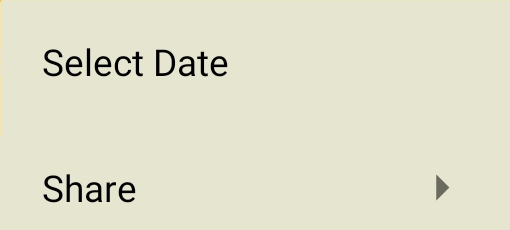 View Tab - Action pop up menu |
To Other App
This option opens a screen with many app icons, so that you can choose which application to share your chart or grid with. The app icons shown will vary depending on what apps you have installed on your Android device. Two common things you may want to do with your chart or grid are either printing it, or emailing it.
➢ If you haven't already, first you will need to set up a printer to work with your device.
1)Open your Android phone Settings.
2)Use the Settings search box and search for Printing - this is often the quickest route because menu labels vary slightly by phone maker.
3)Otherwise, go to: Connected devices → Connection preferences → Printing.
4)Open Default Print Service and switch it On.
5)Wait a moment for Android to discover printers on your local Wi‑Fi.
6)Select your printer if it appears.
Your phone and printer normally need to be connected to the same home Wi‑Fi network. Avoid a guest Wi‑Fi network, as it often blocks devices from seeing each other. Android supports adding extra manufacturer print services through Add Service if the built-in service does not find your printer.
➢ Next you'll need to select the icon associated with the printer you want to use, and follow the on-screen instructions.
1)Select the email app you want to use.
2)Enter the recipient's email address.
3)Enter your message.
4)Send.
To Gallery
1.Tap on the To Gallery button to copy the currently displayed chart or grid as a photo. You may get asked what your preferred method is (for example, Gallery or Photos). Select your preference and then tap on Always or Just Once. A copy of your chart or grid will then be saved as a photo for sharing, emailing etc.
2.You can then paste it from where you saved it (e.g. the Gallery or your Photos app) into any other app that allows images to be pasted into them, or email it as a graphic, or share it.