You can add comments to any chart, and this can be done in various places.
>> New Natal Chart
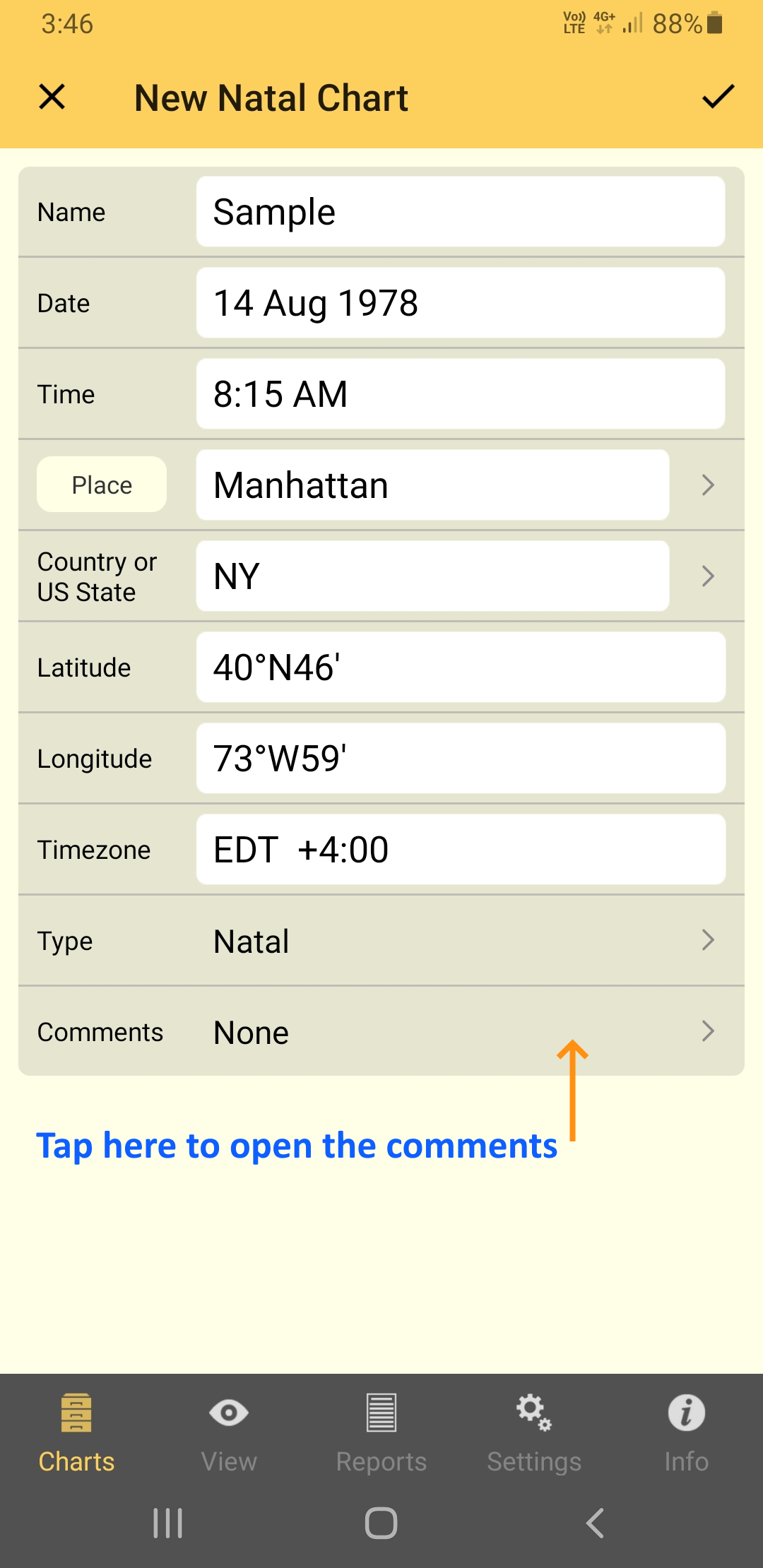
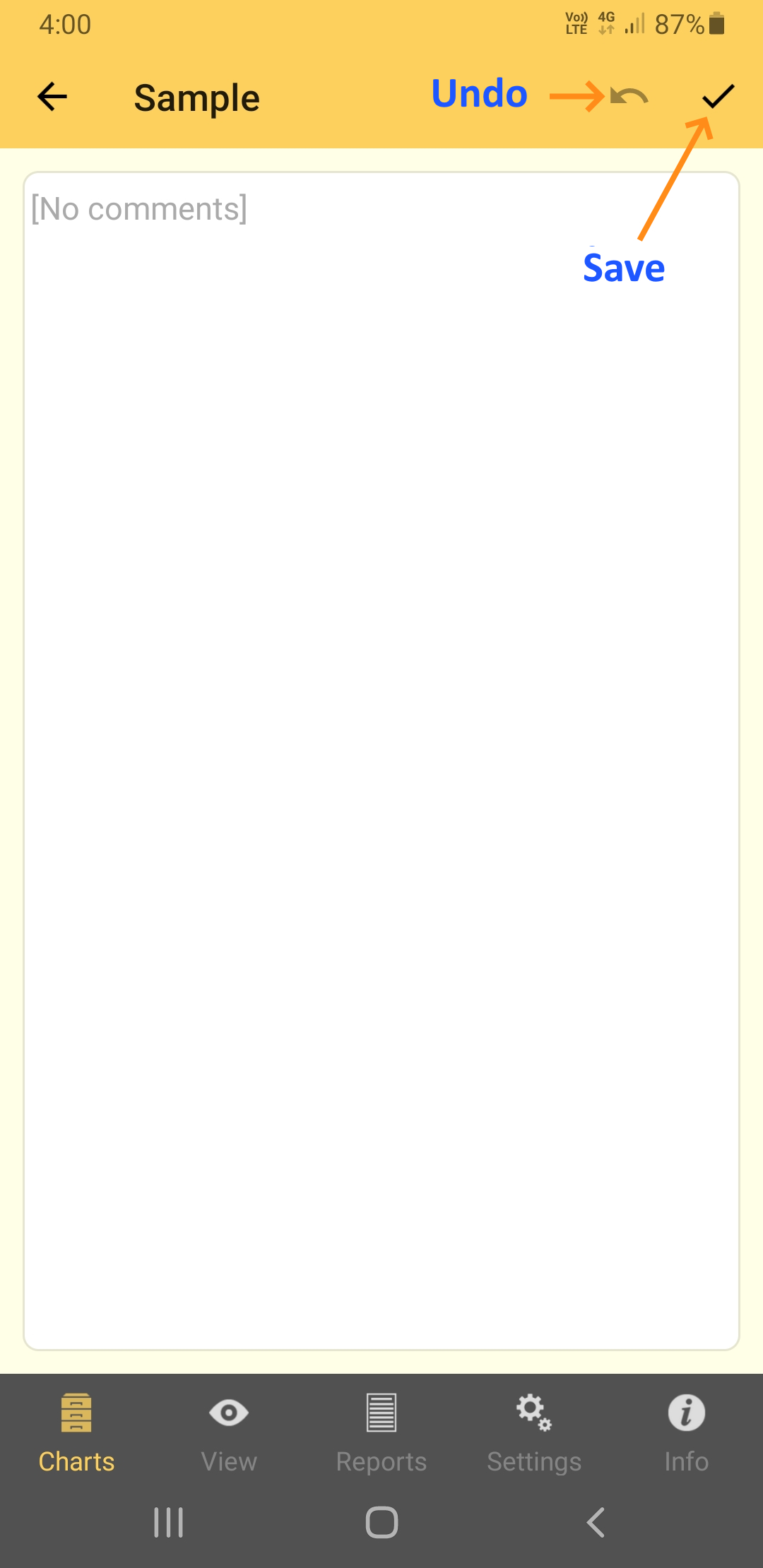
When filling out a new chart, tap in the Comments field to open up the "Comments" pane, where you can enter new, or edit existing, comments. If you want to undo your edits tap the Undo icon, and to save them tap the Save icon.
|
|
>> Recently Used Charts
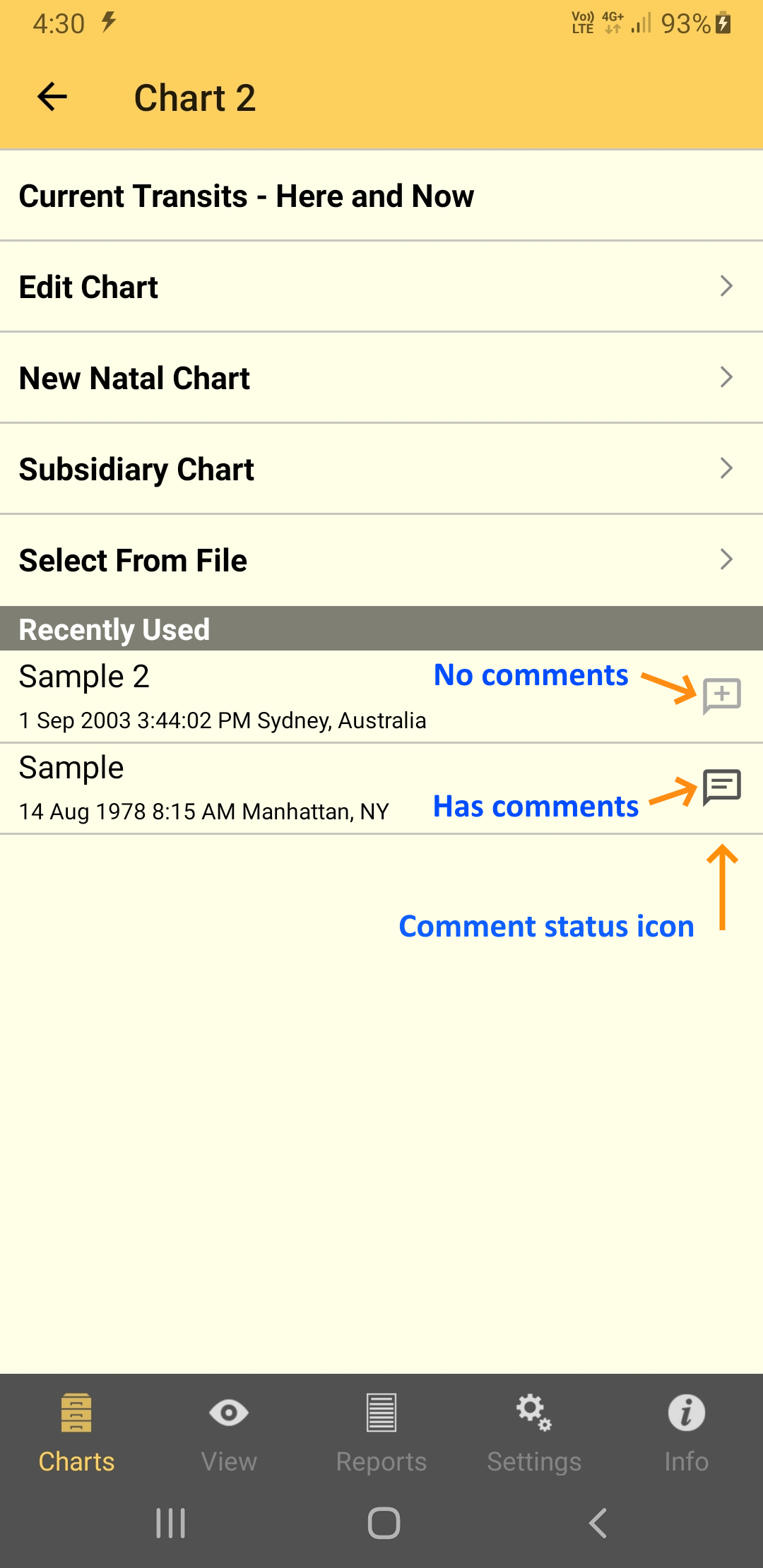
Tapping in the Chart Details area of a chart in the "Charts Tab" opens up the "Chart Options" pane. One of the options is to select a chart from the "Recently Used" list.
You can see for any chart in this list if it has comments or not by the comment status icon on the right of every chart - lines indicates comments, a + indicates no comments.
Tapping on the comment status icon opens the "Comments" pane, where you can enter new, or edit existing, comments. If you want to undo your edits tap the Undo icon, and to save them tap the Save icon.
|
>> Select From File
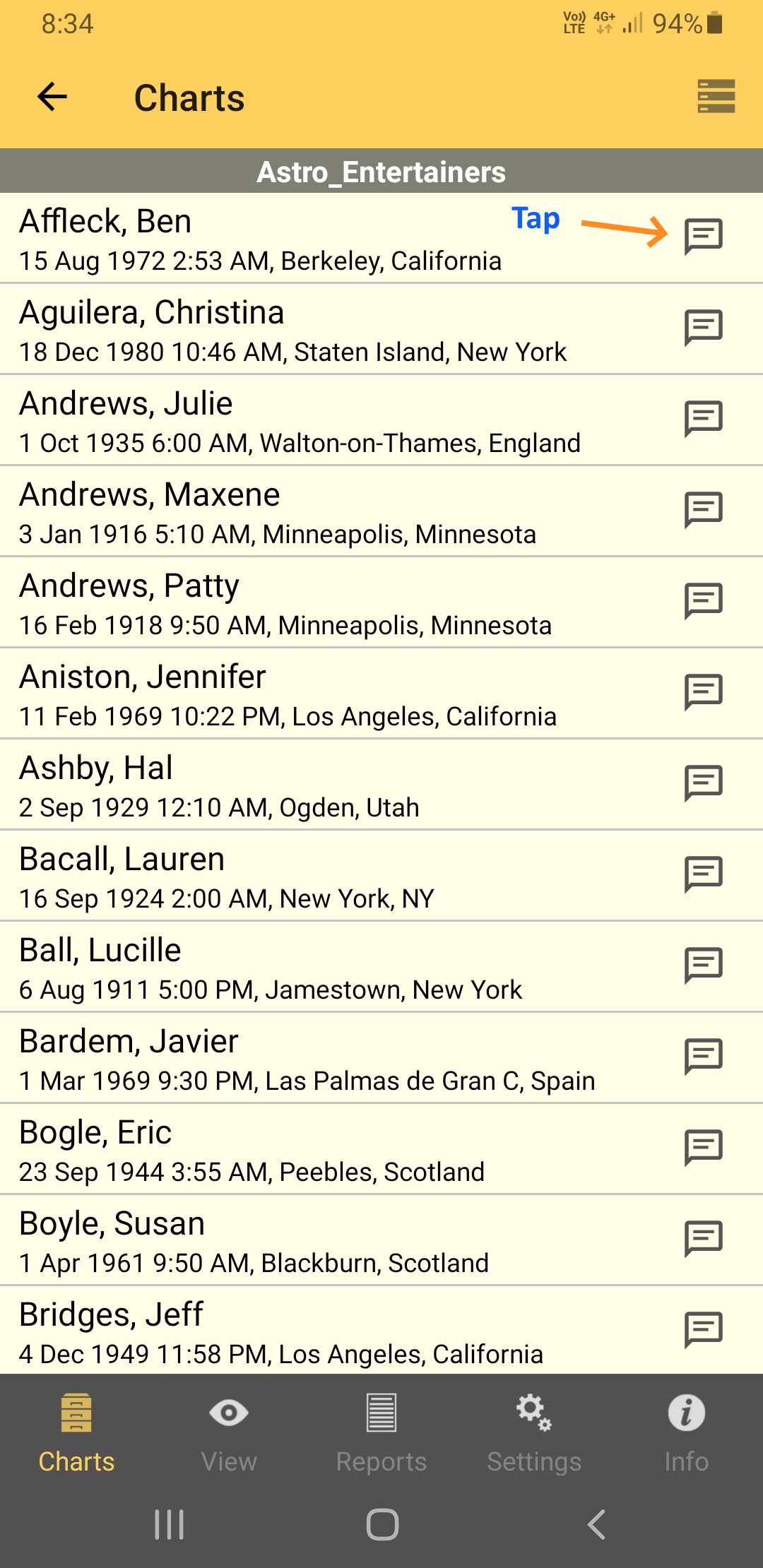
Tapping in the Chart Details area of a chart in the "Charts Tab" opens up the "Chart Options" pane. One of the options is "Select From File".
When you tap on Select From File the current chart file might be directly opened listing the charts it contains, or the "Files" pane will be opened listing all the chart files. If it is the latter you need to tap on the chart file you want to select a chart from, which will open that chart file,
Once a chart file is opened it displays its charts. Each chart has a comment status icon on the right - lines indicates comments, a + indicates no comments.
Tapping on the comment status icon opens the "Comments" pane, where you can enter new, or edit existing, comments. If you want to undo your edits tap the Undo icon, and to save them tap the Save icon.
|