Astro Gold has a multi-chart window capability via pinned Charts & Astro Sheets.
You can now pin any currently displayed wheel/dial/grid and any Astro Sheet using a Pin Button at the top right of respectively the Viewing Area or the Astro Sheets window.
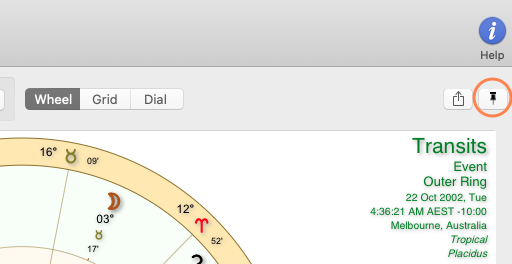
These pinned views (i.e. separate floating windows) can be re-sized, moved, minimized and remembered across Astro Gold sessions, until you choose to close them. An example of the Pin Button at the top right of a window is shown below (in this case in the Viewing Area), in the orange circle:
 |
>> To Open a New Pinned Chart or Astro Sheet Window
➢ Click on the little Pin in top right of the Viewing Area of the Main Screen, or top right on any Astro Sheet, to open a new window containing what was displayed in the Viewing Area or that Astro Sheet.
Pinned Chart/Sheet Features
1)Each Pinned Chart or Sheet is interactive in the same way as a normal chart/dial/grid and Astro Sheet view is. You can double-click to get interpretations, use a right-mouse click to bring up chart/sheet options etc. This makes it possible for multiple Pinned Charts/Sheets for the same chart, in their various windows, to have differing options such as displayed points, selected modulus orbs, star sets etc.
2)You can re-size a Pinned Chart/Sheet window by using the mouse to drag the corner of the window in towards, or out away from, the center of the window. By shrinking the size down you can arrange Pinned Charts/Sheets side by side, or one above the other etc. Or you can just overlap them - clicking on one brings it to the front.
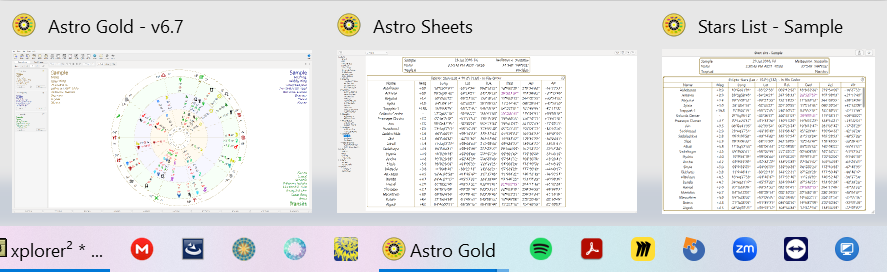
3)If you minimize a Pinned Chart/Sheet you can retrieve it from the Windows TaskBar, it can be found next to the AstroGold icon (see below). Click on the Chart or Sheet restore it to a window of its original size in Astro Gold.
|
4)Each Pinned Chart/Sheet has a star in the top right-hand corner, just next to the Share Button. Click on it, and it will make that chart one of your saved favorites, stored for quick access in the Pinned Astro Sheets Manager (see below).
 |
>> To Open the Pinned Astro Sheets Manager
Click the large Pin icon in the Toolbar. Or in the View menu click on Pinned Astro Sheets.
|

The "Pinned Astro Sheets Manager" will open.
|
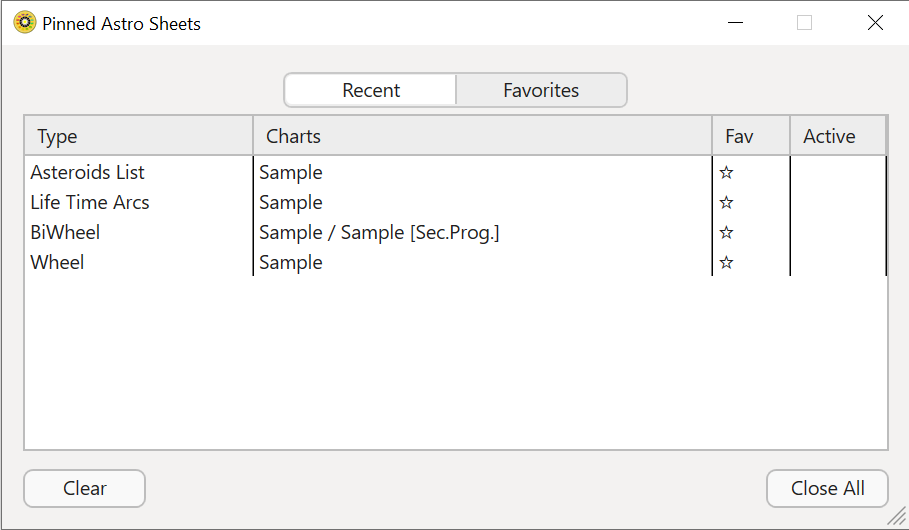
Pinned Astro Sheets Manager
The Manager keeps two lists: all Pinned Charts/Sheets, and those you marked as a Favorite.
So there are thus two tabs:
a)Recently Used - these are recently opened (and maybe still opened, or now closed) Pinned Sheets or Chart windows.
b)Favorites - these are Pinned Sheets or Chart windows you have made Favorites by clicking on the Star in a Sheet or Chart window.
"Recently Used" chart windows/sheets may also be "Favorites" of course, so some chart windows/sheets may appear in both lists - a filled in (dark) star indicates it's a favorite.
You can open any chart window or sheet regardless of which tab it is in by double-clicking on it. A check-mark (tick) next to a chart in either list indicates whether it is open or not.
➢ In the Recently Used list, if a sheet isn't already a favorite, you can just double-click it's empty star to immediately make it a Favorite.
➢ In the Recently Used list, to clear the list of all Pinned Sheets click on the Clear button. This doesn't close the sheet/chart window however, and if you activate any of those sheets or charts that were on the list before they were cleared, they are re-entered onto the Pinned Astro Sheets recently used list.
➢ In the Recently Used list, to actually close all currently opened Pinned Sheets click on the Close All button. Until cleared from the list, in subsequent Astro Gold sessions these chart windows/sheets can always be opened again by double-clicking on them.
Suggested usage
Making a chart window or a sheet a Favorite straight away is advantageous for several reasons.
•It means it will always be on the Favorites list.
•You can open all favorites in one go in the Favorites tab using the "Open All" button, which is handy in subsequent Astro Gold sessions.
•You can remove an individual sheet/window from the Favorites list by double-clicking on its star in the list.