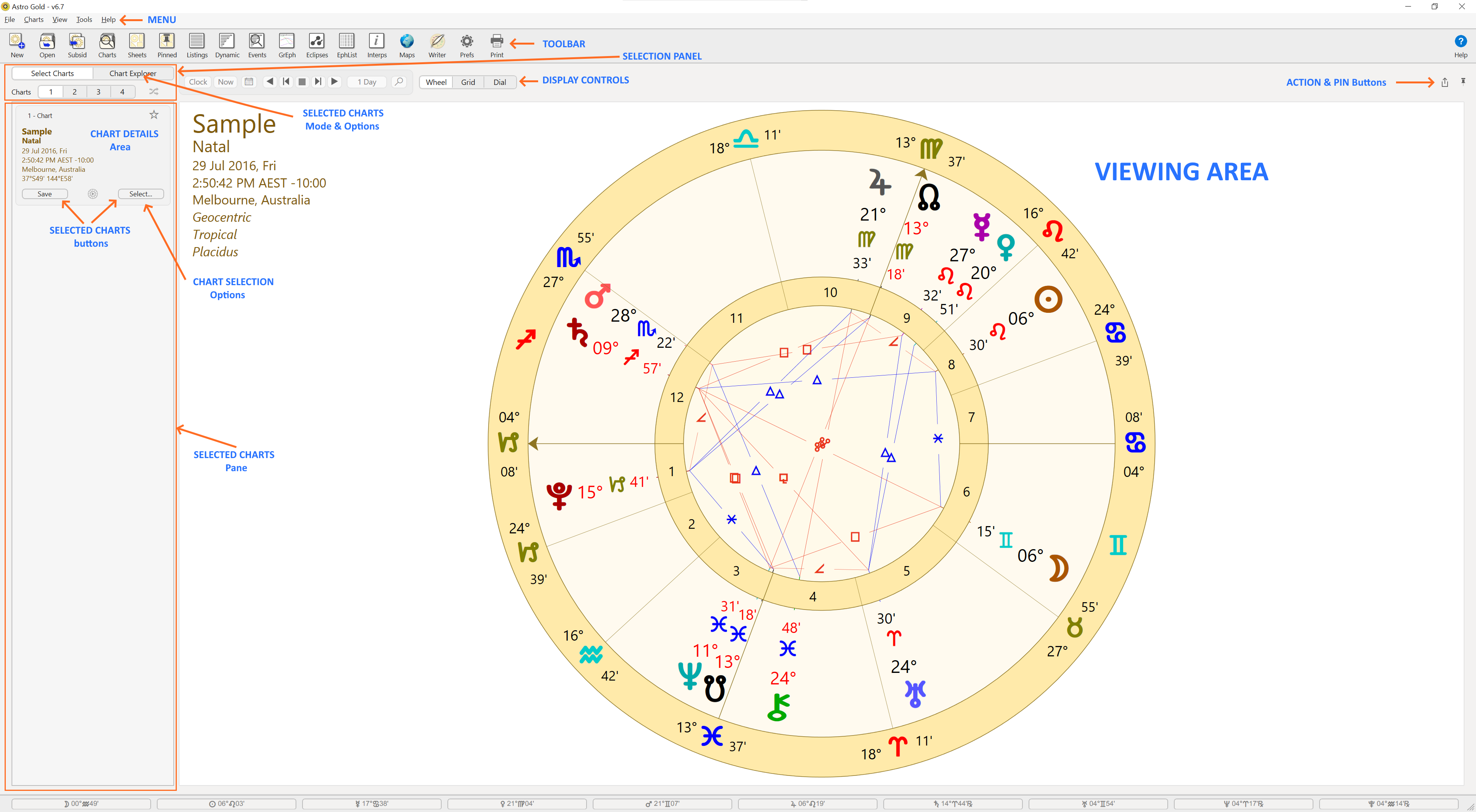
When you start AstroGold the Main Screen is displayed. Visible in the Main Screen are the Astro Gold "Menu" and "Toolbar", the "Selection Panel" and "Selected Charts pane" for selecting and manipulating charts, and the "Viewing Area" for displaying either one to four charts in a single Wheel or bi/tri/quadriWheel, or in a single Dial or bi/tri/quadriDial, or in an Aspect Grid.
When you start AstroGold up, or whenever there are no user-selected charts, the current transits will be displayed in a chart wheel in the "Viewing Area".
The "Viewing Area" occupies the bulk of the screen except for a section at the top (the Display Controls immediately above it, then the Toolbar and Menu above that) and the "Selected Charts" pane and "Selection Panel" to the left.
All these different areas combined represent the entire Main Screen.
 THE MAIN SCREEN |
Altering the size of Astro Gold windows
1)Holding down the Windows key while pressing the Up or Down arrow key toggles the window between Fullscreen mode and Restored Down mode.
2)When the window is in Restored Down mode (a smaller sized window) hover the mouse over the edges of the screen until it changes into a double-pointed arrow.
3)Holding the mouse button down drag the edge of the screen in the direction of one of the arrows until the edge is where you want it to be, then release the mouse button.