>> Opening a Wheel Design to edit or copy it
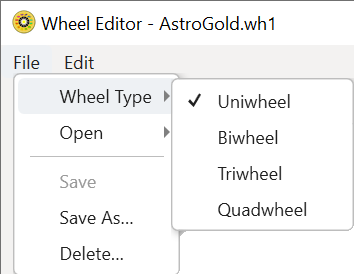
1)Once the Wheel Editor is opened the first thing to do is to specify what kind of wheel design you want to work with. To do this click on the File menu, then Wheel Type, and select one of: Uniwheel (1 chart), Biwheel (2 charts), Triwheel (3 charts), Quadriwheel (4 charts).
|
2)You can edit an existing wheel design, and save the changes you make ... or optionally save these changes as a new wheel design. Either way, the first step is to open an existing wheel file which will load the wheel design it contains into the Wheel Editor.
➢ Click on the File menu, then on Open, and a list of all existing chart wheels will be displayed (of the type selected in step 1).
|
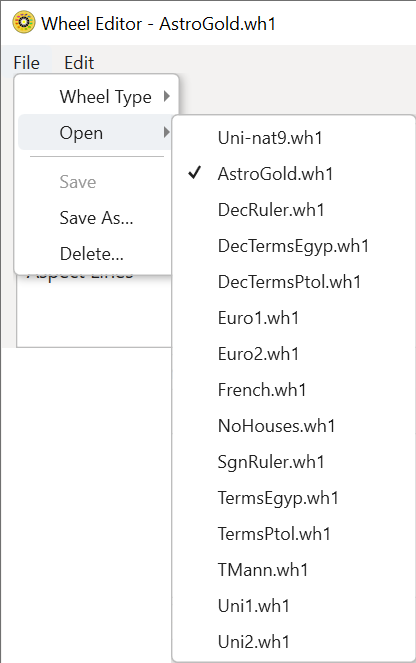
3)Select a chart wheel file, which will open that wheel design and display it in the Wheel Editor.
|
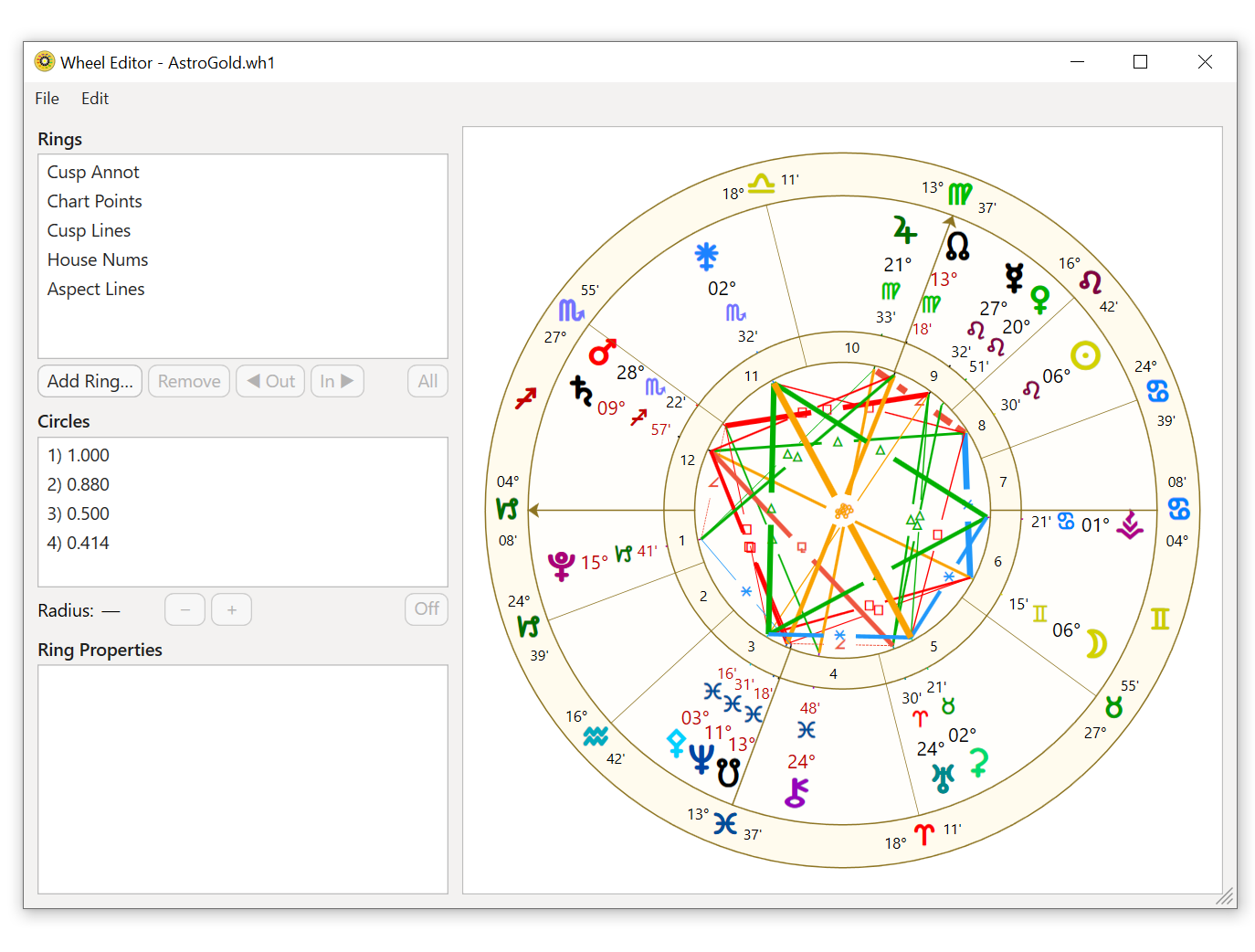
When you first open a wheel design file (has .wh* extension type) in the Wheel Editor, all the rings that make up the wheel are shown (along with their contents) in the wheel displayed in the Wheel Editor.
On the left of the displayed wheel there is:
•an area called the Rings area - with the title "Rings" - displaying the name of each of the wheel's rings.
•an area called the Circles area - with the title "Circles" - listing the circles that define the rings' inner and outer boundaries.
•below the Circles area a Ring Properties area in the bottom left of the window.