Once you have created a Dynamic Listing you can then export those events to either a calendar on your computer, or one in the cloud.
If you want to send the events to a calendar in the cloud you'll need to make sure you have iCloud calendars enabled on your Mac.
>> Importing events into Microsoft Outlook
1)Generate a Dynamic listing (see Dynamic Event Information for how to do that).
2)Click on the Share button  which pops up this dialog:
|
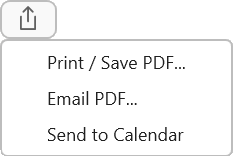
then click on the Save to Calendar menu item.
If you have exported events to a calendar previously these items will have the previous values preselected for you, and you can continue using those. However if this is the first time you are exporting events to a calendar it will display a dialog similar to the following, with nothing filled in.
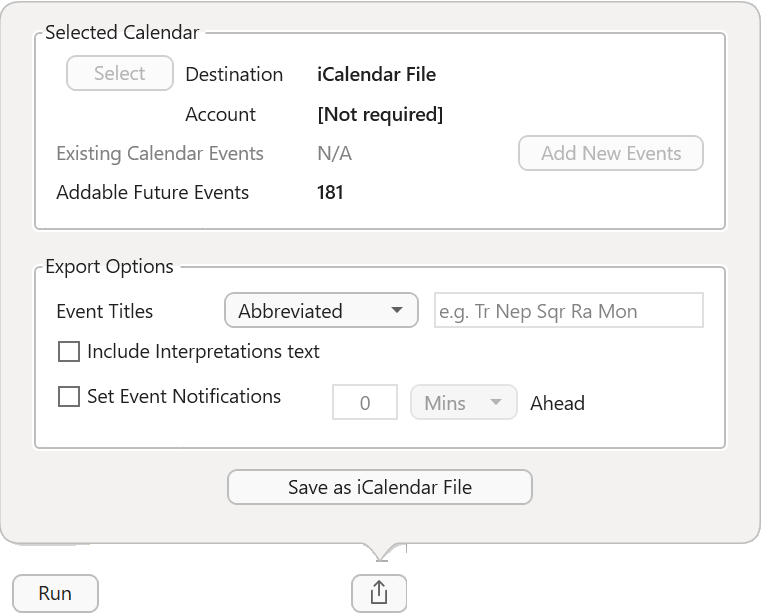 "Send To Calendar" dialog |
4.In the "Export Options" section set the Event Titles to be what you want. If you want to include interpretations text with the events click in the checkbox until it's ticked. Likewise for event notifications (selecting to have those means you will get Outlook reminders popping up ahead of time - by the amount of time you entered - notifying you of when each event is due to happen.
9.Click on the Save as iCalendar File button, and the following File System dialog will appear.
|
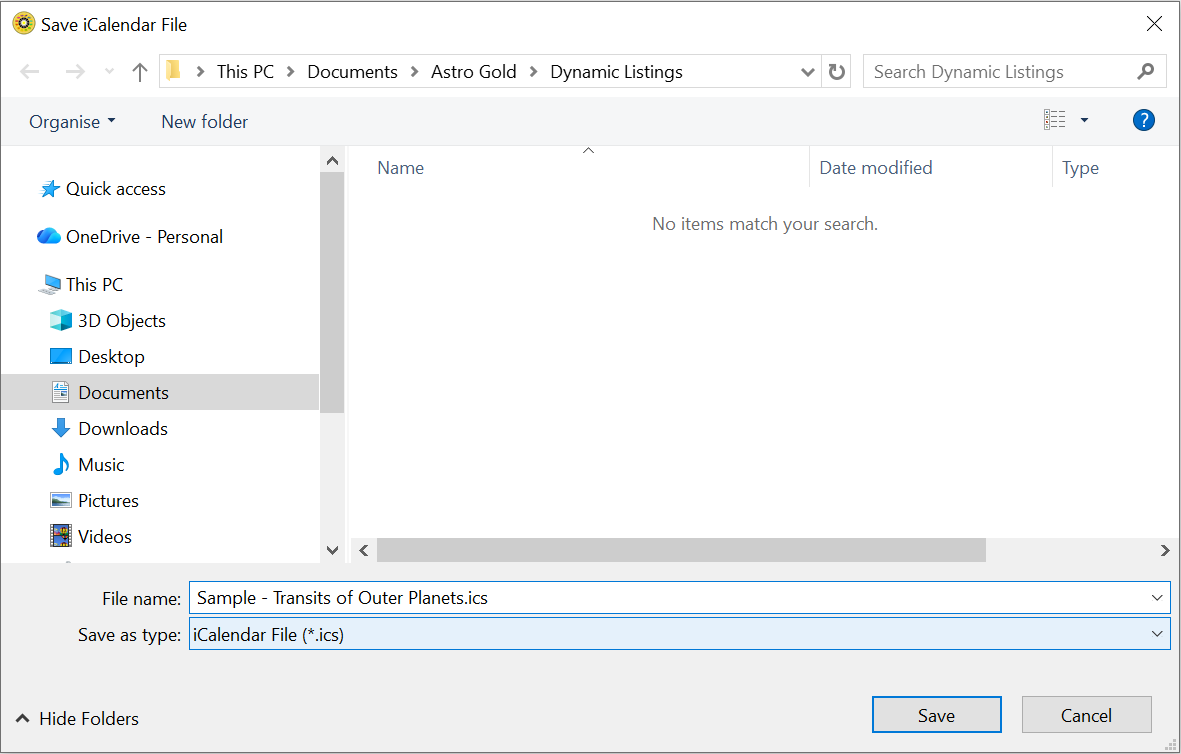 "Save iCalendar file" dialog |
10. You can navigate to a different folder and/or rename the file if you wish. Otherwise go to the next step.
11.Click on the Save button.
12.Also, now that you have saved the events as an .ics file, if you want to send the events to someone else you can email the file as an attachment. When the email is opened the attached file can be saved to the device it's received on, then (usually) just double-clicking the saved file will load it into the default calendar on that device. That always occurs if MS Outlook is the default calendar, for other calendar types a different process may be required.
13. If MS Outlook is present on your device, after opening it if necessary, the following message will appear:
|
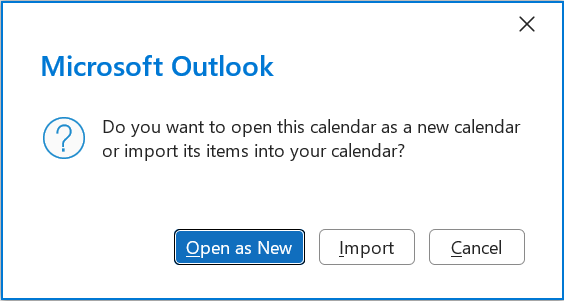
14. If you want an entirely new Calendar to be created in Outlook, with only these events in it (initially anyway), click on Open as New. Otherwise, if you want the events to be mixed in with your other events in your existing default calendar, click on Import.
15. The Calendar the events were sent to will be displayed.