You can search for charts across all chart files.
>> To find a chart that has been saved in a file
1)You need to start in the "Selected Charts" pane - tap on the Charts Tab at the bottom of the screen.
2)Tap in the Chart Details area of any of the selected charts. This will present a list of options for selecting the chart for that chart position.
3)Tap on the Select from File option. This will either present the "Files" pane showing a list of the chart files on your device, or will open the actual chart file that the selected chart comes from, listing all the charts that it contains. If that isn't the chart file that the chart you want to find is stored in, tap on the Return Arrow  .
.
4)When the "Files" pane is showing on the screen, tap on the Search  icon. This will display a search text box where you can specify either the whole chart name to find, or you can enter just a few characters of the name (a "string") and all charts with that character string within their name will be searched for. The search starts as soon as you start typing, and continues to adjust as you type in more characters.
5)Once the chart you want is showing in the list, tap on it to select it.
TIP: If you need to remove the keyboard to see the search results it is obscuring, tap on the down arrow at the bottom right of the screen.
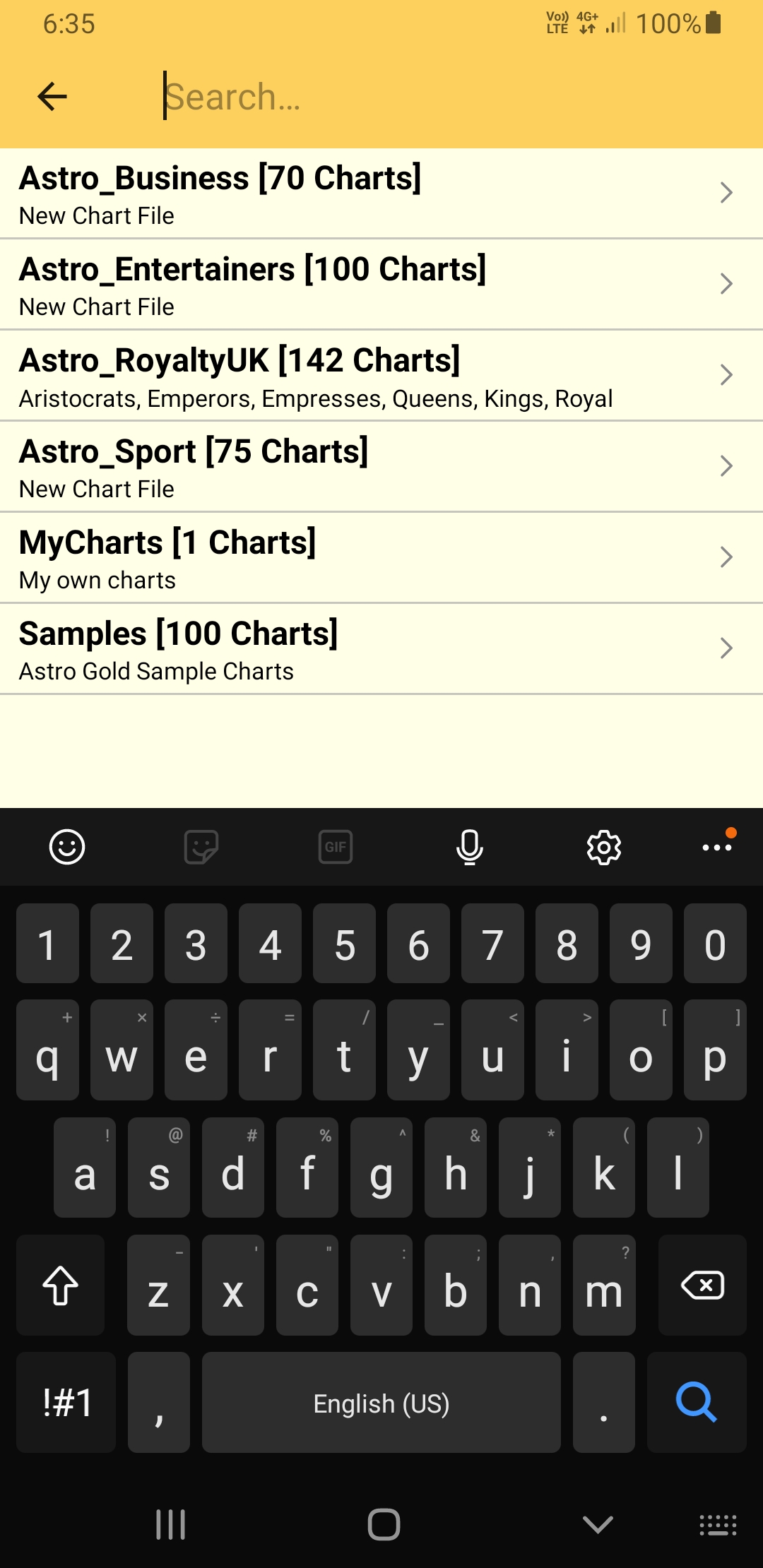 The chart Search screen |
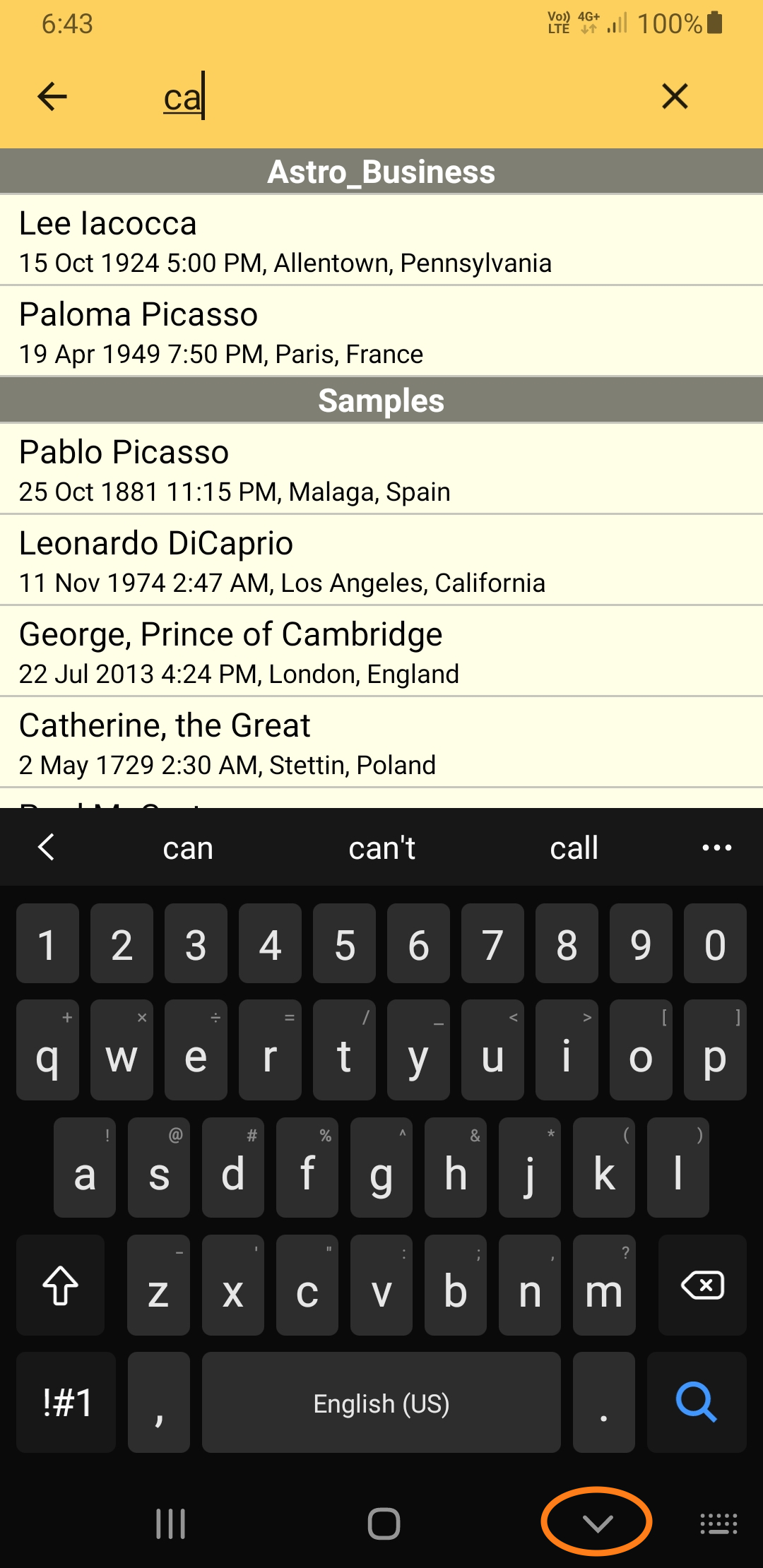 Chart Search results for the character string "ca" |