Once one, two or three charts have been selected (see Charts for how to do this) you can view them by tapping on the View tab in the TAB Bar (at the bottom of the screen). Whatever chart(s) have been selected will be displayed in the Viewing Area, either in a chart wheel or an aspect grid.
|
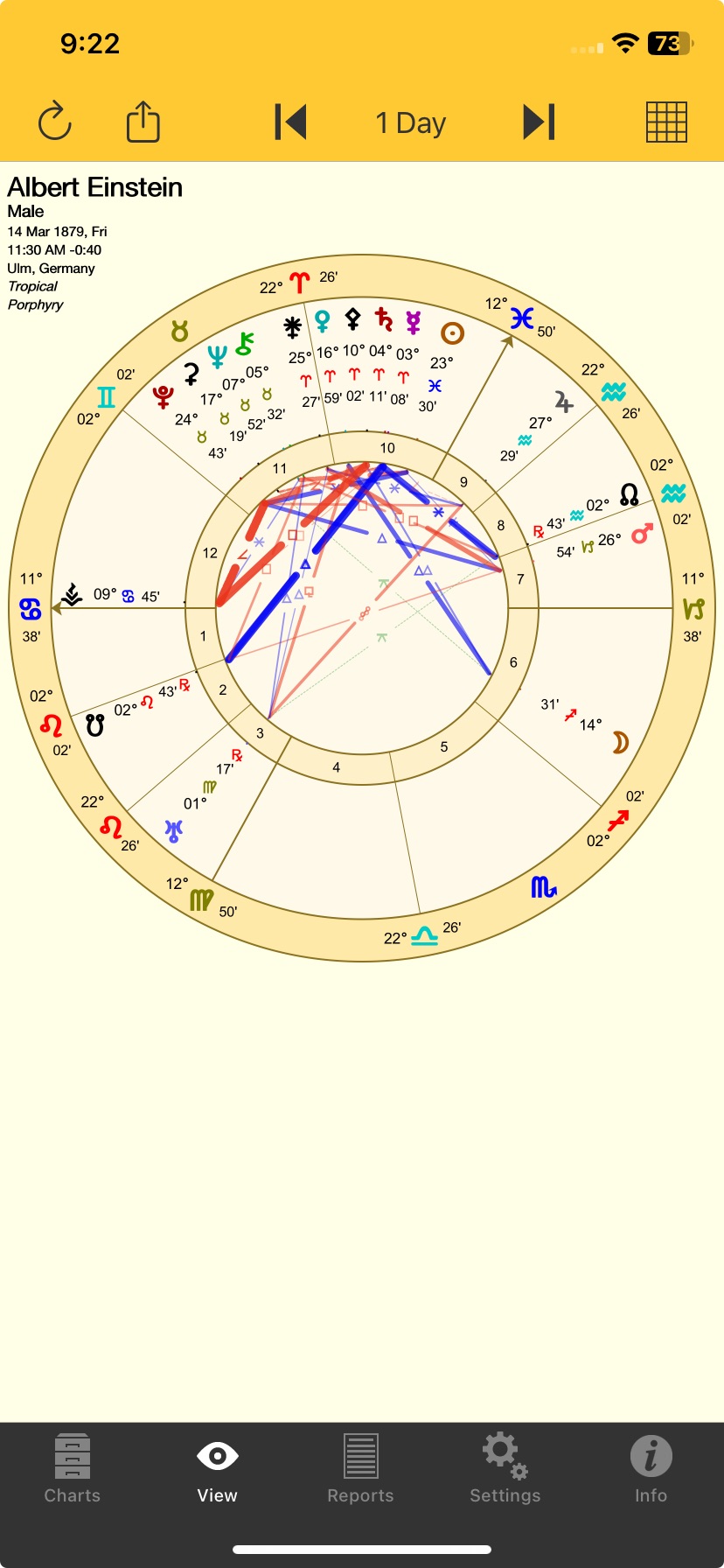 The View screen |
You can zoom in or out with pinch in or out movements, and zoom around if not already zoomed out fully.
There is an icon in the top right corner that is either displaying a Wheel  or a Grid
When you tap the Wheel icon if ..
•only one chart is selected, then a UniWheel will be displayed.
•two charts are selected, then a biWheel will be displayed.
•three charts are selected, then a triWheel will be displayed.
|
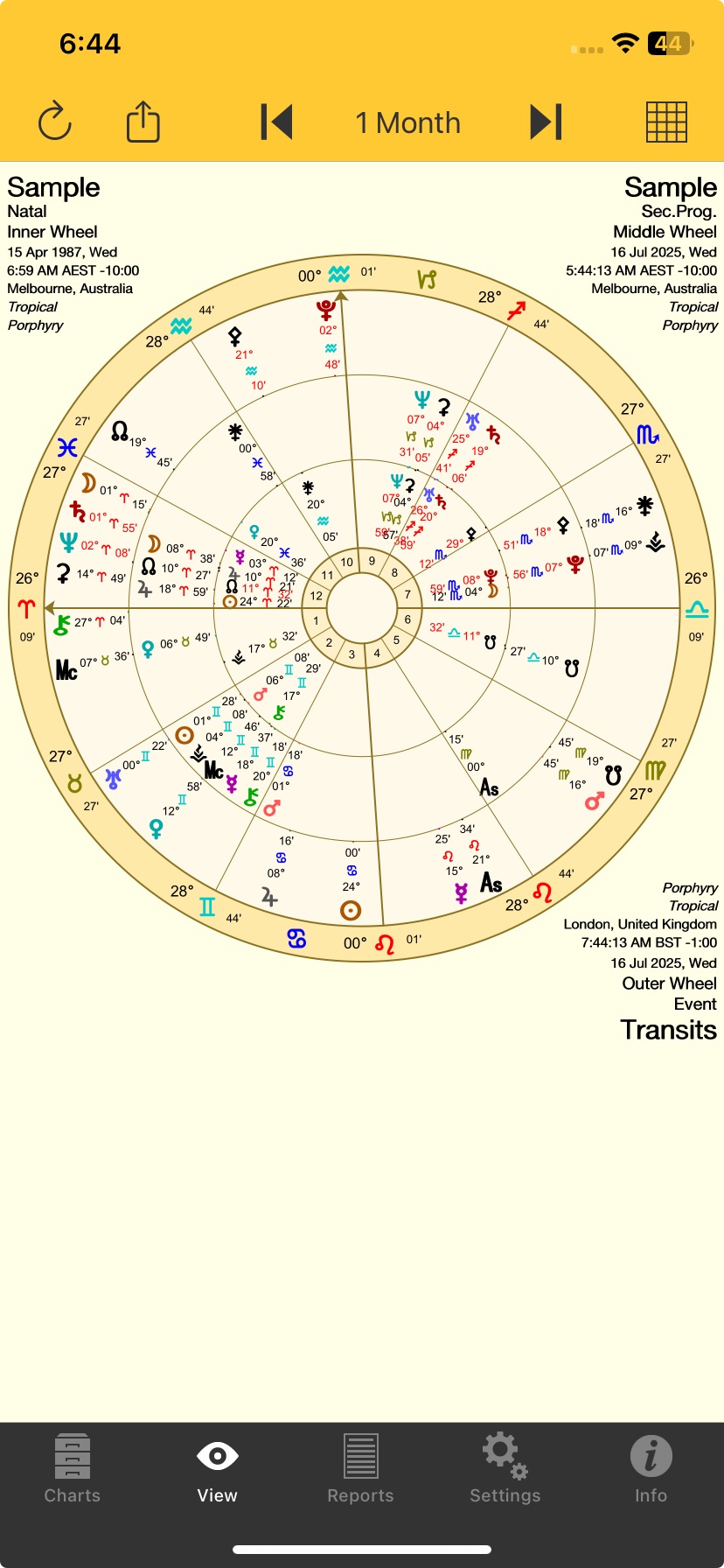 3 charts in a triWheel |
When you tap the Grid icon if ..
•only one chart is selected, then a single chart aspect grid will be displayed
•two or three charts are selected, then a synastry aspect grid will be displayed (with three charts Chart 1 and Chart 3 will be in the grid)
|
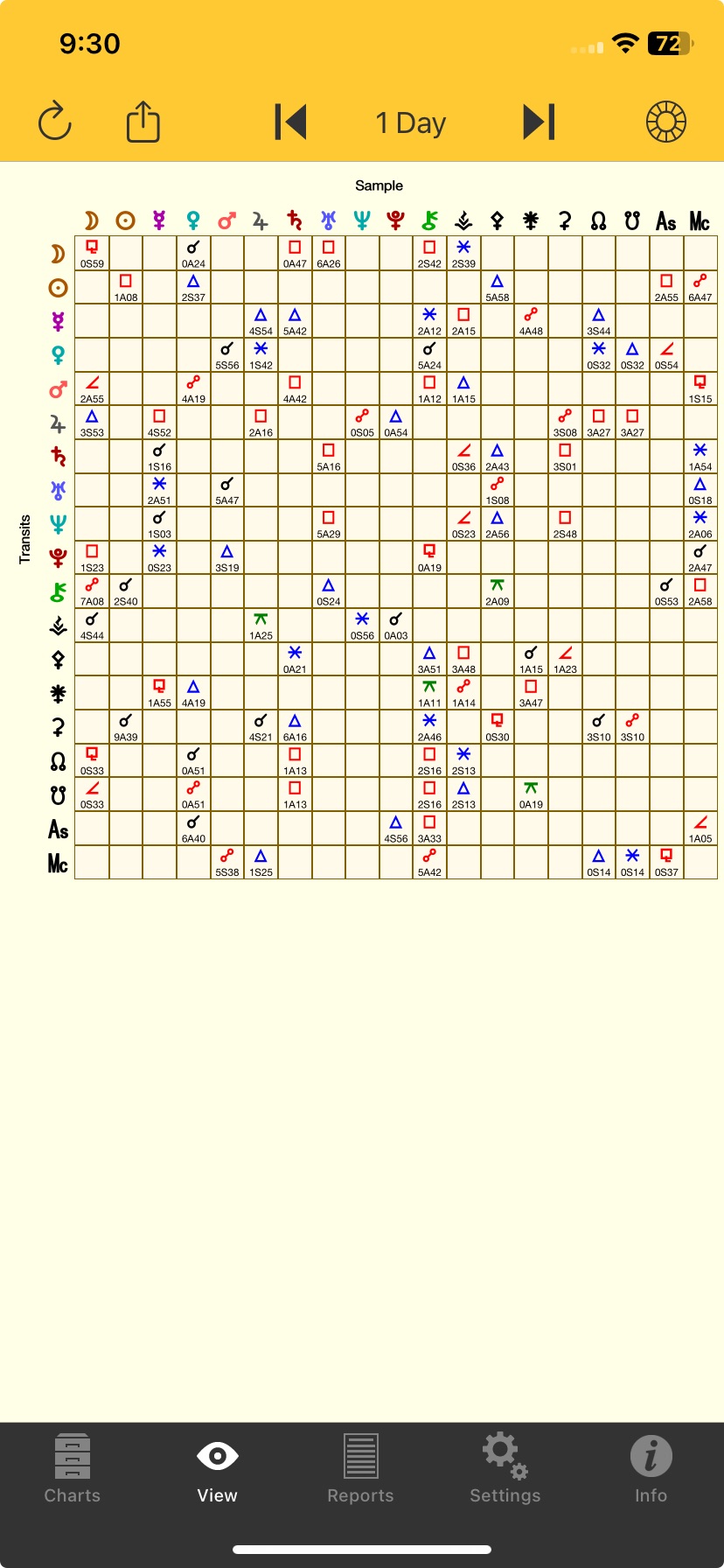 A Synastry Grid |