Tapping the Reports tab  in the TAB Bar opens the "Reports" screen.
Various types of report are available - for instance, if you have two charts selected synastry data will be available.
What is initially displayed depends on the type of report previously selected. The screen will either display a report (of the previously selected type) for whatever chart or charts are currently selected, or present you with the items (or sections) of the report to choose from, or options you can set for the report before generating the report.
>> To select the Type of Report
1.Tap the Report menu icon  at the top right of the screen. This will display a menu of report types.
|
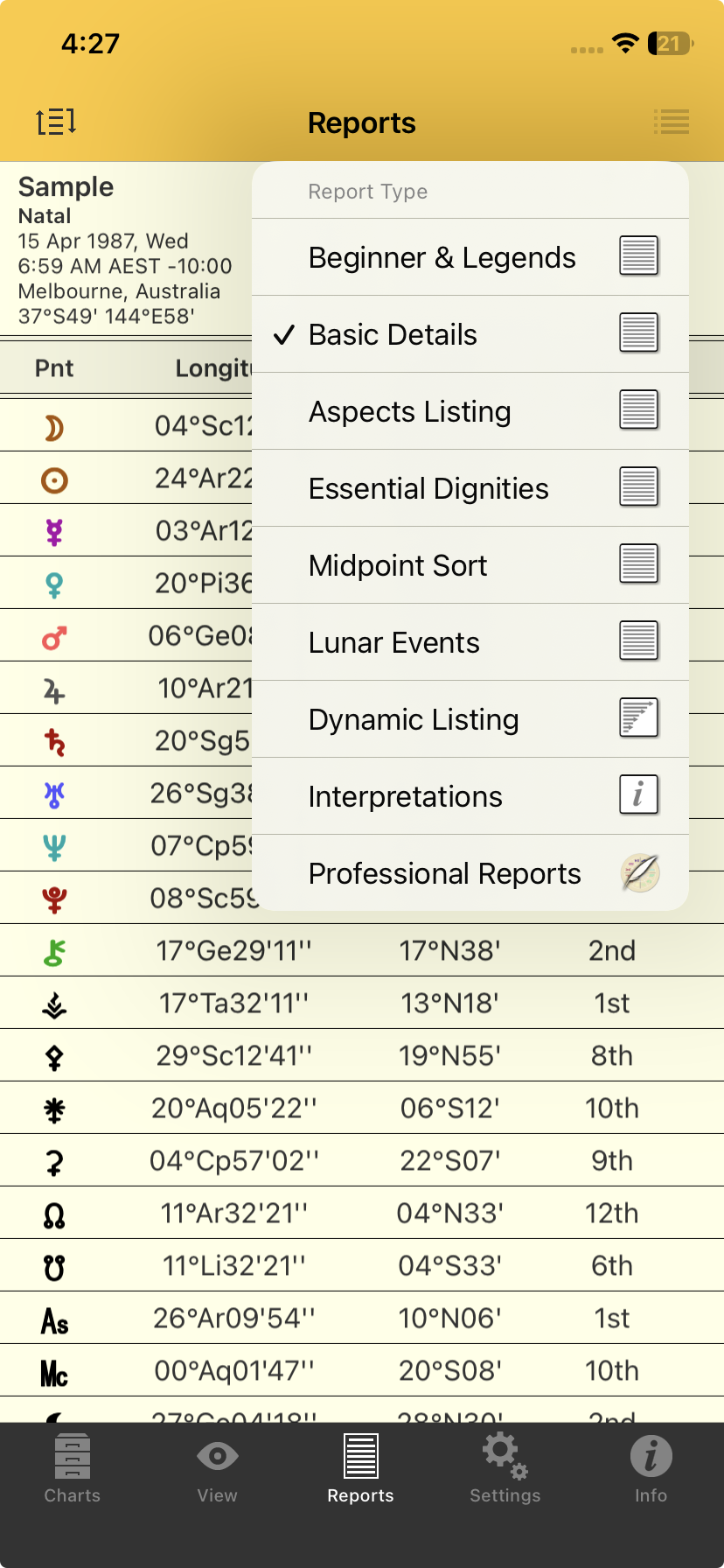 Reports - selecting the report type |
2.The currently selected report type has a tick next to it. To change that tap on the button for the report type you want, which will select it. This will change the "Reports" screen to display that type of report for the selected chart(s).
Whatever report type is displayed you can swipe vertically up and down to scroll all the items in the Report.
Reports for two charts
If there are two charts selected, all the report types show information regarding the two selected charts, except for:
•Dynamic Listing: which shows transits for the first selected chart (select the Dynamic Listing topic for selecting the various options for the transits)
•Essential Dignities: shows dignities for the first selected chart.
•Lunar Events: shows lunar events for the first selected chart.
To see a different kind of report tap the Report menu icon again.
>> How to sort the report data
For Dignities, Synastry and Dynamic Listing reports the rows of data in the report can be sorted.
When these reports are showing on the screen, tap the Sort icon  in the Toolbar (top left corner of the screen). This brings up the "Report Sort Order" menu where the currently selected sort order is ticked. To change that you can tap on the sort order you want.
>> To exit from the Reports screen
➢ Tap on any tab in the TAB Bar at the bottom of the screen to move to that section of the application.
Lunar Events report
Shows two prior and two following new/full moon positions, and then similarly for eclipses, followed by Lunar Sign ingresses with 2 prior and 2 following. This is a locked report requiring Gold Level status to access.