You can search for charts across all chart files.
>> To find a chart that has been saved in a file
You need to start in the "Selected Charts" screen. You can get to that screen by tapping on the Charts tab (in the TAB Bar at the bottom of the screen).
1.Tap on the > at the right of the details panel of any of the selected charts. This will present a list of options for selecting the chart in that position.
2.Tap on the Select from File option. This will either present the "Files" or "iCloud Files" screen showing a list of the chart files on your device, or will open the actual chart file that the selected chart comes from, listing all the charts that it contains (if it's this latter result, you can now skip to step 4 - or otherwise tap on the < Files or < iCloud Files button in the Toolbar (top left of the screen) to go back to the "Files" (or "iCloud Files") screen.
3.If the "Files" (or "iCloud Files") screen is showing on the screen, then tap on the  icon. This will open up a screen where you can specify either the whole chart name to find, or you can enter just part of the name (i.e a "string of consecutive characters") and all charts with that character string within their name will be found. Then tap on the
  button. This will search in all chart files for any charts that have that chart name, or have that character string as part of the chart name.
|
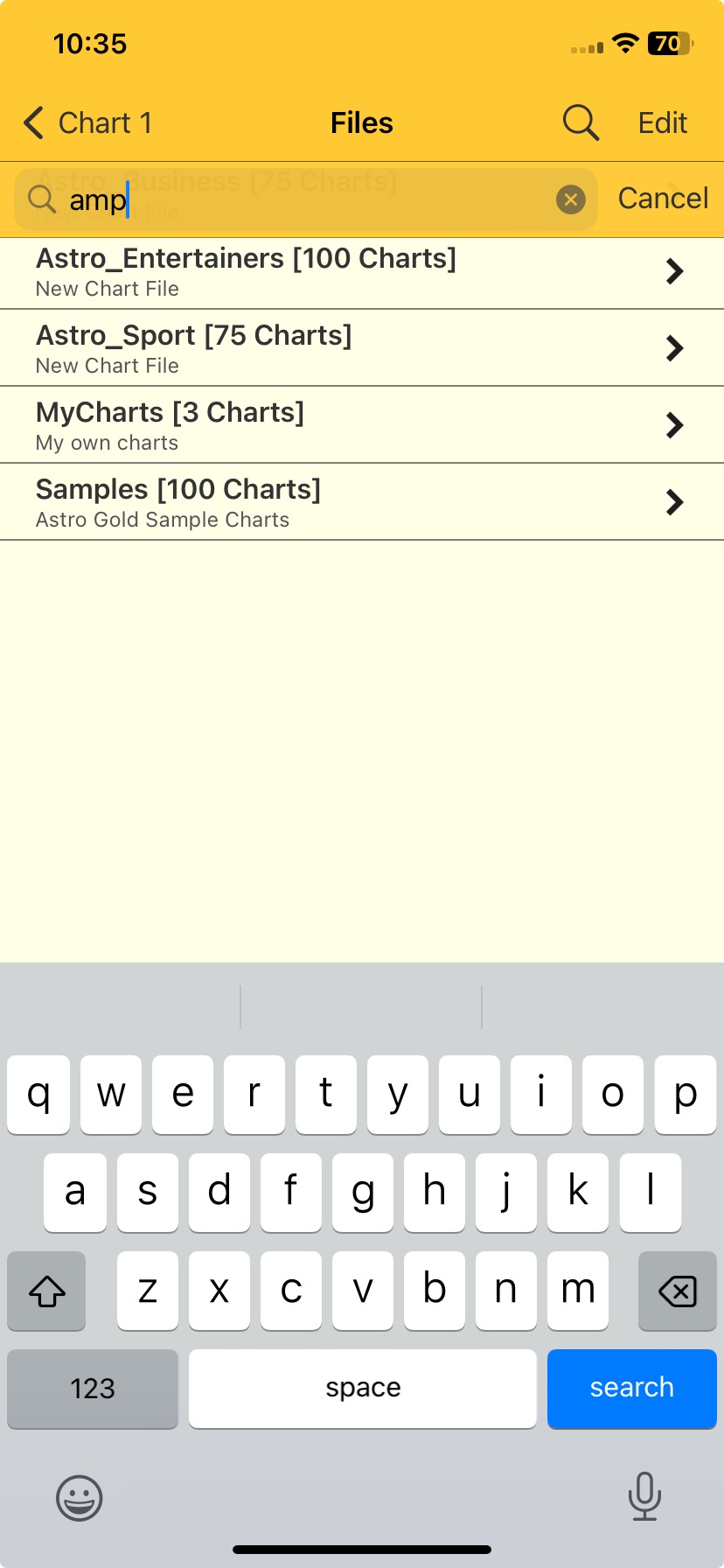 Entering a partial chart name (a "string") |
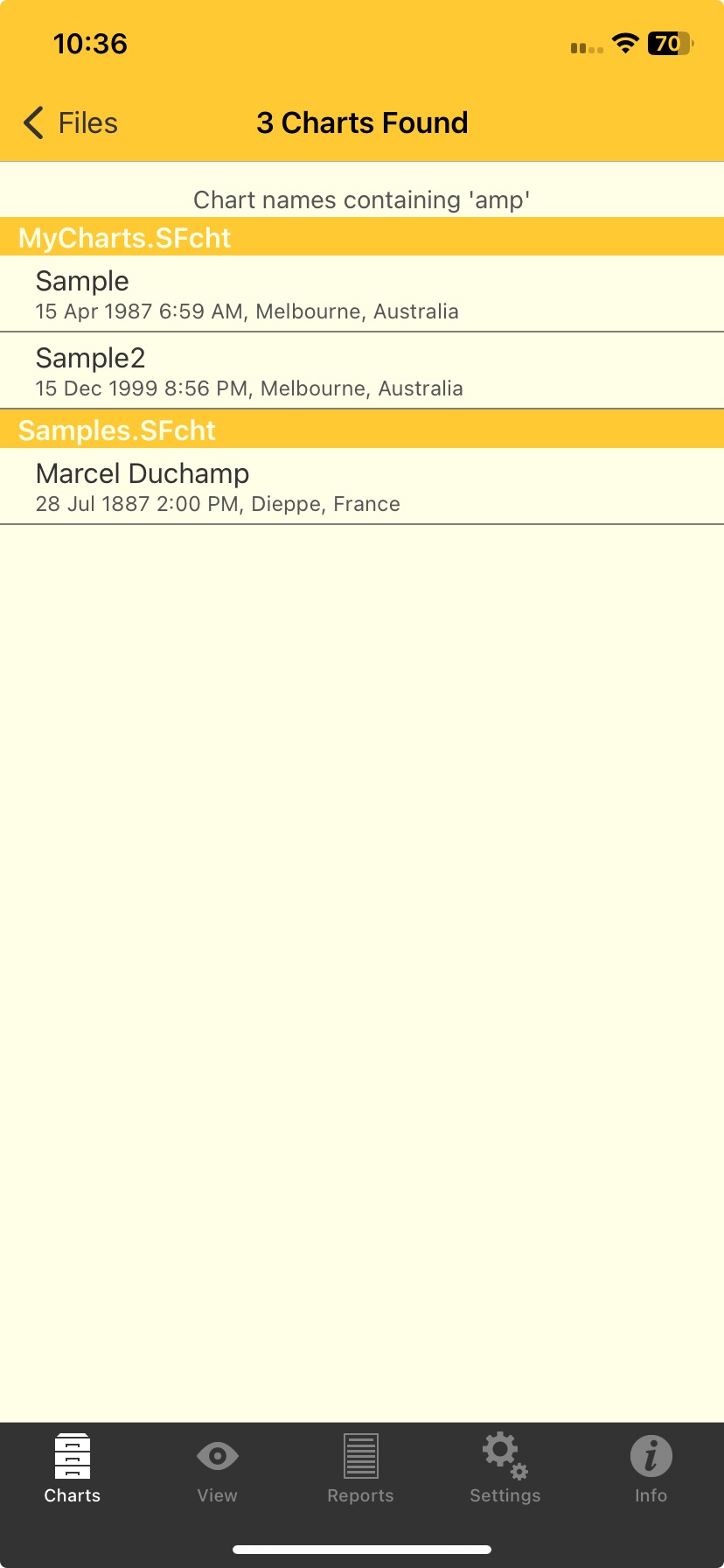 Chart search results |
4.If there is only one chart file then that file will be opened and you can look in the file itself for the chart you want.