Once one or more charts have been selected (see working with charts for how to do this) they will be displayed in the "Viewing Area". You can control the form in which the charts are displayed by using the "Display Controls".
The main display controls for this are the three buttons at the top of the Viewing Area, which allow you to either display the chart as a (single or multi) Wheel or Dial, or as a Grid.

When you click the Wheel or Dial button if ..
•only one chart is selected, then a Wheel/Dial will be displayed.
•two charts are selected, then a biWheel/biDial will be displayed.
•three charts are selected, then a triWheel/triDial will be displayed.
•four charts are selected, then a quadriWheel/quadriDial will be displayed.
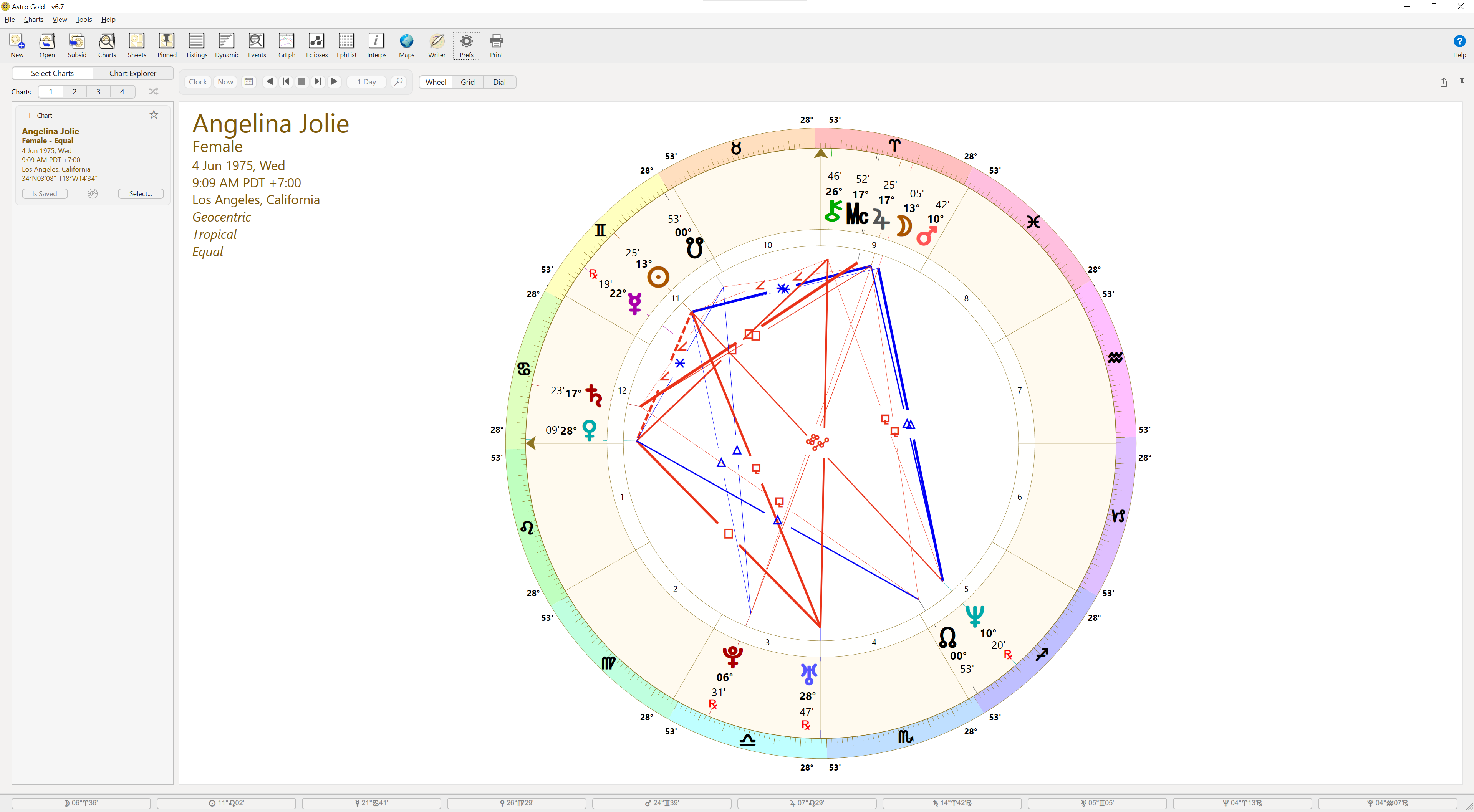
Wheel
Below is a Wheel displaying one chart.
|
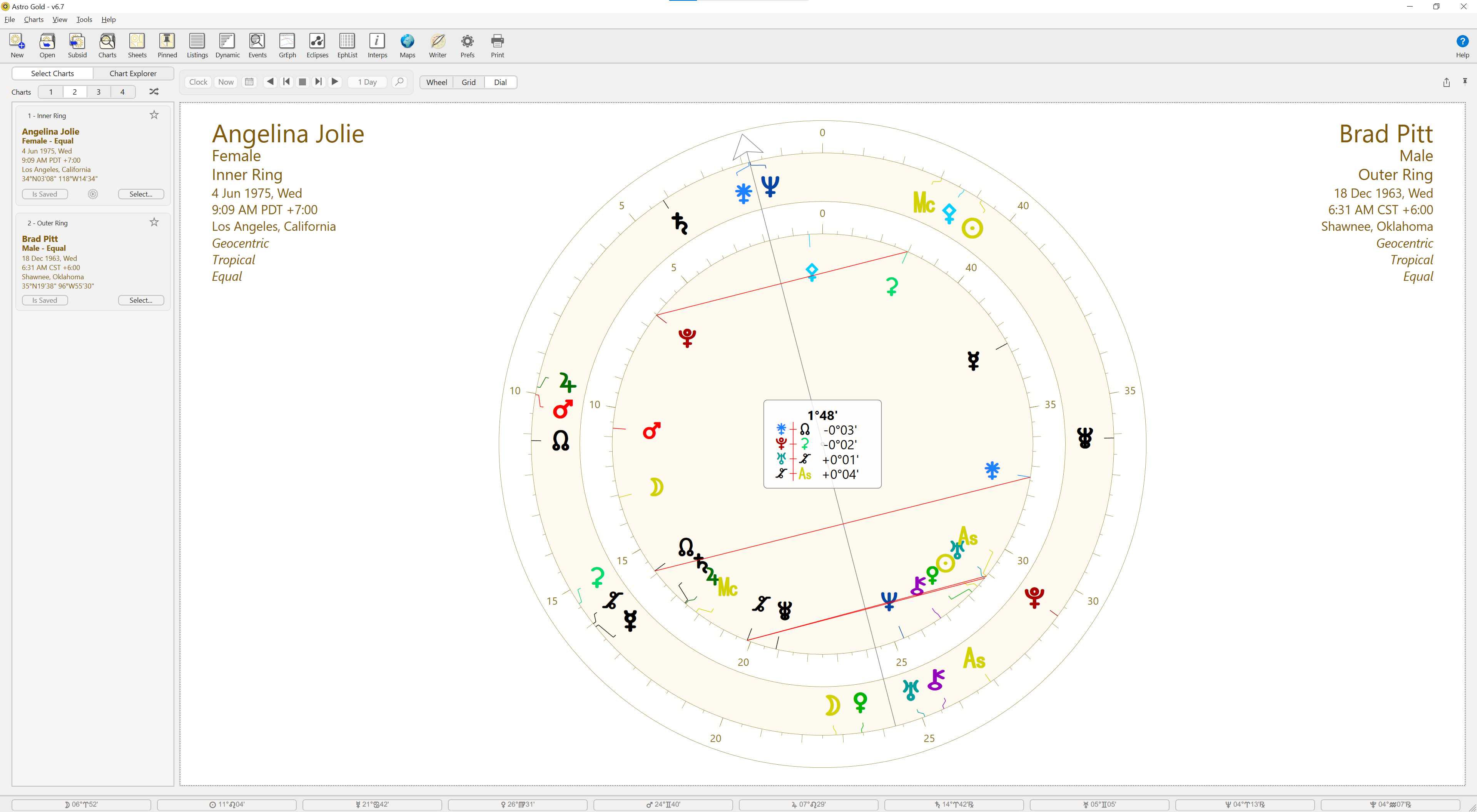
Dial
Below is a biDial displaying two charts using a 45° modulus.
|
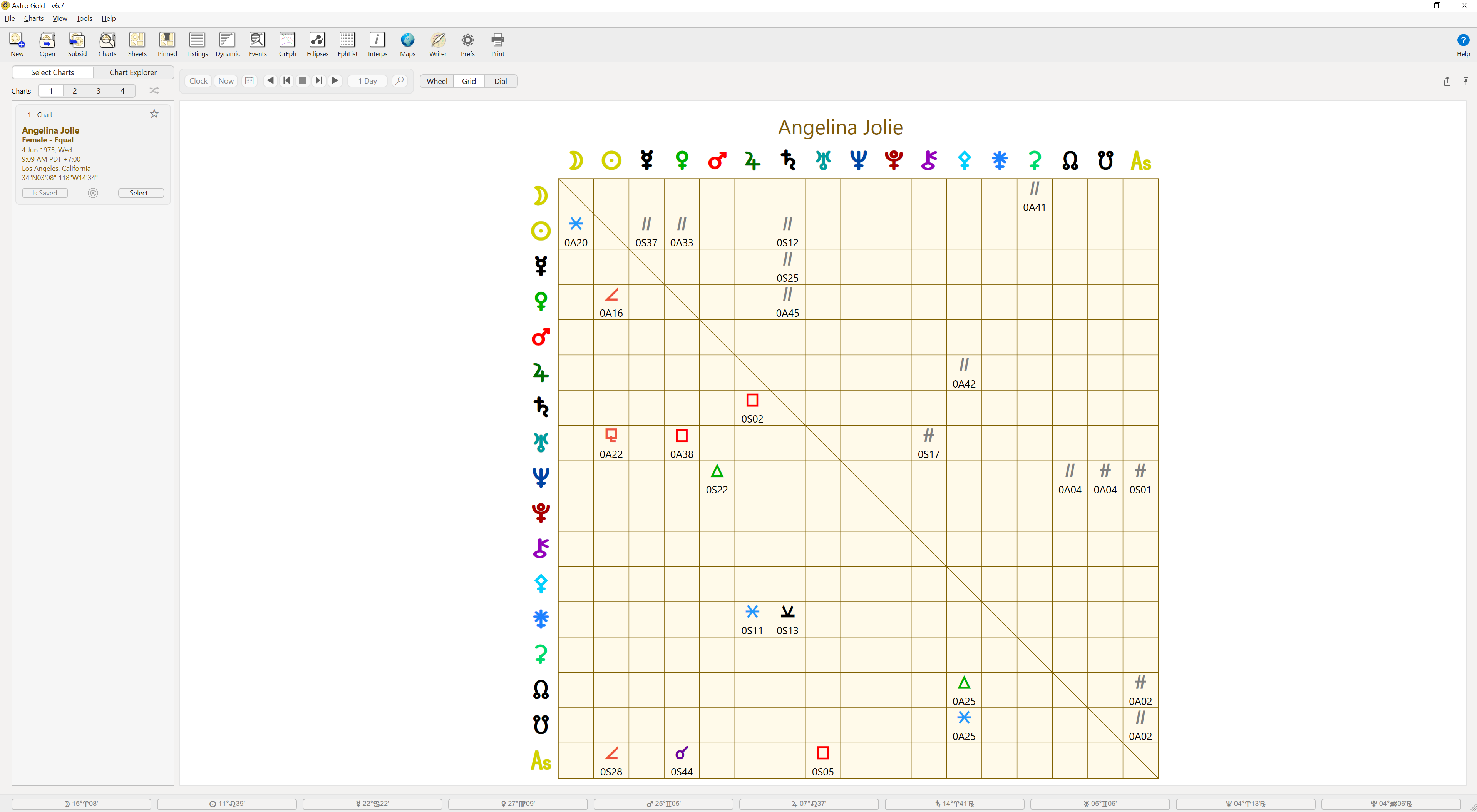
Grid
Below is a Grid for one chart.
|
Pinning a Wheel, Grid or Dial
You are not limited to only being able to display a single wheel, grid or dial in the Viewing Area of the Main Screen. You can have as many different wheels, grids or dials simultaneously open as you like. You do this by "pinning" each wheel, dial or grid you want kept open (until you explicitly close it). Once one of these chart views has been pinned it remains permanently displayed in its own individual window that you can resize, move or minimize as you wish.
You can keep track of, and manage, all your pinned charts in the Pinned Astro Sheets Manager.
>> To Pin a Wheel, Grid or Dial
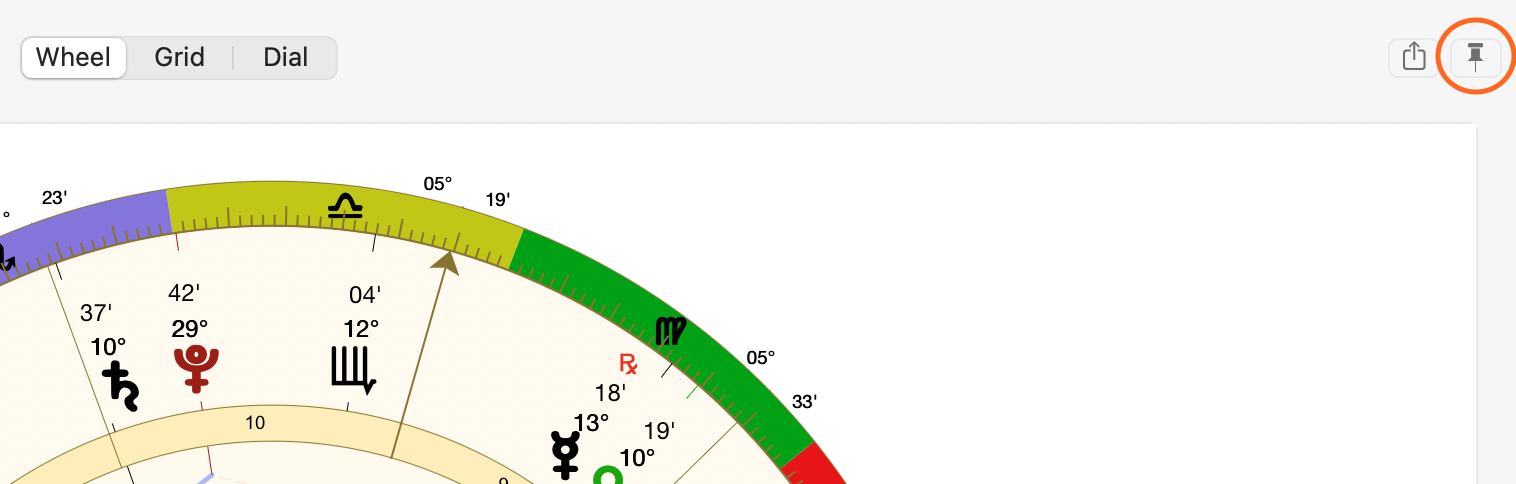
1.While a wheel, grid or dial is displayed in the Viewing Area of the Main Screen, click on the little Pin icon in the top right corner, circled below in orange.
 |
2.This will create a new window containing what was displayed in the Viewing Area.
|
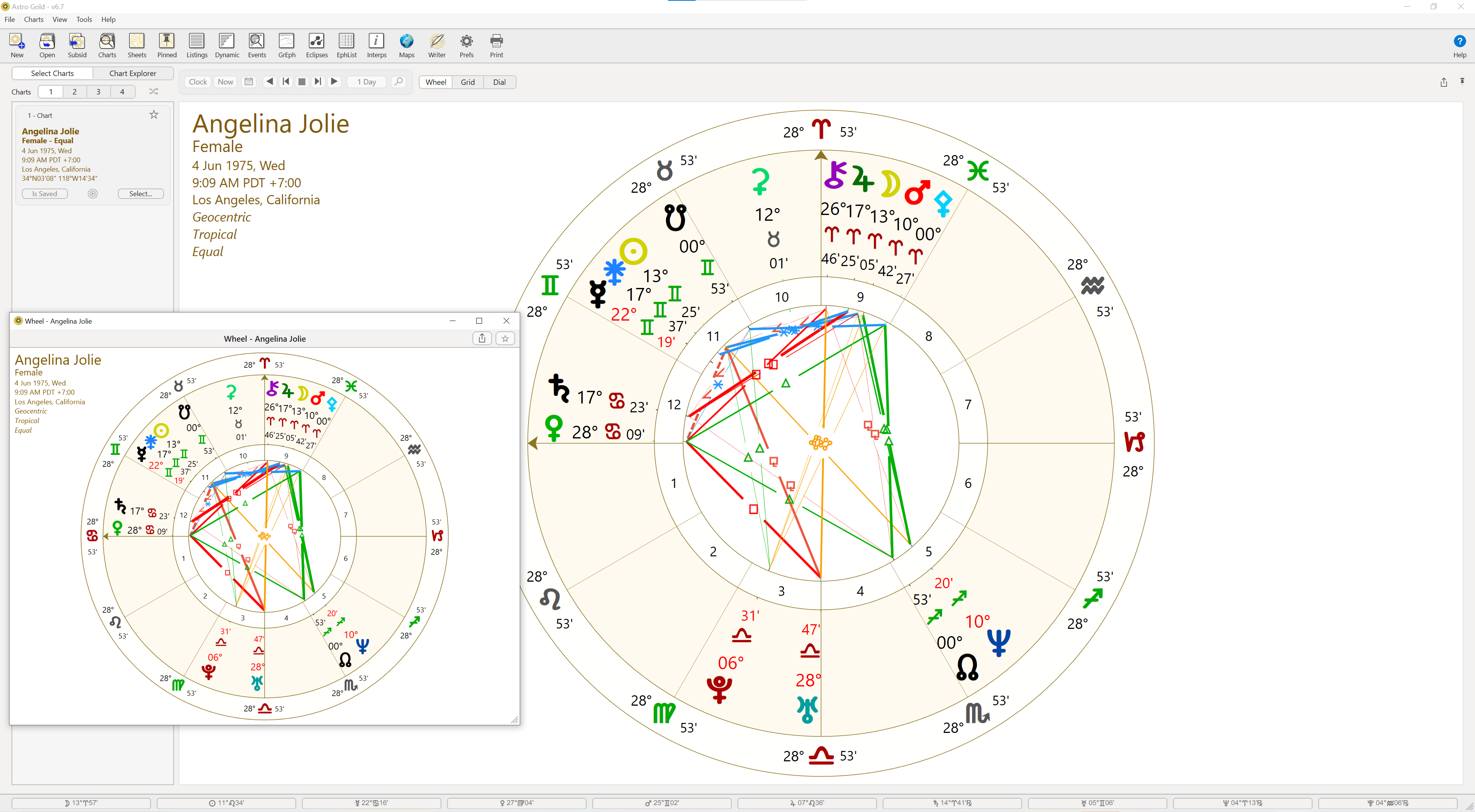
These pinned views (i.e. separate floating windows) can be re-sized, moved, minimized and remembered across Astro Gold sessions, until you choose to close them - which you can do directly by closing the pinned window, or from within the Pinned Astro Sheets Manager.