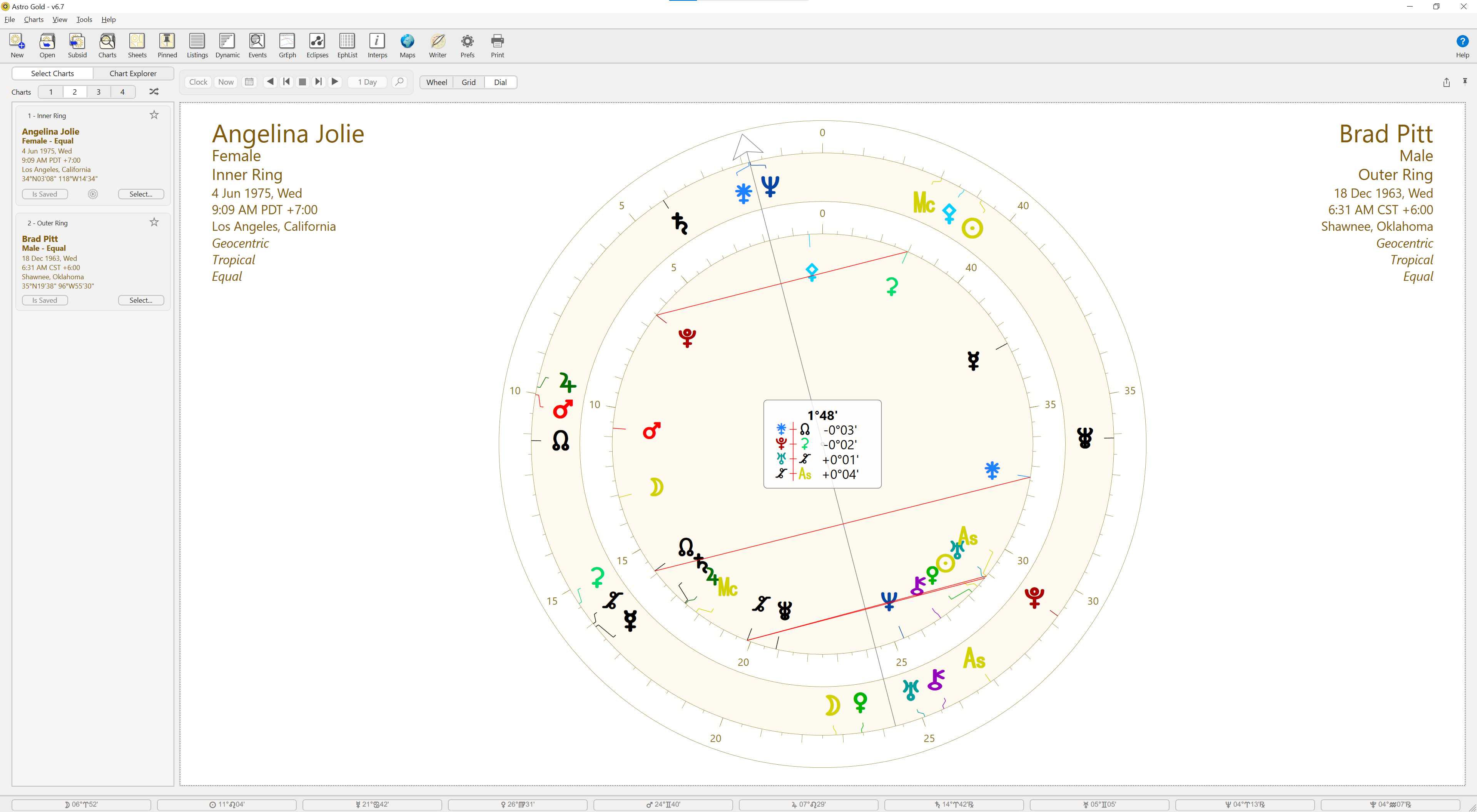
Below is a Dial displaying two charts using a 45° modulus.
You can set the modulus in the Preferences menu/Wheels tab.
|
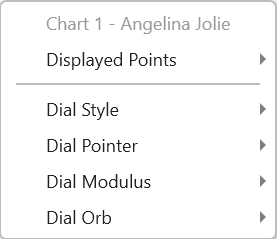
➢ Right-click anywhere in or outside of the Dial window and a pop-up menu is displayed (Displayed Points only appears for single dials).
|
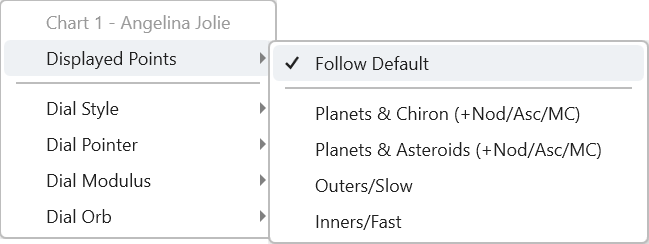
➢ Clicking on Displayed Points another menu is displayed from which you can choose the "Point Set" to be displayed. "Follow Default" simply displays the default "Point Set" that is set in Preferences.
|
➢ Clicking on Dial Style displays a list of styles of the appropriate type for the number of charts displayed, so you can select a different Dial to be used. "Follow Default" simply displays the default "Dial Style" that is set in Preferences for the number of charts displayed.
➢ If you have more than one chart selected clicking on Dial Pointer allows you to specify which chart in the dial the pointer applies to.
➢ Clicking on Dial Modulus allows you set the modulus to use for the dial.
➢ Clicking on Dial Orb allows you set the orb to use for the midpoints.
NOTE: Anywhere you can access a pop-up context menu using the mouse by right-clicking (for example on a chart title), you can also use the touchpad.