>> To save a window's contents to a PDF file
1.Click the Print icon  on the Toolbar - or if it's visible, click on the Share button
  , then click on Print / Save PDF. The "Print" dialog box will be opened, and while the contents will vary, will always look similar to below with the same options and buttons.
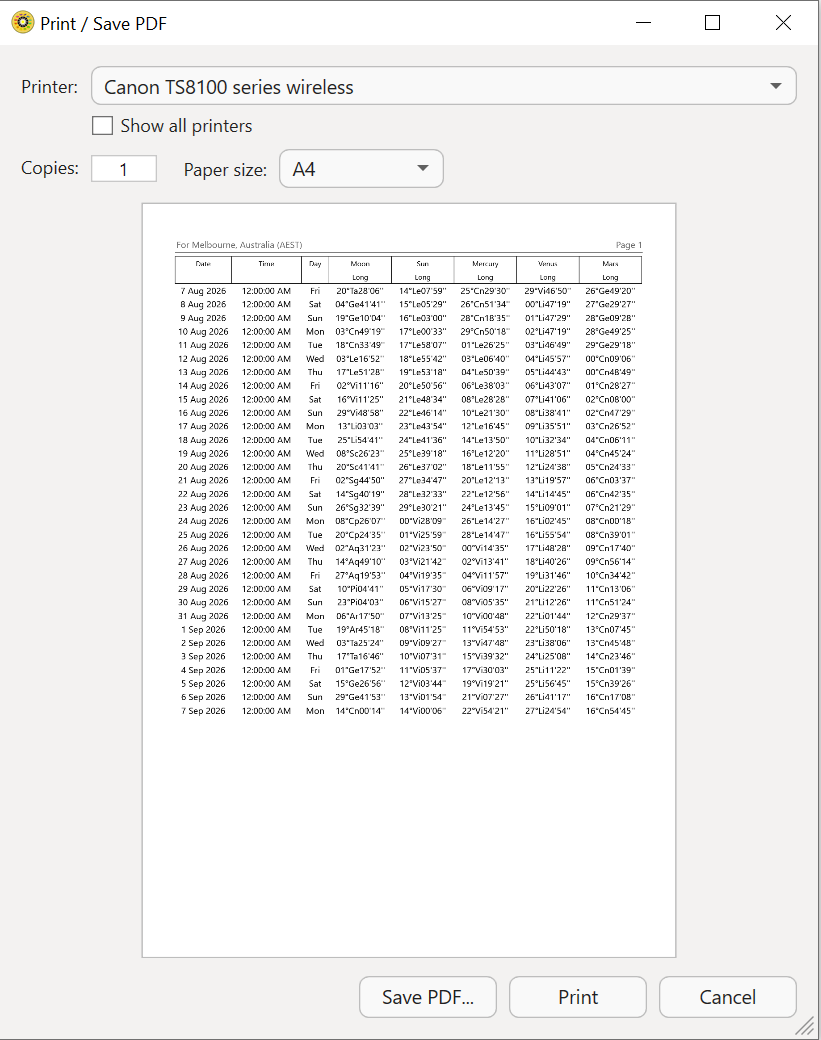 The Print dialog |
2.Click on the Save PDF button. This opens the "Save As PDF" dialog.
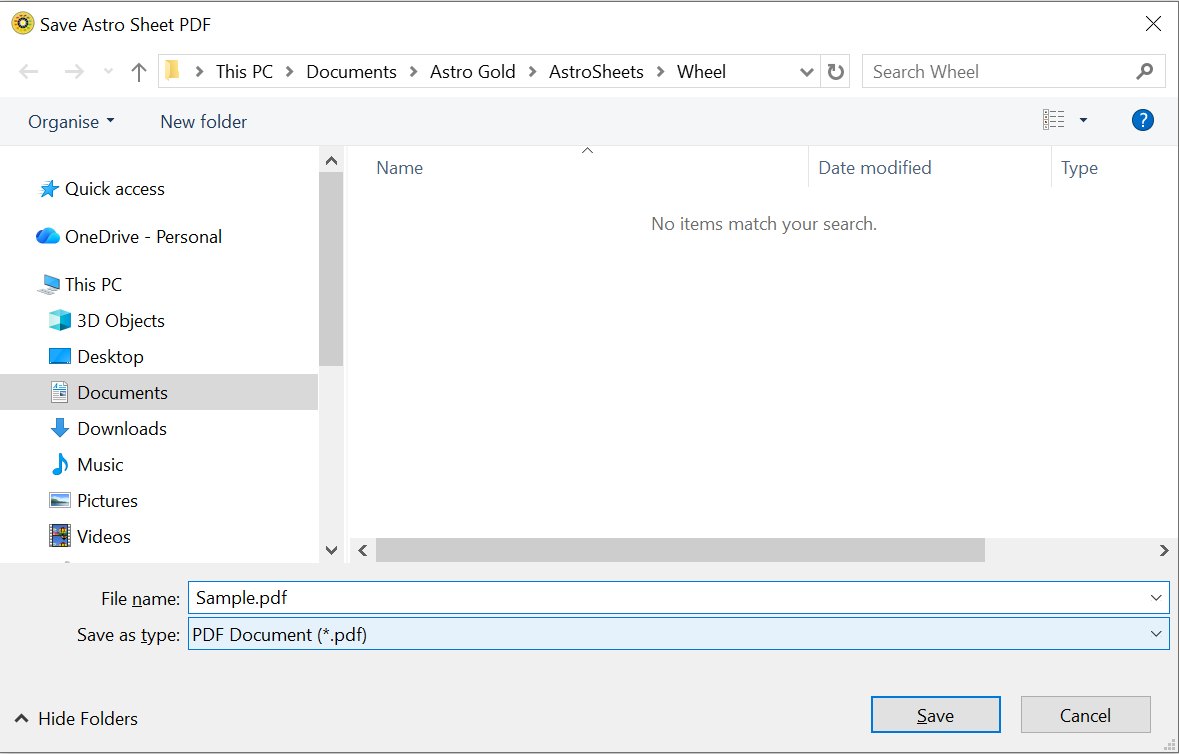 The Save PDF dialog |
3.Edit the default filename if you wish.
4.The middle section of the dialog shows the folder the PDF file will be saved to. By default it will be saved in the Astro Gold subfolder for the type of contents involved.
For example for Sheets that would be the "Documents/Astro Gold/AstroSheets" folder, with a further subfolder name varying according to the type of view being displayed (e.g. Wheel, Points List, Midpoint Trees etc), and the default name of the file is the name of the chart (or charts, if more than one) currently being used. Graphic Ephemeris content is by default saved to the "Documents\Astro Gold\GraphicEphemeris" folder.
5.If you want to save the PDF to a different location then navigate to that folder, or create a new folder (the New Folder button is above the left hand pane of the dialog window).
6.Click on the Save button.
NOTE: this feature is only available for windows that have a "Share" button. Windows such as Listings and Interpretations do not have a "Share" button.