>> To print whatever is displayed in the "Viewing Area" on the Main Screen, and the Astro Locality Map
1)Click the Charts menu, then click the Print menu option. Alternatively, for the Viewing Area instead of doing either of those, just click the Printer icon in the Toolbar.
This opens the "Print" dialog box.
2)In the Printer dropdown box your default printer will be showing. If necessary click this to select a different printer.
3)Set the number of copies to print and the paper size.
4)When you're ready, click on the Print button.
>> To print Astro Sheets and the Graphic Ephemeris
1)Click the Share button. A menu drops down with the options below.
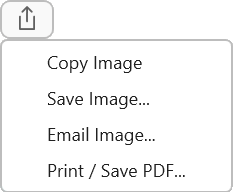 Share button dropdown menu |
2)Click the Print / Save PDF menu option. This opens the "Print" dialog box.
3)In the Printer dropdown box your default printer will be showing. If necessary click this to select a different printer.
4)Set the number of copies to print and the paper size.
5)When you're ready, click on the Print button.
>> To print a Dynamic Listing or a Professional Report
1.Click the Share button. A menu drops down with the options below.
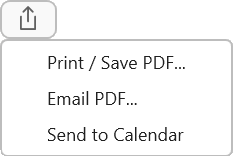 Share button dropdown menu |
2)Click the Print / Save PDF menu option. This opens the "Print" dialog box.
3)In the Printer dropdown box your default printer will be showing. If necessary click this to select a different printer.
4)Set the number of copies to print and the paper size.
5)When you're ready, click on the Print button.
NOTE: the Dynamic Listing always prints in Landscape orientation, as this fits the data on the page best.
2.To save the listing as a PDF file click the PDF option. This opens the "Save Astro Sheet PDF" dialog window.
a.Edit the name for the file, but leave the ".pdf" file extension in place, otherwise if you delete it add ".pdf" onto the end of the filename.
b.Select the folder to save the file in, otherwise create a new folder.
c.Click the Save button.
NOTE: You cannot print Listings or Interpretations; they can only be viewed on the screen.