>> To save a chart
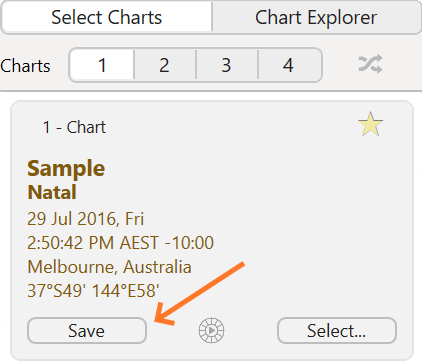
➢ In the "Selected Charts" pane click on the Save button for the chart you want to save - see below.
|
This will bring up a dialog box where all the available chart files are displayed inside the Astro Gold folder. All chart files end in the file extension .SFcht (see below).
[see Chart Files and computer Folders for detailed information on what chart files and computer folders are, how they are related, and how they work together]
|
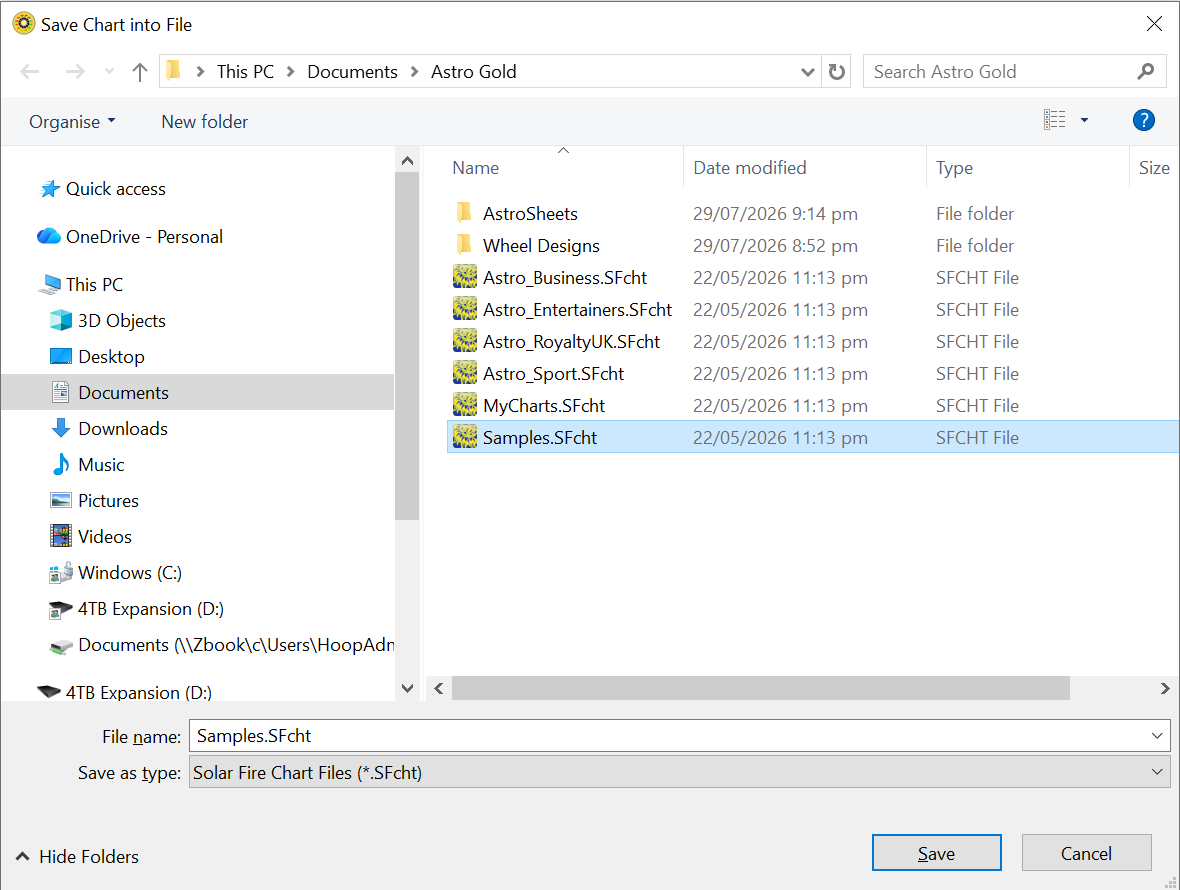 Saving a Chart into a chart file |
Finding (or creating) the folder where the chart file is
1)If the chart file you want to save the chart to, is in the available chart files that are displayed in the dialog above, go to step 3.
2)If instead you want to save the chart to file in a different folder other than the Astro Gold folder, then use the drop down box in the middle of the top of the dialog to select a recently used folder to save the chart to. Or you can navigate to the folder you want using the left pane of the "Save Chart" dialog, for instance by clicking on the Documents folder, then selecting a subfolder in the main pane, and if necessary a subfolder of that folder, and so on until you have found the folder you want.
Any chart files in the newly selected folder will be then be displayed similar to above. You can now go to step 3.
-OR-
If you want to create a new folder inside the Astro Gold folder, then click on the New Folder button in the top left of the dialog. A new folder will be created in which you can type the new folder name - press the Enter key to create it. Once you have created the new folder click on the Open button to go into that folder.
|
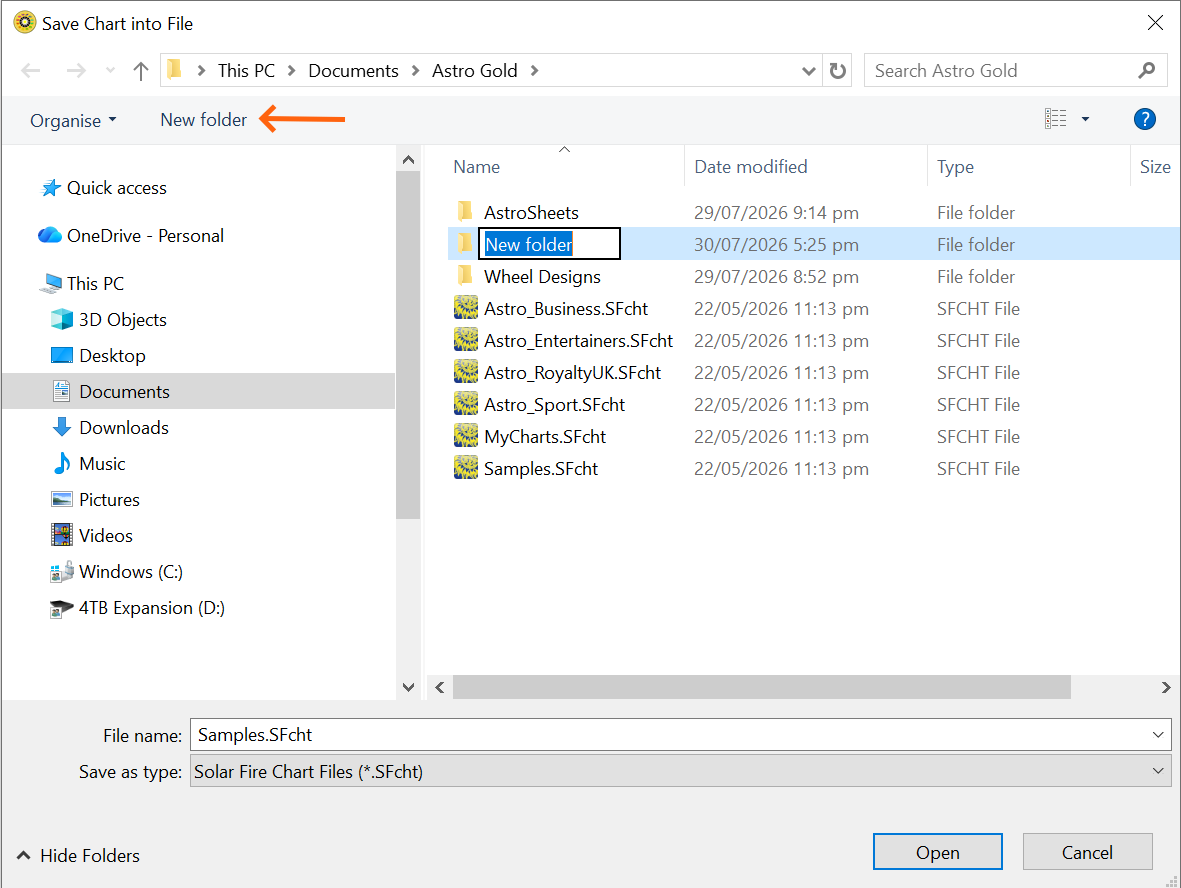
Finding (or creating) the chart file to save the chart to
3)Now that you are located in the folder where you want to save your chart either:
a)Click on the chart file you want to save the chart to, which will select it and the file name will become highlighted (if you created a new folder there won't be any files in that folder yet, so go to (b) below).
-OR-
b)Create a new chart file by typing a name for the file in the "File name" textbox, then clicking on the Save button in the bottom right corner of the dialog.