>> To Open a Chart
Clicking on the "Select" button in the "Chart Details" area of the particular chart (1, 2, 3 or 4) that you are concerned with, opens up a menu that is the same for any of the charts.
➢ Click on the Select... button in the Chart Details area for a chart, and a menu will drop down displaying the options for selecting that particular chart. Alternatively to cancel selecting a chart press the Escape key on the keyboard, or click on any blank space on the screen.
|
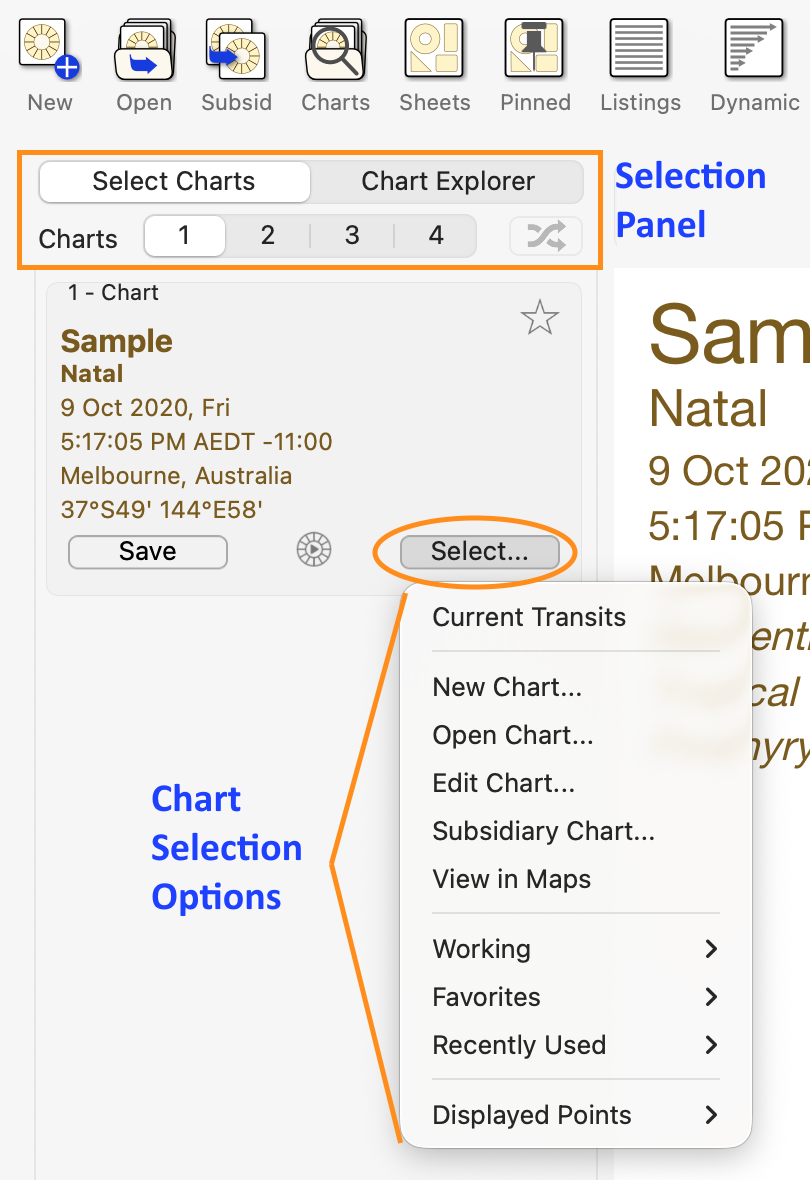
➢ Now click on one of the following:
Clicking on the "Recently Used" item in the dropdown menu opens a sub-menu of the most recently used charts in the current session.
➢ Click on a chart in this list to open it.
Clicking on the "Favorites" item in the dropdown menu opens a sub-menu of all the charts you have designated as a 'favorite' chart.
➢ Click on a chart in this list to open it.
Clicking on the "Working" item in the dropdown menu opens a sub-menu of all the charts currently in your collection of Working charts.
➢ Click on a chart in this list to open it.
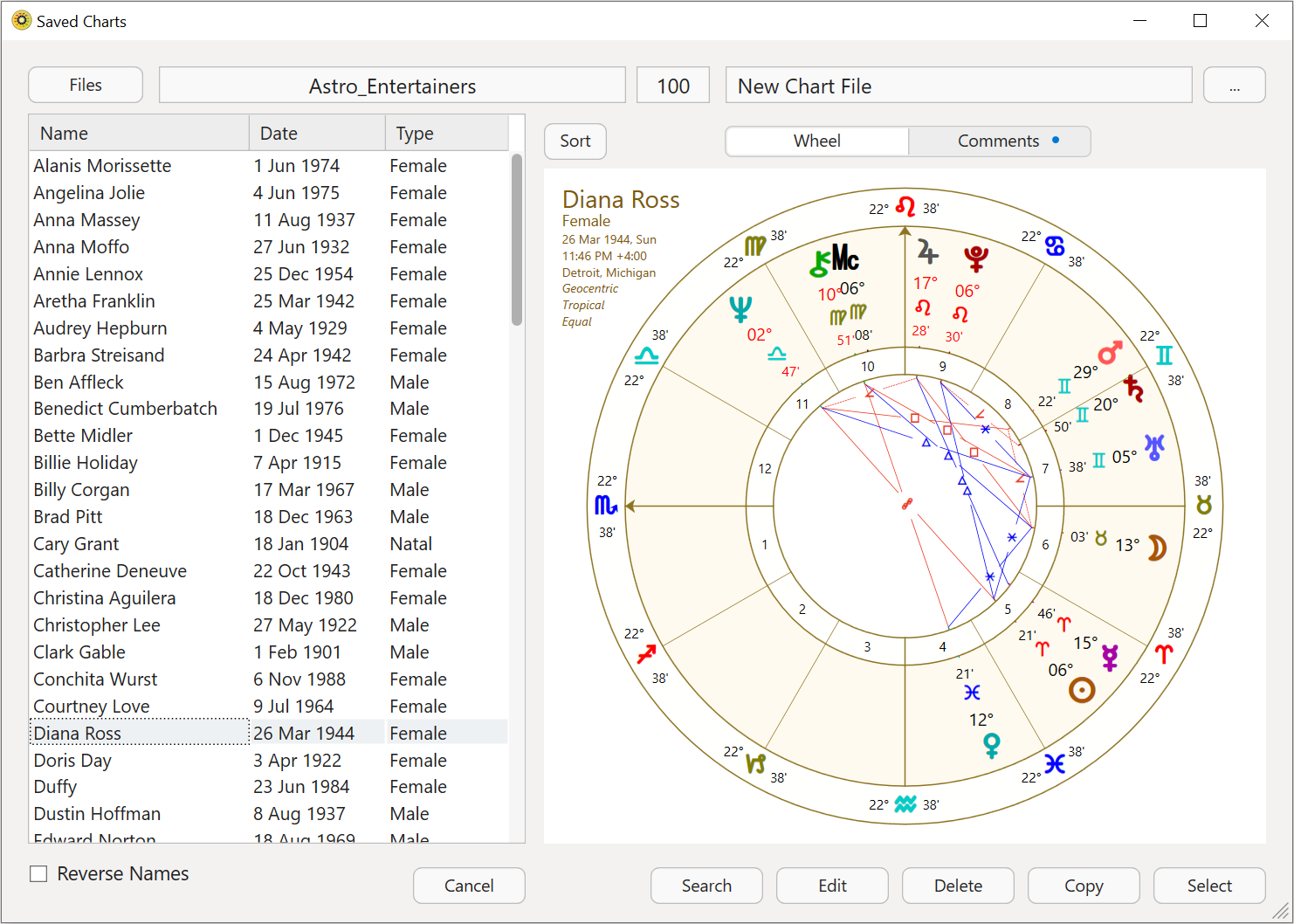
Clicking on the "Open Chart" item in the resulting dropdown menu opens the "Saved Charts" dialog box listing all the charts in the current chart file. The name of the current chart file is displayed above the list of charts, and to the right of that the number of charts in the file is shown along with the chart file's description.
 Opening a Chart |
1.If you want to see what the chart looks like before opening it, make sure the Wheel option above the square viewing area is selected (highlighted) by clicking on it.
2.To see the charts in the list as last name followed by the first name click on the Reverse Names checkbox until the box is ticked. Alternatively to see the names as first name followed by last name click on it until the checkbox is unticked.
>> To sort the charts
You can sort the charts in a couple of ways:
➢ In the "Saved Charts" dialog click on the Name, Date or Type column header for the list of charts to reverse the current sort order, either from ascending to descending or vice versa.
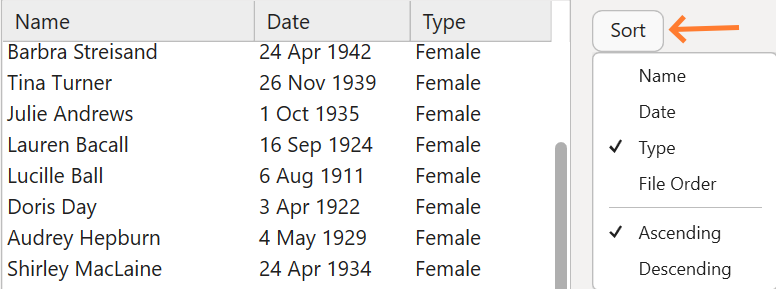
➢ Click on the Sort button to the right hand side of the charts list header, and a menu pops up beneath it. And additional option to sort the charts via this menu is "File Order". File Order is the original order the charts were added to the file. Clicking anywhere away from the menu closes it.
>> To add comments to charts or edit existing comments
➢ Click on the Comments button, above the chart to display the "Comments" pane where you can start typing or editing.
➢ If the currently selected chart already has some comments there will be a blue bullet on the right hand side of the "Comments" button 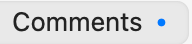 .
.
3.Click on the chart you want which will select it. Alternatively, If the chart you want isn't in the current chart file then you can select another chart file ...
a)Click on the Files button in the top left of the screen. A menu will drop down and below the menu options a list of all the recently used chart files will be displayed.
b)Click on a filename in the list - in which case that file will be opened and you will be returned to the "Saved Charts" dialog where all the charts in that chart file will be displayed.
OR
c)Click on Browse/Open Chart Files and the "Open Chart File" dialog box will display the other chart files in your Astro Gold folder, or any sub-folders you have created. Click on one to select it then click on the Open button and it's charts will be listed in the "Saved Charts" dialog.
OR
d)Click on New Chart File and the "Create new chart file" dialog box will open so you can create a new file to store charts in. In the File name text field give your new chart file a name e.g. "My Charts". The folder you were last in is the folder the new chart file will be created in by default, but you can select a different folder if you wish, either by double-clicking on a subfolder within the current folder, or by using the left hand pane to navigate to a different folder. Finally click on the Save button and the new chart file will be created and you will be returned to the Saved Charts dialog.
4.If the list is very long or you cannot find the chart in the list of charts you can search for the chart - see Finding Charts.
5.To change the chart file's description, which is displayed in the text box above the chart, edit it directly in the text box.
6.When you have the chart you want to open selected (highlighted) in the list, click on the Select button in the bottom right corner of the dialog to open the chart and return to the Main Screen, where it will be displayed in the "Viewing Area".