You can purchase optional Report Type add-ons allowing you to create clear, informative, beautifully illustrated professional reports which you can print out, save, or email to others. Once you purchase a particular add-on, you can then run as many reports of that report type as you want, for no extra charge.
The Report Types that can be purchased as an add-on are:
•Birth Chart Report
•Child Report
•Adolescent Astrology Report
•The Big Three Astrology Report
•Family Astrology Report
•Relationship Report
•Predictive Report
•Vocation Astrology Report
•Birthday Report
•Lunar Return Report
•My Pet Report
•Money Report
•Kindred Spirits Report
|
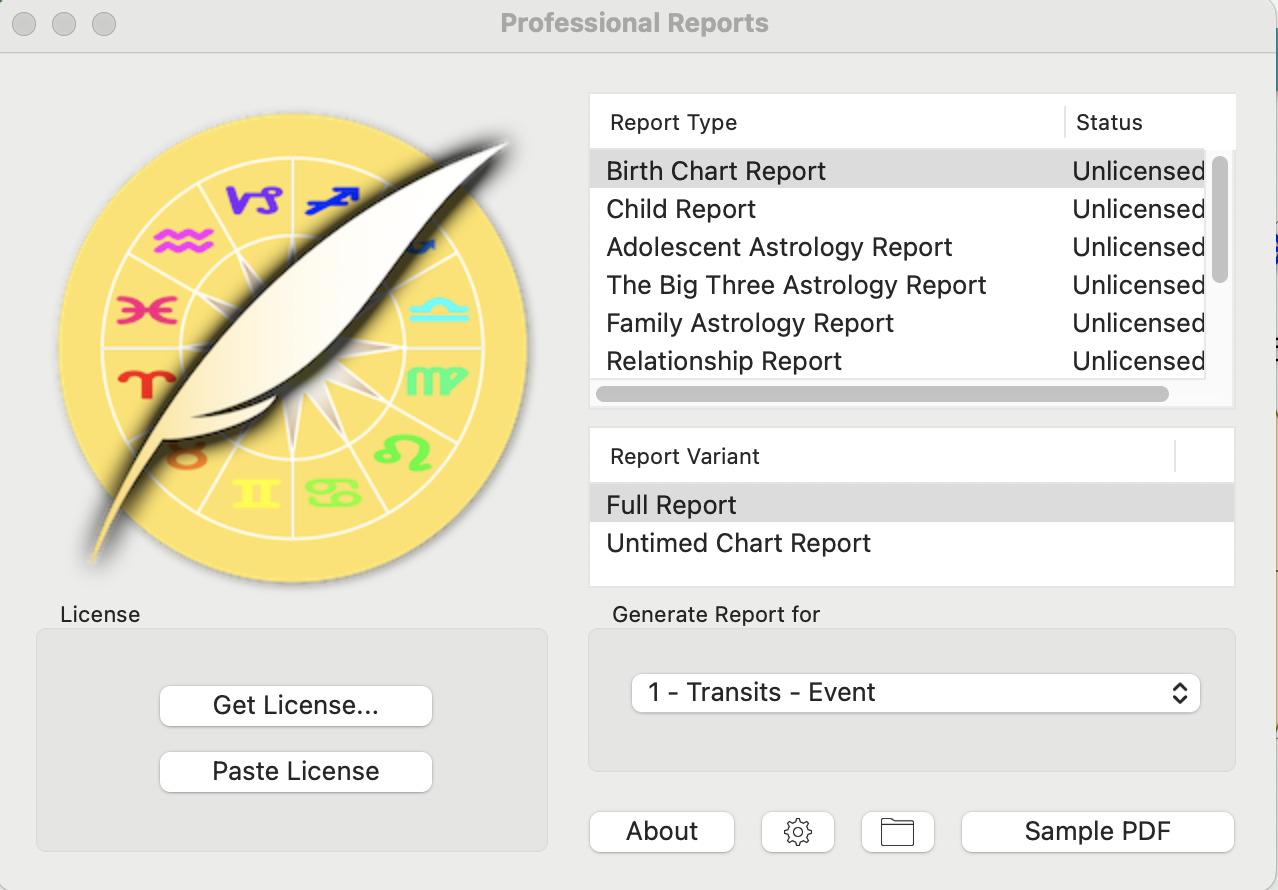 Professional Report selection |
Report Options
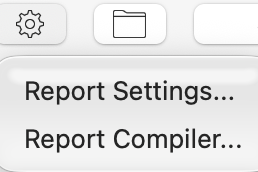
To see the Report Options and enter compliments for your reports click on the Gear icon  and the following dropdown menu appears. Select Report Settings.
|
The Report Options at the top apply for all reports, as do the Compliments text.
Some reports may have options specific to them displayed in the middle of the dialog, as for example in this case with the Predictive Report (see here for more info).
Report Compiling
To see the Report Compiler so you can edit the report text for reports where the author has authorized that, click on the Gear icon and the following dropdown menu appears. Select Report Compiler.
|
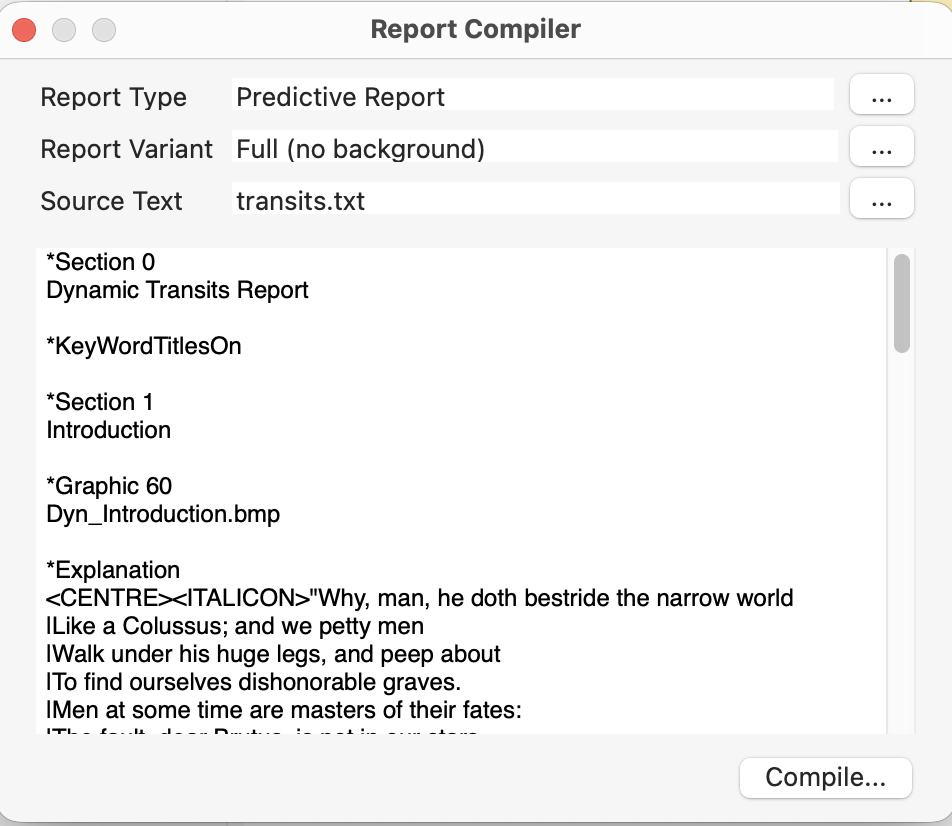
The Report Compiler window will open, and look similar to this:
|
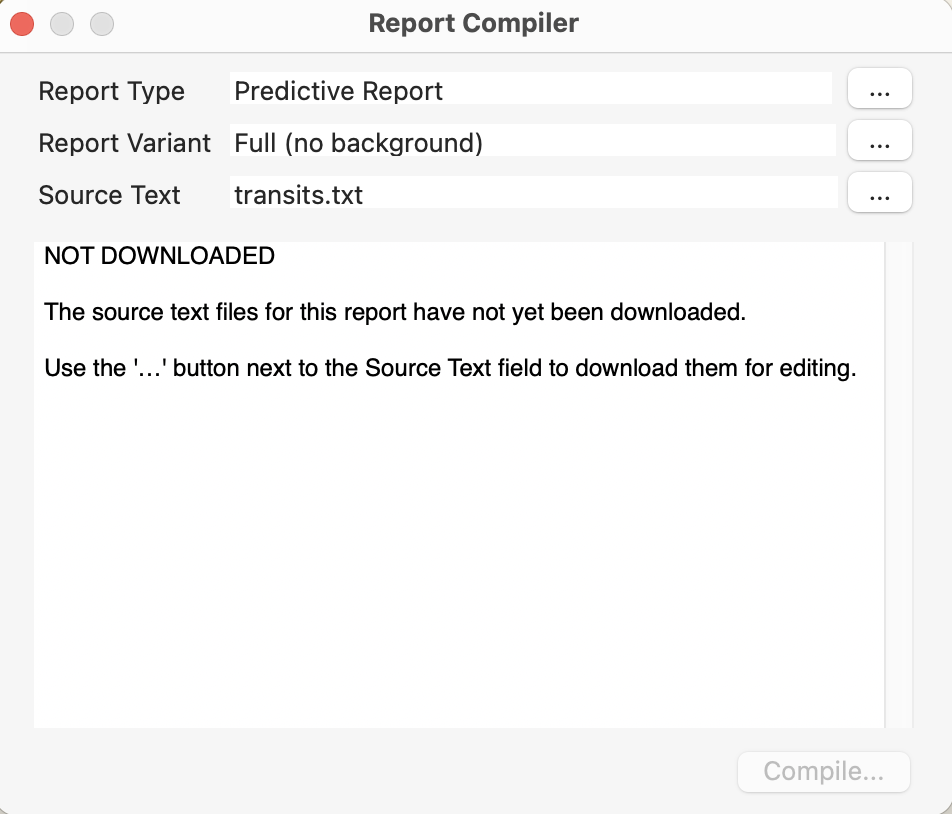 |
The source text files for any report are different to the report itself. The source text is normal text written into one or more simple text files (have a .txt extension), using a text editor. There are several text editors available on both PCs and Macs. Once the source text for a report has been written into a text file it needs to be compiled into the report, as the report itself is different to the source text it uses as the basis for its displayed content.
The first time you open the Report Compiler window for a report that has been authorized to be edited, you will need to download the source text for the report so that you can edit it.
•Click on the  button to the right of the "Source Text" textbox to download the source text file named in the textbox, and a dropdown menu will appear:
|
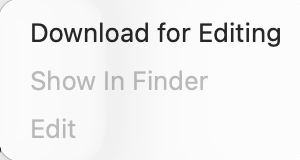
•Click on Download for Editing. It will then display the source text.
|
|
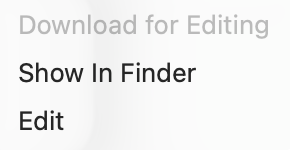
•To edit the text click on the button to the right of the "Source Text" textbox again, and the following dropdown menu appears. Click on Edit.
|
The report source text will be loaded in the TextEdit app so you can edit it.
|
|
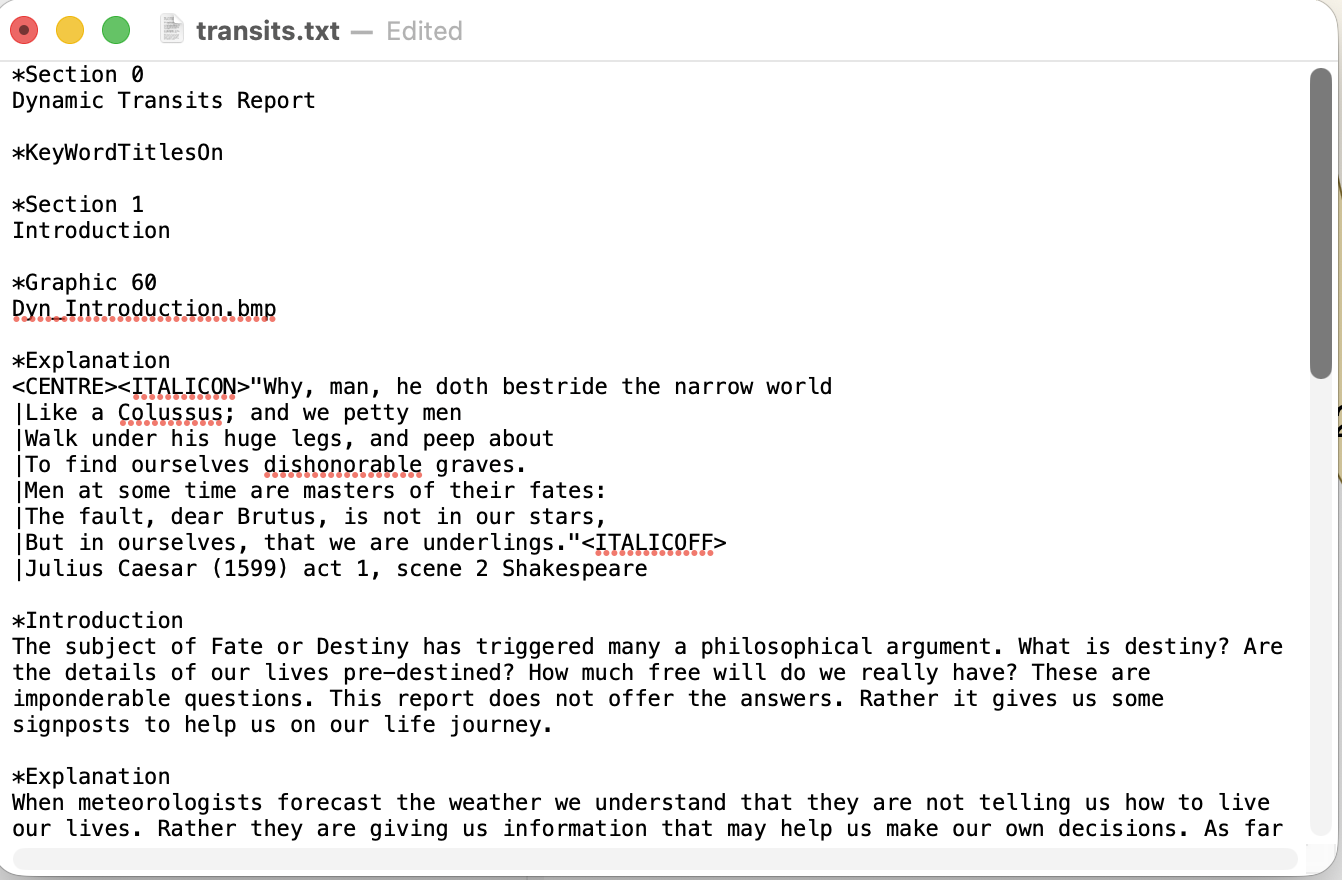
1)Make your changes and then close the window.
2)If you have made changes then you will have the option to either Save the changes or undo them (Revert).
•Back in the Report Compiler window click on the Compile button to update the report itself with the saved changes. Once you've done that, if you change your mind you can undo the compilation by clicking on the Revert button.
3)Now when you generate a PDF the report will contain your edited text, not the original text.
>> To purchase a Report Type license
Here is an example of the ordering process. The content on the webpages involved may change over time - however this shows you what the process generally entails.
1)Click on the Report Type you want to purchase.
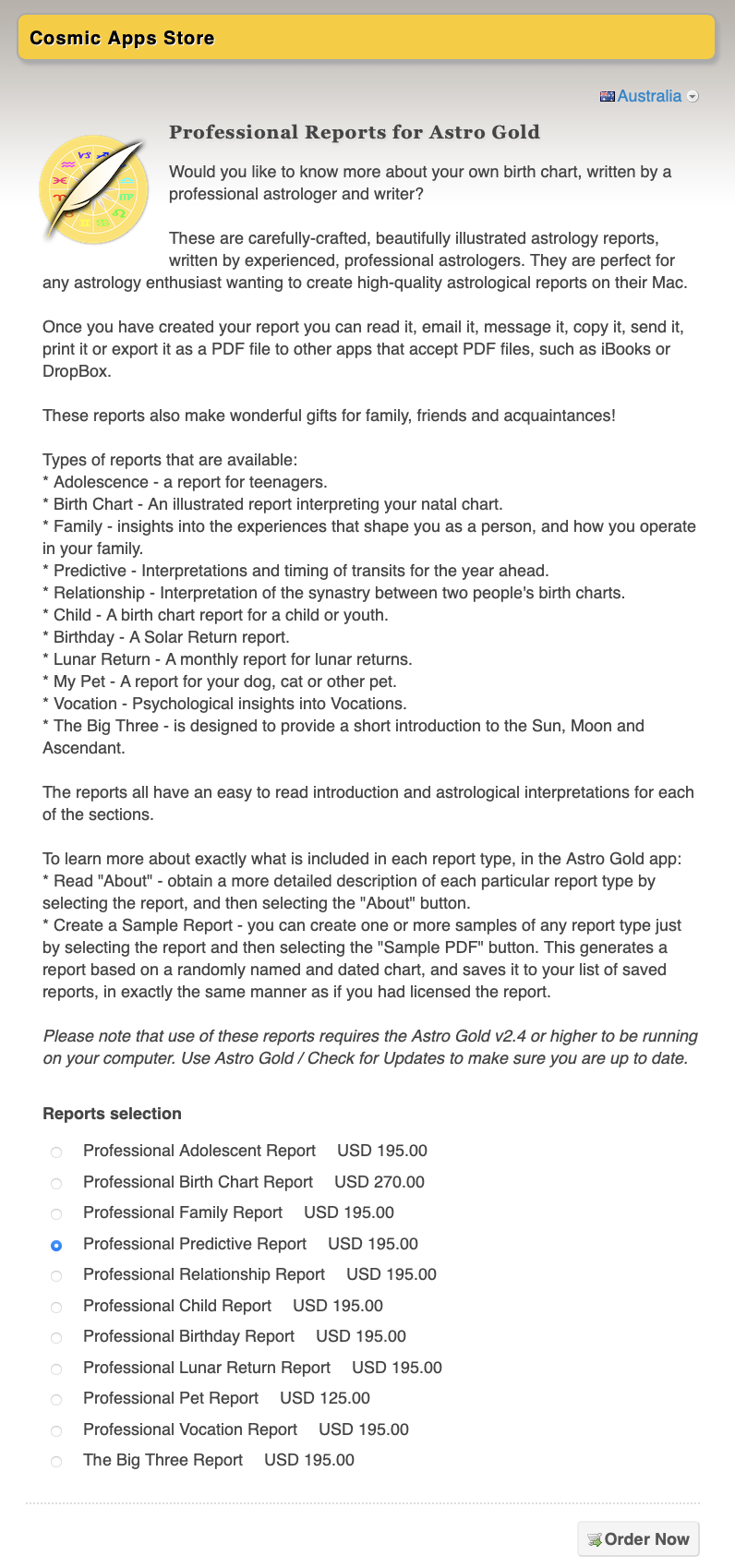
2)Click on the Get License... button. The Fastspring Order Form web page will load (shown below). The prices are subject to change. This an example only of what the order form looks like.
3)Make sure the country whose currency you will be using to pay for the purchase is selected in the top right corner. Normally the country your device is in will automatically be selected for you. The actual cost of the purchase will be in US dollars, but the estimated cost for the
4)In the "Reports selection" click in the radio button (small round circle) in front of the report type you want to purchase until it becomes a filled blue circle (an example the Professional Predictive Report is selected below)
5)Click on the Order Now button.
|
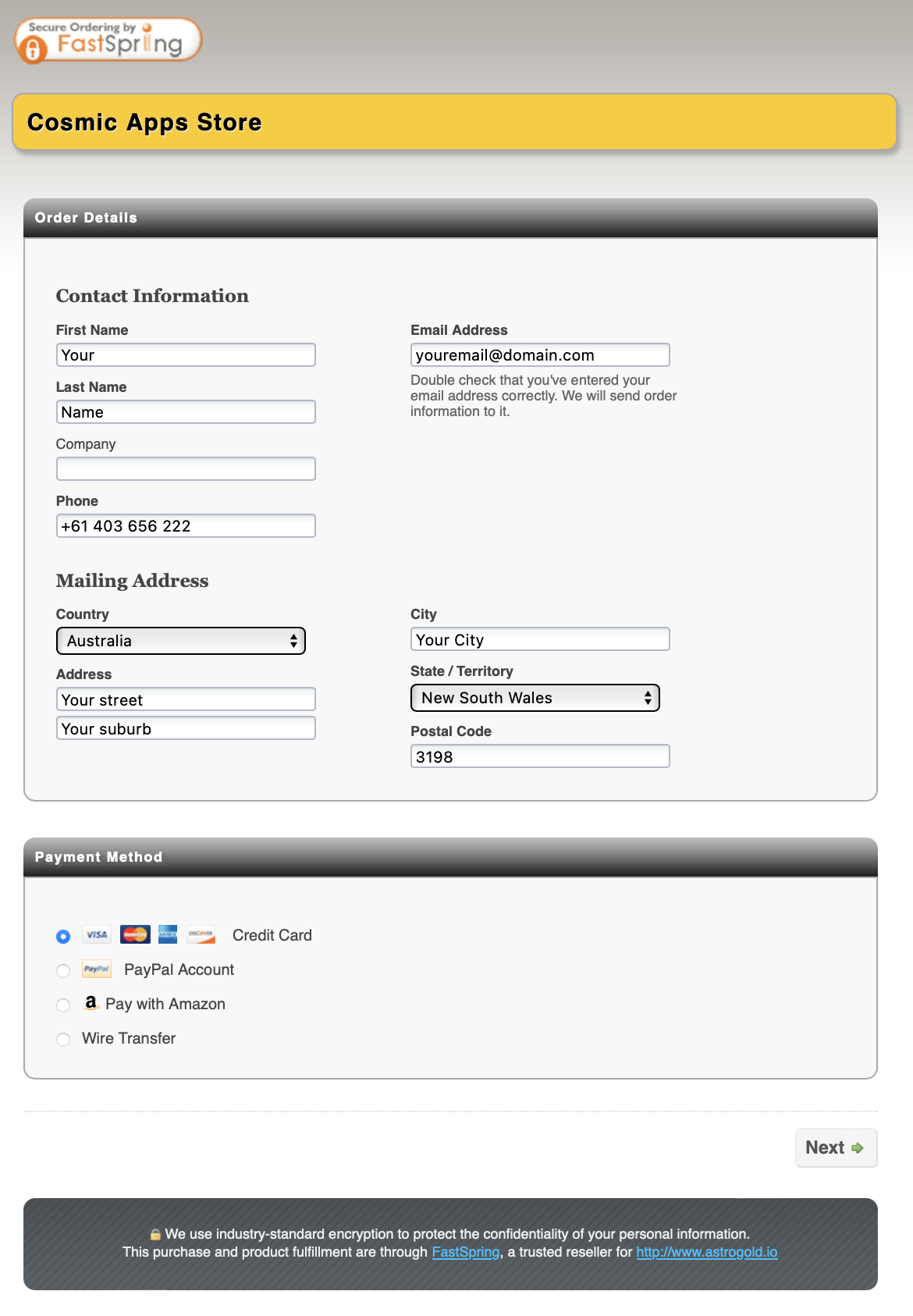
6)The Cosmic Apps Store webpage is displayed (see below).
7)Fill in the Order Details - contact information, mailing address and email address.
8)Select the payment method by clicking in the radio button (small round circle) in front of the payment method you want until it becomes a filled blue circle (an example the Credit Card method is selected below).
9)Click on the Next button.
|
10)The final order page is displayed (see below).
11) You can change whose name is on the license by typing it in underneath the name displayed under "License Name".
12) If you have a coupon enter it into the Coupon textbox, then click on Update Coupon.
13) Enter the payment details for the payment method you chose.
14) Check all is correct - if it isn't click on the Make Changes button if there is one, and make corrections (you can change the report type, order details etc by doing this).
15) Click on the Complete Order button.

|
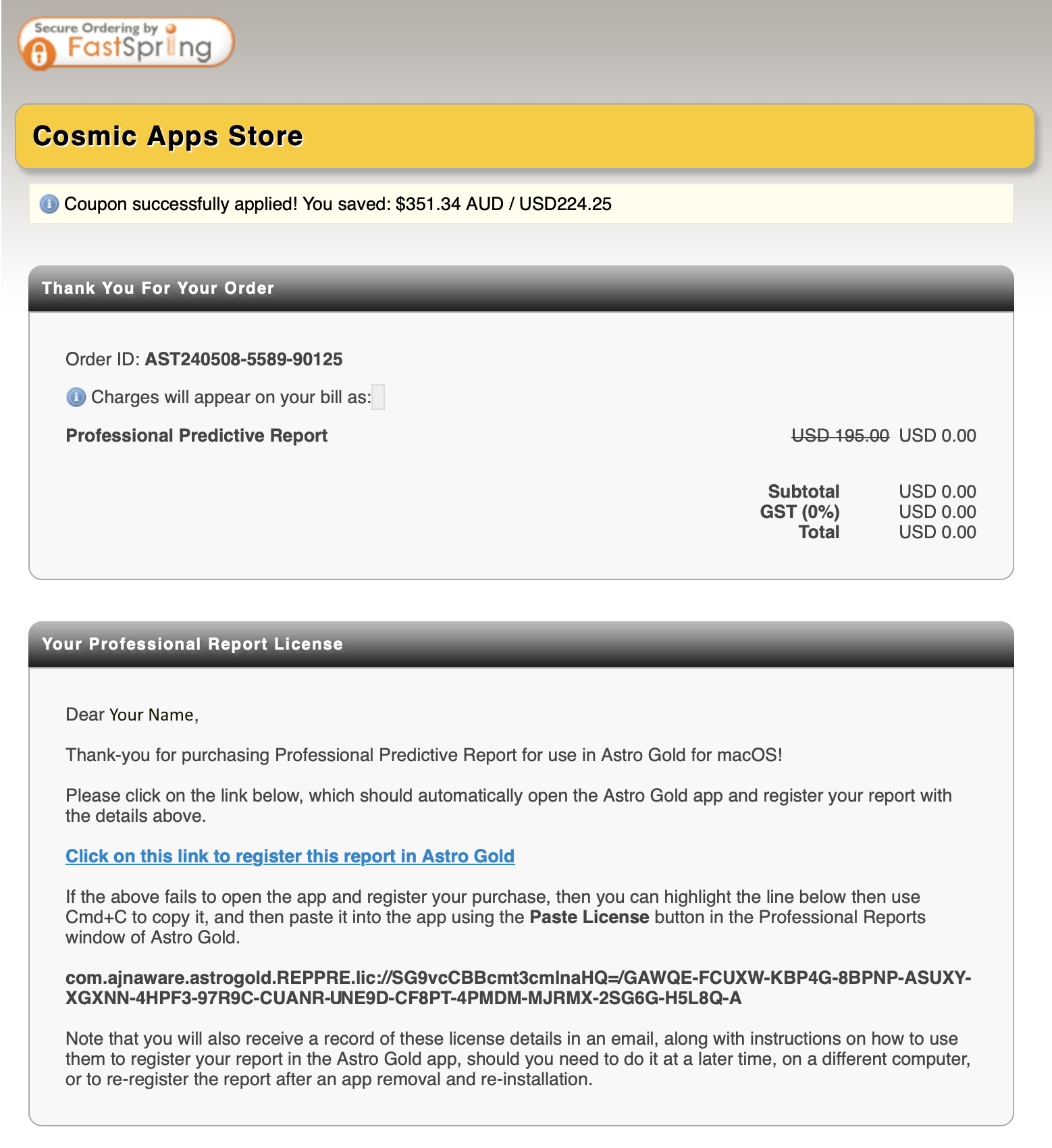
16) If your purchase is processed successfully a screen similar to the following will be displayed (see below).
17) You can click on the blue link to automatically register the report in Astro Gold.
|
18) You will also receive an email at the address you gave, with your license serial number in it. If necessary you can copy and paste that serial number into Astro Gold manually:
a.Open the email and copy the serial number in it.
b.Open Professional Reports.
c.Click the Report Type you have a serial number for.
d.Click on the Paste License button.
e.Paste the serial number into the textbox.