Installation and Update
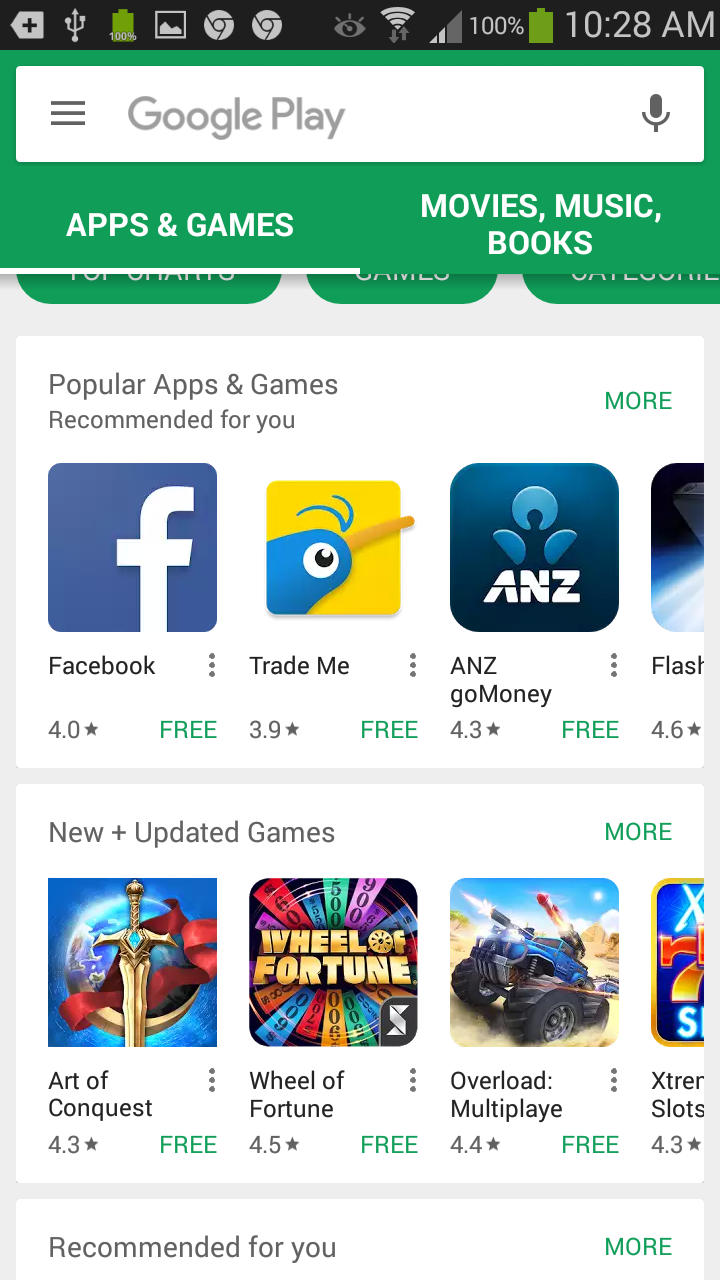
1)Open the Google Play Store app  . The screen similar to the following will load. Tap on the Search icon at the bottom of the screen to display the Search box.
 |
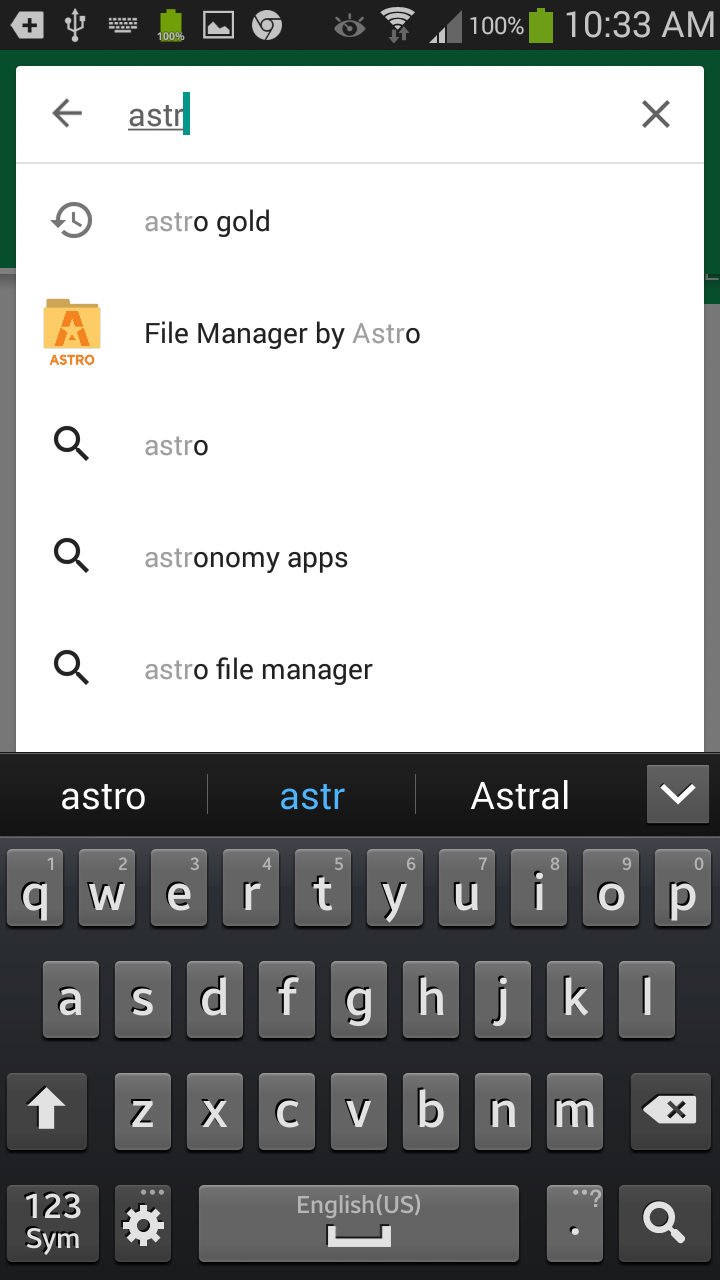
2)Start typing in "Astro Gold", and at some point it will appear in the list below the Search box.
 |
3)Tap on astro gold in the list, and it will be found and displayed on the screen as an official app.
4)Tap on the Install or Update button.
5)If you haven't already purchased the app, follow the on-screen instructions to purchase then install Astro Gold.
6)If you see a dialog asking if you accept any new permissions, tap Yes
NOTE: On some devices, once Astro Gold has been updated, you may need to restart the device before the new version is activated.
Uninstall Astro Gold
1)Swipe down from the top edge (if necessary - if you cannot see the small gear icon in the top left - swipe down again to expand Quick Settings).
➢ Alternatively swipe up to display the first page of installed Apps, then type Settings in the Search box.
2)Tap the small Gear icon.
3)Tap on Apps.
4)Scroll till you find Astro Gold, then tap on it.
5)Click on Uninstall
Updating Astro Gold
➢ Setting Astro Gold to Automatically Update
1)Open the Google Play Store app
2)Tap your Profile Picture/icon in the top right corner of the screen.
3)Tap on My apps and games.
4)Select Astro Gold
5)Tap the Menu (more...)
6)Check the box next to Auto-update. The app will update automatically when updates are available. To turn off automatic updates, un-check the box.