>> Editing a ChartWheel widget
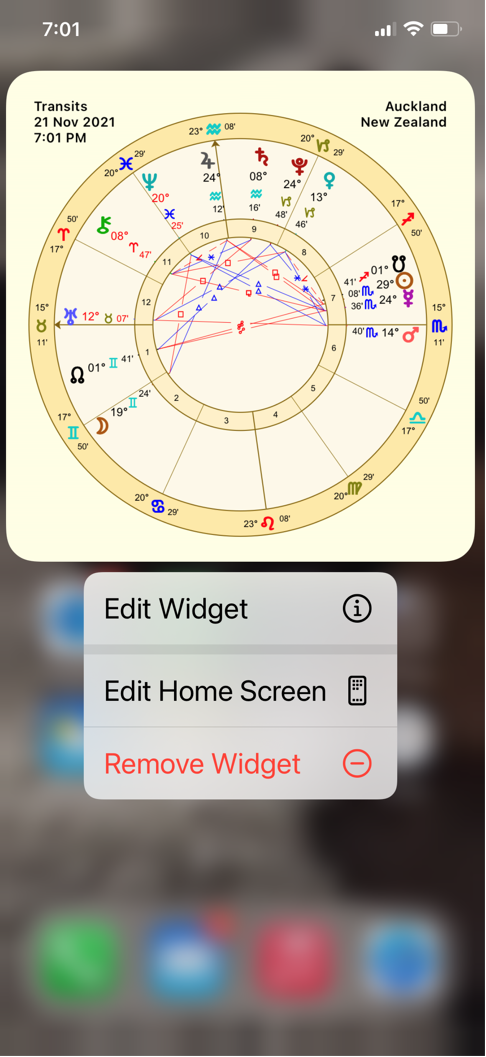
1)Tap and hold on the widget you want to edit. A menu appears under or above the widget with three options:
a)Edit Widget
b)Edit Home screen
c)Remove widget
2)Tap on Edit Widget
 |
3)A similar screen to below will now be displayed. Tap on whatever chart title in blue text is displayed on the right hand side of the screen.
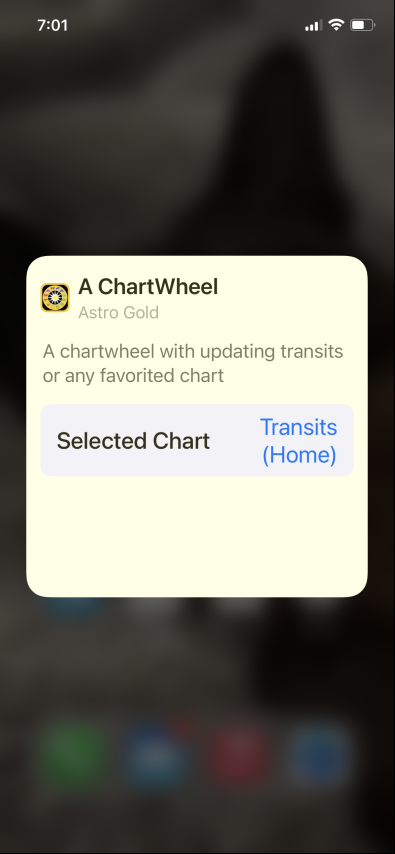 |
A list of available charts will be presented, which will include all available transits charts, and any other radix charts you have previously marked as a favorite. Below Sample and Sample2 are natal charts that have been marked as favorites. The chart currently displayed in the widget will be ticked e.g. below it is Transits (Home).
 |
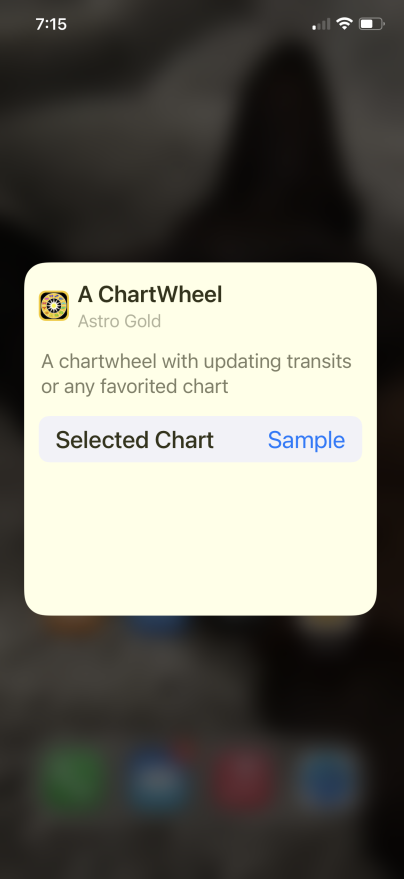
4)Tap on the chart you want to be displayed in the Chartwheel widget e.g. in the screen above the favorite chart named Sample. It will be ticked and the following "Edit ChartWheel" dialog displayed.
 |
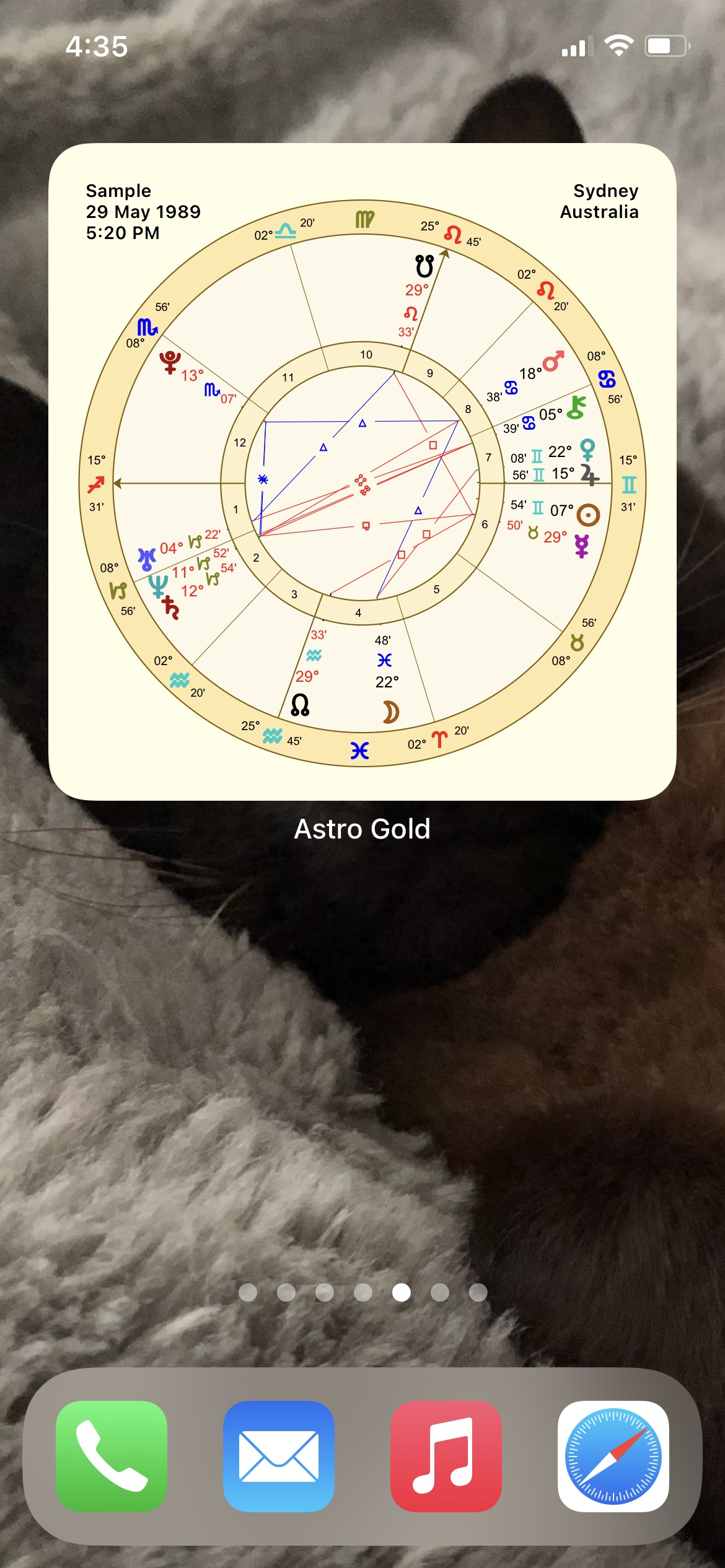
5)Tap anywhere on the screen outside the dialog and the widget will be displayed showing the newly selected chart for the widget (below).
 |
>> Editing a Transits Listing widget
1)Tap and hold on the widget you want to edit. A menu appears under or above the widget with three options:
a)Edit Widget
b)Edit Home screen
c)Remove widget
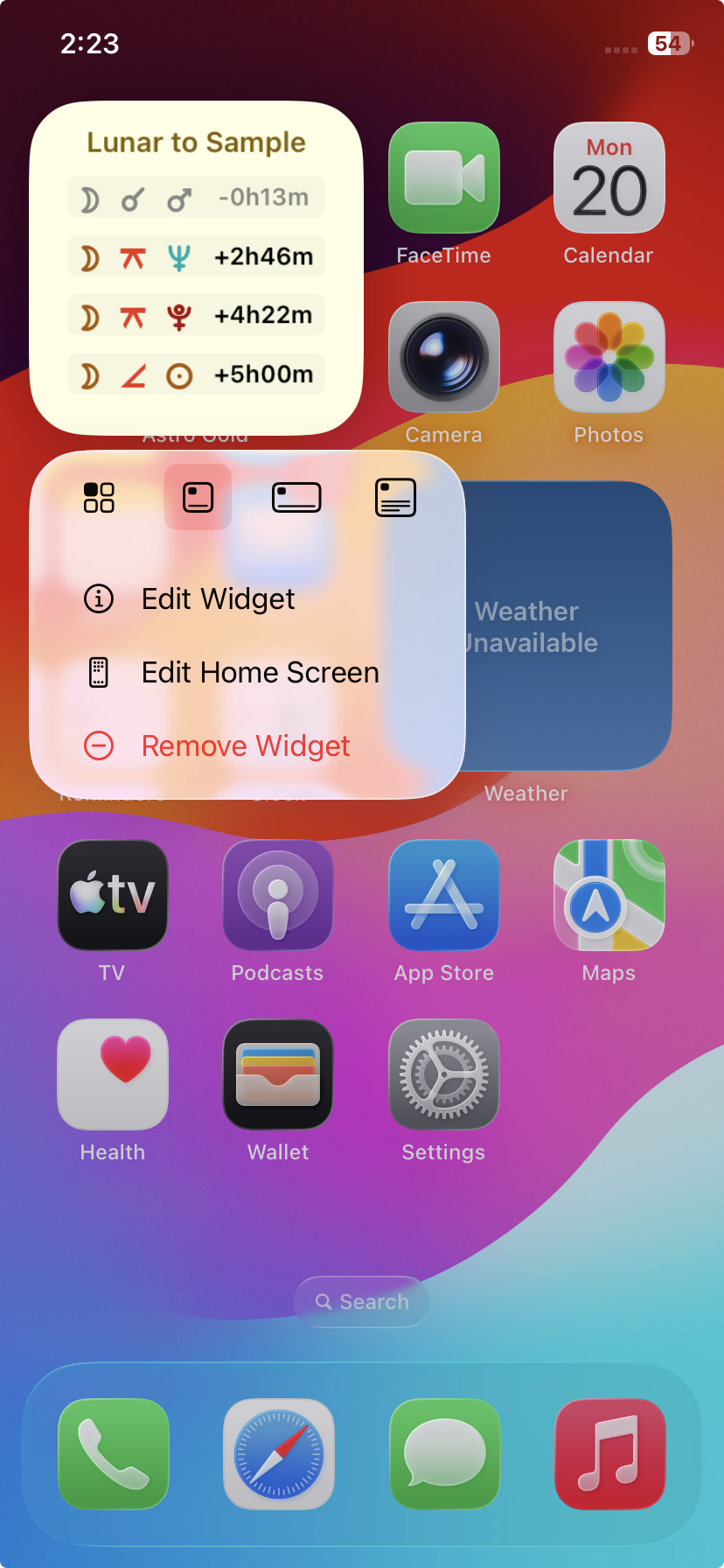 |
2)Tap on Edit Widget
There are two components to a Transits Listing widget.
a)The Dynamic Job Type
This determines which kind of transits to include in the listing.
b)The Radix Chart
This determines the particular radix chart (e.g. a natal or event chart) that will be receiving the mundane transits chosen in (a) .
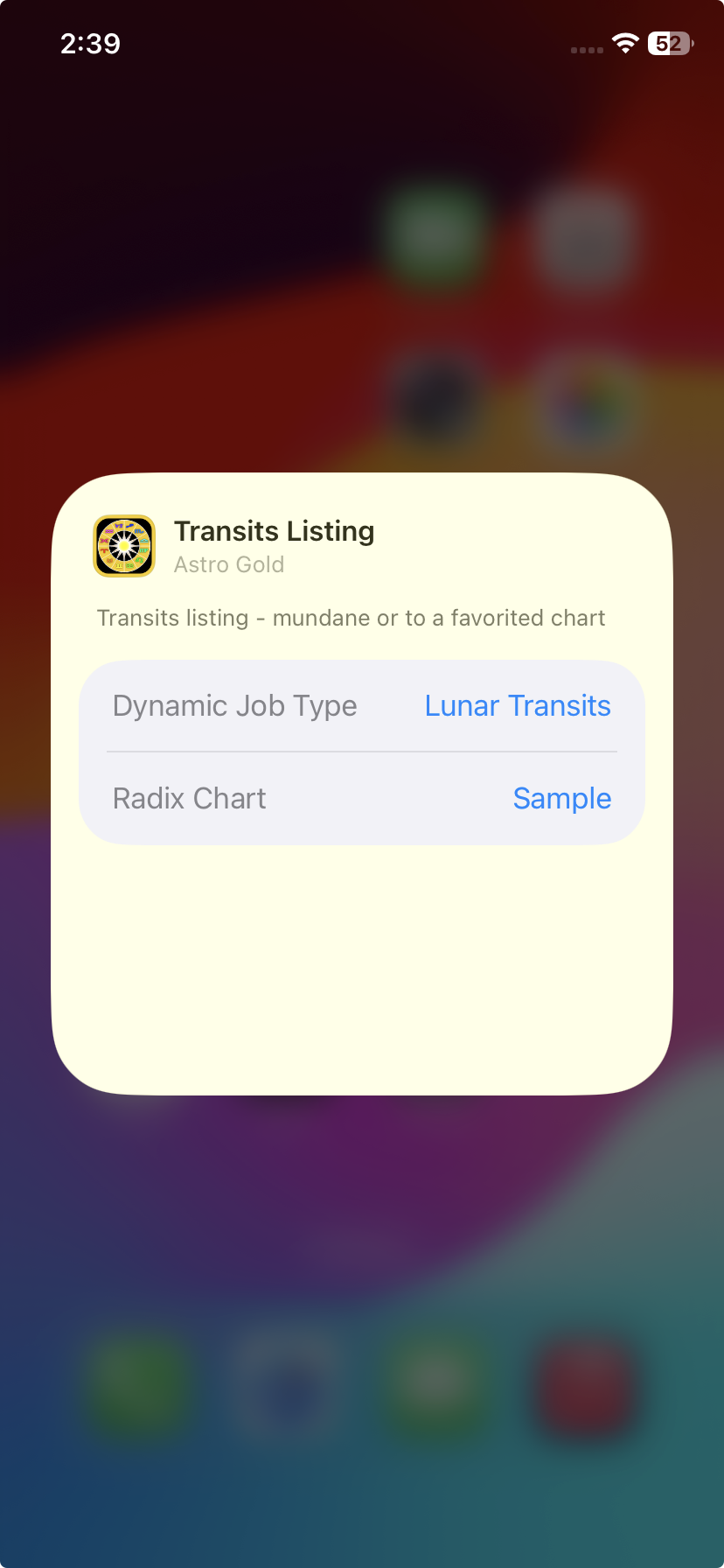 |
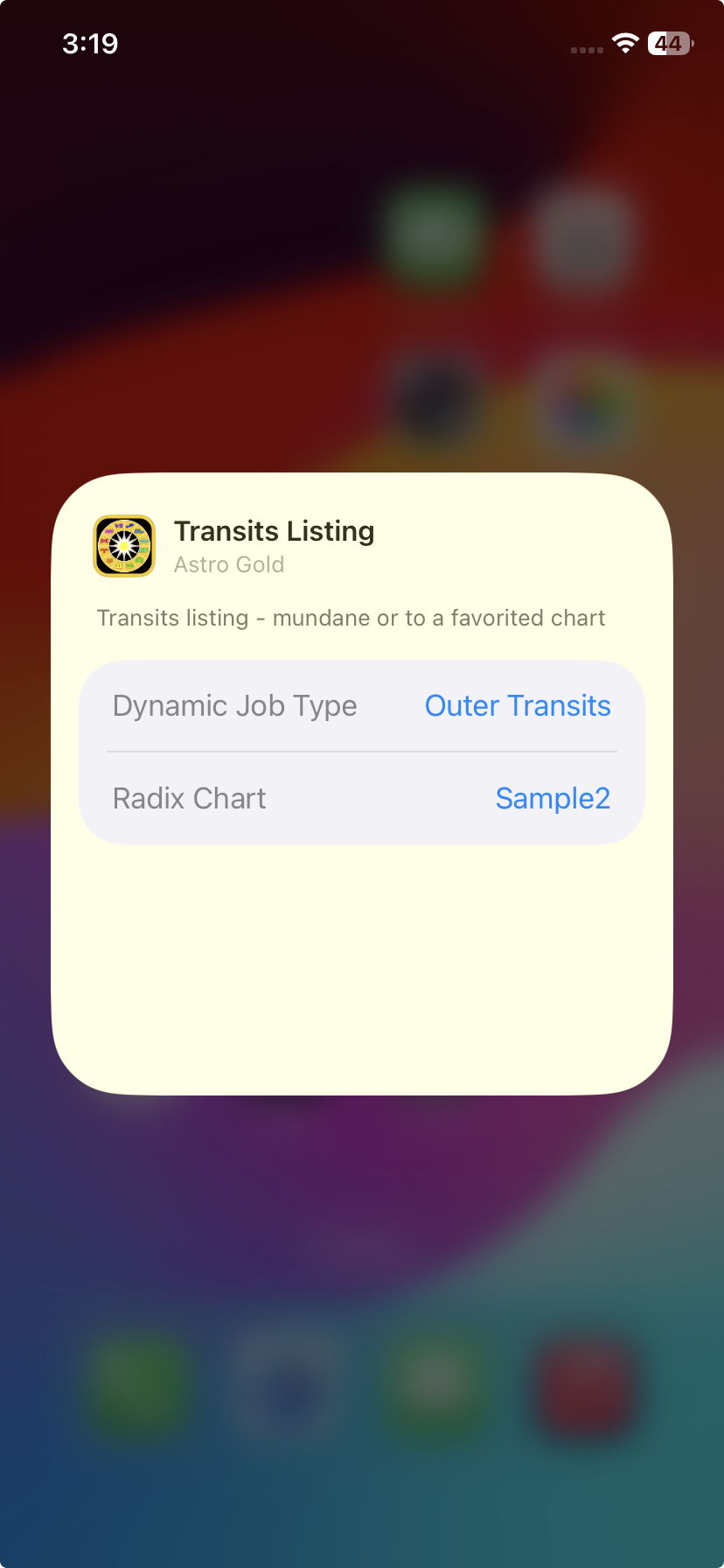
•Choose the component whose setting you want to change, either Dynamic Job Type or Radix Chart, by tapping on the current setting for that component (the transit type or radix chart name displayed in blue text).
You will see a list of the different kinds of transits possible to use in the listing (each kind is a different dynamic job type), as shown in the screen below.
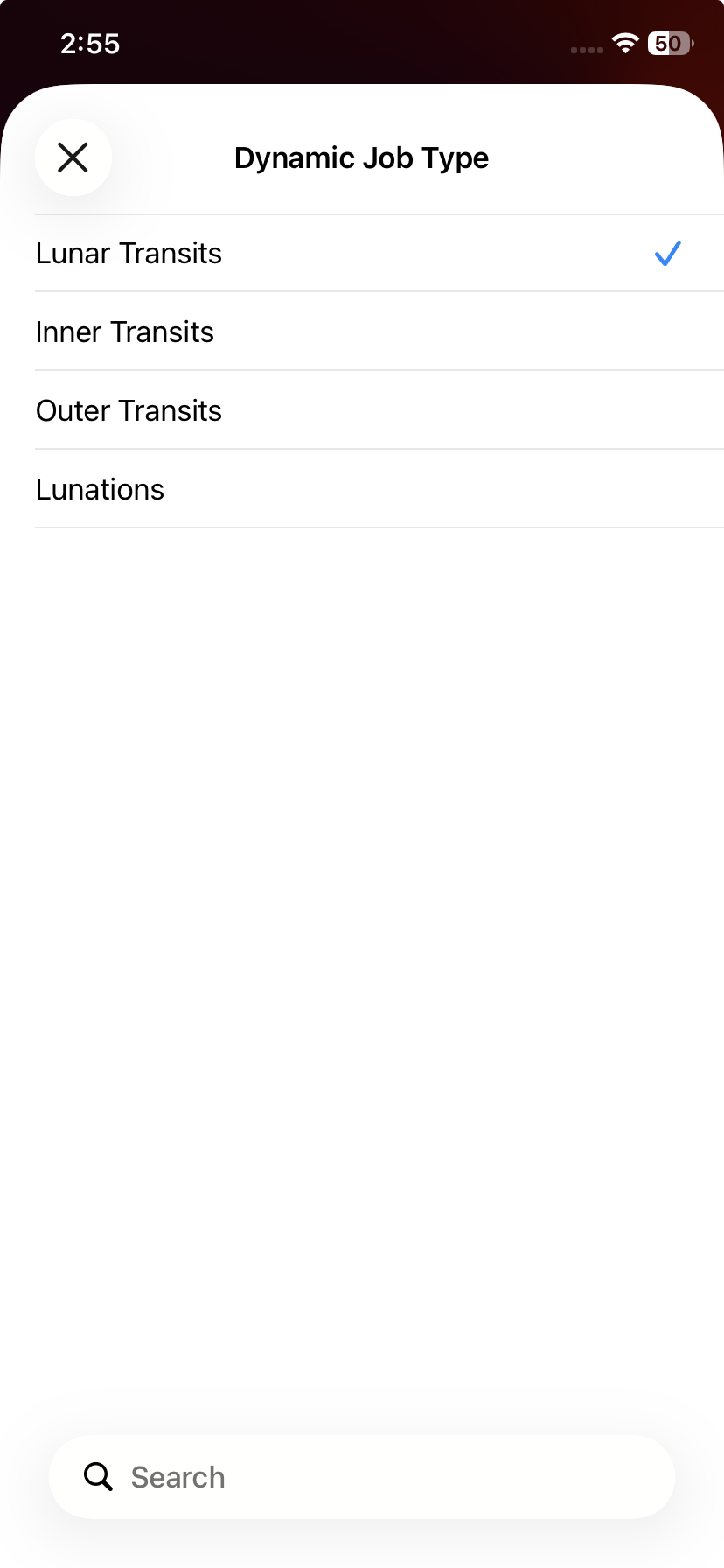 |
i.Choose the kind of transits listing you want by tapping on it. It will become ticked and that selection will now be shown as the Dynamic Job Type setting in the Transits Listing edit screen.
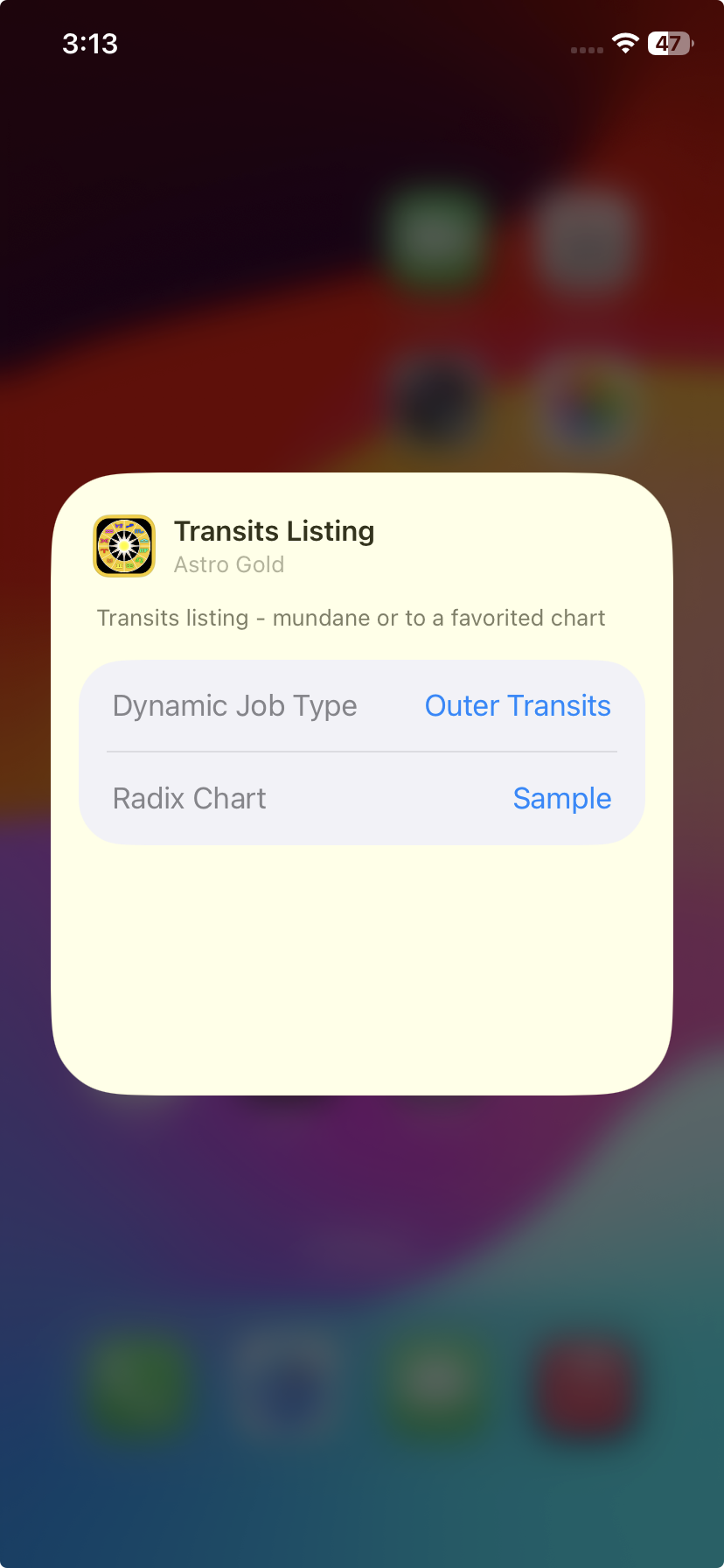 |
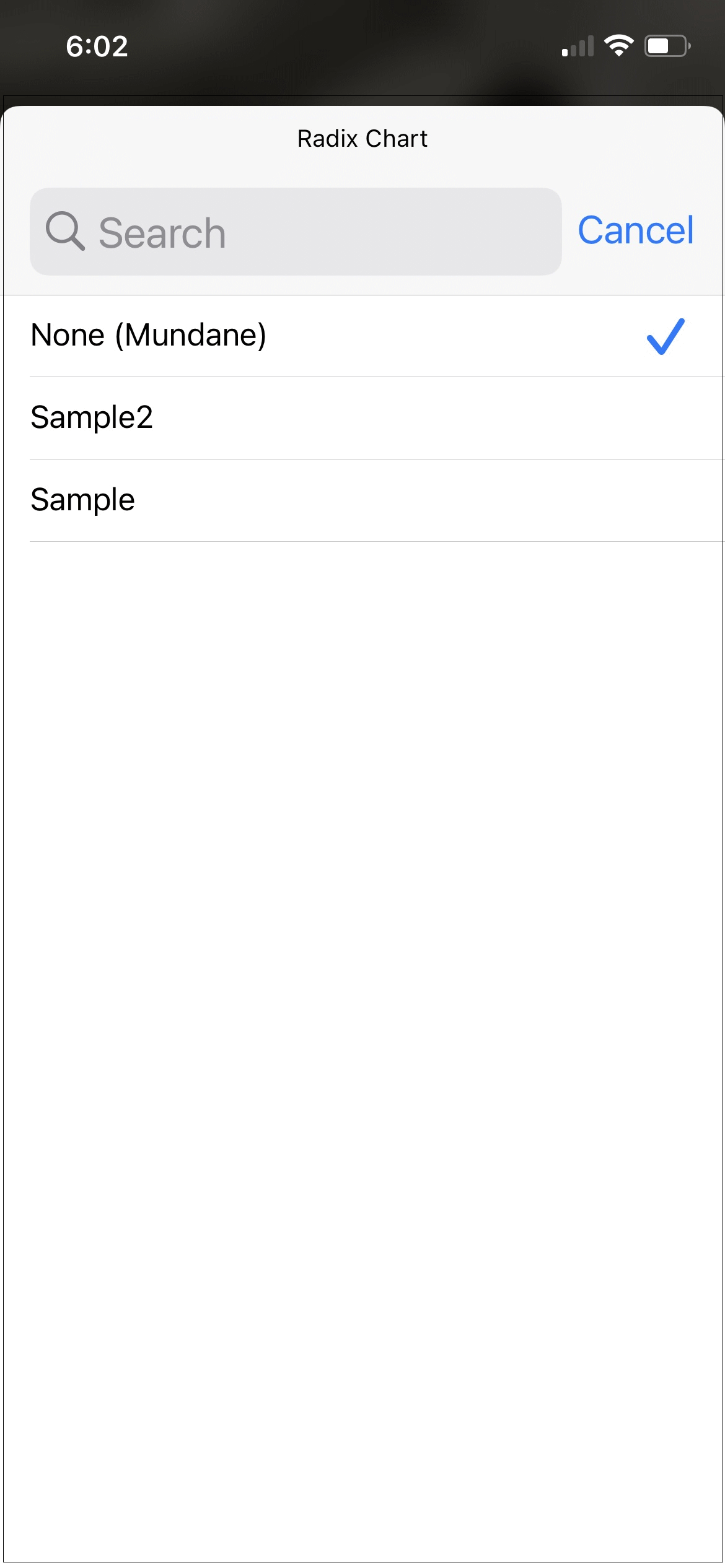
i.To change the chart the transits are to, in the screen shown above, click on the name of the current Radix Chart (in blue text). You will then see a list of the different kinds of mundane charts available and any natal charts you have previously marked as favorites - similar to the screen below.
 |
ii.Tap on the chart you want to see transits to.
•None (Mundane) means you are not choosing to see transits to a natal chart, rather you are choosing to see the current mundane transits. In other words what you will see is aspects between planets in the current mundane chart.
Which specific mundane transits (aspects) shown will be determined by the Dynamic Job Type selected - i.e. lunar (the moon), inner planets, or outer planets ... within the current mundane planets.
•Otherwise if there are favorite charts in the list and you select one of those, you will see that chart's current transits - either i.e. lunar (the moon) transits only, transiting inner planets only, or transiting outer planets only ... depending on what you chose for the Dynamic Job Type.
Whichever chart you choose will be ticked, then that selection will now be shown as the Radix Chart setting in the Transits Listing edit screen, similar to below.
 |
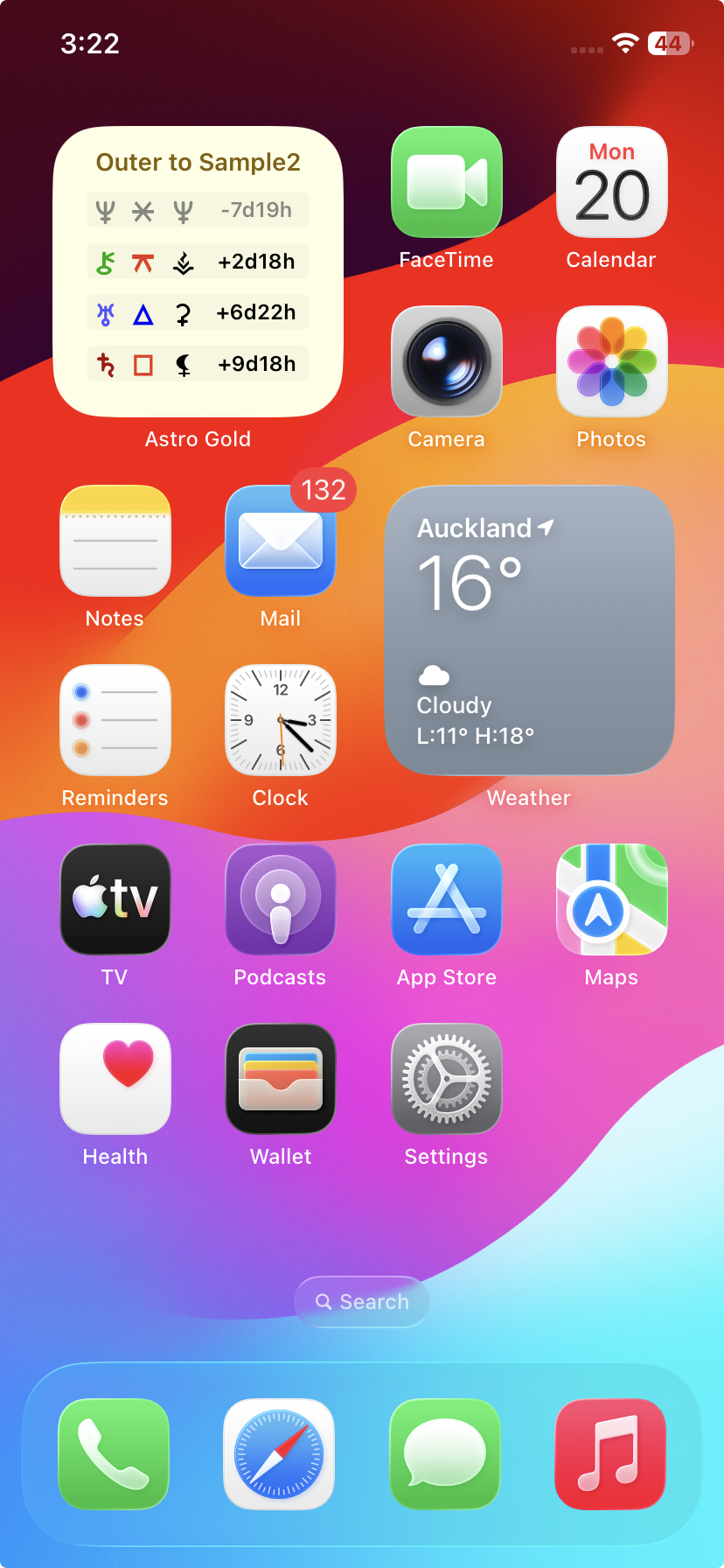
4)Tap anywhere on the screen outside the dialog and the Transits Listing widget will be displayed showing the newly selected Dynamic Job Type (type of transits listing) and Radix chart (receiving the transits), similar to that in the screen below.
 |
>> Changing a Transit Listing widget size
Tap and hold on the widget you want to edit. A menu appears under or above the widget with three options:
d)Edit Widget
e)Edit Home screen
f)Remove widget
|
At the top of the menu there are 4 icons:
 |
1)The right three icons represent different Transit Listing widget sizes. Simply tap on which size widget you want displayed. You are then returned to the screen and the widget will be the size you selected. Each bigger size displays more information.
>> To alternate any widget with the Astro Gold app
You can actually do this both ways:
i.swap a widget for a copy of the Astro Gold app
ii.swap a copy of the Astro Gold app for a widget
1)Tap and hold on the widget you want to edit. A menu appears under or above the widget with three options:
a)Edit Widget
b)Edit Home screen
c)Remove widget
|
Above those options at the top of the menu are four icons:
|
2)If you tap on the icon on the very left comprising four small squares, the widget stops being a widget and becomes the Astro Gold app in the place on the screen where the widget was. So there will now be (at least) two Astro Gold apps operating on your device, both showing exactly the same screens and data.
3)To change this back to the widget it replaced, tap and hold on the Astro Gold icon that replaced it. If the widget it replaced was a Transit Listing type of widget doing this produces the following menu:
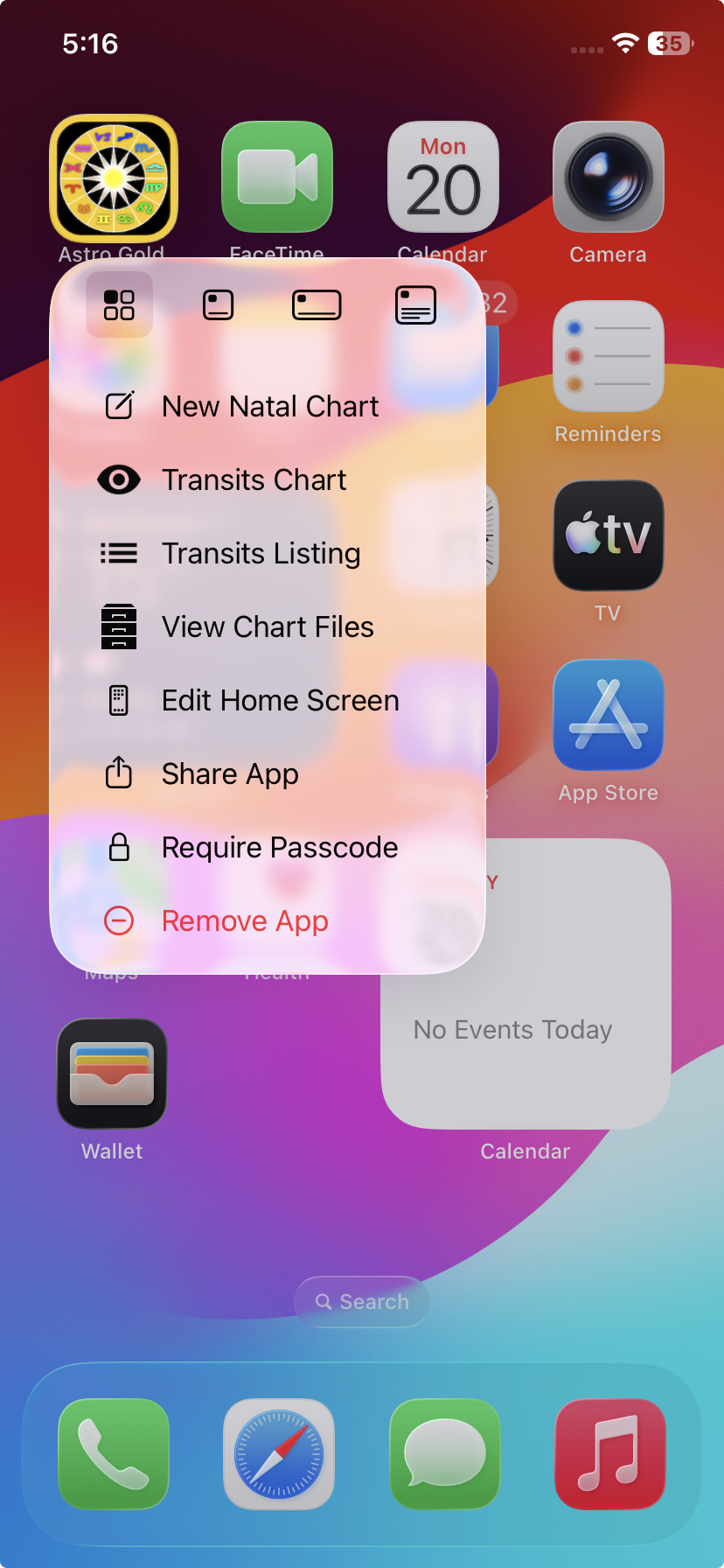 |
4)Tap on one of the top three rightmost icons in the menu to return the Astro Gold app to the same widget it replaced - but in the size you tap on.
5)Alternatively, if the widget Astro Gold had replaced was a Chartwheel type of widget, there will be no option to resize the widget as you return the Astro Gold app to the widget it replaced. In the row of icons at the top of the menu only the rightmost icon will be enabled.
➢ Tap and hold (long press) on an Astro Gold icon. This will produce the following menu:
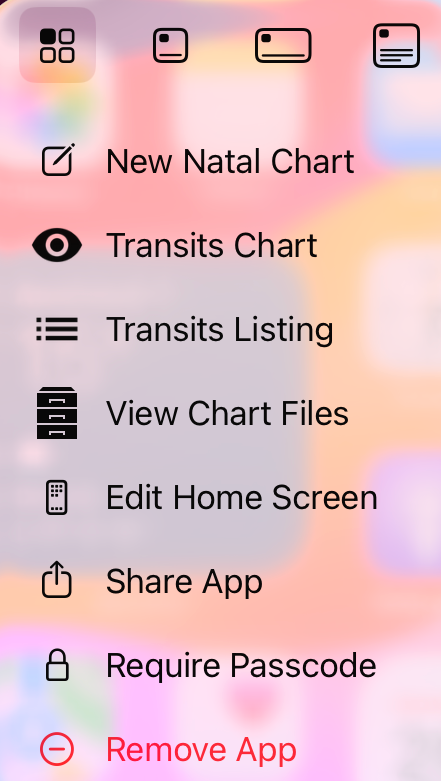 |
•Tapping on New Natal Chart presents the "New Chart" screen. Enter in the chart details then tap on Go to view the chart.
•Tapping on Transits Chart immediately displays the current mundane chart for the Home location.
•Tapping on Transits Listing immediately displays a list of the current mundane transiting points with longitude, declination and house.
•Tapping on View Chart Files displays a list of chart files in Astro Gold, so you can open one, select a chart and view it.