Wheel and Dial Styles
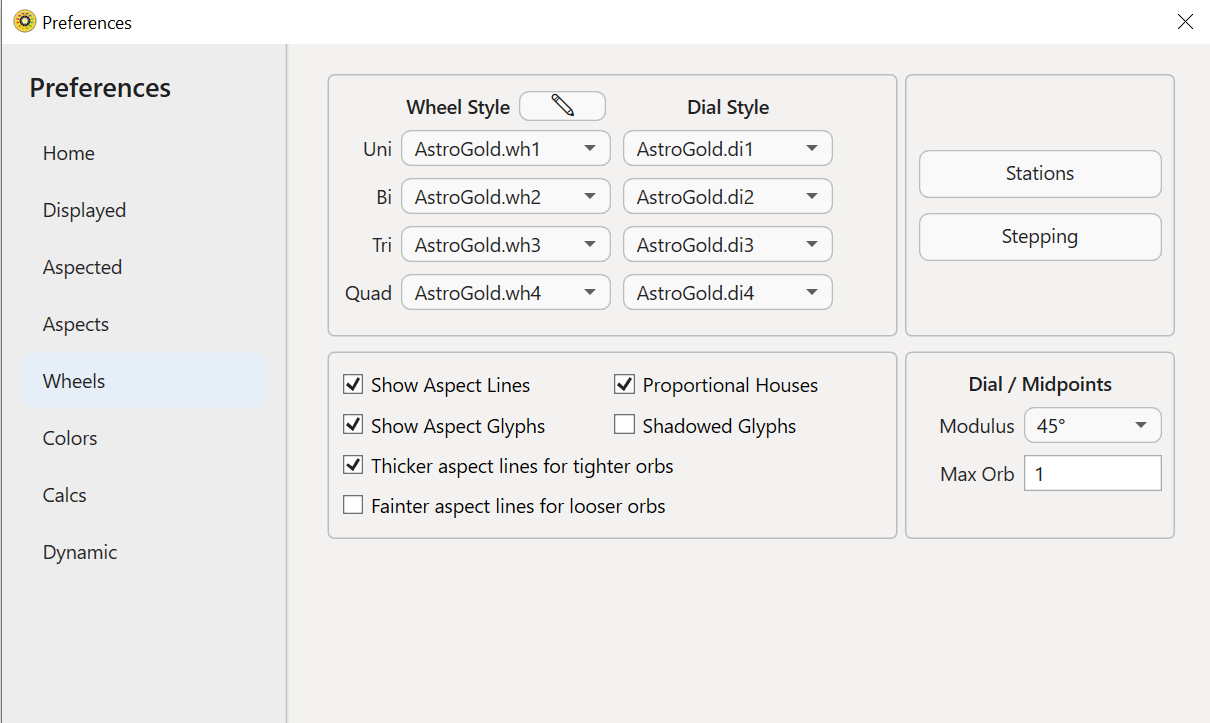
In terms of general display options this contains a selection of wheel and dial styles for Single, biWheel/biDial, triWheel/triDial and quadriWheel/quadriDial charts.
As you can see in the graphic above, Astro Gold comes with various different wheel and dial styles for you to choose from - whether it's a single wheel or dial, or a quadri wheel or dial, or something in between.
Just select the wheel style you want for each kind of Chart or Dial from the dropdown lists by clicking in them, then clicking on the item you want.
Wheel function/purpose
The wheels are named in a fairly self explanatory way to describe what they are designed for, or to do. Further explanation for some of the wheels is ...
•DecRulers.wh1: shows the Decanate rulers
•SgnRulers.wh1: shows the Sign rulers
•TermPtol.wh1: shows Ptolemaic Term rulers*
•TermEgyp.wh1: shows Egyptian Term rulers*
•DecTermsEgyp.wh1: includes an outer ring showing decan and terms rulers, using Egyptian rulers
•DecTermsPtol.wh1: includes an outer ring showing decan and terms rulers, using Ptolemaic rulers
See Terms for more info.
Retrograde Planets
The default wheel styles omit retrograde symbols and instead show degrees and minutes in red to indicate retrograde status. This is helpful in allowing us to display the planet, degree and sign glyphs at a larger size, which makes them easier to read on smaller screen sizes.
However, some wheel options also exist to allow the Πsymbol to be displayed while necessarily also adjusting down the sizes of the planet degree and sign glyphs accordingly. Wheels displaying the Πsymbol that ship with Astro Gold are:
•Euro1.wh1
•Euro2.wh1
•NoHouses.wh1 (no house numbers are visible)
•TMann.wh1
•Uni1.wh1
•Uni2.wh1
Or you can use the Wheel Editor to create a new wheel design, or adapt an existing one, so that it does include the Πsymbol in its chart rings.
Stations
Planets move in their orbits (line of travel) around the Sun at different speeds - the closer to the Sun the planet is the faster the planet moves, and the further away from the Sun the planet is the slower it moves in its orbit. Not only that, the closer to the Sun a planet is the shorter its orbit around the Sun is. So a planet closer to the Sun not only moves faster around the Sun but also has less distance to travel to complete a full orbit around the Sun. These two affects combined give rise to the phenomenon known as "retrograde" planetary motion.
Retrograde motion arises when from Earth a planet on its orbit around the Sun appears to stop moving forward through the zodiac in the sky and instead moves backwards through the zodiac. So say a planet was at 15° Libra then a week later was at 12° Libra - what has happened? Retrograde motion (apparent travel in reverse) occurs when a planet on its orbit, due to traveling faster on a shorter orbit (pathway) around the Sun overtakes a planet on an orbit further out from the Sun.
There are two situations regarding this. Firstly, with planets that orbit the Sun beyond the Earth, as the outer planet is being overtaken by Earth (on its "inner" track), the outer planet appears to slow down, then stop for a short while, then start moving backwards in the zodiac around its orbit.
Secondly, with planets whose orbits are between Earth and the Sun (inside Earth), as those planets start catching up to Earth they appear to slow down then stop moving, and then as they are approaching the same zodiac position as Earth they appear to be traveling backwards through the zodiac, then as they pass inside (overtake) Earth and pull away from Earth on their inside track (orbit) they appear to again slow down then stop then resume moving forwards through the zodiac again.
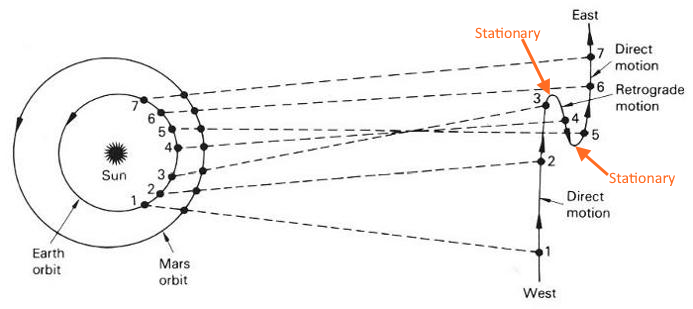
Using the first situation (involving say Earth and Mars) as an example, with Earth traveling faster than Mars around its shorter orbit than Mars travels around its own (longer) more outer orbit, how the the retrograde motion of Mars arises and then discontinues can be clearly seen in the graphic below.
The gap (or point in time) between when a planet's apparent motion going forward through the zodiac (direct motion) and then going backwards (retrograding) through the zodiac is called "stationary motion". And the same is the case when a planet's apparent motion going backwards (retrograding) through the zodiac and then going forwards (direct) through the zodiac is also called "stationary motion". These two points are labeled in orange in the graphic below.
 |
>> How to define what a planet being "stationary" means
➢ Clicking on the Stations button opens a dialog box where you can set the way that these "stations" (periods of no planetary motion) are "defined".
The actual period of non movement is one thing but astrologers also sometimes like to also include some of the "slowing down" phase along with the actual non moving phase in the definition of "this planet is stationary". Also since the period of time that planets are non moving varies greatly depending on the speed of the planet in its orbit, it can also be handy to have the option of using a relatively uniform way of measuring the actual non moving period, regardless of the planet's speed.
•Within hours of exactness will standardize all planets to that amount of non-moving time.
•Within orb of exactness for each planet will vary in exact proportion all the planets' speeds vary.
•Below a specified speed will partially standardize all planets, but they will still vary slightly depending on their relative normal direct motion speed. The smaller the setting the less variation, and vice versa. A setting of 0 will equate to the exact actual non-moving period of each planet. In that case the closer the planet to the Sun the shorter the stationary period will be.
•Below % of average speed will give similar amounts of stationary time for the planets but always with some variations, so this is a good general relative standardization of the stationary ("non-moving") time period for all the planets.
|
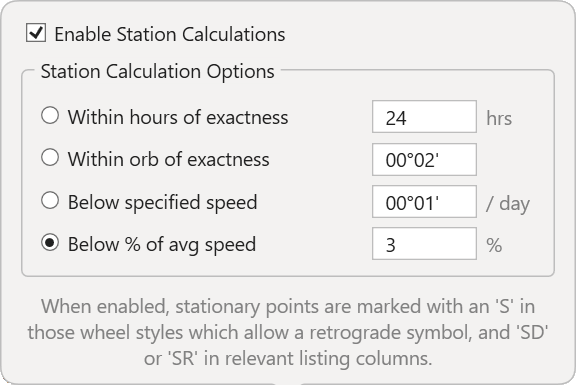
Once you have entered your preferences for how Stations are to be defined Astro Gold will consider a planet as being stationary ("non moving") according to these settings. Not all wheel styles are designed to show retrograde motion so this will not apply when those wheel styles are in use.
Stepping
Stepping a chart through time is a feature that partially or fully automates changing the date and time of a chart. This applies to a "steppable" chart - which is sometimes a natal chart and sometimes a dynamic type of chart.
Dynamic charts occupy the middle or outer wheels of Bi, Tri and Quadri wheel charts, usually around a natal chart in the innermost wheel. An example of a dynamic chart is the current transits chart in the outer wheel of a Bi-wheel (being the "steppable" chart), with a natal chart in the inner wheel. Clicking on the Backwards or Forward buttons instantly moves the transits chart in the outer wheel backward or forward in time, so you can quickly see where the planets were in the past or will be in the future.
The key factor here is by what interval of time the chart is moved with every step (every click on one of the Backwards or Forwards buttons). See Stepping through time for more info.
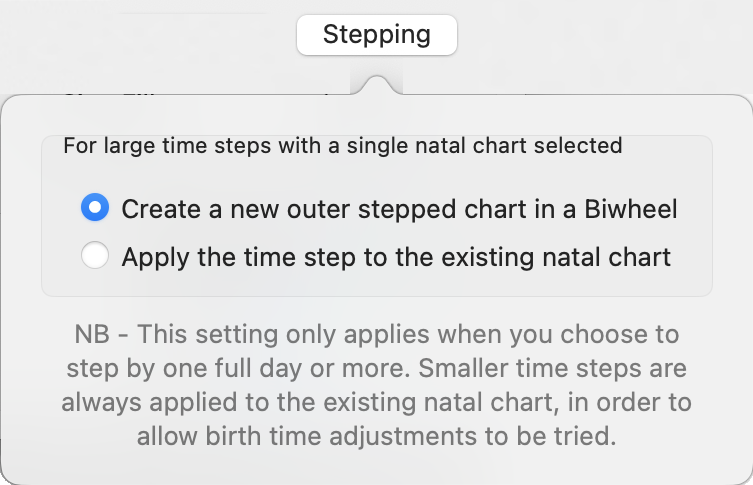
When a single natal type chart is selected and displayed, when one of the time stepping buttons is selected and the , a Bi-wheel is automatically created with a transits chart in the outer wheel around the natal chart in the innermost wheel, and the transits chart is moved in time by the selected time step interval.
However if the time interval is set to be a day or more, you have the option in this situation (where a single natal type chart is all that is displayed) of not creating a Bi-wheel and applying the time step to a transits chart in the outer wheel. You can instead have the time step applied to the natal chart itself - so no Bi-wheel is created. Just the natal type chart itself is stepped in time.
>> How to specify what chart is time stepped when a single natal chart is displayed
➢ Clicking on the Stepping button opens a dialog box where you can select which action you want to occur.
|
NOTE: If you accidentally change a natal chart's time this way, you can easily restore it by clicking on the Select.. button in the "Selected Charts Pane" and clicking on the chart in the Recently Used menu option.
Remaining Wheel Options
The remaining options below are alternatively turned on (ticked) or off (blank) by continuously clicking on them. These options are applied individually in whatever combination you prefer.
•Show Aspect Lines: are the lines drawn between planets in the middle of the chart, showing the angle between the planets. You can switch these on or off.
•Show Aspect Glyphs: if aspect lines are switched on then a glyph depicting the aspect the line represents is drawn near the middle of the aspect line when this is switched on.
•Proportional Houses: allow house division lines to expand beyond their normal symmetrical shape, if that's necessary to fit a large number of planets into the drawn house area.
•Shadowed Glyphs: means a shadow is drawn around planet and sign glyphs.
•Thicker aspect lines for tighter orbs: increases line thickness up to a multiple of 10 for closest orbs.
•Fainter aspect lines for looser orbs: decreases opacity down to 20% for loosest orbs.
•Dial/Midpoints Modulus: for dials and midpoints you can also specify the modulus degrees to use (e.g. 45/90/360)
•Dial/Midpoints Max Orb: to be allowed when determining midpoints using the dial.
Example
Below shows the rings of a quadriWheel with mixed tinting, derived from the , which are switched on.
The inner ring chart is a natal chart, and while the mid-inner ring chart isn't a natal chart it's a static (non dynamic) type of chart. Both these are designated to have a gold color for text and for ring tinting.
The mid-outer ring chart has a progressions chart which has light purple as the designated color for text and for ring tinting, and the outer chart is a transits chart which has green as designated color for text and for ring tinting
The very innermost ring of the quadriWheel that has the house numbers in it, and the very outermost ring that has the zodiac signs and degrees in it, are both always the color designated by the Ring Fill Tint Color (which as you can see below is Blue).
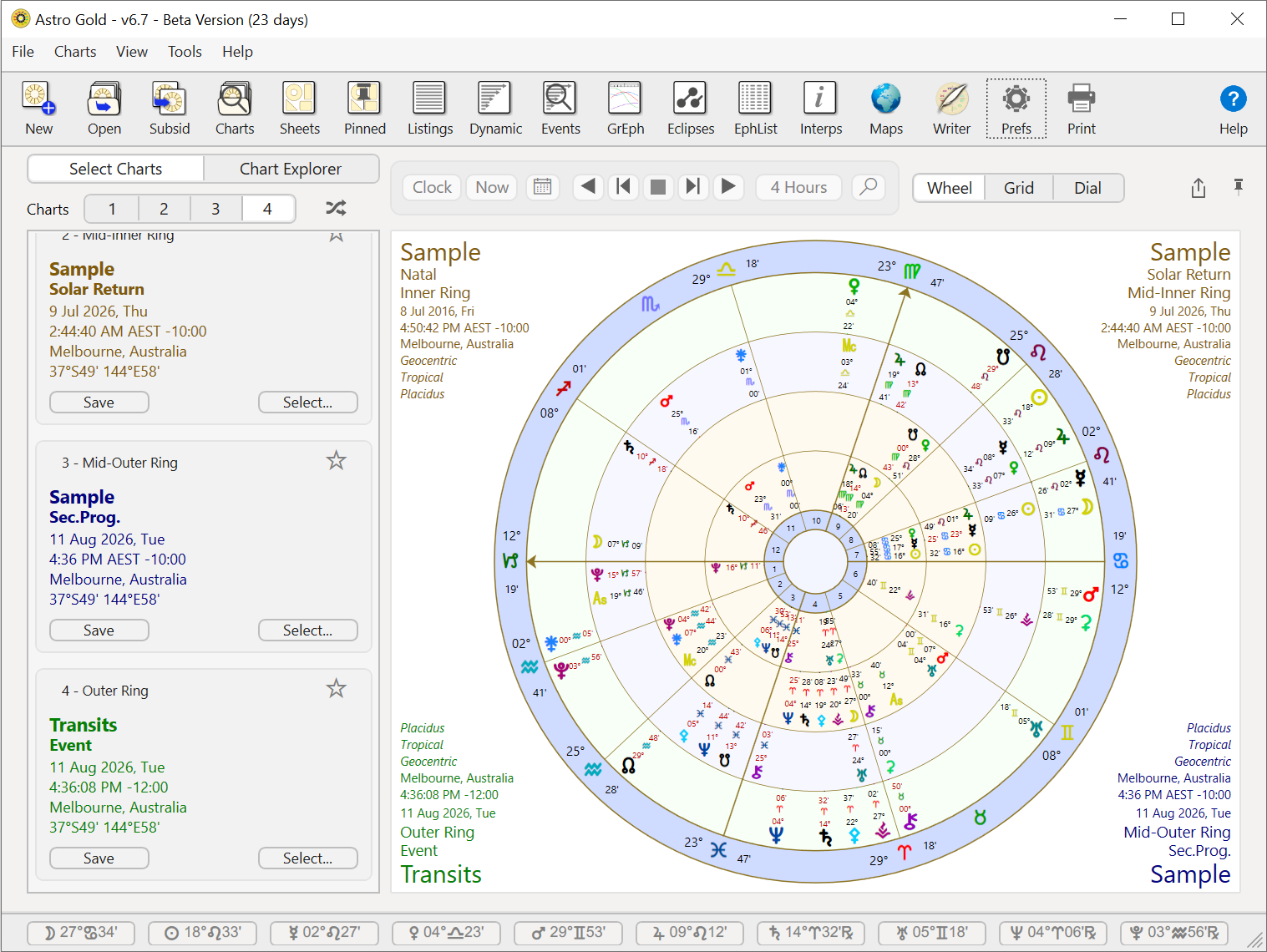 Preferences - Wheels. Mixed ring tinting. |
When "Auto Chart Ring Colors" is switched off then the color for the text everywhere on the screen reverts to the color specified for that part of the chart (see above at the beginning of the Wheels topic).
In wheels the very innermost house ring and very outermost zodiac ring default to the "Ring Fill Tint Color". All the other chart rings have no background color, are white.