>> To import a chart file from Astro Gold macOS
First, on the Mac computer
1.On the Mac computer where Astro Gold is installed, on the Help menu click on User Files Folder. This opens a "Finder" window displaying all the user files (chart files, astrosheet PDF exports, interpretation files, report files, wheels design files etc.).
2.Any file ending in a .SFcht extension is an Astro Gold chart file. Look for them in the "User Files" folder itself, or in any subfolder of that. Once you have found the chart file you want to import into Astro Gold for Windows right-click on it, then in the pop-up menu that appears click on Copy.
3.Open your email program you use (e.g. "Mail" or "MS Outlook" etc.).
4.Start a new email (In "Mail" click on the File menu, then on New Message).
5.Fill in the To and Subject fields of the email then anywhere in the message area of the email right-click, and a pop-up menu will appear.
6.Click on Paste in the menu, which attaches your chart file to the email.
7.Send the email.
Next, on the Windows computer ...
1.Open the email containing the Astro Gold macOS chart file attachment. Below is how the email looks when opened in "MS Outlook" and the attachment is right-clicked.
|
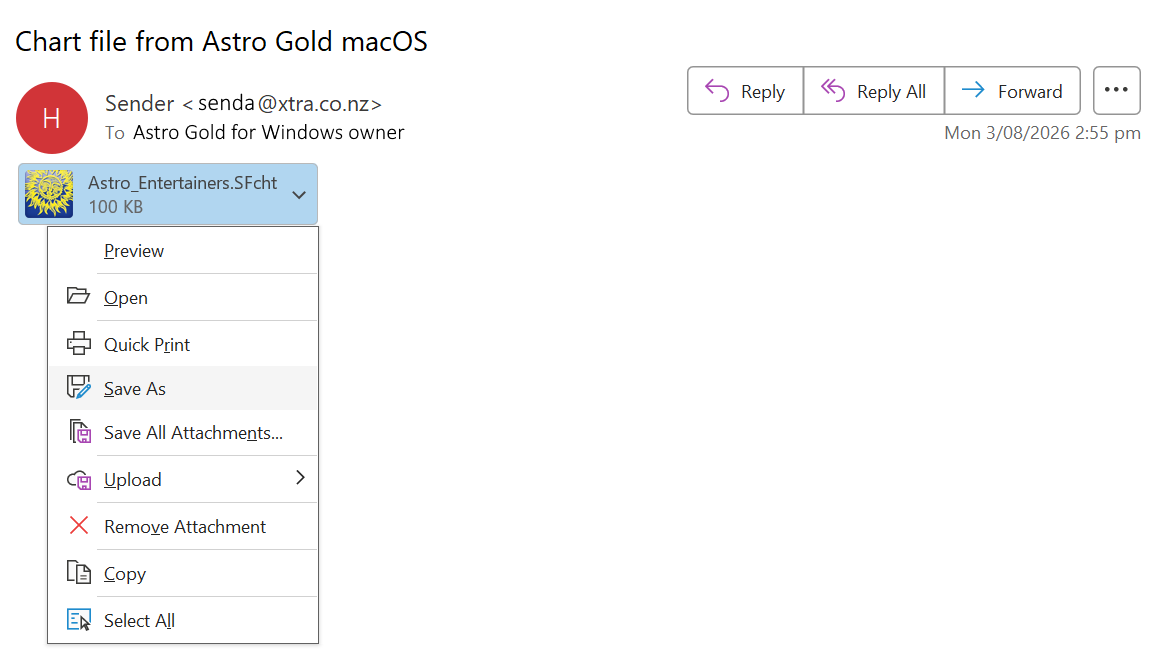
2.Right-click on the attachment and choose to save it. In the above "MS Outlook" screen that would mean clicking on the Save As menu item, but all mail programs will be similar. A File Explorer type screen like below will appear.
|
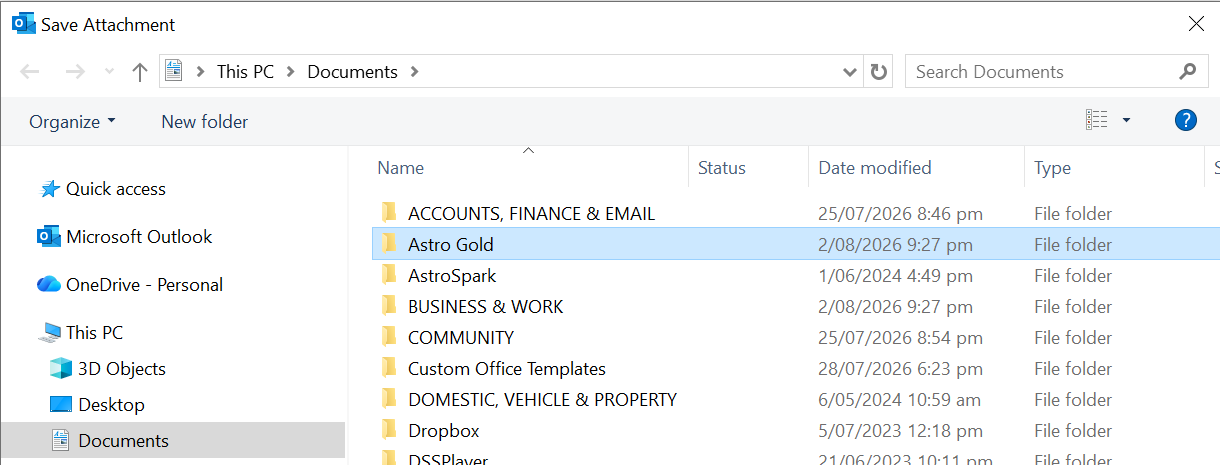
3.Double-click on the Astro Gold folder to open it.
|
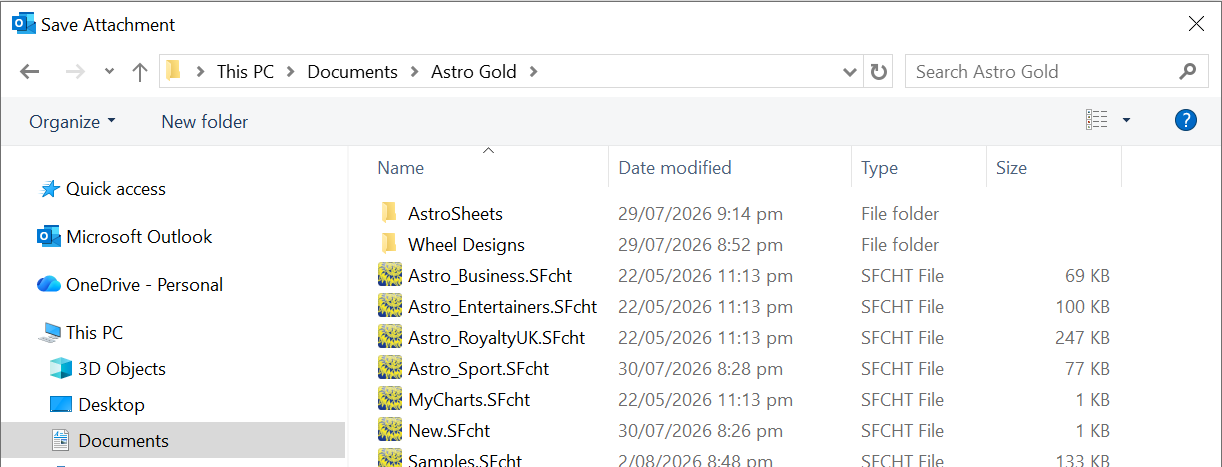
4.Click on either the Open, OK or Save button, depending on your email program, and the chart file will be saved to Astro Gold's user folder, and you will be able to use it in Astro Gold.