The Ephemeris Listing module generates listings of selected chart point positions and/or speeds, at user-selected regular time intervals, ranging from seconds to years. A listing may then be exported to a PDF file, or to a CSV type file which can be opened as (or imported into) a spreadsheet application.
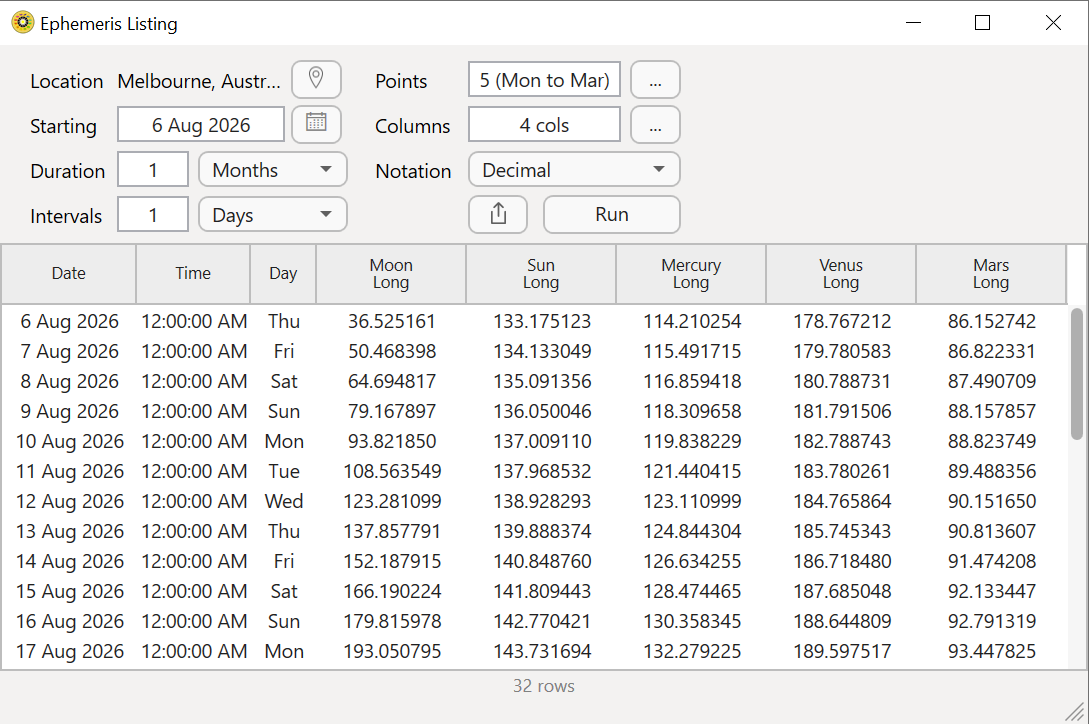
An example of an Ephemeris Listing is below.
|
>> To generate an Ephemeris Listing
1)Click on the View menu then on Ephemeris Listings, or click on the Toolbar icon  . This opens the Ephemeris Listing window.
2)In the top left of the window click on the Location button and the following dialog pops up:
|
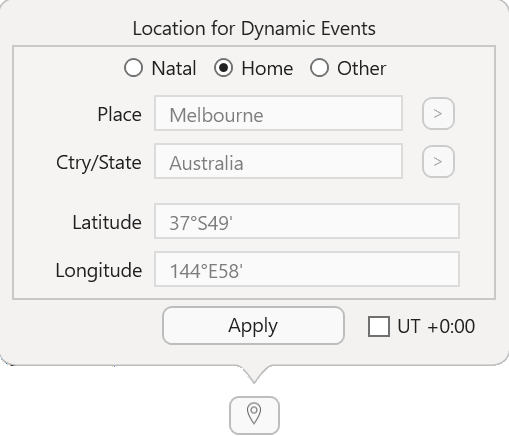
a.Select the Natal chart location, your Home location, or Other location (and enter the details the same as when you are creating a chart). This will determine which timezone the dates/times are listed in.
b.Optionally however click in the UT checkbox if, regardless of location, you want the dates/times listed for the UT timezone.
c.Click on the Apply button.
3)Below the location entry enter the "Starting" date. You can do this by manually entering the date in the Starting textbox, or by clicking on the Calendar button to its right  which pops up the following dialog:
|
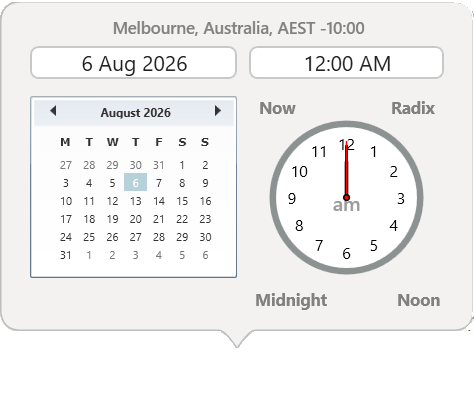
a.You can also manually enter the Starting Date here too, in the top left textbox, and the Starting Time in the top right textbox.
b.Alternatively select the "Starting date" in the Calendar graphic...
➢You can click on the < and > icons in the top right of the calendar to move to the previous or next month.
c.You can also specify the Starting time in the Calendar graphic...
i.Use the mouse to move the clock's second hand to where you want it to be (or to temporarily move it away from the minute or hour hand)
ii.Use the mouse to move the minute and hour hands to where you want them to be.
iii.Click on the grey AM or PM icon in the middle of the clock-face to toggle the time between am and pm
iv.Alternatively click on the Midnight or Noon icons under the clock-face to set those as the starting time
OR... Click on the Now icon at the top left of the clock-face to set the current date and time.
4)Click in the Duration dropdown, and choose a time unit from those displayed (Years, Months, Days. Hours, Minutes, Seconds).
5)Enter the number of time units in the Duration textbox (which is to the left of the "Duration" dropdown).
6)Click in the Intervals dropdown, and choose a time unit from those displayed (Years, Months, Days. Hours, Minutes, Seconds).
7)Enter the number of time units in the Intervals textbox (which is to the left of the "Intervals" dropdown)
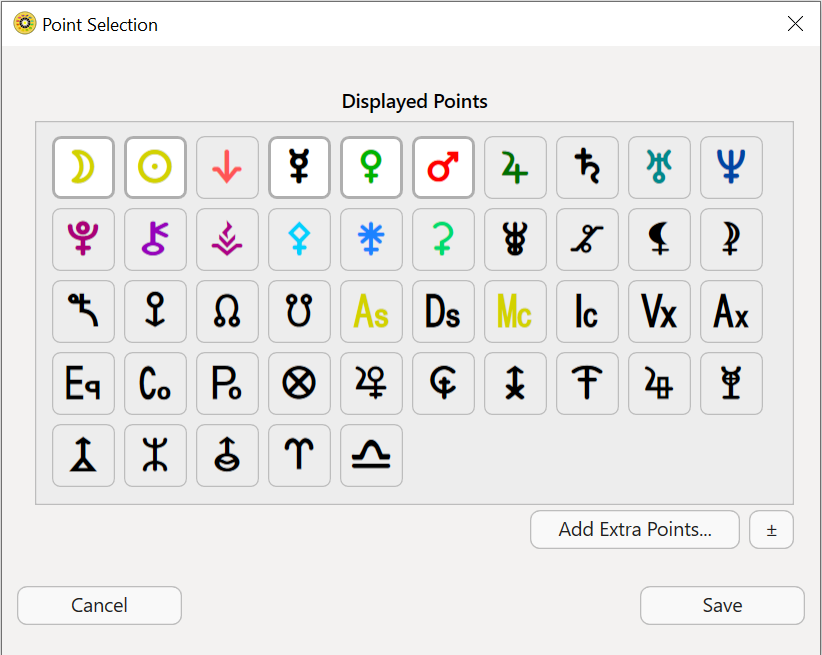
8)Select the points you want information for from the Points dialog, which is opened by clicking on the  button to the right of the "Points" textbox.
|
9)Select the information you want from the Columns dialog, which is opened by clicking on the button to the right of the "Columns" textbox.
|
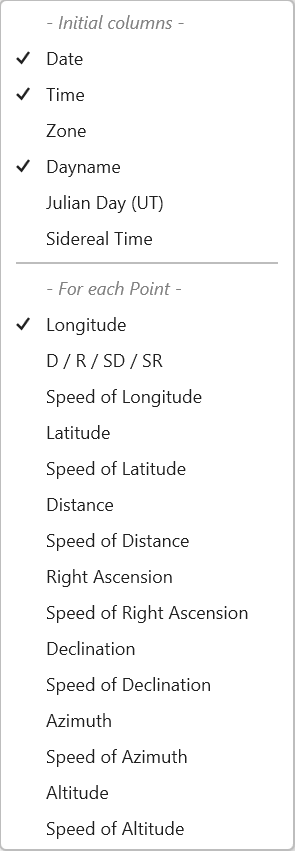
10) Select the notation you want by clicking in the Notation dropdown and selecting from "Decimal", or "Deg/min/sec".
11) Click the Run button to generate the listing.
>> To export an Ephemeris Listing
1)Once you have generated a listing click on the Share button  next to the "Run" button and the following dialog pops up:
|
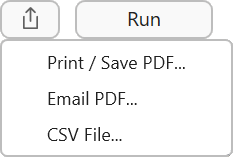
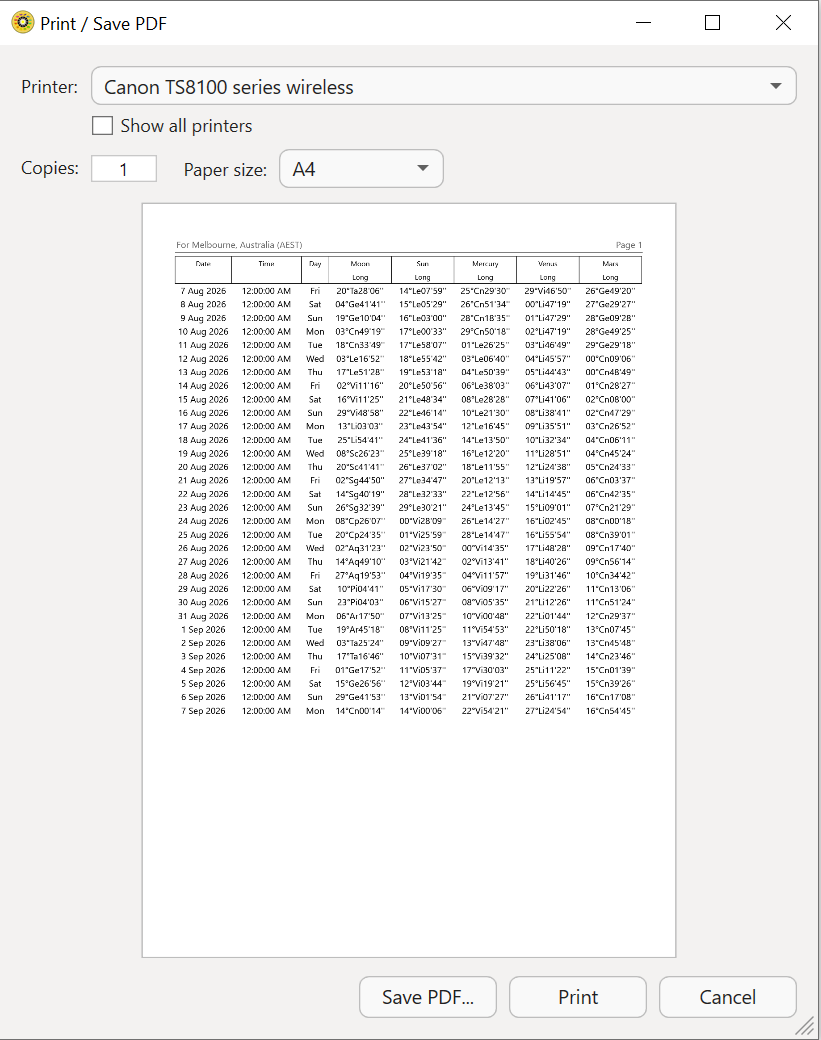
a.Click on Print to send the listing to the Printer. You'll see a dialog similar to the one below. It will be set to your default printer, but if necessary change that by clicking in the Printer dropdown and selecting a different printer to use. Then check the other settings are correct, then click on the Print button.
In the Print dialog you can also click on the Save PDF button to save the listing as a PDF file. Click on the Save PDF button to save the listing as a PDF file. In the Save As textbox change the file name if you wish, navigate to a different folder to save it to if you want, then click on the Save button.
|
b.Click on Email PDF and if you have an email client installed e.g. MS Outlook, a new email it will be created with the listing already attached to it, ready for you to complete the email and send.
c.Click on the CSV File button to save the listing as a CSV file (comma separated values file - this file can be opened and its data displayed by spreadsheet applications). In the Save As textbox change the file name if you wish, navigate to a different folder to save it to if you want, then click on the Save button.