This topic explains how to copy individual charts between chart files.
>> To copy chart(s) that have been saved in a file
1.First you must open the "Saved Charts" dialog window.
➢ In the "Selected Charts" pane click on the Select button of the particular chart that you want to copy, and a menu will drop down displaying the options for that chart position.
|
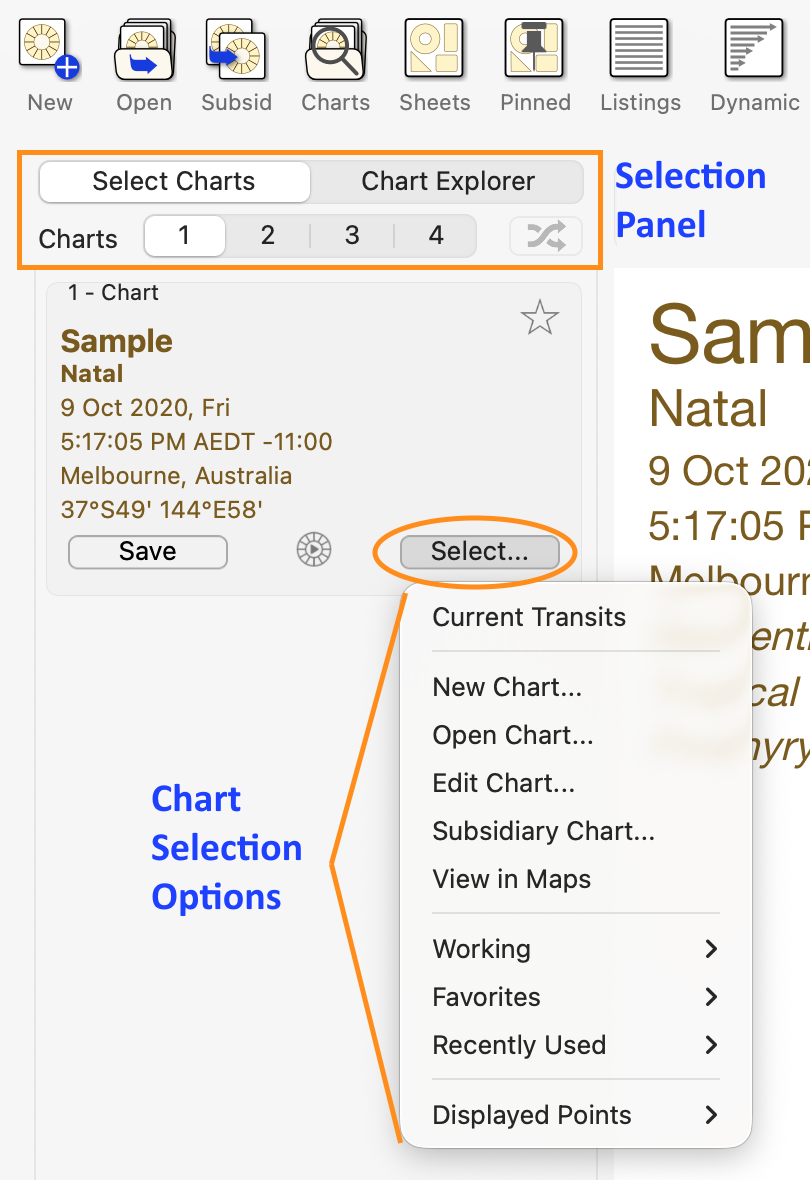
➢ Click on either Open Chart or Edit Chart to open the "Saved Charts" dialog.
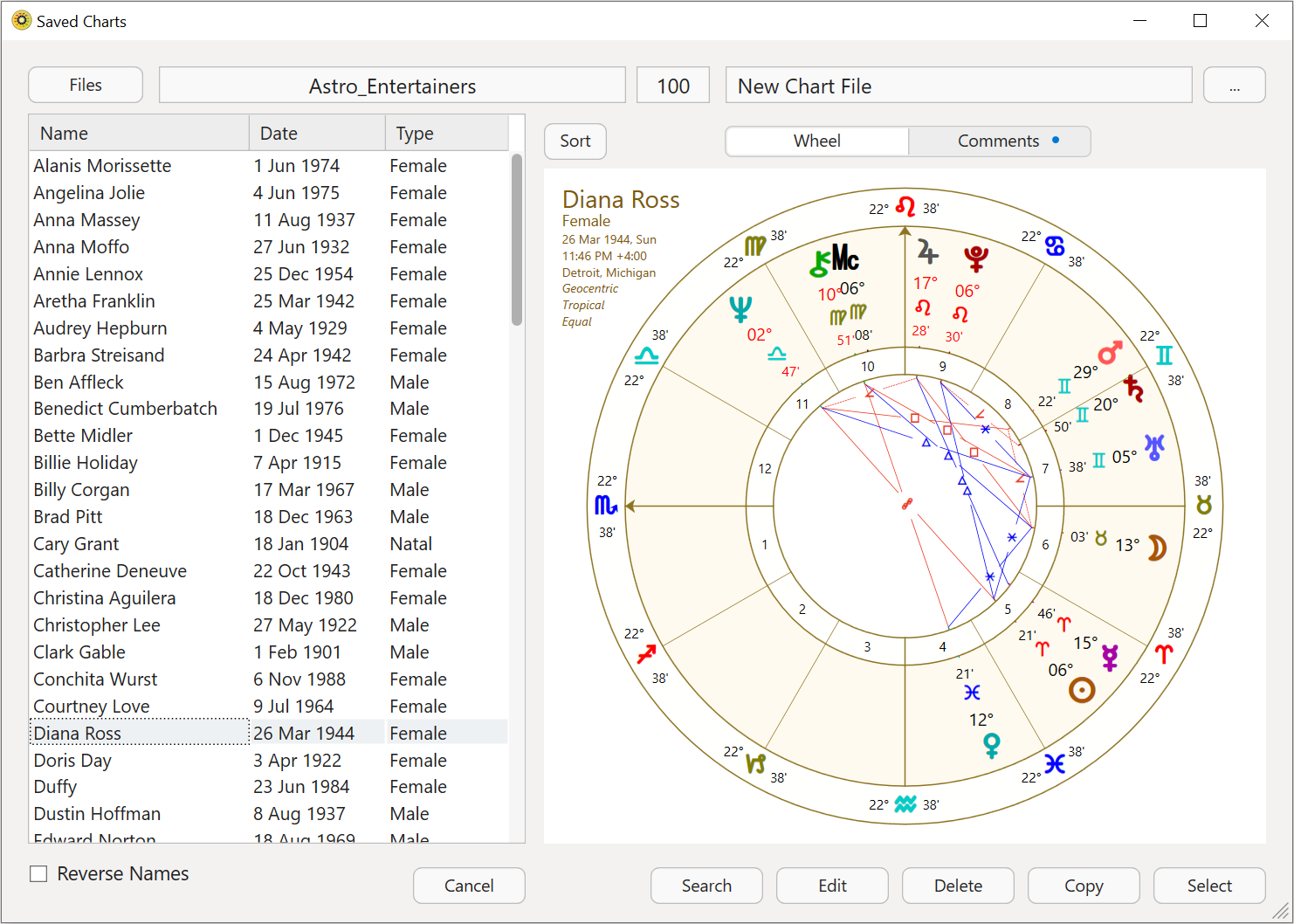 Saved Charts dialog |
2.Make sure the chart file which is displayed contains the charts you want to copy. If the chart(s) you want to copy aren't in the current chart file then you can select another chart file ...
a)Click on the Files button in the top left of the screen. A list of all the recently used chart files will be displayed.
OR
b)To select a file from any chart files not in the recently used list, click on Browse/Open Chart Files. Navigate to the folder where the chart file you want is located.
c)Click on the chart file name you want in the list which will open it. You will then be returned to the "Saved Charts" dialog.
3.Once you have the chart file containing the charts you want to copy opened, select (highlight by clicking on) the chart(s) you want to copy.
4.Click on the Copy button.
5.A dialog box opens displaying the chart files in your Astro Gold folder. Click on the chart file you want to copy the selected chart(s) to then click on the Save button. To select more than one chart hold the Control key down while clicking on the charts you want to copy.
If the chart file you want to copy the charts into is in another folder open that other folder first - see (a-c) above.
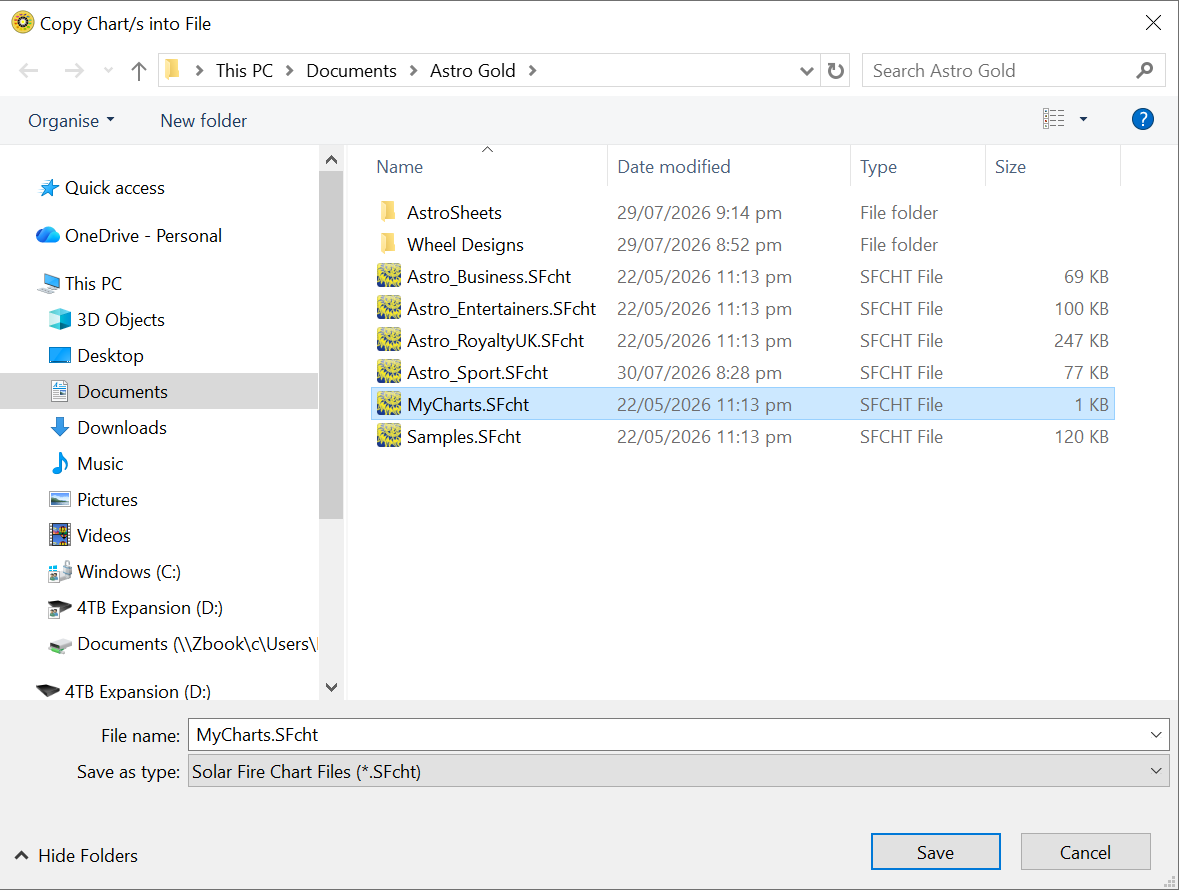 Copy Chart(s) dialog |
6.Alternatively click on the Cancel button to exit from the dialog box and return to the "Saved Charts" dialog.